


Усі найкращі моделі з вбудованими інструментами.
Шукайте в інтернеті, проводьте глибокі дослідження, читайте файли, створюйте зображення й запускайте код з GPT, Claude, Gemini, Grok та іншими.
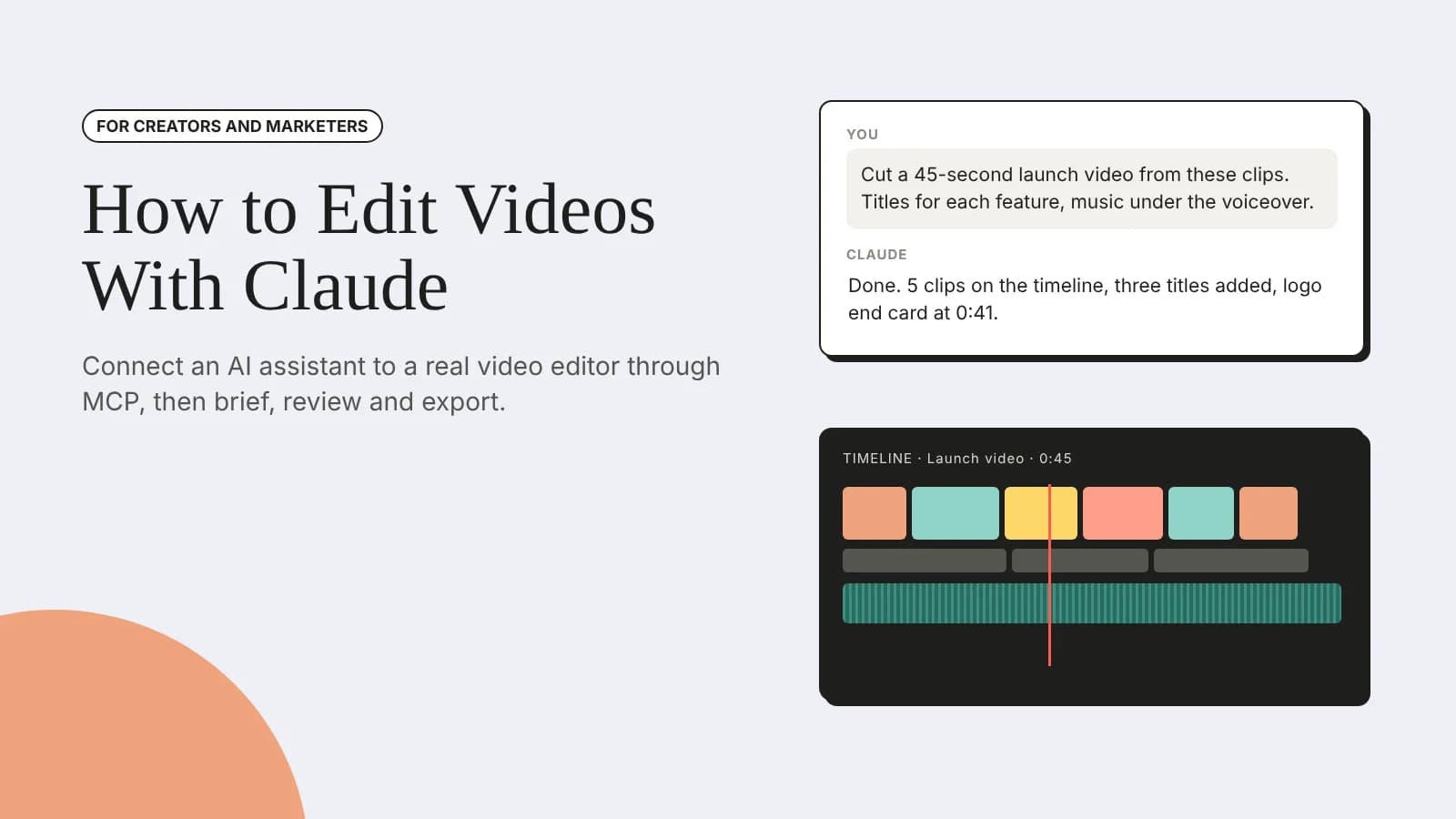
Edit videos with Claude by connecting it to a real video editor through MCP: set up the connector, brief the edit, refine the cut and export.
Editing videos with Claude means connecting the assistant to a real video editor so it can cut clips, place footage, add captions and mix audio on a timeline while you describe what you want in plain language. Claude cannot edit a video file on its own. Once it is connected to an editor through the Model Context Protocol (MCP), it can work on an actual project that you can watch, change and export.
This is quickly becoming a normal way to work. Wyzowl's 2026 video marketing research found that 63% of video marketers have used AI tools to help create or edit marketing videos, up from 51% a year earlier. MCP itself is young: Anthropic introduced it as an open standard in November 2024, and many tools, including video editors, now offer MCP servers that Claude can connect to.
This guide shows how the connection works, how to set it up in Claude, how to brief Claude on an edit and how to refine and export the result.
| Task | Example request to Claude | What you still decide |
|---|---|---|
| Rough cut | "Cut a 30-second teaser from this footage with the strongest moments and a title card up front." | Which moments really are the strongest |
| Captions | "Add word-by-word captions, bold white on a dark backing, clear of the lower third." | Checking names and terms for accuracy |
| Audio | "Duck the music under the voiceover and bring the mix to -14 LUFS." | Whether the final mix sounds right |
| Color | "Color correct the interview clips so the skin tones match." | The overall look and mood |
| Versions | "Rebuild this cut as a 9:16 vertical for Reels." | Which version goes on which platform |
MCP works like a universal connector between an AI assistant and other software. In Anthropic's announcement, it is described as "an open standard for connecting AI assistants to the systems where data lives." When a video editor offers an MCP server, Claude can see the editor's tools, such as cutting, placing clips or adding text, and use them when you ask.
The result is an assistant that takes action rather than one that only answers questions. If that distinction is new to you, this plain-English guide to what AI agents are explains the idea well.
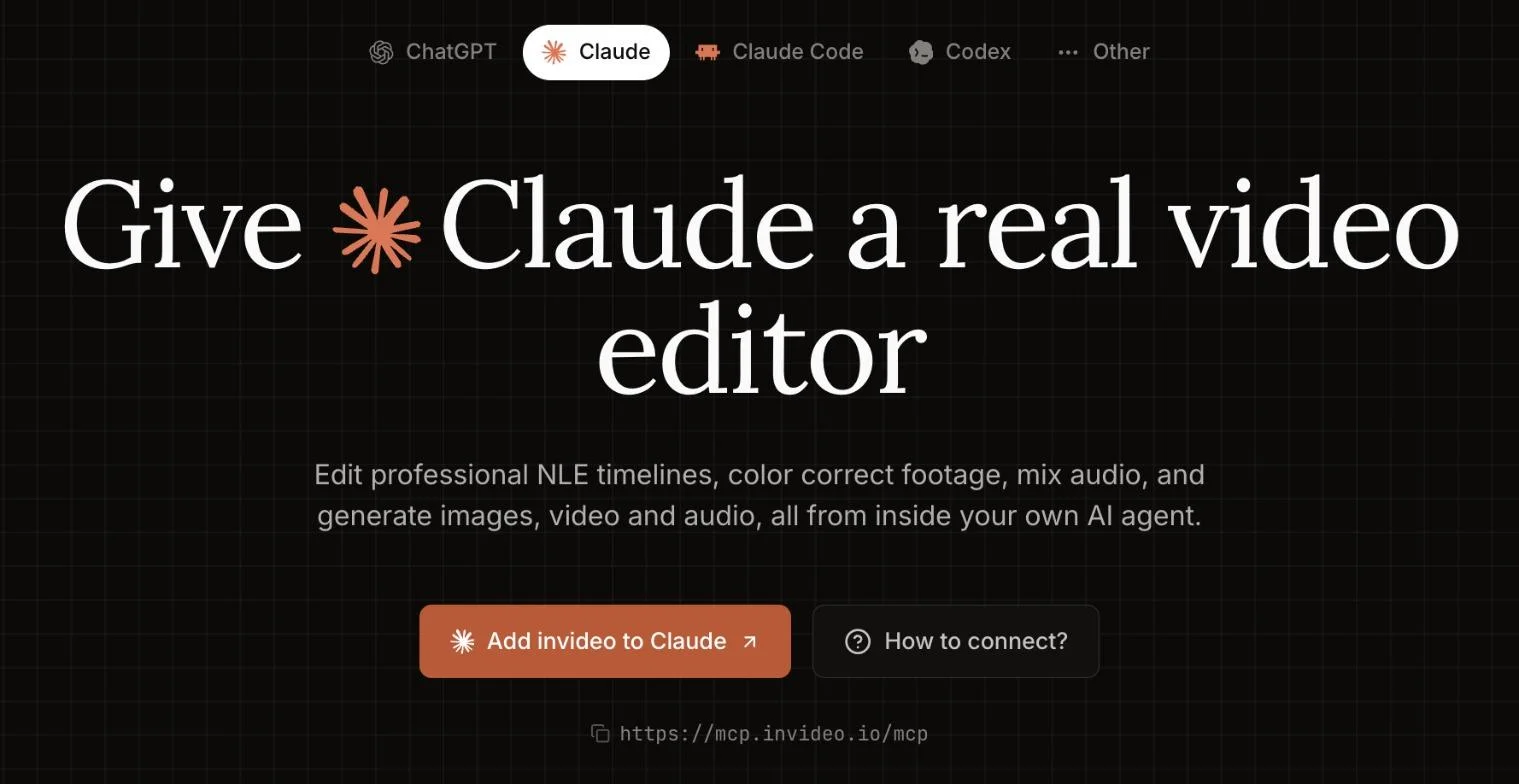
The Claude option on invideo's remote agents page, with the MCP server URL. Source: invideo.io
Not every MCP connection gives Claude the same level of control. If you are looking for the best MCP video editor, choose one that works on a full multitrack timeline you can also edit by hand, so you never lose control of the project. Invideo Editor offers its timeline editor as a remote MCP server for Claude and other compatible assistants. Claude makes explicit edits such as cuts, clip placement, text and effects, can color correct and mix audio, and every change appears in your browser as it happens.
Two details matter for a smooth setup. Connecting does not need an API key, because Claude asks you to sign in with your editor account when it connects. And because Claude and you share the same timeline, you can take over at any frame or restore an earlier checkpoint if a change goes in the wrong direction.
Once you have chosen an editor, add it to Claude as a custom connector. According to Claude's help center, the steps on Pro and Max plans are:
https://mcp.invideo.io/mcp.Some editors offer a shortcut. Invideo's connection page has an "Add invideo to Claude" button that opens Claude's connector settings with the name and URL already filled in. On Team and Enterprise plans, an owner adds the connector for the organization first, and members then connect individually.
To use the connector in a conversation, click the + button at the lower left of the chat, choose Connectors and switch the editor on.
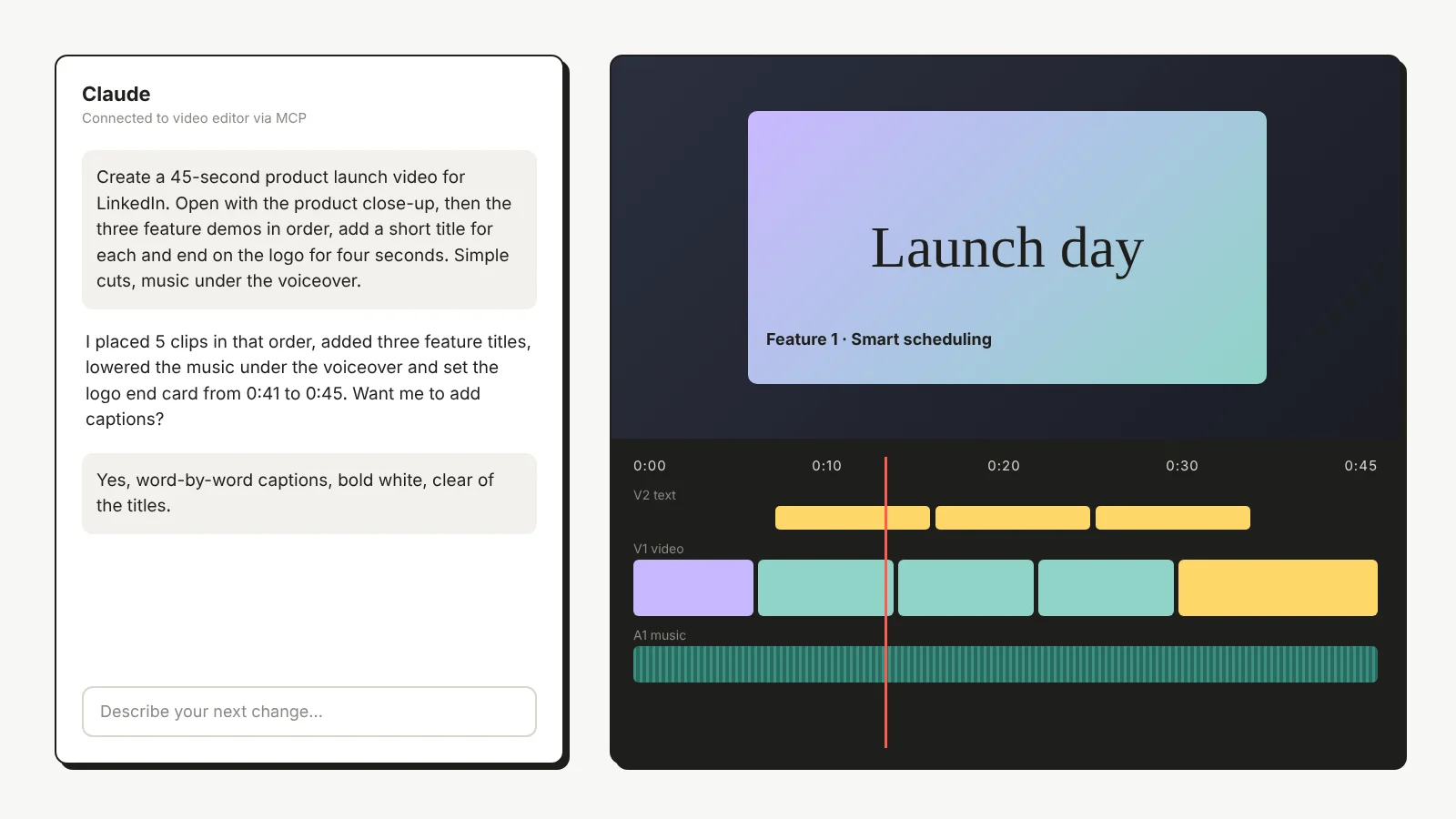
Illustration: a Claude brief beside the editable timeline it updates.
Upload your footage to the editor project, then give Claude a brief with the same detail you would give a human editor: the goal, the audience, the length, the structure and anything to avoid. For example:
Create a 45-second product launch video for LinkedIn from the clips in this project. Open with the close-up of the product in use, then show the three feature demos in order, add a short title for each feature and end on the logo with our website for four seconds. Use simple cuts, keep the voiceover clear and lower the music under it.
The more specific the brief, the closer the first cut will be. It also helps to keep the brief in one place so you can reuse it; this guide to a content creation workflow that scales with AI shows how to build repeatable briefs.
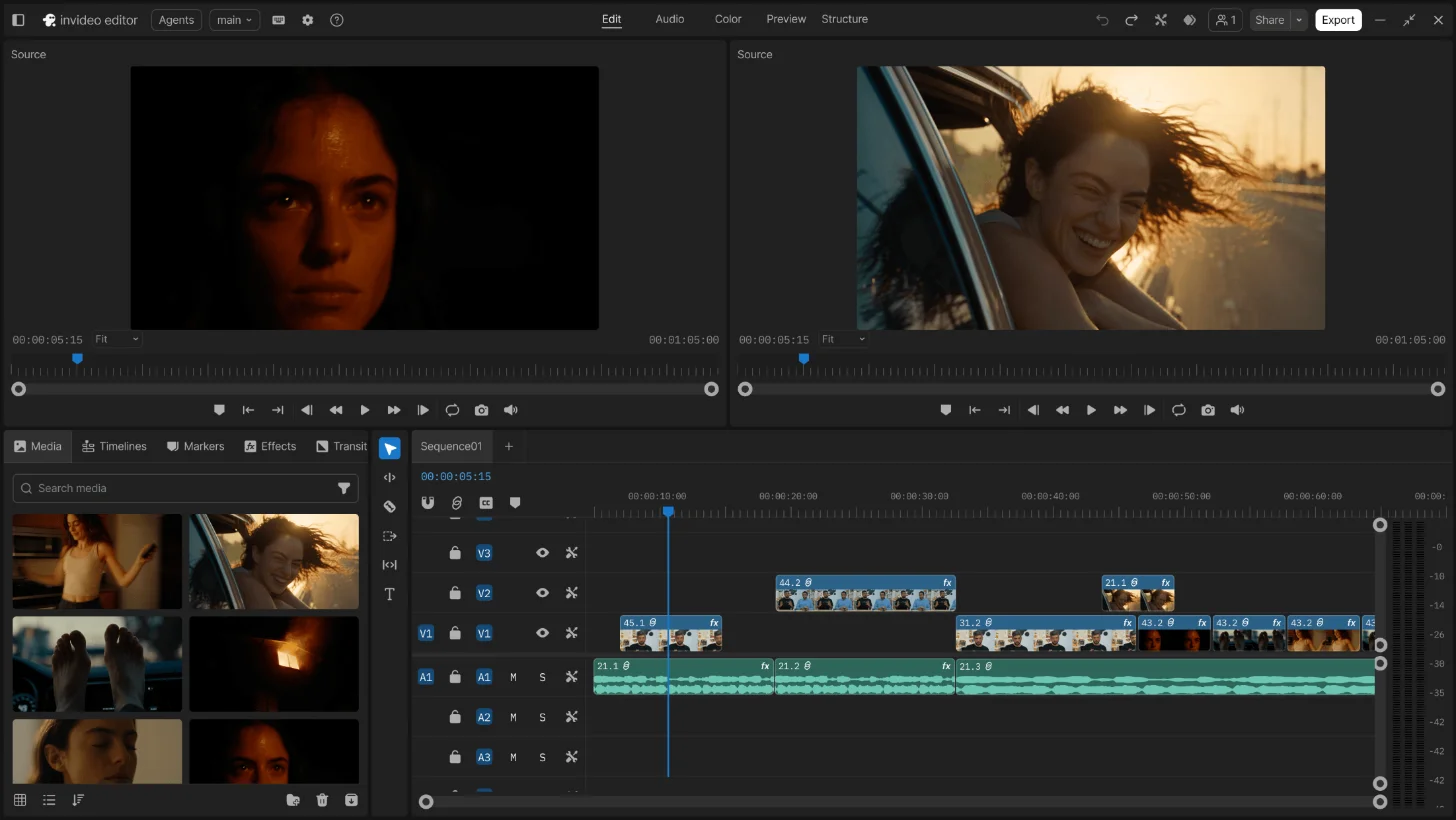
Invideo editor workspace with viewers, media library and multitrack timeline. Source: invideo
Watch the first version from start to finish, then give feedback one change at a time:
Because the timeline is shared, you can also make a change yourself and ask Claude to continue from there. If a round of edits does not work, restore an earlier checkpoint instead of starting again.
Finishing touches are where an assistant saves the most repetitive work. Ask Claude to add captions, clean up room noise, balance the music and voiceover or rebuild the cut as a vertical version for Reels, Shorts and TikTok. You can also ask it to generate supporting shots, such as b-roll of a city at sunrise placed between interview answers, although AI-generated media usually uses credits on the editor's side.
When the video is ready, export a rendered file for publishing. With invideo, you can also export an editable project for Premiere Pro, Final Cut Pro or DaVinci Resolve if a colleague wants to continue in their usual software.
Claude's help center recommends a few sensible habits for any custom connector. Only connect servers from organizations you trust, review the permissions a connector asks for, turn off tools you do not need and be careful with "Allow always" for actions that change your files.
These habits matter more as you connect Claude to more of your tools. If you are still deciding which assistant to use for this kind of work, these comparisons of Claude vs ChatGPT and Perplexity vs Claude are a good place to start.
No. Claude needs a connection to a video editor before it can change a project. MCP is the standard way to make that connection, and once it is in place Claude can use the editor's tools on your behalf.
Custom connectors using remote MCP are available on Free, Pro, Max, Team and Enterprise plans. Free users can add one custom connector, and Team and Enterprise connectors are added by an organization owner.
Not with editors that support sign-in. With invideo, for example, you paste the server URL or use the one-click button, then sign in with your account. No API key or code is required.
Yes. With an editor that shares the same timeline, you can change any cut, title or audio level yourself, then ask Claude to continue from your version.
Your Claude plan's usage limits apply to the conversation. On the editor side, check the pricing for AI-generated media such as new b-roll, which usually uses credits.
Yes, if the editor supports it. Invideo's MCP server also works with ChatGPT, Cursor, Claude Code and other clients that support remote MCP servers.
Claude becomes a capable video editing assistant the moment it can reach a real editor. Choose an editor with an MCP server and a full timeline, add it as a connector in Claude, brief it clearly and refine the cut one change at a time. You keep the creative decisions, and Claude handles the repetitive work. What is the first video you would hand to Claude?
Платіть менше, ніж за одну підписку на ШІ, і отримайте GPT, Claude, Gemini та інші, а також понад 50 інструментів ШІ.


Нам довіряють команди в






Найкращі моделі, а також інструменти для зображень, відео й голосу в одному тарифі.
Без Zemith
ChatGPT PlusUS$20.00Claude ProUS$20.00Google AI ProUS$19.99Grok PremiumUS$30.00Perplexity ProUS$20.00 MidjourneyUS$10.00
 ElevenLabsUS$6.00Le Chat ProUS$14.99
 RunwayUS$15.00Kling StandardUS$8.80
 Gamma PlusUS$12.00
 Otter ProUS$16.99
 QuillBot PremiumUS$19.95
 Photoroom ProUS$12.99
 Quizlet PlusUS$7.99
Загалом при окремій оплатіUS$234.70/міс.
"I love the way multiple tools they integrated in one platform. Going in the right direction."
— simplyzubair
"The quality of data and sheer speed of responses is outstanding. I use this app every day."
— barefootmedicine
"The credit system is fair, models are perfect, and the discord is very responsive. Quite awesome."
— MarianZ
"Just works. Simple to use and great for working with documents. Money well spent."
— yerch82
"The organization of features is better than all the other sites — even better than ChatGPT."
— sumore
"It lives up to the all-in-one claim. All the necessary functions with a well-designed, easy UI."
— AlphaLeaf
"The team clearly puts their heart and soul into this platform. Really solid extra functionality."
— SlothMachine
"Updates made almost daily, feedback is incredibly fast. Just look at the changelogs — consistency."
— reu0691
Доручіть дослідження, тексти, дизайн і повторні листи. Zemith сам обере потрібні інструменти й поверне готовий результат.
Шукайте в інтернеті, проводьте глибокі дослідження, читайте файли, створюйте зображення й запускайте код з GPT, Claude, Gemini, Grok та іншими.
Zemith продовжує працювати в хмарі й повідомить, коли закінчить.
Notion, Linear, Canva, Airtable та інші. Zemith питає, перш ніж щось створити чи змінити.
Документи, презентації, таблиці та PDF, готові до надсилання.
Поєднуйте моделі й інструменти на візуальному полотні: від одного промпту до готового проморолика.
Зведення, звіти й нагадування запускаються за розкладом і готові, коли вони вам потрібні.
Голос у реальному часі, що бачить вашу камеру або екран.
Найкращі моделі для зображень і відео в одній студії.
Перетворюйте PDF, посилання й відео з YouTube на подкасти, тести, картки та ментальні карти.














 Подкаст
 Тест
 Картки
 Ментальна карта
 Інфографіка