
How to Analyze Data with AI: A 2026 Guide for Non-Coders
Use ChatGPT, Claude, or Gemini to analyze CSVs without writing code. Real workflows, specific prompts, file limits, and the accuracy catch nobody warns you about.
How to Analyze Data with AI: A Practical Guide for Non-Coders (2026)
TL;DR
Key findings:
- ChatGPT Advanced Data Analysis and Claude both run Python on your uploaded files and render charts — they're not just reading text
- A 2025 study found 48% of chatbot responses contained accuracy issues; always spot-check at least three numbers before acting on AI analysis
- Claude handles multi-file sessions (up to 20 files, 30MB each) and writes better narrative summaries; ChatGPT is faster for quick queries and supports more file types
- Google Sheets + Gemini is included in Workspace Business Standard at $14/user/month — the lowest-friction option if your data already lives in Sheets
- For datasets over 50,000 rows or files over 30MB, general-purpose chatbots break down; use a purpose-built tool instead
Most non-developers face the same situation: a spreadsheet full of data and no SQL, no Python, and no time to learn either. Hiring an analyst for a one-off question is overkill. That's exactly the gap AI data analysis fills in 2026.
The problem is most guides say "just upload your CSV and ask questions," then stop there. That skips the part where the AI confidently gives you wrong totals, or where your 80MB file silently fails to upload. This guide covers the actual workflow: which tool to pick, the prompts that produce useful outputs, and the accuracy check you have to run before trusting any number that comes back.
Pick Your Tool First
These four tools cover most non-developer use cases. They're not interchangeable.
| Tool | Best For | File Limit | Price (as of June 2026) |
|---|---|---|---|
| ChatGPT Advanced Data Analysis | Quick summaries, broad file type support | ~50MB spreadsheets | $20/month (Plus) |
| Claude + Artifacts | Multi-file analysis, narrative summaries, Python charts | 30MB/file, 20 files/session | $20/month (Pro) |
| Google Sheets + Gemini | Data already in Sheets; formula generation | Native (no upload needed) | Included in Workspace Business Standard ($14/user/month) |
| Microsoft Excel + Copilot | Teams already deep in Microsoft 365 | Native (no upload) | $30/user/month add-on to M365 base plan |
If you're starting from scratch with $20 to spend, ChatGPT Plus and Claude Pro are comparable in overall capability. The difference shows up in your specific workflow, which the sections below break down.
For data that already lives in Google Sheets, start with Gemini there first. No upload step, no file size anxiety, and no risk of accidentally attaching sensitive files to an AI chat.
Workflow 1: ChatGPT Advanced Data Analysis
ChatGPT's Advanced Data Analysis mode, enabled by default on Plus, runs actual Python code in a sandboxed environment. When you upload a file and ask a question, it writes Python behind the scenes, executes it, and returns the results. Charts it generates are downloadable PNGs.
Step 1: Prepare your file
Keep spreadsheets under 25MB for reliable uploads. The theoretical cap is 50MB, but upload failures become more frequent above 25MB, especially during peak hours. If your dataset has more than 50,000 rows, export a filtered or sampled version first. Name your columns clearly — "Q1_Revenue_USD" beats "Col_C."
Step 2: Upload and set context
Don't just drag the file in and type "analyze this." Provide context before asking for anything:
"I'm uploading a CSV of Q1 2026 sales data. Columns are: date (YYYY-MM-DD), rep_name, product_category, deal_value_usd, and region. First: (1) confirm you can see all columns and tell me how many rows are in the file. (2) Run a data quality check — flag missing values, obvious outliers, or formatting issues. Then (3) show me the top 3 products by total revenue."
Starting with a data quality check and a row count catches problems before you trust any downstream analysis. If the AI says it sees 3,000 rows and you know the file has 12,000, something went wrong with the upload.
Step 3: Ask follow-up questions one at a time
Don't batch everything into one prompt. Work iteratively:
- Data validation
- Summary statistics (totals, averages, distributions)
- Specific comparisons or trends you care about
- Visualization: "Make a bar chart of top 10 reps by total deal_value_usd"
Step 4: Export what you need
ChatGPT can generate downloadable CSVs with cleaned or transformed data, plus charts. If you want an Excel file, say so explicitly: "Export the rep performance summary as an Excel file with the chart on a separate sheet."
Workflow 2: Claude + Artifacts
Claude handles data differently. It executes code and renders results as interactive Artifacts — charts and tables that appear in a sidebar panel, separate from the conversation text. You can download them or share them via a public link.
Where Claude has an edge over ChatGPT:
Multi-file analysis is Claude's clearest advantage. A Claude Pro session supports up to 20 files (30MB each). If your analysis needs a sales CSV cross-referenced against a product catalog or a customer list, you can upload all of them in one session without workarounds.
Claude also writes better narrative analysis. If you need a summary memo suitable for stakeholders, Claude's prose output requires less editing. It's also more likely to flag data inconsistencies and ask clarifying questions before proceeding, rather than silently making assumptions about ambiguous columns.
A prompt that works:
"I'm sharing a CSV of support ticket data. Before doing any analysis, tell me: how many rows did you process? What's the date range covered? Are there any columns with more than 5% missing values? Then: (1) show me ticket distribution by category, (2) calculate average resolution time per category, (3) flag any categories where average resolution time exceeds 48 hours, and (4) generate an Artifact bar chart of ticket volume by category."
The row count and date range questions at the start verify Claude actually processed the whole file. On large or complex files, it sometimes processes only a preview.
Limits to know: Claude's data analysis works best with structured CSVs under 10MB and 50,000 rows. Very wide datasets (100+ columns) or files with complex nested structures can produce unpredictable behavior. For heavy numeric computation, ChatGPT's Python environment is sometimes more reliable — Anthropic's Claude documentation covers the current feature specifics.
Workflow 3: Google Sheets + Gemini
If your data already lives in Sheets, Gemini is the most frictionless option — no file preparation, no upload step, no context switching.
Gemini in Sheets is included in Google Workspace Business Standard at $14/user/month as of June 2026. Access it through the "Ask Gemini" sidebar in any Sheet.
What Gemini in Sheets does well:
Formula generation from plain English. "Create a SUMIF that totals column D where column B equals 'Enterprise'." It writes and inserts the formula. For common formulas (SUMIF, COUNTIF, VLOOKUP, basic IF statements), this works reliably. For complex multi-sheet references or nested ARRAYFORMULA structures, it's less consistent — according to Google's own documentation, formula reliability drops with compound expressions.
Summarization and trend identification. "Summarize the revenue trend in column F over the last 90 days" returns a written narrative in the sidebar based on the actual cell values.
Pivot table generation. Describe what you want to aggregate and Gemini creates the pivot table. This alone saves 10-15 minutes for anyone who finds pivot tables intimidating.
What it doesn't do: Gemini in Sheets won't generate Python visualizations or export transformed data as a new downloadable file the way ChatGPT or Claude will. For charts beyond standard Sheets types, you still do that manually. It's an in-place analysis assistant, not a full data analysis environment.
The Accuracy Check You Can't Skip
This is the part most guides leave out.
AI chatbots can give you confidently wrong numbers. A May-June 2025 study across popular AI chatbots found 48% of responses contained accuracy issues, with 17% classified as significant errors. For general knowledge questions, that's a nuisance. For data analysis where business decisions follow the numbers, it's a real problem.
A 2026 benchmark across 37 frontier models found hallucination rates of 3.1% to 19.1% across task types. For structured data analysis specifically, rates still exceeded 15% across most tested models.
This happens because LLMs predict tokens — they don't perform arithmetic. When running actual Python code (as ChatGPT and Claude do in data analysis mode), results are more reliable than when the model reasons about numbers in text. But errors in how the model writes the code — how it handles null values, how it interprets column names, whether it uses the right aggregation logic — cascade into wrong answers.
The spot-check rule: Before acting on any AI analysis, manually verify at least three outputs:
- Take the largest number in the output. Verify it with a manual formula in your original spreadsheet.
- Take one category comparison. Check one data point from each side.
- If there's a percentage or growth rate, re-calculate it from the raw numbers.
If any check fails, re-prompt and ask the model to re-run that specific calculation. If the second run differs from the first, treat the AI's output on that question as unreliable and verify the full result manually.
Sharpening how you phrase questions reduces errors too. Our AI prompt engineering tips for beginners covers the core techniques for getting more precise outputs across any AI tool.
Data You Should Never Upload to a Cloud AI
Sending a CSV to ChatGPT or Claude passes that file through those companies' servers. For most business and personal data, that's fine. For some data, it isn't.
Don't upload to free or personal-plan AI tools:
- Personal health information (PHI): Requires a HIPAA Business Associate Agreement with the vendor — that's an enterprise-tier arrangement, not a $20/month plan
- Customer PII (names, emails, national ID numbers): Free-plan data protections don't meet GDPR or CCPA standards for third-party data sharing
- Payroll and salary data: HR data in unencrypted form belongs in tools with proper access controls, not in a chat window
- Trade secrets or unreleased product details: Both Anthropic and OpenAI offer enterprise plans with data isolation and no training on your content — use those if this data needs to move through AI
- Anything under an NDA that restricts third-party sharing: Read the NDA before uploading
ChatGPT Enterprise and Claude Enterprise both include data isolation and don't train on your content. For regulated industries, those are the right tiers. For genuinely sensitive data where cloud storage isn't acceptable, run a local model. Ollama lets you run open-source models on your own machine with nothing leaving your network.
If you're regularly feeding AI into broader business workflows with sensitive data, see our guide on AI tools for project managers, which covers enterprise tool selection and data governance in more depth.
When a Chatbot Isn't the Right Tool
General-purpose AI chatbots have real limits. Recognize them before you waste time:
Datasets over 50,000 rows or files over 30MB. Most chatbots either fail the upload, silently truncate, or time out. Purpose-built tools like Julius AI handle larger datasets with a proper data pipeline behind them. For enterprise scale, Metabase, Looker, or Tableau are more appropriate.
Streaming or real-time data. File uploads work on static snapshots. If you need live analysis of data that updates by the minute, you need a BI tool that connects directly to your database.
Repeatable automated analysis. If you're running the same analysis every week on new data, manually re-uploading each time isn't a workflow — it's a habit you'll break. Automate it: use Make or Zapier to pipe data to an AI API, or write a simple Python script with pandas that does the same thing on a schedule. Our guide on using AI to automate daily tasks covers the basics.
Regulated financial reporting. AI outputs don't meet audit standards. Use AI for exploratory work and pattern-finding, not for numbers that go into formal filings or signed reports.
FAQ
Can ChatGPT analyze Excel files?
Yes. ChatGPT Plus accepts XLSX files up to approximately 50MB. It converts the spreadsheet to a data structure, runs Python analysis, and can output charts or a cleaned CSV. For files with multiple sheets, specify which sheet to analyze or ask ChatGPT to list the available sheets first before proceeding.
Is Claude better than ChatGPT for data analysis?
It depends on what you're doing. ChatGPT is faster for quick summaries and handles more file types. Claude is better for multi-file sessions, narrative output, and datasets that need careful cross-referencing. Both cost $20/month. The honest answer: test both with your actual data on your actual question, because the difference is dataset-specific.
Can I analyze data with AI for free?
Yes, with limits. ChatGPT free allows three file uploads per day. Claude free has reduced data analysis capabilities compared to Pro. Google Sheets with Gemini is included in Workspace subscriptions at the Business Standard tier (14/user/month). For regular use beyond a few files per week, the 20/month paid plans earn their cost quickly. See our free vs. paid AI tools breakdown for how to think about the upgrade decision.
How accurate is AI data analysis?
More reliable than having the AI reason about numbers in text, less reliable than properly tested code. A 2025-2026 benchmark across frontier models found hallucination rates of 3.1% to 19.1% depending on task type, with structured data analysis tasks exceeding 15% in most tested models. Always spot-check key numbers manually before acting on them.
What file types work best for AI data analysis?
Clean, structured CSVs are the most reliable input for any AI data tool. Complex Excel files with formulas, merged cells, or multiple interconnected sheets often don't parse correctly — export to CSV first if you're getting inconsistent results. ChatGPT accepts CSV, XLSX, JSON, and plain text. Claude accepts similar formats. Neither handles database files (.sqlite, .db) directly; export to CSV first.
Conclusion
AI data analysis is genuinely useful for the majority of non-developer use cases: reasonably sized CSVs, standard business questions, exploratory pattern-finding. The tools are capable enough that the limiting factor is usually the prompt and the verification step, not the AI itself.
Start with the tool you already pay for. Upload a file you've been meaning to look at and use one of the prompt templates from this guide. The spot-check rule takes two minutes per analysis and will save you from acting on a wrong number at least once in the first week.
If you want to run the same analysis through multiple AI models and compare outputs without switching tabs, Zemith gives you access to Claude, GPT-5, and Gemini in one place.
Explore Zemith Features
Every top AI. One subscription.
ChatGPT, Claude, Gemini, DeepSeek, Grok & 25+ more








Always on, real-time AI.
Voice + screen share · instant answers
What's the best way to learn a new language?
Immersion and spaced repetition work best. Try consuming media in your target language daily.
Voice + screen share · AI answers in real time
Image Generation
Flux, Nano Banana, Ideogram, Recraft + more

Write at the speed of thought.
AI autocomplete, rewrite & expand on command
Any document. Any format.
PDF, URL, or YouTube → chat, quiz, podcast & more
Video Creation
Veo, Kling, Grok Imagine and more

Text to Speech
Natural AI voices, 30+ languages
Code Generation
Write, debug & explain code
Chat with Documents
Upload PDFs, analyze content
Your AI, in your pocket.
Full access on iOS & Android · synced everywhere
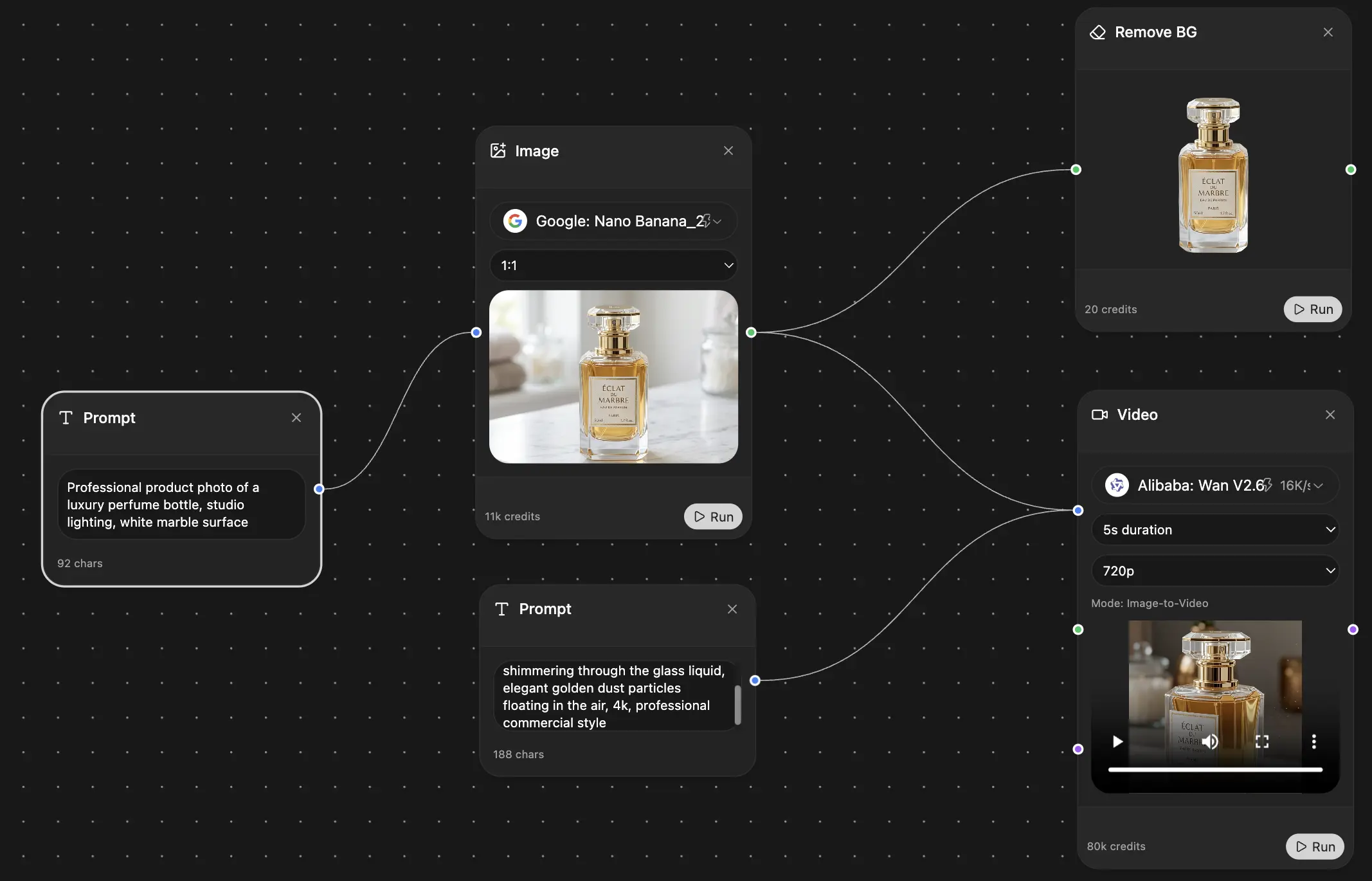
Your infinite AI canvas.
Chat, image, video & motion tools — side by side
Save hours of work and research
Transparent, High-Value Pricing
Trusted by teams at






Free
No credit card required
- 100 credits daily
- 3 AI models to try
- Basic AI chat
Plus
- 1,000,000 credits/month
- 25+ AI models — GPT, Claude, Gemini, Grok & more
- Agent Mode with web search, computer tools and more
- Creative Studio: image generation and video generation
- Project Library: chat with document, website and youtube, podcast generation, flashcards, reports and more
- Workflow Studio and FocusOS
Professional
- Everything in Plus, and:
- 2,100,000 credits/month
- Pro-exclusive models (Claude Opus, Grok 4, Sonar Pro)
- Motion Tools & Max Mode
- First access to latest features
- Access to additional offers