


Every top model, with tools built in.
Search the web, run deep research, read files, create images and run code with GPT, Claude, Gemini, Grok and more.
Struggling with git merge conflict resolution? Discover effective techniques and real-world examples to resolve conflicts swiftly and prevent future issues.
Git merge conflict resolution is all about manually stepping in when Git can’t figure out how to combine changes from two different branches on its own. The process involves you, the developer, deciding which code to keep, cleaning up the special markers Git inserts, and then committing the correct version to finalize the merge.

Merge conflicts can feel like a major roadblock, but they’re actually a normal, healthy part of working on a team. A conflict is just Git’s way of hitting pause and saying, “I see two different changes to the same spot, and I need a human to make the final call.” It wisely hands the reins back to you, the developer, who has the context to make the right decision.
This usually happens when Git comes across competing changes it can't automatically blend together. For instance, imagine two developers are working on the same checkout page. One developer, on a feature branch, updates the button text from "Pay Now" to "Complete Purchase." At the same time, another developer on a different branch changes that same button text from "Pay Now" to "Secure Checkout."
When it's time to merge both of these branches into main, Git looks at that one line of code and sees two different histories. It has no way of knowing which change is the correct one, so it flags a conflict.
These situations are incredibly common and require you to jump in and sort things out. You can handle this directly in the file with a text editor or use a visual merge tool like the one built into VS Code or a dedicated app like P4Merge. And if a conflict looks too messy to untangle, remember you can always abort the merge and rethink your approach.
To help you get ahead of these issues, here are some of the most frequent scenarios that trigger a merge conflict.
Knowing what to look for makes the whole process less intimidating. The key is to spot the conflict, understand the cause, and then confidently apply the right fix.
The first step in any git merge conflict resolution is simply noticing that you have one. When you try to run a merge that triggers a conflict, Git won't be subtle. It will stop everything and give you a clear warning in your terminal.
You’ll see a message like: Automatic merge failed; fix conflicts and then commit the result.
That message is your cue. Git has already done the helpful work of marking up the conflicted files to show you exactly where the trouble is. Inside the file, you'll find a few distinct visual markers:
<<<<<<< HEAD: This points to the beginning of the code from your current branch (what Git calls "ours").=======: This line is a separator. Everything above it is your change, and everything below it is the incoming change.>>>>>>> [branch-name]: This marks the end of the code from the other branch you're trying to merge (what Git calls "theirs").Actionable Insight: By understanding these markers, you transform a cryptic error message into a clear map pointing directly to the problem areas. This knowledge removes the initial panic and allows you to approach the resolution process with confidence and a clear plan of action. Your job is simply to clean up these markers and decide what the final code should look like.
So, Git has just flagged a merge conflict. Don't sweat it. This isn't a sign of failure; it's Git tapping you on the shoulder and asking for your expert opinion. The automated merge hit a snag and paused, so it's time for you to step in and sort things out. Once you know the ropes, cleaning up the file and finalizing the merge is pretty straightforward.
Your first step is to open up the conflicted files in your favorite code editor. Git makes this easy by listing them for you right in the terminal, usually under a heading like "Unmerged paths." When you open one up, you'll immediately see the conflict markers Git inserted: <<<<<<<, =======, and >>>>>>>. These are your signposts for fixing the issue.
Think of these markers as a visual breakdown of the two competing changes.
<<<<<<< HEAD and ======= shows the changes from your current branch (what Git often calls "ours").======= and >>>>>>> [branch-name] shows the incoming changes from the branch you're trying to merge in (what Git calls "theirs").Your job is to play editor and decide what the final version of the code should look like. You've got a few options here:
Maybe you need to keep a function name from your version but accept a new parameter that was added in the incoming one. It's a judgment call. Once you've made your decision and scrubbed all the <<<<<<<, =======, and >>>>>>> markers from the file, it should look exactly as you want it to appear in the project's history.
This handy visual breaks down the three core parts of a conflict marker you'll need to deal with.
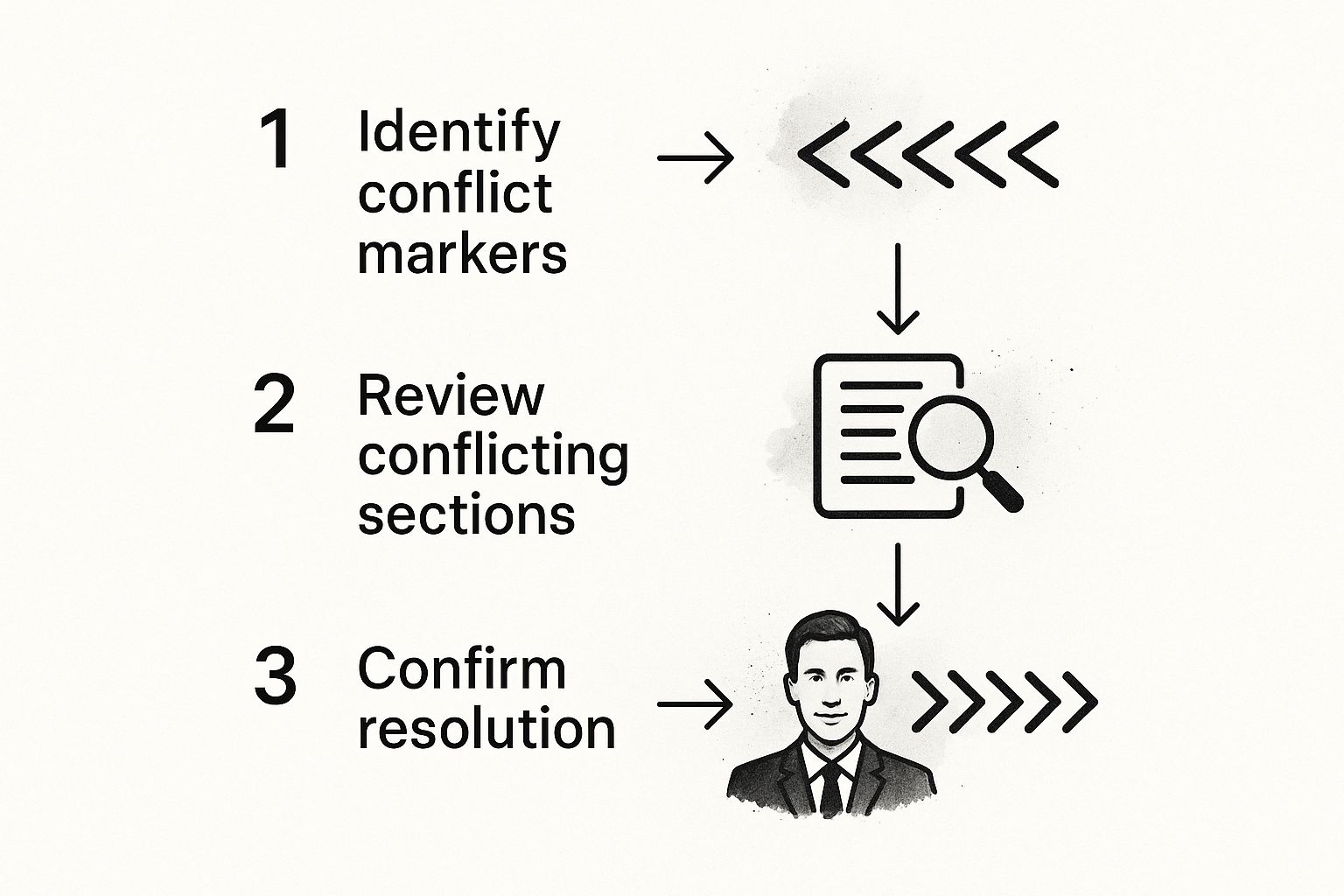
The key takeaway is that each marker has a specific job: one points to your changes, one separates the two versions, and the last one signals the end of the incoming changes.
Once you've edited all the conflicted files and they look good, you need to let Git know you're done. This is a critical step in the git merge conflict resolution process. You’ll stage the cleaned-up files using the git add command.
git add conflicted-file-1.js conflicted-file-2.css
Adding the files tells Git the manual part is over and you're ready to move forward. This doesn't create a new commit just yet; it simply marks the conflicts as officially resolved.
With all your resolved files staged, the final step is to run git commit.
git commit
This command will open your text editor so you can write a commit message. Git usually populates it with a helpful default message like "Merge branch 'feature-branch'," which you can either keep as is or add more detail to. As soon as you save that message, the merge is finalized. A new merge commit is created, officially weaving the two histories together.
Actionable Insight: For teams looking to smooth out these bumps, more advanced platforms like Zemith have integrated coding assistants that can help. These tools can explain what complex code blocks are doing, which can speed up debugging and give you the context you need to resolve conflicts faster. It’s all about making more informed decisions when you're blending changes.
And that's it! Your branch is now successfully merged, and that conflict is a thing of the past.
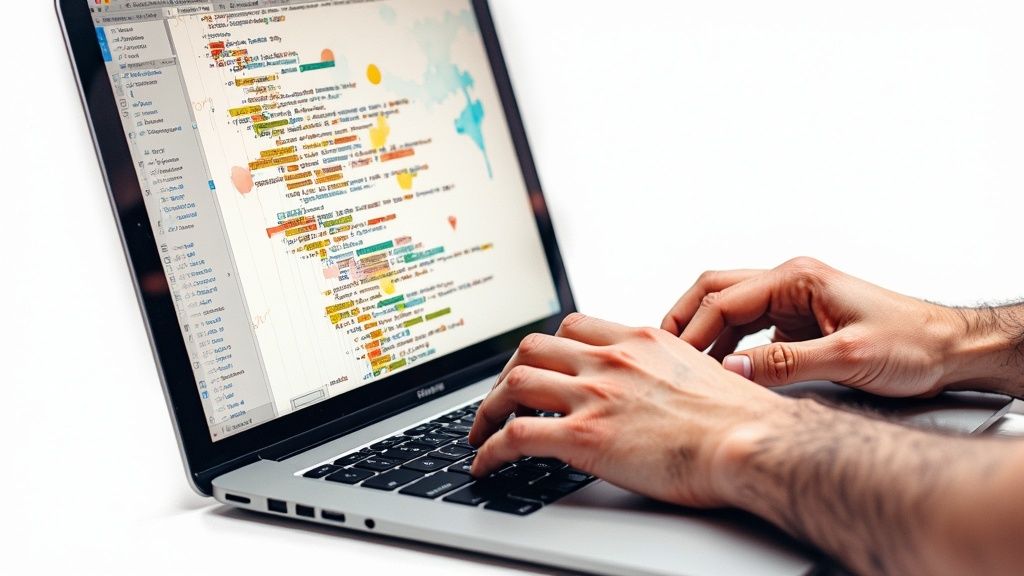
While getting comfortable with the command line is essential for truly understanding Git, you don't have to live there. Modern tools can take the pain out of merge conflicts, speeding things up and seriously cutting down on the risk of human error.
Visual diff and merge tools, especially those baked right into editors like VS Code, turn a confusing mess of conflict markers into a clear, interactive interface.
For many developers, a good graphical user interface (GUI) is the key to untangling complex conflicts. These tools lay everything out for you, so you can focus on the why of the code changes, not the how of fixing the conflict syntax.
They usually show you a three-way view: your changes, their changes, and the final result in the middle. Instead of manually hacking away at <<<<<<<, =======, and >>>>>>> markers, you just click buttons to accept the changes you want. It's far more intuitive.
A few popular options you'll run into are:
Actionable Insight: A visual tool gives you a map of the conflict, letting you make faster, more confident decisions. The idea isn't to forget how Git works under the hood but to enhance your workflow, turning a frustrating roadblock into a quick pit stop.
Choosing the right tool often comes down to the complexity of the conflict and your personal preference. Here’s a quick breakdown to help you decide which approach to take.
Ultimately, having all three in your toolkit means you're prepared for whatever kind of merge mess comes your way.
The next leap forward in handling merge conflicts is all about artificial intelligence. New tools are emerging that can analyze your code, understand the intent behind the changes, and suggest smart resolutions automatically. In fact, some studies have found that developers using AI-powered tools can slash their resolution times by up to 25%.
Actionable Insight: For teams wanting to get ahead of conflicts before they even happen, a platform like Zemith offers a more integrated approach. Its built-in AI coding assistant helps streamline the entire review and integration process. By encouraging better code quality and collaboration from the start, these kinds of tools help tackle the root causes of nasty merges. You can learn more about the benefits of an AI-powered coding assistant in our guide.
The right tool for you really depends on your team's workflow and the types of projects you handle, but adopting a more modern approach is a surefire way to boost everyone's productivity.

When it comes to git merge conflict resolution, the best offense is a good defense. While knowing how to fix a conflict is essential, you can save your team a world of hurt by adopting habits that prevent them from happening in the first place. This is all about shifting from a reactive mindset of cleaning up messes to a proactive one built on collaboration.
The single most effective habit you can build is to pull frequently from the main branch. I mean it—before you even think about starting a new task or writing a fresh line of code, run a quick git pull origin main. This simple command syncs your local repository with the latest team updates, ensuring you're not building on outdated code. It’s a tiny action that sidesteps a huge number of potential conflicts.
Long-running feature branches are merge conflict magnets. It's a classic scenario: a branch stays open for weeks while the main branch evolves, and by the time you try to merge, the two have diverged so much that integration feels like open-heart surgery.
The trick is to keep your branches as short-lived as possible. Break down big features into smaller, bite-sized tasks that can be coded, reviewed, and merged within a day or two. This approach means you’re doing smaller, more frequent merges, which are infinitely easier to handle if a conflict does pop up. Plus, it keeps a steady stream of progress flowing into the main codebase.
Actionable Insight: By keeping branches focused and brief, you ensure that merges are small, incremental updates rather than massive, high-risk integrations. This not only prevents conflicts but also makes your code review process faster and more effective.
Just as important as short-lived branches are small, focused commits. Every commit should represent a single, logical unit of work—fixing one bug, adding one function, or refactoring one module. Resist the temptation to lump unrelated changes into a single monster commit. It makes your intentions impossible to decipher and turns resolving a merge conflict into a nightmare.
Actionable Insight: For any team looking to sharpen their skills, digging into version control best practices is a great next step. Clean, atomic commits create a clear, readable project history that becomes a lifesaver during debugging.
At the end of the day, a surprising number of merge conflicts are just symptoms of poor communication. If two developers are unknowingly editing the same file, they're on a collision course. Regular, open communication is your best tool to avoid this.
Actionable Insight: There's a clear link between well-defined workflows and team output. Studies have shown that teams prioritizing communication and frequent merges can boost their release frequency by 40%. Platforms like Zemith help tackle this head-on by creating integrated AI-powered workspaces that centralize project information, fostering the kind of collaborative environment where conflicts are far less likely to happen.
Eventually, every developer runs into a merge conflict that’s more than just a few mismatched lines of code. These tricky situations can feel a bit daunting at first, but once you know the right commands, they become just another part of the workflow. Honestly, knowing how to navigate these edge cases is what really levels up your Git game.
A classic headache is dealing with a conflict in a binary file. Think PNG images, compiled libraries, or PDFs. Git can't show you the usual line-by-line differences with conflict markers, so you're left with a simple, stark choice: which version do you keep?
When a binary file is in conflict—or even when a text file's changes are so tangled that manually merging them is out of the question—you have to pick a winner. This is where git checkout really shines.
You can explicitly tell Git which side of the conflict to accept:
git checkout --ours path/to/file.png: This command keeps the version from your current branch and simply throws away the incoming changes.git checkout --theirs path/to/file.png: On the other hand, this one overwrites your version, accepting the file from the branch you're trying to merge.Once you run the command, just git add the file to let Git know the conflict is resolved. It’s a powerful way to end the debate and move on, but be careful. You're intentionally discarding one person's work, so make sure it's the right call.
Here’s another one that trips people up: the "deleted by us, modified by them" conflict. This happens when you delete a file in your branch, but in another branch, a teammate has been busy making changes to that exact same file. Git gets stuck, asking, "Did you really mean to delete all their new work?"
To get past this, you have to state your intention clearly.
git rm path/to/file.git add path/to/file.This gives Git the final answer it needs to complete the merge.
Actionable Insight: In these more complex situations, your job is to give Git the clarity it's missing. By decisively choosing a version or confirming an action like a deletion, you take control and steer the merge to a successful finish.
Conflicts during a git rebase can feel a lot more confusing than a standard merge. That’s because a rebase works by replaying each of your commits, one by one, on top of another branch. When a conflict pops up, the whole process pauses mid-replay, and you're left in a temporary, detached HEAD state.
The fix is pretty similar—you edit the conflicted file and then git add it. But to move forward, you run git rebase --continue instead of git commit. And if things get too messy and you just want out, git rebase --abort is your escape hatch.
A pro tip for dealing with complex logic during a rebase is to simplify the code before you even start. We have a whole guide on how to refactor code that can make this process way smoother. The key with a rebase is to just focus on solving one conflict at a time as Git moves through each commit.
Even when you've got the hang of fixing conflicts, some situations just feel tricky. We've all been there. Knowing the right command or concept can be the difference between a five-minute fix and an hour of frustration. Let's walk through some of the questions I hear most often from developers.
These are the real-world curveballs that Git can throw at you. Having a clear answer ready will make you that much more confident the next time you see those dreaded conflict markers.
First off, don't panic. This is probably the most common fear, and thankfully, Git gives you a fantastic escape hatch. If you're in the middle of resolving conflicts and realize you've made a complete mess, you can instantly hit the rewind button.
As long as you haven't committed the merge yet, just run this command:
git merge --abort
This command is a lifesaver. It stops the merge process cold and puts your branch right back to the state it was in before you started. It's a completely safe way to get a clean slate with zero negative consequences.
Now, what if you've already finished the merge and made the commit? You can still undo it. The command git reset --hard HEAD~1 will roll back that last merge commit. Just be careful with this one—a hard reset discards any uncommitted local changes you might have. It’s always a good idea to stash anything important before you run it.
This is a classic point of confusion, and it gets even trickier when you start using rebase. The terms "ours" and "theirs" are relative, and their meaning flips depending on what you're doing.
Here’s the breakdown:
git merge: "Ours" is the branch you’re currently on (your feature-branch, for example). "Theirs" is the branch you're pulling in (like main).git rebase: The roles are reversed! "Ours" becomes the branch you are rebasing onto (e.g., main), and "theirs" is your current branch (feature-branch) whose changes are being re-applied.Actionable Insight: Understanding this distinction is absolutely crucial. I've seen developers accidentally discard their own work during a rebase because they got this backward. Always double-check which operation you're in the middle of before choosing.
For complex, logical conflicts, full automation is a bad idea. An automated script simply doesn't have the context to understand the intent behind the code. But for simpler choices or scripted workflows, you absolutely can.
You can use merge strategies to tell Git to automatically favor one side over the other.
For example, git merge -Xours will resolve every conflict by keeping the version from your current branch. On the flip side, -Xtheirs will automatically accept all the incoming changes. This is really handy for specific, predictable situations, but it's no replacement for a manual review in most day-to-day development. The best approach is to use tools that augment human decision-making, like AI assistants that provide context to help you resolve conflicts faster and more accurately.
Managing code shouldn't feel like you're constantly fighting your tools. At Zemith, we're building an all-in-one AI platform designed to make your development workflow smarter, not just harder. With everything from a coding assistant that helps you debug tough issues to smart notepads that organize your thoughts, Zemith gives you the integrated tools you need to focus on what you love—building great software. Explore the full suite of AI tools at Zemith.






Trusted by teams at






The top models, plus image, video and voice tools, in one plan.
Without Zemith
ChatGPT PlusUS$20.00Claude ProUS$20.00Google AI ProUS$19.99SuperGrokUS$30.00Perplexity ProUS$20.00 MidjourneyUS$10.00
 ElevenLabsUS$6.00Le Chat ProUS$14.99
 RunwayUS$15.00Kling StandardUS$8.80
 Gamma PlusUS$12.00
 Otter ProUS$16.99
 QuillBot PremiumUS$19.95
 Photoroom ProUS$12.99
 Quizlet PlusUS$7.99
Total if paying separatelyUS$234.70/mo
"I love the way multiple tools they integrated in one platform. Going in the right direction."
— simplyzubair
"The quality of data and sheer speed of responses is outstanding. I use this app every day."
— barefootmedicine
"The credit system is fair, models are perfect, and the discord is very responsive. Quite awesome."
— MarianZ
"Just works. Simple to use and great for working with documents. Money well spent."
— yerch82
"The organization of features is better than all the other sites — even better than ChatGPT."
— sumore
"It lives up to the all-in-one claim. All the necessary functions with a well-designed, easy UI."
— AlphaLeaf
"The team clearly puts their heart and soul into this platform. Really solid extra functionality."
— SlothMachine
"Updates made almost daily, feedback is incredibly fast. Just look at the changelogs — consistency."
— reu0691
Hand off the research, writing, design and follow-ups. Zemith picks the tools it needs and brings back finished work.
Search the web, run deep research, read files, create images and run code with GPT, Claude, Gemini, Grok and more.
Zemith keeps working in the cloud and pings you when it's done.
Notion, Linear, Canva, Airtable and more. It asks before it creates or changes anything.
Docs, slides, sheets and PDFs, ready to send.
Chain models and tools on a visual canvas, from one prompt to a finished promo video.
Briefings, reports and reminders run on a schedule and are ready when you need them.
Real-time voice that can see your camera or screen.
The best image and video models, in one studio.
Turn PDFs, links and YouTube videos into podcasts, quizzes, flashcards and mind maps.













 Podcast
 Quiz
Quiz Flashcards
 Mind map
 Infographic