Boost Focus: Top Team Productivity Tools
Drowning in apps? Discover team productivity tools that consolidate workflows, reduce cognitive load, and boost focus. An all-in-one platform helps.
Your team probably has a chat app for “quick questions,” a project board for “accountability,” docs for “collaboration,” a whiteboard for “brainstorming,” and a mystery tool someone bought during a free trial and forgot to cancel. Everyone is technically equipped. Nobody can find anything.
That's the modern work joke. It stops being funny around the third time someone asks, “Was that feedback in Slack, email, or the task comments?”
Most articles about team productivity tools respond to this chaos by handing you an even longer shopping list. More apps. More categories. More tabs. That's how teams end up with a digital junk drawer instead of a system.
True productivity gains usually isn't adding one more specialized tool. It's cutting the friction between the tools you already use, then consolidating where the handoffs keep breaking. If your team feels busy all day and still finishes the week wondering what was accomplished, tool fatigue is probably the culprit.
The Productivity Paradox More Tools Less Work Done
A familiar scene. The product manager updates Asana. Engineering discusses blockers in Slack. Marketing leaves launch notes in Google Docs. Leadership wants status in email. Someone builds a dashboard in another app because “the others don't give us the full picture.”
By Friday, the team hasn't failed from lack of effort. They've failed from too many places to pay attention.

This is the productivity paradox. Teams adopt software to create clarity, then end up spending half their energy translating work across systems. The problem isn't that Slack, Asana, Gmail, Trello, Notion, or Zoom are bad tools. The problem is that every extra handoff adds a little drag, and drag adds up.
Why the frustration feels so lopsided
The gap between leadership and staff is bigger than many managers realize. Roughly 68% of managers believe productivity software clearly boosts performance, while 72% of employees feel it has no effect or even lowers productivity, according to Teamwork's review of productivity software adoption.
That split makes sense in the wild. Managers often see dashboards, timelines, and cleaner reporting. Employees feel the tax: duplicate updates, notification overload, and the joyless ritual of copying the same decision into three different places.
Practical rule: If a tool improves reporting for managers but adds admin for everyone else, the team will quietly resent it.
A lot of teams don't have a motivation problem. They have a systems problem. The work is scattered, so attention gets scattered too. If that feels familiar, it's worth understanding the cost of context switching in daily work, because that's usually where the hours disappear.
What app chaos looks like in real life
A few signs show up again and again:
- Status lives everywhere: The “latest update” depends on who you ask.
- Ownership gets blurry: One task exists in chat, in a board, and in someone's head.
- Meetings multiply: Teams schedule syncs just to reconcile what the tools failed to reconcile.
- Search becomes archaeology: Finding one decision feels like excavating an ancient city, except with worse UX.
When teams say they need better team productivity tools, they often mean they need fewer disconnected ones.
Decoding the Jargon What Are Productivity Tools Anyway
“Productivity tools” sounds broad because it is. The label covers half the software stack in a modern company. A simpler way to think about it is this: these are the digital tools your team uses to decide, do, document, and deliver work.
Think of them as a Swiss Army knife for coordination. The catch is that organizations often buy the blades separately, then wonder why the whole thing feels awkward in their pocket.

The common categories teams actually use
Most team productivity tools fall into a few practical buckets.
Communication hubs
Slack and Microsoft Teams sit here. These tools replace a lot of internal email and make quick coordination easier. They work well for rapid questions, updates, and informal decisions.
The downside is obvious to anyone who's returned from lunch to 84 unread messages. Fast communication is not the same thing as organized work.
Task and project management
Asana, Trello, ClickUp, Jira, and Monday.com are the traffic cops. They assign owners, track deadlines, and show progress. When they're maintained properly, they reduce ambiguity.
When they aren't, they become decorative software. Plenty of boards look very impressive right up until you ask whether the cards match reality.
Document collaboration
Google Docs, Notion, and Microsoft 365 make shared writing possible. Teams use them for briefs, specs, meeting notes, and drafts. This category matters because decisions need a written home, not just a chat thread that vanished under memes and release alerts.
Knowledge management
Confluence, Notion, internal wikis, and shared libraries all try to answer one question: where does important information live after the meeting ends? Good knowledge systems speed up onboarding and reduce repeated questions. Bad ones become abandoned digital attics.
Time tracking and scheduling
Calendars, scheduling tools, and time trackers help teams plan capacity and see how work is being spent. They're less glamorous, but they reveal where workflow friction is hiding.
The newer category that changes the shape of work
There's now a more interesting category emerging: the AI-powered workspace. Instead of doing one job well and tossing the rest to integrations, it combines drafting, research, summarization, document interaction, and collaboration in one place.
That matters because a lot of modern work isn't just “manage the task.” It's also “find the context, summarize the thread, produce a first draft, compare options, then hand off cleanly.” If you've been trying to understand why this interface shift matters, this overview of conversational AI in practical terms is a useful lens.
A tool category exists because a team problem exists. The trouble starts when every problem gets its own app.
The goal isn't memorizing categories. It's seeing why the stack gets bloated so fast. Once you can see the map, you can spot where consolidation will help more than expansion.
The Hidden Costs of Juggling Too Many Apps
Subscription cost is the obvious expense. Finance sees it. Procurement sees it. Nobody throws a parade for it, but at least it's visible.
The nastier cost is invisible. It shows up in fractured attention, duplicated admin, weak handoffs, and the weird mental strain of trying to remember whether the latest file is in Drive, attached in email, buried in Slack, or linked in a task you forgot to open.

Your brain is not a browser with infinite tabs
Every tool asks your team to remember a different logic. Different notifications. Different search behavior. Different naming conventions. Different permissions. Different places where “the answer” might be hiding.
That's not just inconvenient. It changes how people work. A 2025 McKinsey report on AI in the workplace notes that teams using multiple AI tools at the same time report marginally higher output, but also significantly higher self-reported multitasking and context-switching fatigue, as discussed in this workplace efficiency analysis.
In plain English, teams may get a bit more done while feeling noticeably more fried. That's not a great trade if your best people are spending their day as human middleware.
The hidden costs that hit hardest
Some costs are easy to miss because they look like “normal work.”
- Onboarding drag: New hires don't just learn the job. They learn the maze.
- Search tax: Time disappears while people hunt for decisions, files, and prior context.
- Handoff leakage: One team finishes work, but the next team starts with partial information.
- Tool fatigue: People stop updating systems because the systems ask too much from them.
- Security sprawl: More tools mean more permissions, more access points, and more things to govern.
Your team doesn't need more dashboards if nobody trusts where the data came from.
The friction lives between the apps
This is the part many software buyers miss. Individual tools can be excellent and still create a broken operating environment when combined carelessly.
Slack may be great for speed. Notion may be great for documents. Jira may be great for issue tracking. Put them together without a clear workflow, and people spend the day translating information from one format into another like overworked diplomats.
A useful gut-check is simple:
The big productivity loss usually isn't caused by a missing feature. It's caused by all the tiny seams where tools fail to talk cleanly, and humans have to bridge the gap.
The Rise of the All-in-One AI Powerhouse
The next wave of team productivity tools isn't just a bundle of chat, docs, and tasks with a shinier sidebar. The useful shift is the AI layer that sits across research, writing, summarization, planning, and execution.
That changes the shape of work. Instead of bouncing between one app to think, another to write, and another to organize, teams can work in a space that helps them process information as they go.

Why this model is gaining traction
AI has already moved from novelty to daily workflow. In a 2025 workplace productivity roundup, 37.4% of U.S. workers reported using generative AI at work, up from 33.3% the prior year, and the same review says workers who use generative AI save roughly 5.4% of their work hours. It also estimates about 1.3% aggregate productivity growth across the workforce, including non-users, with about 33% productivity gain per hour of AI-assisted work. The same source notes OECD experimental studies showing AI-driven gains in business processes ranging from 5% to over 25%, and that remote workers log about 29 additional productive minutes per day compared with in-office peers, according to ActivTrak's workplace productivity statistics roundup.
That's a lot of movement in a short time. The implication is practical: teams increasingly need tools that don't treat AI as a bolt-on toy, but as part of everyday execution.
What the AI workspace actually fixes
The most useful all-in-one setups reduce two kinds of waste at once: information overload and app switching.
Integrated AI assistants can compress information density by 60% to 80%, and some organizations report up to a 25% to 30% decrease in post-meeting documentation overhead, according to this review of AI-powered collaboration and summarization tools. That's not just about nicer summaries. It means decisions become easier to recover, meetings create less cleanup, and new contributors can get context faster.
Here's the practical pattern teams should look for:
- Shared context: Conversations, files, and generated outputs live near each other.
- Built-in summarization: Long threads and documents don't require heroic rereading.
- Research inside the workflow: Teams can compare, draft, and refine without opening six tabs.
- Multi-format collaboration: Writing, voice, visual thinking, and technical work can happen in one environment.
One example is Zemith's AI platform comparison and workspace approach. It combines multi-model AI access, document chat, a smart notepad, coding tools, image generation, whiteboarding, live voice interaction, and organized project spaces in a single interface. That kind of setup is useful for teams that are tired of paying for separate AI subscriptions while still copying context from one place to another.
What this looks like in practice
A content team can keep research, drafts, and edits tied to the same project. A product team can summarize meeting notes, extract action items, and store them with the relevant docs. A developer can move from requirements to explanation to code help without changing tools every five minutes.
That's the shift. The tool isn't just storing work. It's helping shape it.
A quick product walkthrough helps make the category more concrete:
When AI reduces search, summarization, and setup friction inside the same workspace, the gain feels less like automation and more like regained attention.
That's why the all-in-one AI workspace has become the interesting end of the market. It doesn't just centralize tools. It centralizes thought process.
How to Choose the Right Tools for Your Team
Buying software while annoyed is how teams end up with expensive clutter. The better move is to diagnose the friction first, then choose fewer tools that solve a full workflow instead of one isolated step.
A clean decision process beats feature shopping every time.
Start with a stack audit
Before comparing platforms, list the tools your team already uses for chat, docs, tasks, meetings, research, and file storage. Then ask uncomfortable questions.
- Where does work start? If the answer is “it depends,” that's already a problem.
- Where do decisions live? If nobody agrees, your system is leaking context.
- What requires copy-paste labor? Those are your highest-friction handoffs.
- Which tools get ignored? Abandoned tools are telling you something.
Field test: Ask a new team member where they'd look for the latest project brief, action items, and decisions. If they hesitate, the stack is too messy.
Prioritize workflow depth over feature breadth
A long features page can be weirdly comforting. Resist it. The point of team productivity tools is not to collect capabilities like Pokémon cards. It's to make routine work easier.
Look for software that supports a complete chain of work. For example: research to draft, meeting to action items, task to discussion, document to summary. Deep integration across a few critical workflows is usually more valuable than ten flashy features that live in separate corners.
If your team is evaluating consolidation options, this guide to digital workspace solutions for modern teams is a solid reference point for what to compare.
Mapping Team Needs to Tool Capabilities
Calculate the real ROI
Don't just compare subscription lines. Compare the total operating cost of the stack your team lives inside every day.
That includes:
- Admin burden: How much routine updating does the tool demand?
- Training load: How much teaching will new hires need?
- Search friction: How hard is it to find the latest truth?
- Switching cost: How often do people leave one app to finish one task?
The right choice often looks less like “the most powerful tool” and more like “the toolset people will keep using without cursing under their breath.”
Best Practices for a Smooth Tool Rollout
Even smart tool decisions fail when rollout feels like software being dropped from a helicopter. People don't resist change because they're lazy. They resist messy change that makes their week harder.
If you want adoption, treat implementation like behavior design, not procurement.
Get buy-in before you mandate
Ask the team where the current stack slows them down. Don't ask in abstract terms. Ask where work gets duplicated, where updates go missing, and which app they'd happily launch into the sun.
That input matters because employees feel the friction most directly. It also helps prevent the classic rollout mistake: leadership buying a system that looks efficient from above and feels exhausting from inside.
Start with one or two workflows
Don't migrate everything at once. Start where the pain is obvious and recurring.
Good rollout candidates include:
- Meeting follow-up: Centralize notes, summaries, and action items.
- Project intake: Create one clear place where work begins.
- Document collaboration: Keep drafts, feedback, and related discussion together.
Teams using integrated collaboration platforms report measurable efficiency gains when communication, task tracking, and file sharing are centralized, which can free up hours per week per employee that would otherwise be spent switching contexts, according to Training Magazine's guide to team productivity tools.
Give the rollout a human face
Pick a champion. Not the person with the highest title. The person others trust to explain things without sounding like a policy memo.
A strong champion does three things well:
- Models usage: They use the new workflow visibly.
- Answers questions fast: Small confusion kills momentum.
- Shares wins: They show how the new setup saves time in real situations.
People adopt tools faster when they can see a coworker using them successfully, not when they're handed a 47-slide rollout deck.
Celebrate boring wins
Nobody needs a dramatic transformation speech. They need proof that the new system reduced a headache.
Call out moments like these:
- A meeting summary turned into tasks without manual cleanup.
- A new hire found the latest project context without asking three people.
- A team completed a handoff without a backup status meeting.
Those small wins build trust. Trust builds usage. Usage is what makes a platform valuable.
Building Your Productivity Command Center
The biggest mistake teams make with team productivity tools is assuming more software means more control. Usually it means more maintenance. More searching. More duplicate updates. More quiet frustration.
A stronger setup looks simpler. Fewer tools. Clearer handoffs. Shared context. AI that helps people move through work instead of adding another layer of clicking and checking.
That's the fundamental command center idea. Not a dashboard wallpapered with widgets. One reliable home for research, decisions, drafts, collaboration, and follow-through.
There's also a physical side to this that too many software discussions ignore. If your team is rebuilding how people work, the environment matters too. Good lighting, sane desk setups, and resources on ergonomic furniture for performance can support focus just as much as a cleaner digital stack.
If you're rethinking your setup, start with one question: which parts of your team's day are work, and which parts are just tool management disguised as work?
A lot of teams discover they've been serving the stack instead of the stack serving them. If that's your current reality, this roundup of the best AI productivity app patterns for consolidating modern work is a sensible next step.
If your team is tired of bouncing between disconnected apps, Zemith is worth exploring as a single workspace for AI-assisted research, writing, document chat, coding help, whiteboarding, and project organization. The practical benefit is simple: fewer tabs to manage, fewer subscriptions to juggle, and a better chance that your team's context stays in one place instead of scattering across the week.
Explore Zemith Features
Every top AI. One subscription.
ChatGPT, Claude, Gemini, DeepSeek, Grok & 25+ more







Always on, real-time AI.
Voice + screen share · instant answers
What's the best way to learn a new language?
Immersion and spaced repetition work best. Try consuming media in your target language daily.
Voice + screen share · AI answers in real time
Image Generation
Flux, Nano Banana, Ideogram, Recraft + more

Write at the speed of thought.
AI autocomplete, rewrite & expand on command
Any document. Any format.
PDF, URL, or YouTube → chat, quiz, podcast & more
Video Creation
Veo, Kling, Grok Imagine and more

Text to Speech
Natural AI voices, 30+ languages
Code Generation
Write, debug & explain code
Chat with Documents
Upload PDFs, analyze content
Your AI, in your pocket.
Full access on iOS & Android · synced everywhere
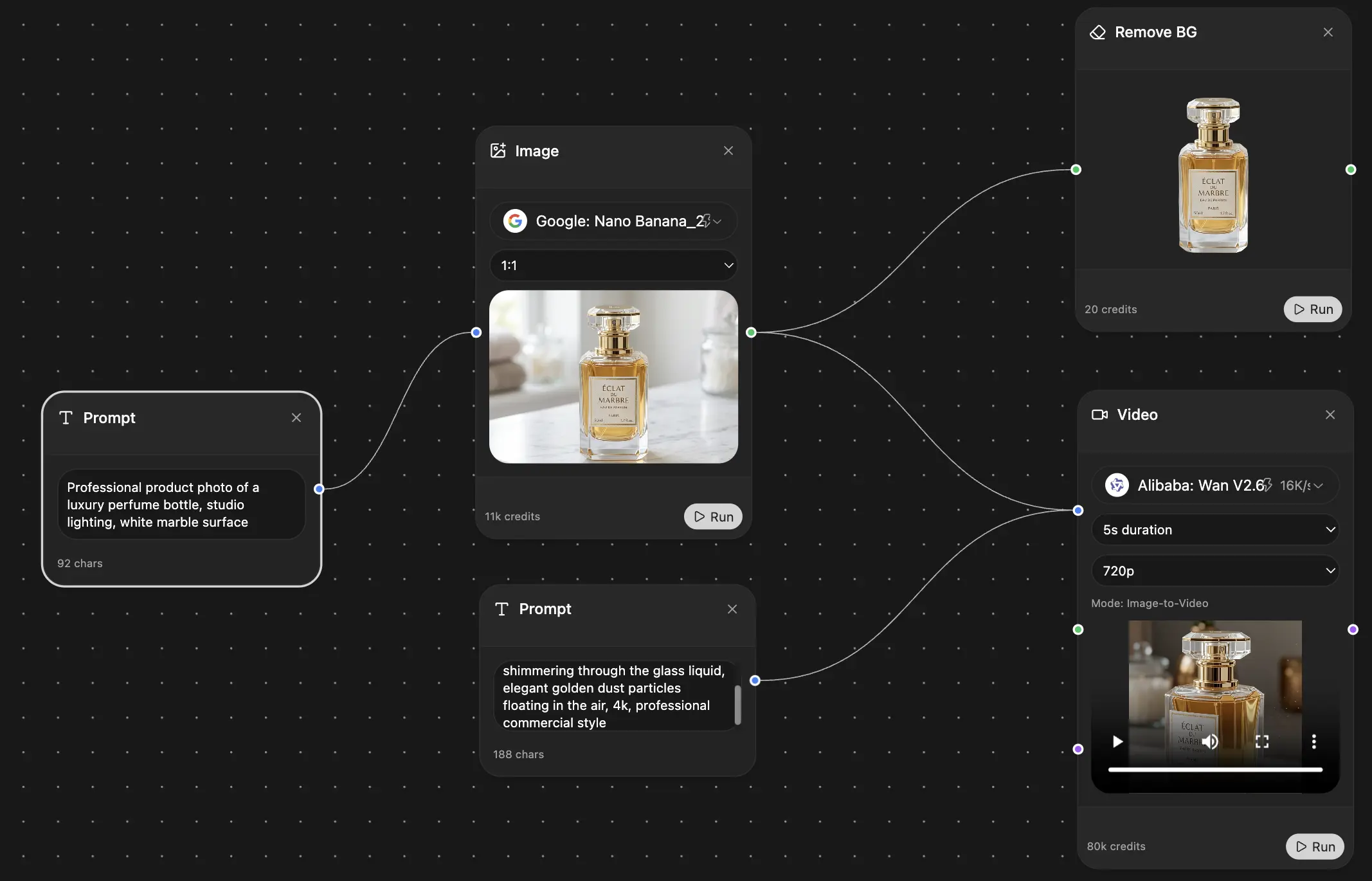
Your infinite AI canvas.
Chat, image, video & motion tools — side by side
Save hours of work and research
Transparent, High-Value Pricing
Trusted by teams at






Free
No credit card required
- 100 credits daily
- 3 AI models to try
- Basic AI chat
Plus
- 1,000,000 credits/month
- 25+ AI models — GPT, Claude, Gemini, Grok & more
- Agent Mode with web search, computer tools and more
- Creative Studio: image generation and video generation
- Project Library: chat with document, website and youtube, podcast generation, flashcards, reports and more
- Workflow Studio and FocusOS
Professional
- Everything in Plus, and:
- 2,100,000 credits/month
- Pro-exclusive models (Claude Opus, Grok 4, Sonar Pro)
- Motion Tools & Max Mode
- First access to latest features
- Access to additional offers
What Our Users Say
Great Tool after 2 months usage
"I love the way multiple tools they integrated in one platform. Going in the right direction."
— simplyzubair
Best in Kind!
"The quality of data and sheer speed of responses is outstanding. I use this app every day."
— barefootmedicine
Simply awesome
"The credit system is fair, models are perfect, and the discord is very responsive. Quite awesome."
— MarianZ
Great for Document Analysis
"Just works. Simple to use and great for working with documents. Money well spent."
— yerch82
Great AI site with accessible LLMs
"The organization of features is better than all the other sites — even better than ChatGPT."
— sumore
Excellent Tool
"It lives up to the all-in-one claim. All the necessary functions with a well-designed, easy UI."
— AlphaLeaf
Well-rounded platform with solid LLMs
"The team clearly puts their heart and soul into this platform. Really solid extra functionality."
— SlothMachine
Best AI tool I've ever used
"Updates made almost daily, feedback is incredibly fast. Just look at the changelogs — consistency."
— reu0691