ChatGPT to PDF: Your Ultimate Guide to Saving AI Chats (Without Losing Your Mind)
Tired of losing brilliant ideas? Learn every method to convert ChatGPT to PDF, from simple browser tricks to advanced tools that will supercharge your workflow.
So you've had a mind-blowing chat with ChatGPT and now you need to save that stroke of genius. What's the plan? The quickest way is your browser's "Print to PDF" feature for a fast snapshot. You could also just copy and paste the text into a document. While these tricks work in a pinch, they can seriously mangle the formatting, especially with code blocks or those marathon chat sessions.
Why Bother Saving ChatGPT Chats as PDFs?
Let's be real, we've all been there. You have a total breakthrough session with ChatGPT, crack a huge problem, and then instinctively close the tab. And just like that… poof. It’s gone, lost to the digital void forever. That sinking feeling is exactly why learning how to convert ChatGPT to PDF isn't just a neat trick—it's an essential part of any smart workflow.
Saving your conversations is about more than just digital hoarding. It's about creating a personal, searchable library of your own best work and ideas. Seriously, your future self will thank you.
Think about these everyday situations:
- Archiving a stroke of genius: You and the AI brainstorm an entire marketing campaign from scratch. A PDF captures every brilliant twist and turn for you to review later.
- Sharing code without the chaos: You generate a complex Python script that finally works. A properly formatted PDF ensures your team sees exactly what you see, dodging the inevitable copy-paste disaster.
- Creating polished client deliverables: You use ChatGPT to outline a project proposal. A clean, well-organized PDF summary looks infinitely more professional than a clunky screenshot.
From Static Archive to Active Asset
By preserving these conversations, you're building a trail. You can track a project's evolution, document your research process, and create a searchable history of your best ideas. Getting a feel for and the way they "think" really drives home the value of keeping these records.
This simple decision tree can help you decide when a conversation is worth keeping.
The flowchart brings up a critical point: archive it or let it go. Making that distinction is key to managing your knowledge effectively. In a world where ChatGPT saw 800 million weekly users by June 2025, tools for saving AI chats became indispensable.
Export features got a serious workout, with 14.5% of sessions tied to coding and another 14.1% for email composition—both perfect candidates for creating client-ready PDFs. A handy shows just how popular these use cases are.
Need a fast answer? Here are the top methods for converting your chats to PDF, from the simplest trick to the most powerful workflow.
Quick Guide to Saving ChatGPT as a PDF
Each method has its place, but the goal is to find what fits your workflow best.
While a basic PDF is a great starting point, platforms like Zemith can turn these static files into active project assets. Instead of just letting a chat collect digital dust in a folder, you can drop it right into a Zemith workspace. There, it becomes a dynamic, searchable part of your project's knowledge base. Building these habits aligns perfectly with the kind of that keep your entire digital life organized.
Quick-and-Dirty Manual Methods That Just Work
Sometimes you don't need fancy tools or browser extensions. You just need a PDF of your ChatGPT conversation right now. These are the foundational, get-it-done methods that work on pretty much any computer. They aren't always pretty, but they are always reliable.
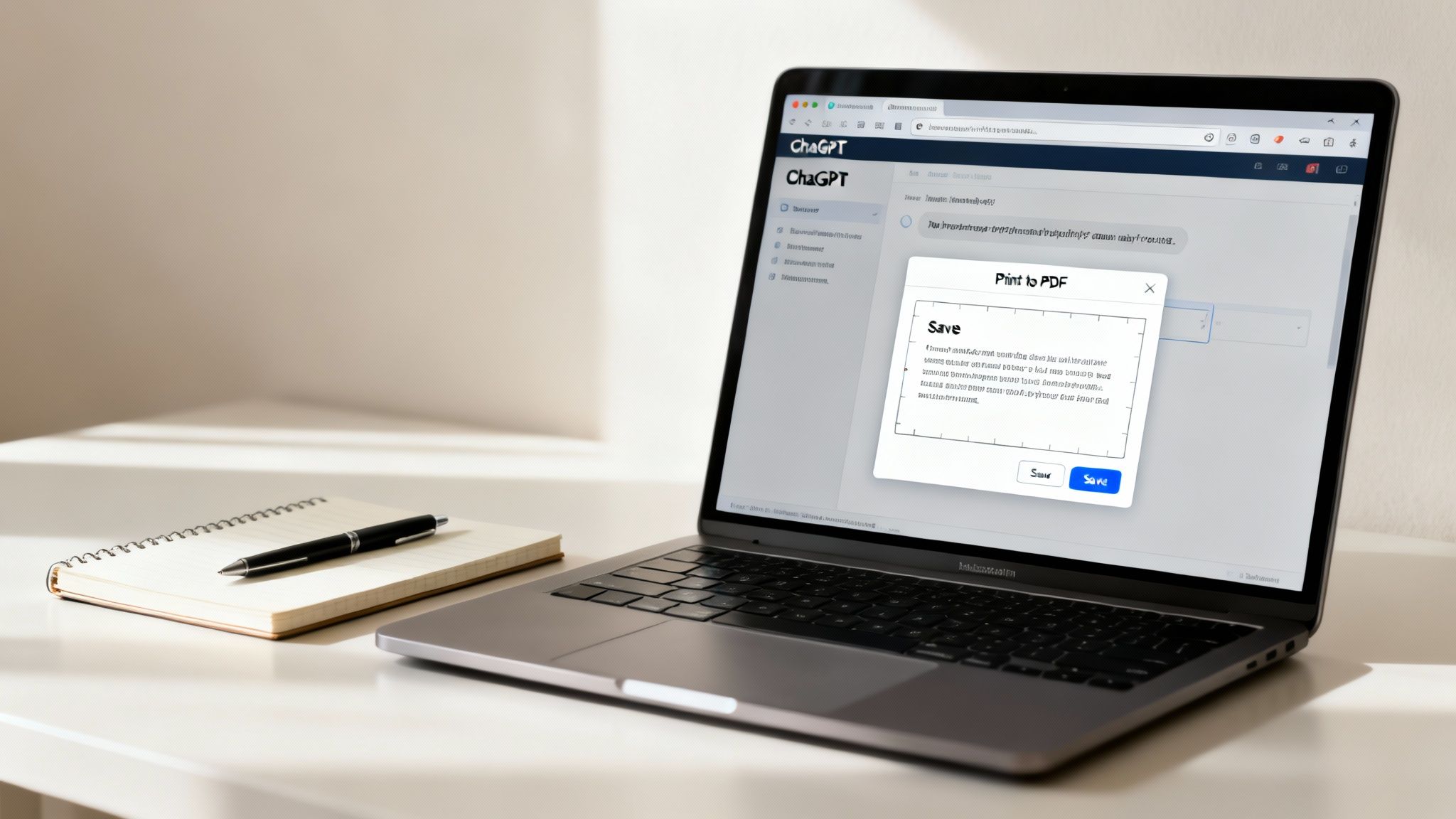
The most universal trick in the book is the good old "Print to PDF." Your browser has this feature built right in, and it’s your fastest path from a live chat to a shareable file. Just hit Ctrl+P (on Windows) or Cmd+P (on Mac) with your ChatGPT conversation on the screen.
A print dialog box will pop up. Instead of picking your office printer (save the trees!), look for a destination called "Save as PDF" or "Microsoft Print to PDF." This tells your computer to create a digital file instead of a physical piece of paper. Quick, simple, and effective.
The Classic Copy and Paste
Of course, there's always the classic copy-paste. It sounds almost too simple, but there's a right way and a wrong way to do it, especially if you're dealing with code blocks or other special formatting. I once sent my boss a PDF where a critical code snippet was a jumbled mess—a mistake I only made once.
To avoid that headache, paste your content into a proper word processor like Google Docs or Microsoft Word. These give you way more control over the final look.
- Use "Paste without formatting": The magic shortcut is Ctrl+Shift+V or Cmd+Shift+V. This strips out all the weird web styling, giving you a clean slate to work with.
- Fix Your Code Blocks: You'll likely need to manually reformat any code snippets. Highlighting them and switching to a fixed-width font like Courier New is a quick way to make them readable and correctly indented again.
- Add Headers and Page Numbers: Want it to look professional? Add a title and page numbers. This is something the direct print method makes surprisingly difficult.
When you're saving chats this way, knowing some basic goes a long way in making your PDFs clean and easy to read. These skills are also handy if you ever need to go the other way; our guide on covers how to pull information back out of your saved documents.
While these manual methods get the job done, they definitely show why a more integrated solution is helpful. For instance, pasting your chat into Zemith's Smart Notepad lets you instantly rephrase and polish the text before exporting, turning a raw conversation log into a professional asset without all the formatting gymnastics.
Browser Extensions: The One-Click Wonders
If wrestling with manual methods feels like churning butter by hand, browser extensions are the glorious, store-bought equivalent. They are fast, reliable, and built to do one thing exceptionally well: convert your ChatGPT conversations into a clean PDF with almost zero fuss. Forget the copy-paste gymnastics; these tools add a simple, dedicated button right into the ChatGPT interface.
Think of them as little specialists living in your browser. With a single click, they scan the entire conversation—even the parts you have to scroll to see—and package it up neatly. This is a total lifesaver for those long, threaded discussions that would otherwise be a nightmare to capture manually. The best ones are even smart enough to preserve tricky formatting for code blocks and embed images directly into the PDF.
Choosing Your Champion Extension
Jumping onto the Chrome Web Store or Firefox Add-ons marketplace can feel a bit overwhelming. Don't just grab the first one you see. I've learned from experience that you need to look for a few key features that separate the good from the truly great.
- Customization is King: Does it let you choose between light and dark themes? Can you add or remove timestamps? The best tools give you control over the final look of your document.
- Format Preservation: This is completely non-negotiable. Look for extensions that explicitly mention support for code syntax highlighting and markdown elements like tables and lists.
- Active Development: Always check the "Last Updated" date. An extension that's regularly maintained is far more likely to work with the latest changes to ChatGPT's interface and be more secure.
A great extension doesn’t just save the text; it saves the context. It understands that a code block isn't just a paragraph and a user prompt isn't the same as an AI response, preserving the conversational flow that makes the chat valuable in the first place.
For instance, a popular choice like "ChatGPT to PDF" lets you export in multiple formats, while others are built for a minimalist, single-click experience. Once you find one you like, installation is a breeze—usually just a couple of clicks and you're good to go.
The big win here is pure efficiency. You save a conversation and can immediately get back to your work. But remember, this is still just an archiving step. To truly activate that information, you need a place to put it. This is where a platform like Zemith really shines. You can drop your newly exported PDF into a Zemith project, where it becomes a fully interactive asset. Suddenly, that static PDF is something you can chat with, summarize, or cross-reference with other project documents.
Think of it as the ultimate destination for your saved conversations, turning them from simple notes into a powerful knowledge base. You can explore some great organizational methods in our roundup of the to see how this fits into a larger productivity system.
Taking Your Workflow to the Next Level with Automation
Saving a chat here and there is one thing, but what happens when you're constantly relying on ChatGPT and need a rock-solid way to archive those conversations? If you've ever thought, "There has to be a smarter way to do this," you're right. Automation is where the real magic happens.
This is for those who are ready to move beyond one-off saves and build a system that just works.
For the Tech-Savvy: Scripts and APIs
If you're comfortable with a bit of code, you can tap directly into the . Using a Python script, for example, you can programmatically fetch conversation data and generate perfectly formatted PDFs automatically.
This is the ultimate in control. You can build it directly into your own applications, create a custom backup tool that runs every night, or set up a system that sorts chats into specific folders based on their content. Total freedom.
The No-Code Path to Automation
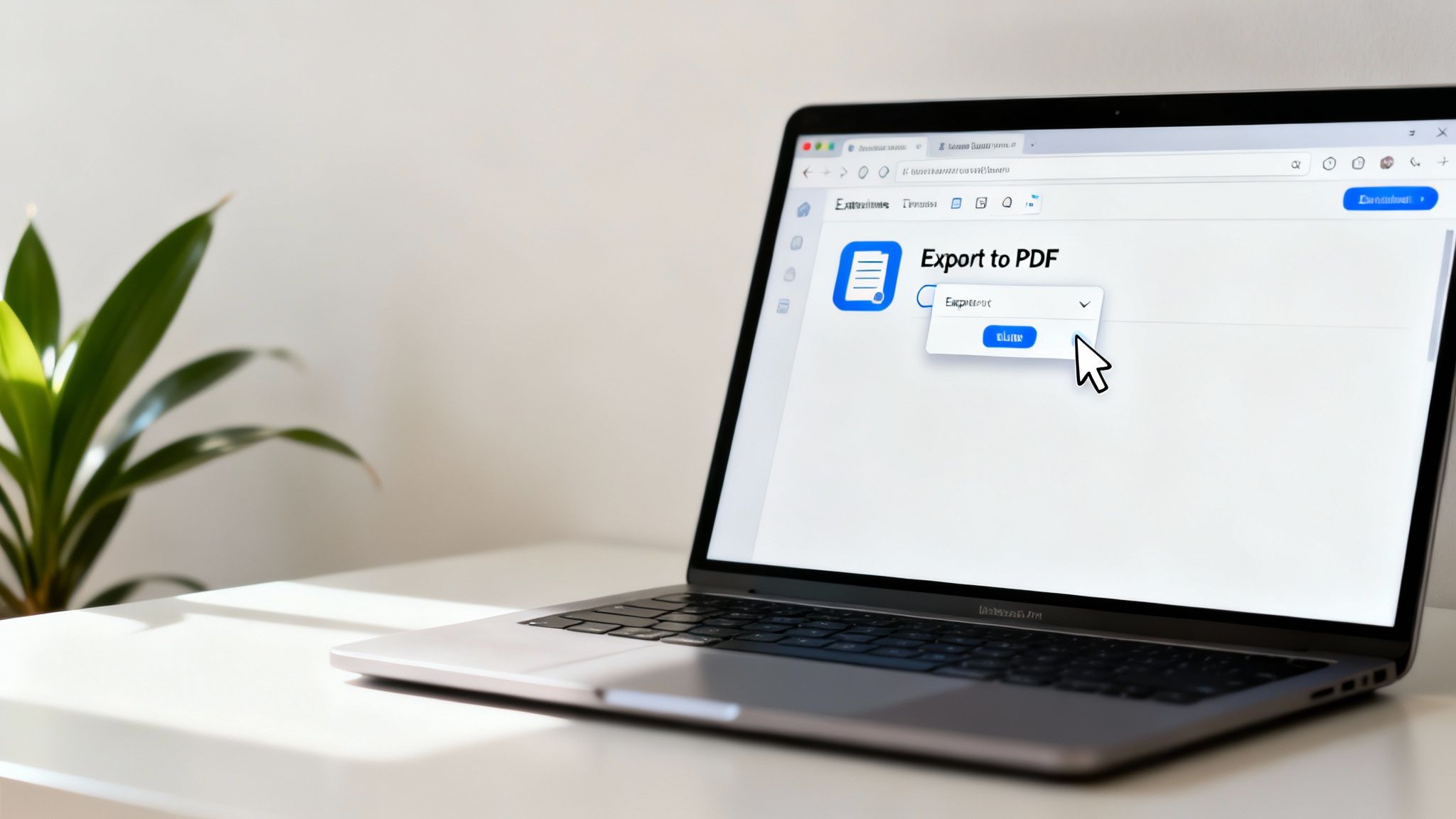
But what if you don't write code? Does that mean you're stuck with manual methods? Absolutely not. This is exactly where integrated platforms come into play, offering all the power without the steep learning curve. There are some incredible out there that handle all the technical details for you.
This is a problem Zemith was built to solve. Instead of you needing to write a Python script, you can use its built-in Coding Assistant to generate the code or simply connect your tools inside its workspace. It’s the power of automation, made accessible. Imagine automatically saving every single client brainstorming session into a specific project folder in the cloud. That's the kind of efficiency we're talking about.
It's important to remember that ChatGPT's job is to generate text; it doesn't create PDFs on its own. It's the tools we connect to it that handle the export. While developers use Python, a massive 18.9% of ChatGPT users are focused on academic research, where exporting to PDF is a daily task. With OpenAI projected to hit 1 billion users by the end of 2025, a smooth pipeline for saving this work is more critical than ever.
Whether you build it yourself or use a smart platform, automation is really about buying back your time. It’s the difference between being a manual filer and having a flawless digital assistant that does the work for you.
Ultimately, setting up an automated system for your chatgpt to pdf needs is an investment in scalability. You're freeing yourself from a repetitive chore and making sure those valuable insights are always saved, organized, and ready when you need them.
Moving Beyond Static PDFs with Zemith
Saving a ChatGPT conversation as a PDF is a great start. You've grabbed a brilliant idea, archived a client chat, or saved a handy code snippet. But what if that static file wasn't the end of the line? What if it was just the beginning of a truly productive workflow?
That's the whole idea behind shifting from simply saving information to actively using it. Why let your best chats turn into digital paperweights when they can become living documents that actually work for you?
Turn Your PDFs Into Interactive Assistants
Picture this: you take that chatgpt to pdf file you just saved and drag it into Zemith's Document Assistant. All of a sudden, that flat document springs to life. Instead of just reading through it, you can now do so much more.
- Chat with your document: Ask it direct questions about what's inside, like, "What were the three marketing angles we discussed?"
- Generate instant summaries: Pull the key takeaways in seconds without having to reread the entire conversation.
- Create a podcast: Yep, you read that right. Turn that brainstorming session into an audio file you can listen to on your commute.
This completely changes what a PDF can be. It's no longer just a static record; it's an interactive partner you can query and learn from.
From Raw Chat to Polished Content Instantly
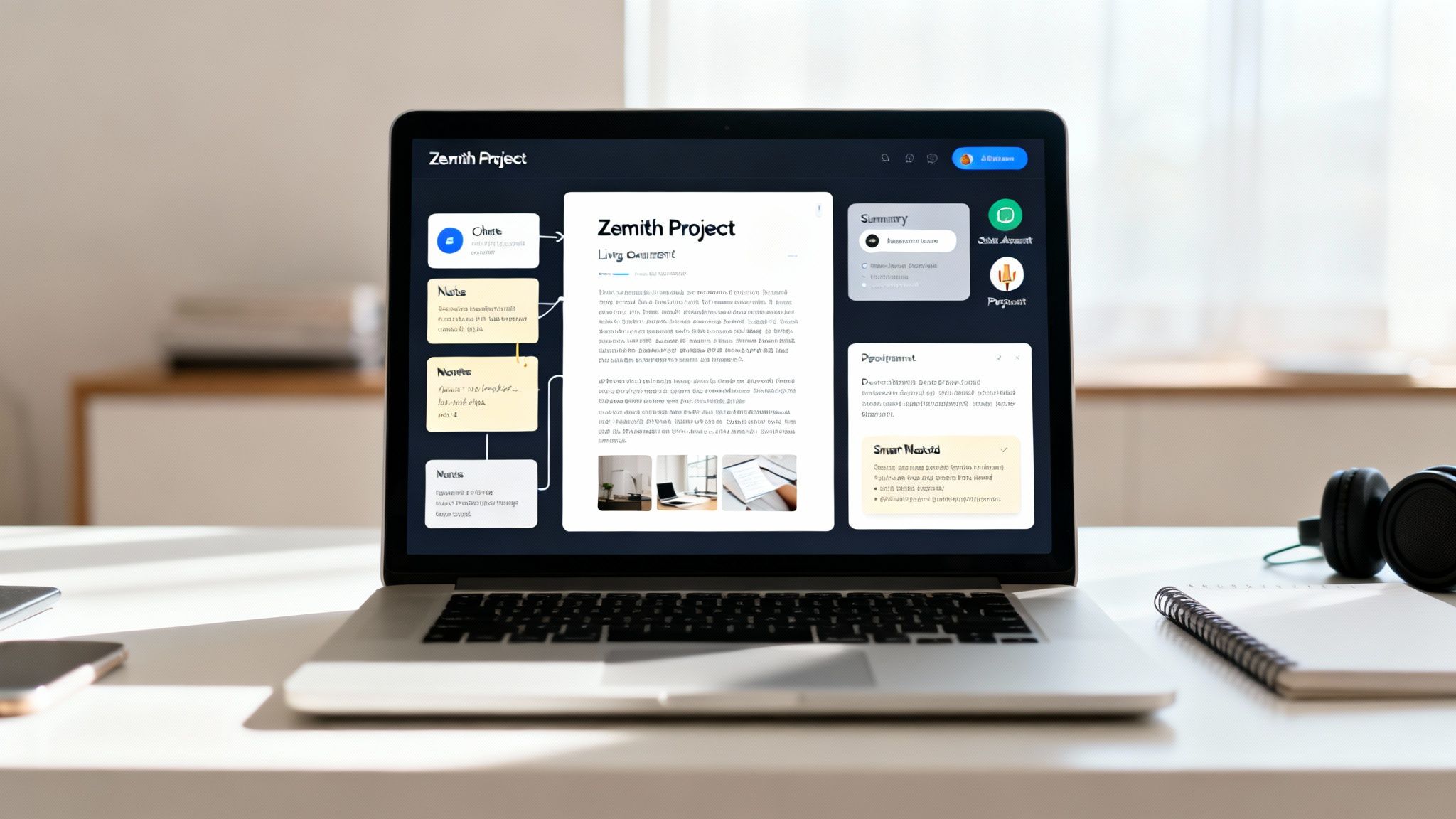
Let's be real—raw ChatGPT output usually needs a bit of polishing before you can share it. Instead of a clunky copy-paste-edit routine, you can use Zemith's Smart Notepad. Just drop your conversation in, and with a few clicks, you can rephrase awkward sentences, shift the tone for a professional audience, and transform the entire text into something client-ready.
The ability for AI to interact with documents has exploded. In mid-2025, ChatGPT's own PDF analysis features, running on the GPT-4o model, made huge waves. By the end of that year, document-related queries from paid users had jumped by a massive 250%. While impressive, tools like Zemith's Document Assistant take this a step further by building these interactive features into a single, cohesive workspace. For a deeper dive, you can check out more on this trend from .
Your saved chats shouldn't go to a folder to die. They should become part of a centralized, searchable, and intelligent knowledge base that fuels your future work.
Build a Central Brain for Your Projects
The real power move is to stop thinking in terms of individual files and start thinking about entire projects. Inside Zemith, you can set up a dedicated 'Project' for a specific client or topic. Every PDF, document, and chat you add becomes part of a shared knowledge hub for that one project.
This gives the AI full context. When you ask a question, it doesn't just look at one file; it pulls insights from everything in the project to give you a smarter, more complete answer. We've actually put together a full guide on how to that gets into these more advanced techniques. This approach transforms your scattered AI conversations from simple archives into an organized, intelligent, and active part of your workflow.
Common Questions About Saving Your Chats
Still have a few questions rolling around? You're not alone. When you start trying to turn a ChatGPT conversation into a clean PDF, a few common headaches tend to pop up. I've seen these questions come up time and time again, so let's get you some clear, straightforward answers.
How Do I Handle Complex Formatting?
One of the biggest hurdles I hear about is this: "Can I export a chat with images and code blocks correctly formatted?"
Yes, you absolutely can, but the method you pick makes all the difference. Relying on your browser's built-in 'Print to PDF' feature is a gamble—it often butchers code formatting or leaves images behind completely. For preserving the rich formatting of a chat, especially syntax highlighting in code, a dedicated browser extension is almost always your best bet.
If you need total control over the final look, your go-to move should be copying the conversation and pasting it into a tool like Zemith’s Smart Notepad. This gives you a sandbox to clean everything up, double-check your code blocks, and make sure every element is perfectly in place before you generate the PDF.
Then there's the issue of those marathon chats. "What's the best way to convert a really long ChatGPT chat to a PDF?"
For those epic, novel-length conversations, trying the 'Print to PDF' method can easily make your browser choke or even crash. A much more reliable approach is to use a browser extension designed to handle long scrolls, as it will properly paginate the content for you.
Alternatively, you can go old-school and manually copy and paste the conversation in chunks into a Google Doc or Word file. It takes a bit more effort, but it gives you complete control over page breaks and guarantees the final document is readable, not just one gigantic, unmanageable page.
Editing and Security Concerns
A lot of people want to clean up their chats before saving them. So, "Is it possible to edit my conversation before saving it as a PDF?"
Absolutely! In fact, I highly recommend it if you want a polished, professional document. The copy-paste method is your friend here. Just drop the chat into your favorite word processor or, for a more integrated experience, into Zemith's Smart Notepad. From there, you can easily trim out the fluff, fix any typos, and even add your own notes. It’s how you turn a raw chat log into a genuinely useful asset.
Finally, and this is a really important one: "Are there privacy risks with using third-party extensions?"
It's smart to be cautious. When you install a third-party browser extension, you're essentially giving it access to the content on your page. My advice? Always stick to well-known extensions with a ton of positive user ratings and a crystal-clear privacy policy.
If your chats contain anything sensitive or confidential, the safest routes are always the manual ones—either using your browser’s print function or copying and pasting into a secure, offline editor.
Ready to stop just archiving chats and start putting them to work? Zemith is an all-in-one AI platform where you can save, organize, and even chat with your documents. Turn your static PDFs into interactive project assets and smooth out your entire workflow.
Zemith 기능 탐색
필요한 모든 것. 불필요한 것은 없이.
하나의 구독이 다섯 개를 대체합니다. 모든 최고 AI 모델, 모든 크리에이티브 도구, 모든 생산성 기능이 하나의 워크스페이스에.
모든 최고 AI. 하나의 구독.
ChatGPT, Claude, Gemini, DeepSeek, Grok & 25+ 모델







항상 켜진 실시간 AI.
음성 + 화면 공유 · 즉각적인 답변
새로운 언어를 배우는 가장 좋은 방법은 무엇인가요?
몰입과 간격 반복이 가장 효과적입니다. 매일 목표 언어의 미디어를 소비해 보세요.
음성 + 화면 공유 · AI가 실시간으로 답변
이미지 생성
Flux, Nano Banana, Ideogram, Recraft + 더보기

생각의 속도로 쓰세요.
AI 자동완성, 다시쓰기 & 명령으로 확장
모든 문서. 모든 형식.
PDF, URL 또는 YouTube → 채팅, 퀴즈, 팟캐스트 등
영상 제작
Veo, Kling, MiniMax, Sora + 더보기

텍스트 음성 변환
자연스러운 AI 음성, 30개 이상 언어
코드 생성
코드 작성, 디버그 및 설명
문서와 채팅
PDF 업로드, 콘텐츠 분석
주머니 속의 AI.
iOS & Android 전체 이용 · 어디서나 동기화
무한한 AI 캔버스.
채팅, 이미지, 영상 & 모션 도구 — 나란히
업무 및 연구 시간을 절약하세요
간단하고 합리적인 가격
신뢰하는 기업 팀






무료
신용카드 불필요
- 매일 100 크레딧
- 3개의 AI 모델 체험
- 기본 AI 채팅
플러스
- 1,000,000 크레딧/월
- 25개 이상의 AI 모델 — GPT, Claude, Gemini, Grok 등
- Agent Mode: 웹 검색, 컴퓨터 도구 등 포함
- Creative Studio: 이미지 생성 및 비디오 생성
- Project Library: 문서, 웹사이트, YouTube와 채팅, 팟캐스트 생성, 플래시카드, 리포트 등
- Workflow Studio 및 FocusOS
프로페셔널
- 플러스의 모든 것, 그리고:
- 2,100,000 크레딧/월
- Pro 전용 모델 (Claude Opus, Grok 4, Sonar Pro)
- Motion Tools & Max Mode
- 최신 기능 우선 이용
- 추가 혜택 이용 가능
사용자 후기
Great Tool after 2 months usage
simplyzubair
I love the way multiple tools they integrated in one platform. So far it is going in right dorection adding more tools.
Best in Kind!
barefootmedicine
This is another game-change. have used software that kind of offers similar features, but the quality of the data I'm getting back and the sheer speed of the responses is outstanding. I use this app ...
simply awesome
MarianZ
I just tried it - didnt wanna stay with it, because there is so much like that out there. But it convinced me, because: - the discord-channel is very response and fast - the number of models are quite...
A Surprisingly Comprehensive and Engaging Experience
bruno.battocletti
Zemith is not just another app; it's a surprisingly comprehensive platform that feels like a toolbox filled with unexpected delights. From the moment you launch it, you're greeted with a clean and int...
Great for Document Analysis
yerch82
Just works. Simple to use and great for working with documents and make summaries. Money well spend in my opinion.
Great AI site with lots of features and accessible llm's
sumore
what I find most useful in this site is the organization of the features. it's better that all the other site I have so far and even better than chatgpt themselves.
Excellent Tool
AlphaLeaf
Zemith claims to be an all-in-one platform, and after using it, I can confirm that it lives up to that claim. It not only has all the necessary functions, but the UI is also well-designed and very eas...
A well-rounded platform with solid LLMs, extra functionality
SlothMachine
Hey team Zemith! First off: I don't often write these reviews. I should do better, especially with tools that really put their heart and soul into their platform.
This is the best tool I've ever used. Updates are made almost daily, and the feedback process is very fast.
reu0691
This is the best AI tool I've used so far. Updates are made almost daily, and the feedback process is incredibly fast. Just looking at the changelogs, you can see how consistently the developers have ...