
AI Noise Cancellation for Clearer Meetings
AI noise cancellation is revolutionizing online meetings by cutting out background noise in real-time. Here's what you need to know:
- Uses smart tech to remove unwanted sounds without affecting speech
- Adapts to different environments, outperforming traditional methods
- Crucial for boosting understanding and focus in meetings
Key benefits:
- Improves audio clarity
- Reduces misunderstandings
- Keeps participants engaged
- Aids decision-making
- Helps include those with hearing issues
This guide covers:
- How AI noise cancellation works
- Setting up your space
- Choosing and configuring tools
- Best practices for use
- Troubleshooting common issues
- Advanced tips for power users
Top AI noise cancellation tools:
| Software | Key Features | Best For |
|---|---|---|
| Krisp | Works with 800+ apps | General use |
| NVIDIA RTX Voice | Uses RTX GPUs | Gamers, streamers |
| Microsoft Teams | Built-in AI suppression | Teams users |
| IRIS Clarity | Bidirectional isolation | Professional calls |
To get started:
- Choose a tool compatible with your meeting platform
- Install and configure the software
- Test and adjust settings for optimal performance
Remember: The goal is to enhance conversation quality without making voices sound unnatural.
Related video from YouTube
How AI noise cancellation works
AI noise cancellation uses smart tech to clean up audio on the fly. It's a big deal for online meetings, making voices clear even when there's noise around.
Here's how it works:
- It listens to the audio
- It spots unwanted sounds
- It cuts out noise without messing up speech
The AI learns from tons of audio samples. It gets good at telling speech from background noise. During a call, it cleans up the audio in milliseconds.
Take Google Meet. Its noise cancellation can zap out barking dogs, typing sounds, and even vacuum cleaners. It does this by sending audio to Google's servers for processing.
AI vs. old-school noise cancellation
AI noise cancellation beats traditional methods:
| Feature | AI | Traditional |
|---|---|---|
| Adapts | Yes, in real-time | Not really |
| Noise types | Handles complex noises | Better with steady, low sounds |
| Learns | Gets better over time | Stays the same |
| Where it works | On many devices | Often needs special hardware |
| How well it works | Great for clear speech | Not as good for voices |
AI noise cancellation is a lifesaver for remote workers in noisy spots. It makes audio clearer, cuts distractions, and boosts productivity in online meetings.
But it's not perfect. It might struggle with some voices or soft noises. The trick is finding the sweet spot between cutting noise and keeping audio natural.
As Serge Lachapelle from G Suite says:
"The goal is to make the conversation better."
That's what AI noise cancellation is all about: making it easier to focus on what matters - the conversation itself.
Setting up your space for best results
Want better AI noise cancellation? Let's talk about creating the perfect space for it.
Pick the right room
Go for a quiet room away from the noise. Interior rooms without windows are great. Stay clear of busy areas in your home or office.
Here's a quick tip: Thick walls, carpeted floors, and soft furnishings like couches can really help cut down on noise.
Make your room sound better
Got your room? Now let's make it sound-friendly:
1. Add stuff that soaks up sound
Think thick curtains, area rugs, and comfy furniture. They're like sponges for sound waves.
2. Close up any gaps
Use weatherstripping tape around doors and windows. Got bigger cracks? Acoustic caulk is your friend.
3. Get fancy with acoustic treatments
Want to level up? Try acoustic panels on your walls. They cost about $20-$50 each. Or use freestanding screens if you need to move things around.
4. Put your mic in the right spot
Keep it close to your mouth - about an inch away. And face away from noisy spots like windows or doors.
5. Go all out with soundproofing
For the ultimate quiet zone, add mass-loaded vinyl to your walls. It'll set you back $2-$5 per square foot. And think about swapping hollow doors for solid ones.
Choosing AI noise cancellation tools
Want better audio in your meetings? AI noise cancellation tools can help. Here's what you need to know:
Top AI noise cancellation software
Check out these popular options:
| Software | Key Features | Best For |
|---|---|---|
| Krisp | Works with 800+ apps, real-time noise removal | General use |
| NVIDIA RTX Voice | Uses RTX GPUs for noise suppression | Gamers, streamers |
| Microsoft Teams | Built-in AI noise suppression | Teams users |
| IRIS Clarity | Bidirectional voice isolation | Professional calls |
Krisp is a crowd-pleaser. One user said:
"Krisp provides a reliable and stable experience without any significant issues."
NVIDIA RTX Voice? Great performance, but you need specific hardware.
Working with meeting platforms
Most noise cancellation tools play nice with popular meeting software:
- Microsoft Teams: Built-in AI noise suppression (Auto, High, Low)
- Zoom: Works with third-party tools like Krisp
- Google Meet: Has its own, but also supports external tools
How to use them:
1. Check if your platform has built-in noise cancellation
2. If not, pick a compatible third-party tool
3. Install and set up before your meeting
4. Test with a colleague
Zemith
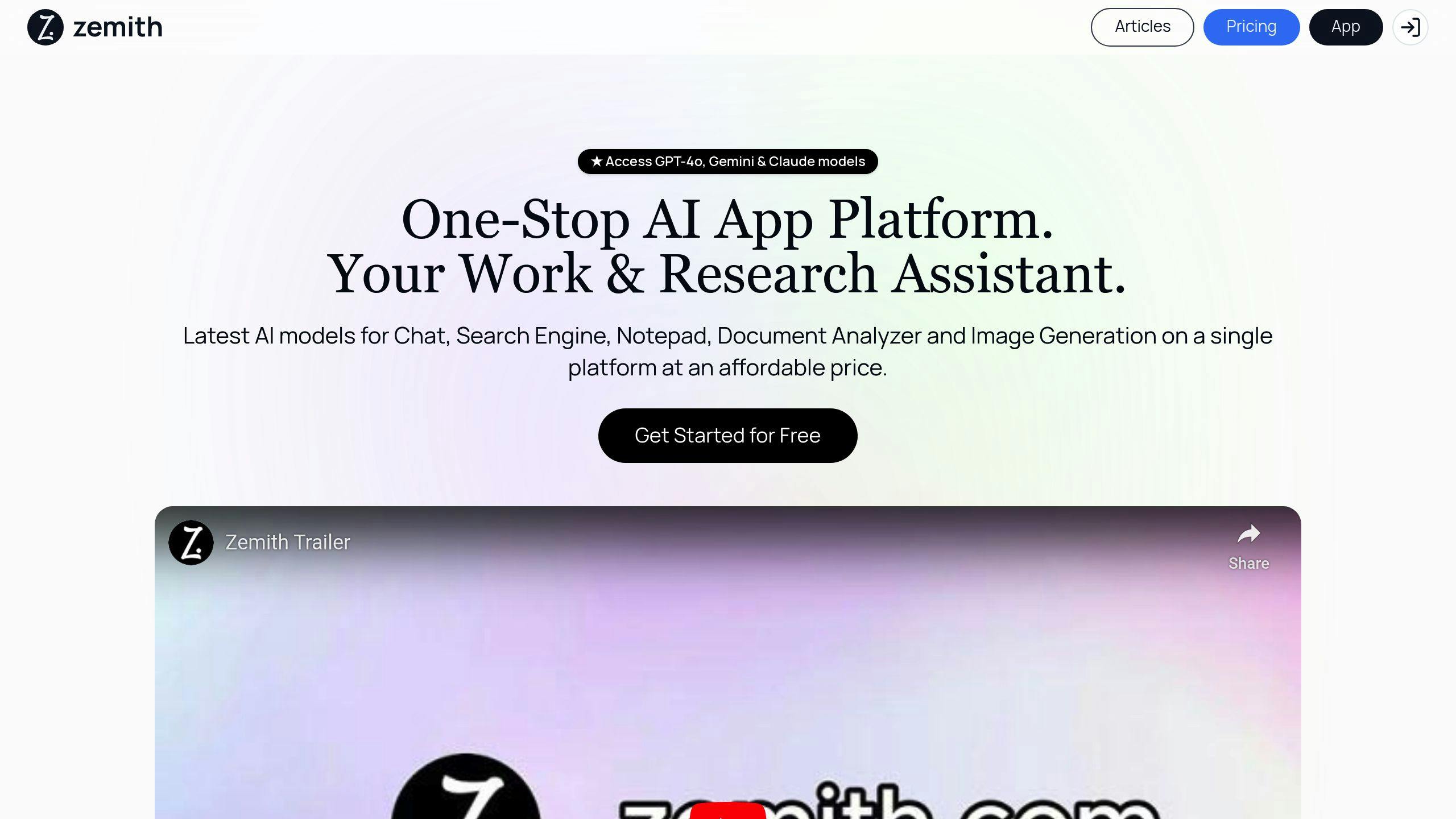
Want more than just noise cancellation? Zemith offers AI tools for meetings and productivity:
- AI-powered search during calls
- Interactive document analysis
- AI note-taking
Use these alongside noise cancellation for even better meetings.
Setting up AI noise cancellation
Here's how to set up AI noise cancellation for your meetings:
Choose and install your tool
Pick a noise cancellation app that works for you:
| Tool | For | Setup |
|---|---|---|
| Krisp | General use | Download, install, select Krisp devices in meeting software |
| NVIDIA RTX Voice | RTX GPU owners | Download NVIDIA Broadcast, install, set up mic/speaker |
| Microsoft Teams | Teams users | Built-in, adjust in audio settings |
Install your chosen tool following the installation wizard.
Configure settings
- Krisp: In your meeting app, go to audio settings. Pick "Krisp Microphone" and "Krisp Speaker".
- NVIDIA RTX Voice: Open the app. Choose your mic/speaker. Turn on noise removal.
- Teams: Click your profile picture > Settings > Devices > Noise suppression.
Test and adjust
- Make a test call using your meeting platform's test feature or call a colleague.
- Create some background noise (music, office sounds).
-
Tweak noise suppression levels. In Teams, you can choose:
- Auto: Teams decides based on your environment
- High: Cuts out all non-speech sounds
- Low: Filters steady background noise
- Ask your test partner how you sound and adjust if needed.
Don't overdo it. Too much suppression can make your voice sound weird.
"Krisp lets me work from home with dogs barking and laundry running - yet their noise is blocked so I can sound professional on video calls." - Jaslyn T., Client Services Manager
sbb-itb-4f108ae
Tips for using AI noise cancellation
AI noise cancellation can boost your meeting quality. Here's how to use it right:
Using your microphone correctly
Your mic setup is crucial:
- Keep it a palm's length from your mouth
- Use a dynamic mic in noisy places
- Add a pop filter to cut plosive sounds
| Mic Type | Best For | Why |
|---|---|---|
| Dynamic | Noisy spots | Ignores background noise |
| Condenser | Quiet rooms | Captures voice details |
Balancing noise reduction and sound quality
Find the sweet spot:
- Start with default settings
- Make small adjustments
- Test different levels (e.g., Auto, High, Low in Microsoft Teams)
- Ask others how you sound
"The goal is to make the conversation better... So the goal is the intelligibility of what you and I are saying — absolutely." - Serge Lachapelle, G Suite Director of Product Management
Fixing common problems
AI noise cancellation tools can sometimes cause issues. Here's how to fix them:
Fixing distorted audio
Distorted audio can ruin your meeting. Try these fixes:
1. Check your mic settings
Keep your mic about a hand's width from your mouth. Too close? Move it back.
2. Adjust input levels
Is your audio clipping? Lower the input volume in your computer's sound settings.
3. Use audio repair software
For pre-recorded audio, tools like iZotope Rx7 or Adobe Audition can help.
| Problem | Fix |
|---|---|
| Mic too close | Move it back |
| Input too high | Lower volume |
| Bad equipment | Get a better mic |
| Software issues | Update or reinstall |
Dealing with delays and device issues
Audio delays make conversations awkward. Here's what to do:
1. Check your internet
Run a speed test. Slow? Consider upgrading.
2. Close other apps
Too many open programs can slow things down.
3. Update your meeting software
Make sure you're using the latest version.
4. Use a wired connection
For stability, plug your device directly into your router.
Pro tip: Before meetings, upgrade your internet and run a Wi-Fi speed test to avoid audio delays.
Advanced tips for expert users
Want to take your AI noise cancellation game up a notch? Here's how:
Customizing AI models
Fine-tune your AI to match your specific audio environment:
- Train it on recordings from your workspace
- Adjust its sensitivity to noise vs. speech
- Target specific frequencies common in your setting
Combining with other audio tools
Pair AI noise cancellation with other software for crystal-clear sound:
| Tool | Purpose | How it helps |
|---|---|---|
| Adobe Audition | Audio editing | Further reduce noise post-recording |
| LANDR | Audio mastering | Boost overall sound quality |
| LALAL.AI | Audio separation | Isolate vocals from background music |
Pro tip: Always apply AI noise cancellation FIRST, then use other tools.
For real-time use, check out Agora's AI Noise Suppression. It tackles over 100 noise types while keeping latency low.
To get the best results:
- Use a good mic
- Apply AI noise cancellation
- Use other audio tools if needed
- Test and tweak for your specific setup
What's next for AI noise cancellation
AI noise cancellation is getting better fast. Here's what's coming:
New developments
1. Predictive modeling and edge computing
AI is getting smarter. It can now analyze and adjust noise cancellation in real-time, making it work better in different places.
2. Integration with other tech
| Tech | Benefits |
|---|---|
| AR/VR | Better sound in virtual worlds |
| Wearables | Sound tailored to you |
| Video calls | Clearer meetings |
3. AI-powered hardware
Companies are making special chips for AI noise cancellation. Google's Tensor A1 chip in the Pixel Buds Pro 2 can:
- Watch for noise all the time
- Pause when you talk
- Block more noise (Silent Seal 2.0)
Future improvements
AI noise cancellation will keep getting better:
- It'll tell good sounds from bad ones more accurately
- It'll work faster, almost instantly
- It'll learn what you like and adjust for you
"We're heading towards better, easier-to-use audio tools. Soon, anyone will be able to get high-quality audio."
What's coming:
- Support for more languages (Cisco's working on this)
- Help for people with hearing aids (Neat's already doing this)
- Better audio recording (Philips and Sembly AI are teaming up on this)
Soon, we'll have clearer, more natural sound in our meetings and everywhere else.
Wrap-up
AI noise cancellation is changing how we talk in meetings. Here's what you need to know:
AI algorithms cut out background noise in real-time, making audio clearer. It's better than old methods and adapts to different places.
To get the best results:
- Set up your space right
- Pick the right tools
- Use your mic properly
- Fine-tune your settings
Popular options? Krisp, VEED.IO, and Descript.
What's next for AI noise cancellation?
| Coming Soon | Why It Matters |
|---|---|
| Predictive modeling | Spots noise faster and better |
| Edge computing | Less delay in processing |
| AR/VR integration | Better immersive experiences |
| AI-powered hardware | Works well in more devices |
These changes will make meetings clearer and more productive. Take Google's Pixel Buds Pro 2 with its Tensor A1 chip. It:
- Watches for noise all the time
- Stops when you talk
- Blocks noise better (Silent Seal 2.0)
As this tech grows, expect:
- Better at knowing what sounds you want (and don't want)
- Faster processing
- Settings that fit you
"Soon, anyone will be able to get pro-level sound in their meetings." - Audio Tech Expert
To make the most of this tech:
- Keep an eye on new releases
- Update your stuff regularly
- Play with settings to find what works
- Choose what fits your needs (like what works with your meeting app)
FAQs
Is AI noise cancellation good?
AI noise cancellation works wonders for meeting audio. It zaps annoying background sounds like barking dogs or keyboard clicks, while keeping the speaker's voice crystal clear. It does all this in real-time, so your calls stay smooth and distraction-free.
How to setup noise cancellation in Teams?
Here's the quick way to turn on noise cancellation in Microsoft Teams:
- Open Teams
- Click Settings and more > Settings
- Go to Devices
- Flip the Noise suppression switch
How do I reduce background noise in a meeting?
For Google Meet users, follow these steps:
- Head to meet.google.com and pick your meeting
- Click More options > Settings before joining
- Choose Audio
- Turn on Noise cancellation
- Hit Join now
| Platform | Noise Cancellation Setup |
|---|---|
| Microsoft Teams | Settings > Devices > Noise suppression on |
| Google Meet | Settings > Audio > Noise cancellation on |
Want more options? Check out Krisp. This AI-powered noise killer works with over 800 apps and offers:
- Muting of common household and ambient noises
- 60 minutes of free noise zapping per week (basic plan)
- Easy integration with Zoom, Skype, WebEx, and more
"Krisp lets you run online meetings, webinars, or virtual classes without stressing about those noisy dogs." - Krisp Review 2024
Related posts
Explore os Recursos do Zemith
Toda IA top. Uma assinatura.
ChatGPT, Claude, Gemini, DeepSeek, Grok e 25+ mais







Sempre ativa, IA em tempo real.
Voz + compartilhamento de tela · respostas instantâneas
Qual é a melhor maneira de aprender um novo idioma?
Imersão e repetição espaçada funcionam melhor. Tente consumir mídia no seu idioma-alvo diariamente.
Voz + compartilhamento de tela · IA responde em tempo real
Geração de imagens
Flux, Nano Banana, Ideogram, Recraft + mais

Escreva na velocidade do pensamento.
Autocomplete IA, reescrita e expansão por comando
Qualquer documento. Qualquer formato.
PDF, URL ou YouTube → chat, quiz, podcast e mais
Criação de vídeo
Veo, Kling, MiniMax, Sora + mais

Texto para fala
Vozes IA naturais, 30+ idiomas
Geração de código
Escreva, depure e explique código
Chat com documentos
Faça upload de PDFs, analise conteúdo
Sua IA no bolso.
Acesso completo no iOS e Android · sincronizado em todo lugar
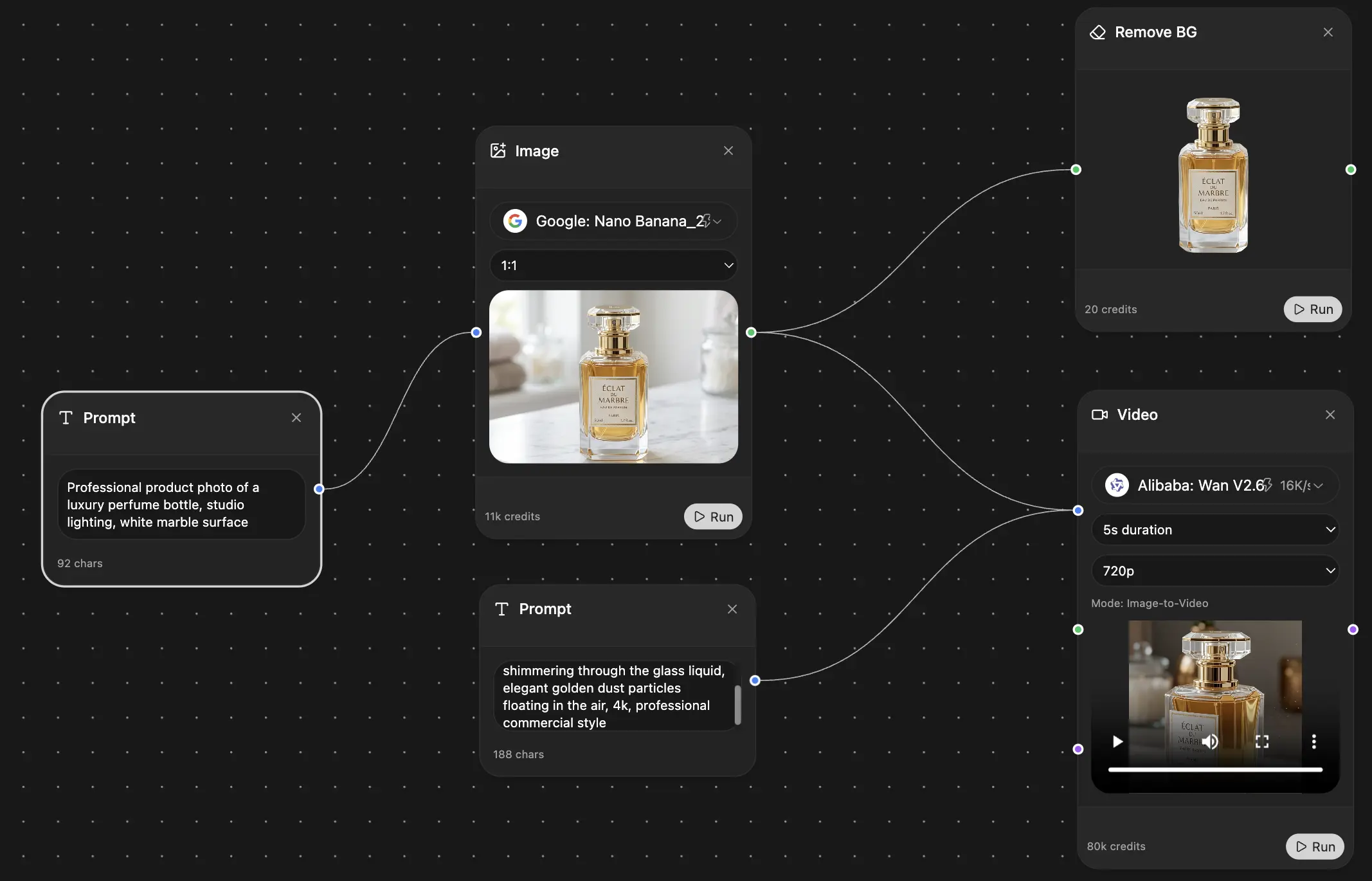
Sua tela infinita de IA.
Chat, imagem, vídeo e ferramentas de movimento — lado a lado
Economize horas de trabalho e pesquisa
Preços diretos e acessíveis
Adotado por equipes na






Grátis
Sem necessidade de cartão de crédito
- 100 créditos diários
- 3 modelos de IA para experimentar
- Chat de IA básico
Plus
- 1.000.000 créditos/mês
- 25+ modelos de IA — GPT, Claude, Gemini, Grok e mais
- Agent Mode com busca na web, ferramentas de computador e mais
- Creative Studio: geração de imagens e vídeos
- Project Library: converse com documentos, sites e YouTube, geração de podcasts, flashcards, relatórios e mais
- Workflow Studio e FocusOS
Professional
- Tudo no Plus, e:
- 2.100.000 créditos/mês
- Modelos exclusivos Pro (Claude Opus, Grok 4, Sonar Pro)
- Motion Tools e Max Mode
- Primeiro acesso aos recursos mais recentes
- Acesso a ofertas adicionais
O Que Nossos Usuários Dizem
Great Tool after 2 months usage
"I love the way multiple tools they integrated in one platform. Going in the right direction."
— simplyzubair
Best in Kind!
"The quality of data and sheer speed of responses is outstanding. I use this app every day."
— barefootmedicine
Simply awesome
"The credit system is fair, models are perfect, and the discord is very responsive. Quite awesome."
— MarianZ
Great for Document Analysis
"Just works. Simple to use and great for working with documents. Money well spent."
— yerch82
Great AI site with accessible LLMs
"The organization of features is better than all the other sites — even better than ChatGPT."
— sumore
Excellent Tool
"It lives up to the all-in-one claim. All the necessary functions with a well-designed, easy UI."
— AlphaLeaf
Well-rounded platform with solid LLMs
"The team clearly puts their heart and soul into this platform. Really solid extra functionality."
— SlothMachine
Best AI tool I've ever used
"Updates made almost daily, feedback is incredibly fast. Just look at the changelogs — consistency."
— reu0691