How to Delete Registry Key PowerShell Commands Safely
Learn how to delete registry key powershell commands efficiently. Clean up settings, use Remove-Item safely, and automate your admin tasks today.
You're probably here because an uninstall went sideways, a vendor left junk behind, or you inherited a machine that looks like three admins and one questionable installer fought over HKLM\Software. That's normal. The Windows Registry collects leftovers like a garage shelf collects mystery cables.
The bad news is that deleting the wrong thing can break apps, policies, shell behavior, or Windows itself if you get reckless. The good news is that PowerShell gives you a safer, repeatable way to handle registry cleanup than clicking around in Registry Editor and hoping your mouse doesn't drift at the worst possible moment.
Most “delete registry key powershell” guides stop at one command and call it a day. That's how people end up deleting a value when they meant to delete a key, or wiping a whole subtree because they skipped a dry run. The workflow that works in production is simpler and stricter: verify the target, test the action, back it up, then delete it.
Welcome to the Registry You Can Break It
A common scene. You uninstall an app, reboot, and somehow it's still half there. The service is gone, the files are mostly gone, but a stale registry key keeps the machine thinking the software still exists. Then the reinstall fails because Windows insists the old configuration is still present. Lovely.
That's usually the moment people open regedit.exe, start drilling into hives, and turn a cleanup task into a stress test. Manual edits are fine for quick inspections, but for deletion work, especially if you might repeat it on more than one machine, PowerShell is the better tool.

Why PowerShell beats clicking around
PowerShell lets you do registry work the same way you should handle any risky admin task. You can script it, review it, test it, log it, and reuse it later. That matters when the same broken uninstall shows up on ten machines instead of one.
It also forces clarity. You have to say what path you're targeting and what object you want removed. That's healthier than “I'm pretty sure I clicked the right folder.” Famous last words.
If you keep notes or script snippets for jobs like this, document what the command does and why the key existed in the first place. A quick explanation today saves a lot of head scratching later. If you want a simple model for documenting utility scripts, is a useful pattern.
The registry is not fragile because it's mysterious. It's fragile because Windows and third-party software both assume it contains exactly what they expect.
Delete with intent. Not vibes.
The Two Main Tools for Registry Demolition
Before you remove anything, sort out what you're deleting. In registry terms, a key is like a folder. A value (PowerShell often calls it a property) is like an item inside that folder.
According to , the standard split is straightforward: Remove-Item deletes registry keys and Remove-ItemProperty deletes individual values. The same guidance recommends checking first with Test-Path, backing up the key, and only then deleting it.
Key versus value matters more than people think
If you use Remove-Item on a registry key, you're removing that key and, if you use recursion, everything under it. That's a chainsaw.
If you use Remove-ItemProperty, you're deleting one named value while leaving the key itself in place. That's a scalpel.
Use the chainsaw when the whole tree has to go. Use the scalpel when you only want one bad setting gone.
Remove-Item vs Remove-ItemProperty
Safe example for deleting a key
if (Test-Path $RegPath) { Remove-Item -Path $RegPath -Recurse -WhatIf } else { Write-Host "Registry key not found: $RegPath" }
That does two important things right. It verifies the path exists, and it uses -WhatIf before making the change.
Once the dry run looks correct, the actual delete is the same command without -WhatIf:
Safe example for deleting a value
if (Test-Path $RegPath) { Remove-ItemProperty -Path $RegPath -Name $ValueName -WhatIf } else { Write-Host "Registry key not found: $RegPath" }
That removes only the ObsoleteSetting value and leaves the parent key intact.
A practical rule for production scripts
- Check existence first:
Test-Pathkeeps your script from failing noisily on systems where the key is already gone. - Target one hive on purpose:
HKCUaffects the current user.HKLMaffects the machine. - Use full paths: vague variables and half-remembered locations cause accidents.
- Comment the reason: “cleanup after uninstall” is more useful than “registry fix.”
A lot of registry cleanup jobs are repeat offenders. Once you've written a safe script for one machine, keep it. The second time you need it, you'll be glad you aren't rebuilding it from memory and caffeine.
Always Test with WhatIf Before You Commit
If I could force one habit into every admin shell profile, it would be this one. Use -WhatIf before every destructive registry command. Every time. No exceptions because “it's just one tiny key.”
-WhatIf tells PowerShell to show what it would do without doing it. That turns a risky command into a dry run. It's the command-line version of checking the chamber before you pull the trigger.
What a dry run looks like
Command:
Typical output:
That message matters because it confirms the exact target. If the target is wrong, you haven't damaged anything yet.
Now compare it with the live command:
No safety net there. If the path is wrong, you learn the hard way.
Why -Confirm is useful but annoying
You can also use -Confirm, which prompts before the action runs.
That's fine for one-off manual work. It gets old fast in scripts, and it's less helpful than -WhatIf when you're trying to review what the command is about to touch.
Practical rule:
-WhatIfis for validation.-Confirmis for hesitation. Validation scales better.
The workflow that prevents stupid mistakes
Use this order:
- Check the path
- Run the delete with
-WhatIf - Review the exact target
- Run the command
- Verify the result
That's the same mindset good testing teams use with code changes. If you want a broader way to think about preflight checks and risk reduction, line up nicely with destructive admin tasks too.
One more thing. -WhatIf doesn't make a bad command good. It only makes it visible. If your path variable is built from messy string logic, fix that first. Dry runs are not a substitute for reading your own script like it was written by your most overconfident coworker.
Navigating Advanced Scenarios and Gotchas
Basic deletion is easy. Real-world deletion is where the pain starts. The common trouble spots are permissions, registry view confusion on 64-bit systems, and remote execution.

Microsoft's PowerShell documentation shows registry paths through the provider model, using syntax like HKLM:\Software\MyCompany\MyApp, and it also distinguishes deleting a value with Remove-ItemProperty from clearing its data with Clear-ItemProperty in the current PowerShell documentation for that cmdlet at . That distinction matters when the goal is cleanup rather than just zeroing out a setting.
When PowerShell says access is denied
If you're touching HKLM, assume permissions may be the issue first. User-level shells often don't have what they need for machine-wide registry changes.
Try this simple check:
if (Test-Path $RegPath) { Remove-Item -Path $RegPath -Recurse -WhatIf }
If the dry run is fine but the actual command fails with access denied, rerun PowerShell as Administrator. Don't waste twenty minutes trying to outsmart a permissions boundary with wishful thinking.
For scheduled jobs or deployment tools, make sure the execution context has administrative rights. “But I'm in the Administrators group” is not the same as running a process with administrative privileges.
The 32-bit and 64-bit rabbit hole
On a 64-bit Windows system, some apps write to different registry views. That's where admins start muttering about a key “existing but not existing.”
A common place to check is the 32-bit branch under Wow6432Node:
if (Test-Path $RegPath32) { Remove-Item -Path $RegPath32 -Recurse -WhatIf }
If your uninstall cleanup script works on one machine but misses another, the registry view is often the culprit. Especially with older installers and mixed-bitness applications.
Use the actual path you confirm on the target system. Don't assume the same vendor always writes to the same location. Vendors are creative in all the wrong ways.
Remote deletion without playing desk-side technician
If you need to clean up keys on remote systems, PowerShell remoting is where this gets fun.
}
Once the dry run looks right, remove -WhatIf and run it for real.
If you need to hit multiple machines:
Invoke-Command -ComputerName $Computers -ScriptBlock { $RegPath = 'HKLM:\Software\OldVendor\LegacyApp'
}
That's where delete registry key powershell stops being a one-liner and becomes a professional workflow. You're not just deleting junk. You're making the cleanup repeatable.
Don't debug remote registry work by guessing. Test locally, dry run remotely, then widen the blast radius only after the first system behaves exactly as expected.
When the script still misbehaves, step through the variables and assumptions. Path resolution, session context, and permissions are usually where the bug lives. is a good reminder that infrastructure scripts deserve the same discipline as application code.
The Ultimate Safety Net Backup and Restore
Even careful admins make mistakes. Sometimes the command is right and the dependency is undocumented. Sometimes a vendor stores something ridiculous in a place nobody expected. That's why backup comes before deletion, not after regret.
The fastest safety net is a targeted export with reg.exe. It works fine alongside PowerShell and gives you a simple rollback file.

Export before you delete
Here's a clean example:
That exports the key to a .reg file you can restore later if needed.
If you're deleting something under the current user hive:
Simple. Fast. Worth doing.
Restore if things go sideways
To restore, you can import the file:
Or, if you're working interactively, you can merge it the old-fashioned way. Double-click the .reg file and confirm the import. Not elegant, but it works.
Make backup files part of the workflow
- Name files clearly: include the app or key name so you don't end up with
backup-final-fixed2.reg. - Store them somewhere predictable:
C:\Tempis fine for ad hoc work. A shared admin repository is better for recurring procedures. - Keep the deletion script with the backup note: future-you will want both.
For broader server recovery planning, not just one-off registry exports, is a practical companion resource. Different scope, same mindset. Have a recovery path before you need it.
If your team keeps admin scripts in source control, store the purpose, expected target path, and rollback note right next to the script. These apply to infrastructure cleanup work just as much as app development.
Conclusion Master Your Domain with PowerShell
Deleting registry keys with PowerShell isn't hard. Deleting them safely and repeatably is where the true skill lies.
The workflow is what separates clean administration from chaotic cleanup. Verify the path. Dry run with -WhatIf. Back up the target. Delete the right object. Then confirm the result. That approach works whether you're fixing one broken uninstall on your laptop or cleaning the same leftover key across a fleet.
The key lesson is simple. Know whether you're removing a key or a value. Those are different actions with different consequences. A lot of registry pain comes from treating them like the same thing.
Good scripts also deserve good documentation. A month from now, the command will still exist, but the reason you wrote it may not be obvious. Keep notes with the script, especially for remote jobs, oddball 32-bit paths, and rollback steps. are a good standard to borrow.
Registry work will probably never feel relaxing. That's fine. It shouldn't. A little caution is healthy when you're operating on Windows' wiring closet.
If you want one place to organize your PowerShell scripts, cleanup notes, debugging context, and reusable admin workflows, is worth a look. It gives you a central workspace to document what a script does, keep versions together, and turn one-off fixes into a searchable knowledge base your future self will thank you for.
探索 Zemith 功能
所有顶级AI。一个订阅。
ChatGPT、Claude、Gemini、DeepSeek、Grok 及25+模型








始终在线,实时AI。
语音 + 屏幕共享 · 即时回答
学习一门新语言的最佳方式是什么?
沉浸式学习和间隔重复效果最好。尝试每天消费目标语言的媒体内容。
语音 + 屏幕共享 · AI 实时回答
图像生成
Flux、Nano Banana、Ideogram、Recraft + 更多

以思维的速度书写。
AI自动补全、改写和按命令扩展
任何文档。任何格式。
PDF、URL或YouTube → 聊天、测验、播客等
视频创作
Veo、Kling、MiniMax、Sora + 更多

文字转语音
自然AI语音,30+语言
代码生成
编写、调试和解释代码
与文档对话
上传PDF,分析内容
口袋里的AI。
iOS和Android完整访问 · 随处同步
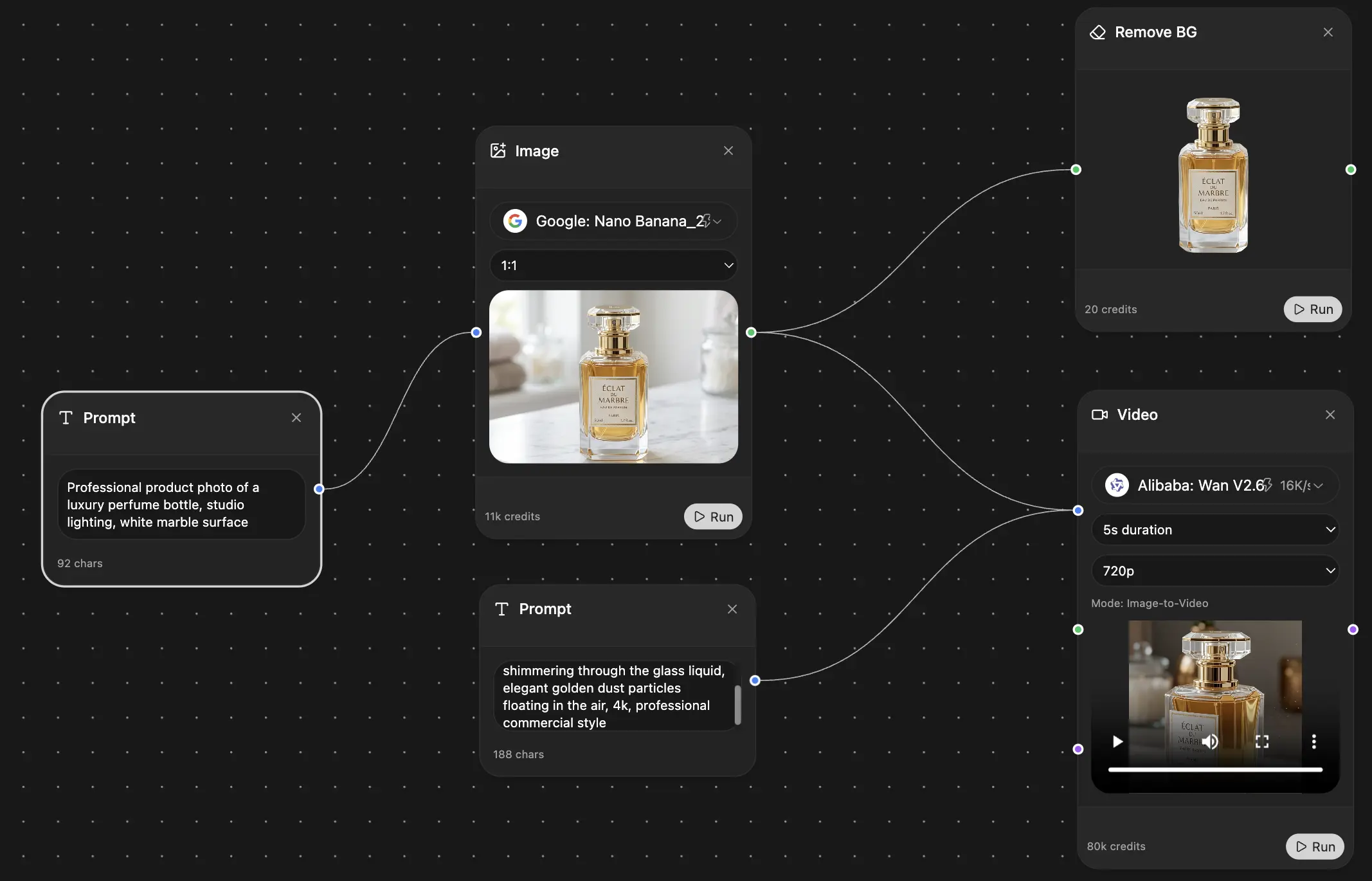
你的无限AI画布。
聊天、图像、视频和动态工具 — 并排展示
节省数小时的工作和研究时间
简单、经济实惠的定价
受信赖的企业团队






免费
无需信用卡
- 每日100积分
- 3个AI模型试用
- 基础AI聊天
增强版
- 1,000,000积分/月
- 25+个AI模型 — GPT、Claude、Gemini、Grok等
- Agent Mode:网页搜索、计算机工具等
- Creative Studio:图像生成和视频生成
- Project Library:与文档、网站和YouTube对话,播客生成、闪卡、报告等
- Workflow Studio和FocusOS
专业版
- 包含增强版所有功能,以及:
- 2,100,000积分/月
- Pro专属模型(Claude Opus、Grok 4、Sonar Pro)
- Motion Tools和Max Mode
- 优先使用最新功能
- 访问额外优惠
用户评价
Great Tool after 2 months usage
"I love the way multiple tools they integrated in one platform. Going in the right direction."
— simplyzubair
Best in Kind!
"The quality of data and sheer speed of responses is outstanding. I use this app every day."
— barefootmedicine
Simply awesome
"The credit system is fair, models are perfect, and the discord is very responsive. Quite awesome."
— MarianZ
Great for Document Analysis
"Just works. Simple to use and great for working with documents. Money well spent."
— yerch82
Great AI site with accessible LLMs
"The organization of features is better than all the other sites — even better than ChatGPT."
— sumore
Excellent Tool
"It lives up to the all-in-one claim. All the necessary functions with a well-designed, easy UI."
— AlphaLeaf
Well-rounded platform with solid LLMs
"The team clearly puts their heart and soul into this platform. Really solid extra functionality."
— SlothMachine
Best AI tool I've ever used
"Updates made almost daily, feedback is incredibly fast. Just look at the changelogs — consistency."
— reu0691