How to Make a Sketch from a Photo (Without Being a Boring Robot)
Want to make a sketch from a photo without the hassle? Explore the best AI tools, classic Photoshop methods, and pro tips to create amazing art instantly.
Ever wondered how to make a sketch from a photo? You've got a few great options, like specialized AI tools, mobile apps you can use on the go, or classic software like Photoshop if you want to get your hands digitally dirty.
The absolute fastest way, though? Upload your picture to an AI platform like . It does all the heavy lifting and transforms your image into a piece of art in just a few seconds, leaving you more time for important things, like figuring out what to watch next.
Turn Your Photos into Art (No Talent Required, Phew!)
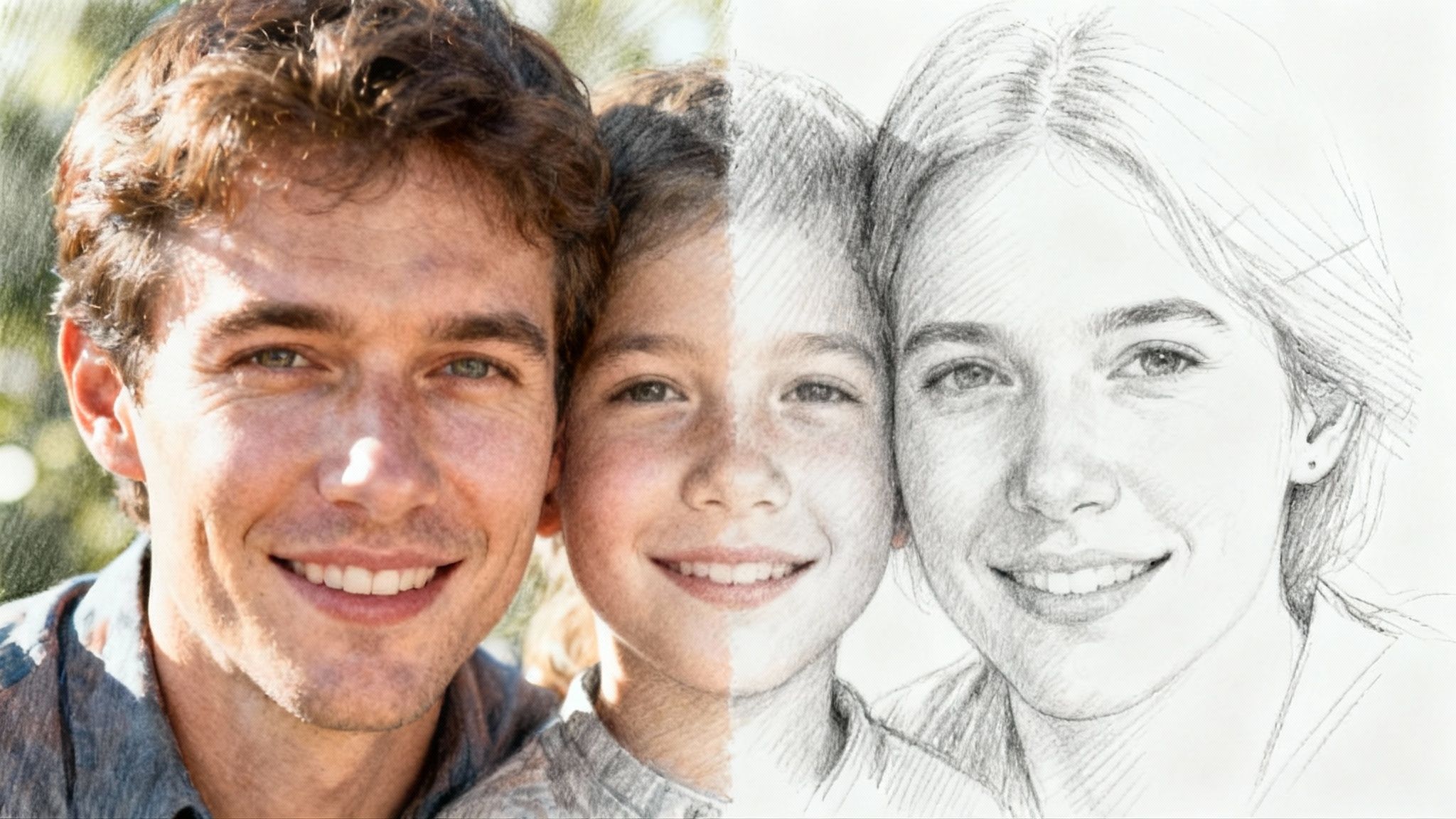
We've all been there. You look at a photo and think, "This would look incredible as a sketch." For a long time, that meant you either needed some serious artistic talent or had to spend hours fighting with complicated software that made you want to throw your computer out the window.
Thankfully, those days are over.
Now, pretty much anyone can do it. If you can upload a file, you can turn your favorite photos into amazing sketches. In this guide, I'll walk you through the easiest ways to get it done, from one-click AI tools to the more hands-on digital artist approach.
Why Is Everyone Suddenly Turning Photos into Sketches?
Let's face it, unique visuals are everything right now. The market for AI tools that can flip photos into sketches and other cool art styles is blowing up—we're talking projections in the tens of billions over the next five years. AI has made this so easy that it's quickly becoming a standard expectation, not some niche skill.
But this trend is about more than just slapping on a neat filter. People are using it for all kinds of practical (and awesome) reasons.
- Social Media Creators: An artistic, hand-drawn look is a fantastic way to stop the scroll and make your feed stand out from the endless cat videos.
- Unique Gifts: Imagine turning a cherished photo of a pet or family member into a thoughtful, one-of-a-kind sketch. It's a guaranteed hit and way better than another pair of socks.
- Digital Artists: Why start from scratch? A photo-based sketch gives you a solid foundation for a more detailed digital painting, saving you a ton of time.
- Marketers: Need some eye-catching graphics for an ad or a blog post? This is way faster and cheaper than hiring an illustrator (sorry, illustrators!).
The best part is how simple the tools have become. You don't need a fine arts degree to create something that looks genuinely good. And platforms like Zemith that give you access to multiple AI models open up a world of creative styles without a steep learning curve. It's like having a whole art department in your browser.
If you want to explore other ways to transform your images, this guide on is a great resource that covers more than just sketching. For those diving straight into AI, check out our breakdown of the to see what these tools can really do.
Now, let's get to it and make something cool.
Create Your Masterpiece in Minutes with AI
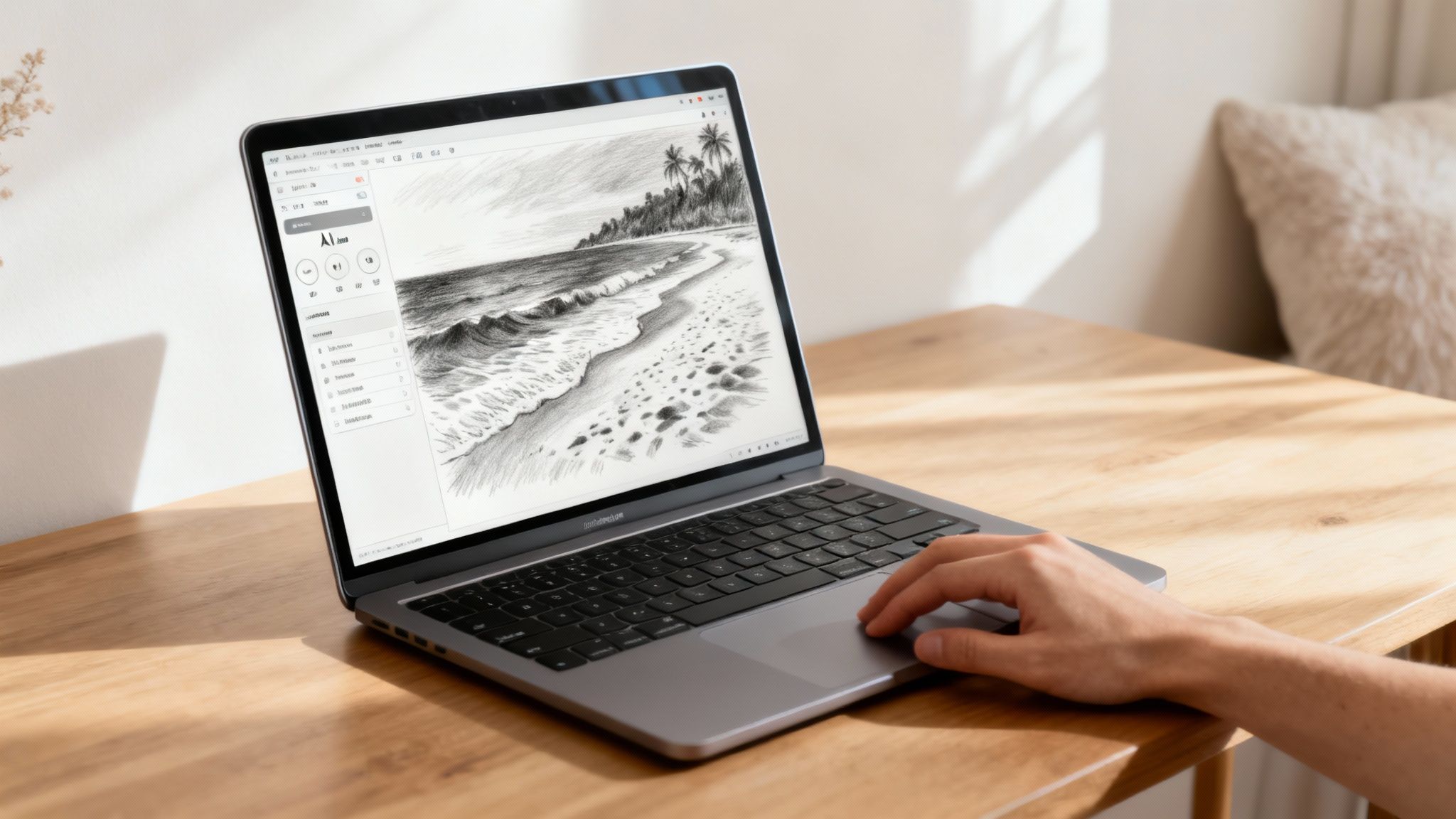
Alright, let's get to the good stuff. If you want to make a sketch from a photo but don't have hours to spend hunched over a drawing tablet, AI is about to become your new best friend. I'm serious—these tools can create stunning artwork in less time than it takes to brew a pot of coffee.
We've come a long way from those old-school, clunky "sketch" filters that just slapped some grainy lines on your picture. Modern AI has completely changed the game. The AI image generator market is exploding, projected to grow from $349.6 million in 2023 to over $1.08 billion by 2030. That growth is fueled by some seriously smart tech, which you can read about in the full research on .
What does that mean for you? It means you have access to ridiculously powerful tools that are surprisingly simple to use.
Why All-in-One AI Platforms Are a Game-Changer
Instead of trying to keep track of a dozen different apps and subscriptions, you can jump onto a single, powerhouse platform like . Think of it as your personal digital art studio, already stocked with multiple AI models like Stable Diffusion and Midjourney, all in one place.
This approach just makes life easier. You can bounce between different artistic styles without having to learn new software or pay for multiple services. It’s all about getting incredible results with the least amount of friction. Zemith lets you experiment with different styles—from pencil to charcoal—all from one simple interface.
The Simple Three-Step AI Sketch Process
Getting started is almost laughably easy. You don't need a degree in art history or a background in coding. The whole thing really just boils down to three simple steps.
- Upload Your Photo: First, just grab the picture you want to transform. It could be a chaotic family photo from last summer's vacation or that perfect landscape shot you took on a hike.
- Write a Killer Prompt: This is your moment to be the art director. You’re telling the AI exactly what you want it to create. Don't be shy!
- Choose Your AI Model: On a platform like Zemith, you get to pick the AI that fits the vibe you're going for. Different models have their own unique flair, so it’s always fun to play around and see what they come up with.
And that’s pretty much it. The AI takes your photo and your directions and just works its magic.
My Go-To Prompt Formula: If you're staring at a blank text box, try this simple formula:
[Sketch style] of [photo subject], [key details], [artistic vibe]. It's a fantastic starting point that gives the AI clear instructions without being overly complicated.
Real-World Examples to Spark Your Creativity
A great prompt is what separates a generic, filtered image from a piece of art that actually feels special. Let’s look at a few examples of how you can level up your prompts and create a high-quality line drawing from a photo.
- For a Family Portrait: Instead of just "sketch of a family," get specific: "Detailed charcoal sketch of a smiling family on a beach, soft shading, timeless and heartwarming feel, centered composition."
- For a Pet Photo: Give your furry friend the portrait they deserve: "Delicate pencil sketch of a golden retriever sleeping in the sun, fine lines, peaceful and serene, high detail on fur texture."
- For a Landscape Shot: Turn that travel photo into something you'd frame: "Expressive ink wash sketch of a mountain range at dawn, loose and atmospheric lines, dramatic shadows, style of a Moleskine sketchbook drawing."
See how those little details make all the difference? They guide the AI to a much more intentional and beautiful result. If you’re looking for even more ideas, we've put together a whole library of you can pull from. This is how you really take control and bring your vision to life.
The Hands-On Photoshop Sketch Method
Alright, if AI feels a bit too much like magic and you’d rather get your hands dirty (digitally, of course), let’s walk through the classic way to make a sketch from a photo. This is for those of us who love having total control and the satisfaction that comes from crafting something ourselves.
Think of this less as a rigid set of rules and more like a recipe you can tweak to your own taste.
We'll be using , but you can pull off these exact same steps in free software like . The buttons might have slightly different names, but the underlying logic is identical. It’s like the difference between Coke and Pepsi—same core idea, just a different wrapper.
This whole process might sound technical at first, but I promise it's surprisingly simple once you do it once or twice.
Your Basic Layering and Blending Recipe
The entire effect really just hinges on a clever trick with layers and blend modes. Don't worry, you don't need to be a Photoshop wizard to pull this off. It's just a few clicks.
First things first, never work on your original image. This is non-negotiable. Always duplicate the layer by hitting Ctrl+J on Windows or Cmd+J on Mac. This is your safety net; if you mess up, you can just delete the layer and start fresh.
With your new layer selected, strip out all the color. You can do this quickly by going to Image > Adjustments > Desaturate (or use the shortcut Shift+Ctrl+U / Shift+Cmd+U). Now, believe it or not, you’re going to duplicate this new black-and-white layer. You should now have three layers stacked up: your original color photo at the bottom, and two black-and-white copies on top of it.
Now we get to the fun part.
The Magic of Invert and Dodge
This is where the real transformation happens. On your very top black-and-white layer, you're going to invert the colors. It sounds weird, I know, but trust me on this.
Just go to Image > Adjustments > Invert (Ctrl+I or Cmd+I). Your image will instantly look like a spooky photo negative. That’s totally normal.
Next, find that layer's blend mode dropdown (it usually says 'Normal') and change it to Color Dodge. Your entire canvas will probably turn bright white or have a few random dark spots. Don't panic! This is exactly what's supposed to happen. You've just prepped the canvas for the sketch lines to appear.
What's happening here? The "Color Dodge" blend mode brightens the layer below it. By inverting the top layer, you're creating a situation where the image almost completely disappears, setting the stage for the final filter to reveal the lines. It's like a magic trick for pixels.
Revealing the Sketch with a Blur
The final move is to apply a simple filter. Make sure that top, inverted layer is still selected and head to Filter > Blur > Gaussian Blur.
A little box will pop up with a 'Radius' slider. As you slowly drag this slider to the right, your sketch will magically start to emerge from the white background. This is where you really get to be the artist.
- A low radius (think 1-5 pixels) will give you fine, delicate lines, almost like a precise pencil drawing.
- A higher radius (something like 20-40 pixels) creates thicker, more dramatic, and smudgy lines, more like a charcoal sketch.
Play around with that slider until you find a look you love. And that's it! You’ve just manually created a beautiful sketch. The process might seem complex, but it’s far more straightforward than figuring out how to turn a complex visual into a text prompt. For a deeper dive into that, you can learn how AI interprets images by reading our guide on .
Which Sketch Method Is Right for You?
Alright, so you've seen what AI can do in a flash and how you can get your hands dirty with Photoshop. Now for the big question: which path do you take? It’s the classic creative tug-of-war between getting it done fast and getting it done just right.
Honestly, there’s no single correct answer. It all comes down to what you’re trying to accomplish. Are you a marketer needing a batch of eye-catching blog headers before your next meeting? Or are you a digital artist building a piece from the ground up for your portfolio? Let's figure out which tool is your best bet.
AI Tools vs Manual Software: The Ultimate Showdown
Deciding between an AI sketch generator and manual software like Photoshop really hinges on your priorities. This table breaks down the key differences to help you choose the right tool for the job.
Ultimately, Zemith is your go-to for speed and variety, while manual software is king when you need absolute control and precision. Neither is "better"—they're just different tools for different tasks.
Real-World Scenarios to Help You Choose
Let's ground this in a few common situations. Seeing how these tools apply in the real world can make the choice much clearer.
- For quick social media graphics: Go with AI, no question. The speed of a tool like Zemith is perfect for creating a ton of content that grabs attention without eating up your whole day.
- For a personalized anniversary gift: This is where a hybrid approach shines. Use a tool like to get a beautiful base sketch, then pull it into or to add those personal touches that make it special.
- For a digital artist creating a painting base: The manual method is your friend here. It lets you create the clean, precise line art you need to build upon, ensuring it perfectly matches your artistic vision.
This decision tree gives you a simple visual guide: go with AI when you need speed, or stick with manual methods when control is everything.
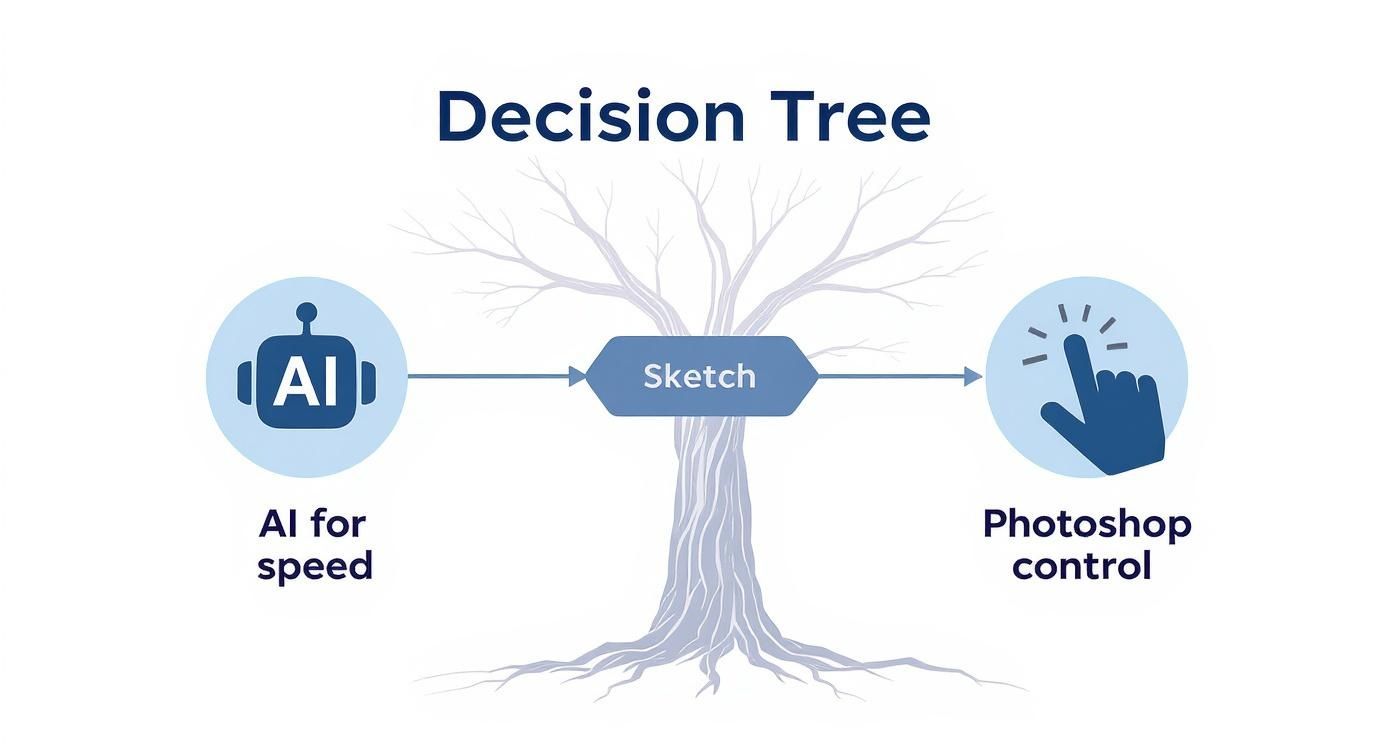
The lines are definitely starting to blur between these two worlds. The newest AI tools are getting incredibly sophisticated, handling things like transparency and high-resolution images up to 4K with ease.
Some can even identify text within a photo and integrate it into the sketch in a meaningful way. That's a level of detail we just didn't have a year or two ago.
Getting a handle on how AI actually "sees" and interprets images can give you a real edge in crafting better prompts and getting better results. For a deeper dive, check out our guide on . In the end, it’s all about matching the tool’s strengths to your creative goals.
Pro Tips for a Genuinely Hand-Drawn Look
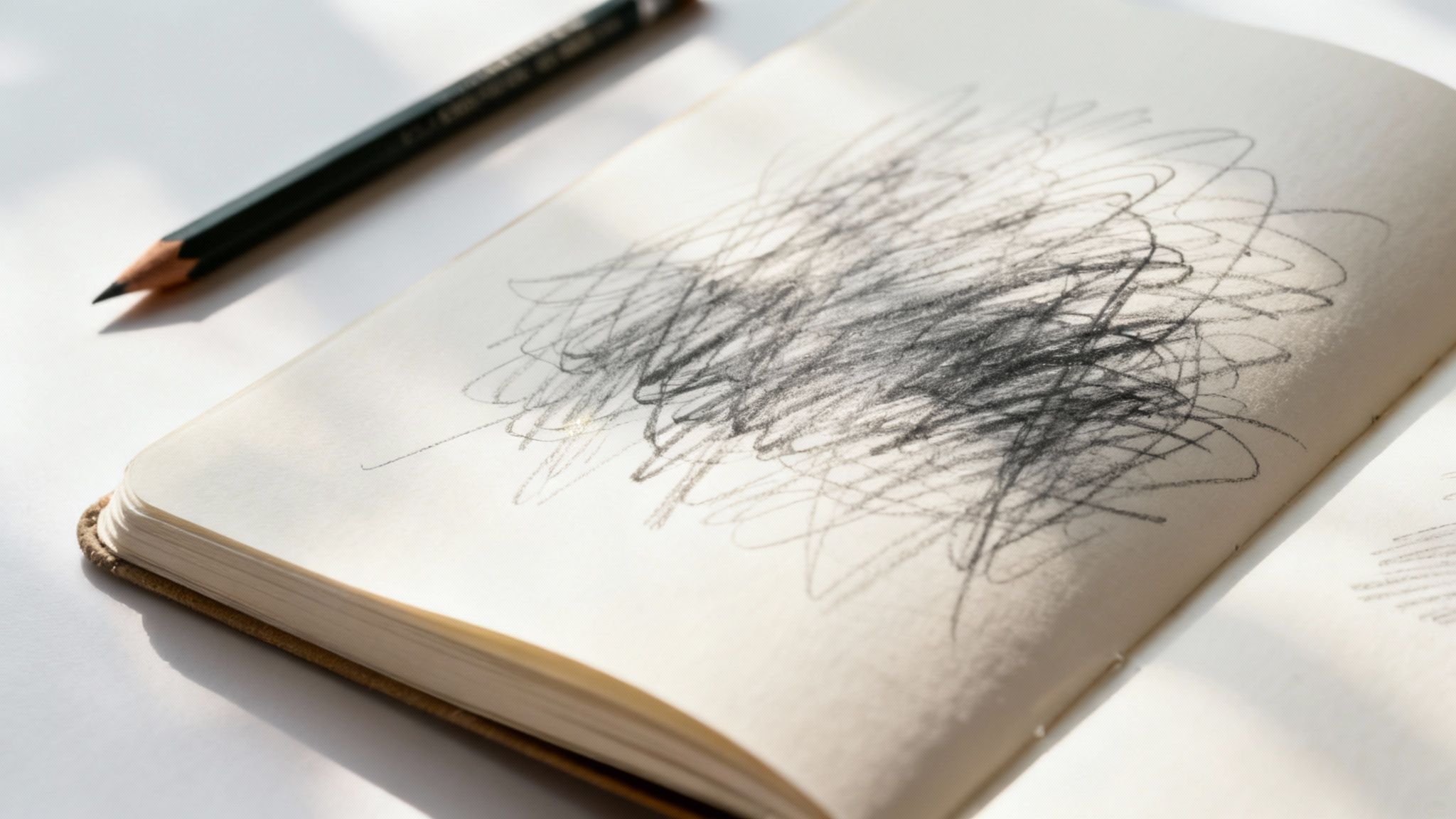
Making a sketch is one thing, but getting it to look like an actual artist spent time on it? That’s where the real magic happens. The difference between a generic filter and a believable piece of art often comes down to the little details that trick the eye.
These are the tricks that take your image from "cool" to "wow." Whether you're using a quick AI tool like Zemith or getting your hands dirty in Photoshop, these tips will add that crucial touch of authenticity when you make a sketch from a photo.
Master Your AI Prompts for Authentic Styles
When you’re working with an AI like Zemith, your prompt is your paintbrush. Just asking for a "sketch" will get you a basic result, but the real artistry comes from adding specific modifiers. You have to think like an artist describing their own work.
Instead of a generic request, try injecting some chaos and character.
- Add Texture: Use phrases like "messy charcoal lines," "graphite smudges," or "rough pencil shading."
- Define the Style: Try "unfinished sketchbook drawing," "quick gesture sketch," or "architectural blueprint style."
- Control the Details: Specify "fine line pencil work," "heavy cross-hatching," or "subtle and soft shading."
The goal is to give the AI a personality to work with. An "unfinished" sketch feels more human because it implies a creative process. A "messy" one feels more authentic because real art isn't always perfect. It’s a tiny shift in your prompt that can lead to dramatically better results.
Learning how to steer these powerful tools is a skill in itself. For a deeper dive into crafting effective prompts, our guide on how to has some great insights that you can apply to almost any AI model out there.
Add Believable Imperfections in Photoshop
For those of you using or , authenticity is all about adding layers of texture and small flaws. A perfectly clean digital sketch is a dead giveaway that it was converted from a photo. Real drawings have character.
A game-changing technique is to use a paper texture overlay. Find a high-resolution image of drawing paper—something with a bit of grain or "tooth"—and pop it on a new layer above your sketch. Set that layer's blend mode to 'Multiply' or 'Overlay' and dial back the opacity until it looks natural. This one simple step instantly makes it look like your sketch was drawn on actual paper.
Next, learn to love the eraser tool. Grab a large, soft-edged eraser and set it to a low opacity, maybe around 10-20%. Gently dab at a few areas. This mimics the subtle inconsistencies of real hand pressure and adds a surprising amount of depth. You can even layer multiple sketch effects with different blur settings to create a mix of sharp details and soft, smudgy shadows for a seriously rich final piece.
Got Questions About Turning Photos into Sketches?
It’s totally normal to have a few questions pop up when you're just starting out. Let's tackle some of the most common ones I hear so you can get past the "what ifs" and get back to the fun part—creating.
Think of this as a quick chat to clear up any lingering doubts.
Can I Really Use Any Photo to Make a Sketch?
Technically, you can throw any photo into a converter, but the old saying "garbage in, garbage out" really applies here. For a sketch you'll actually be proud of, you need to start with a good photo.
The best results always come from high-quality, well-lit images. If your original picture is blurry, super dark, or full of harsh shadows, the AI or even manual Photoshop filters will have a tough time figuring out what's what. Clear details and good lighting give the software a solid roadmap to follow when it's creating all those lines and shadows. So, maybe don't use that blurry photo from that concert in 2008?
Should I Print My Sketch or Just Keep It Digital?
This one's all about what you want to do with your new creation. There’s no right or wrong answer, just different goals.
- Going Digital? Perfect. Digital sketches are fantastic for sharing on social media, sprucing up a blog post, or adding to your online portfolio. They're easy to send, and you never have to worry about losing quality.
- Thinking of Printing? Awesome! A printed sketch makes a thoughtful gift, looks great as wall art, or can even be added to a physical scrapbook. There's just something special about holding the art in your hands.
A quick pro tip if you decide to print: Always export your final sketch at a high resolution. The industry standard is at least 300 DPI (dots per inch). Anything less, and you risk your print looking fuzzy and pixelated.
As you get more into making art from your photos, you might start thinking about selling your work. To get a handle on what makes a print valuable, you can . It’s great info to have in your back pocket.
How Do I Get Different Kinds of Sketch Styles?
This is where the real fun begins! Your approach will change depending on the tools you're using.
If you're using a multi-model AI platform like Zemith, getting new styles is as simple as changing up your text prompt. You can literally generate endless variations. Just try tossing in keywords like "charcoal drawing," "graphite sketch," "ink wash," "colored pencil," or "crosshatch style" and see what magic the AI cooks up. It's like having an infinite art supply store at your fingertips.
Working with something like Photoshop? Your creativity comes from playing with different filters, layering textures, and using various digital brushes. You can stack a few different sketch effects on top of each other or drop in a paper texture overlay to completely transform the feel of the piece. The secret is just to experiment—don't be afraid to click around and see what happens.
Ready to stop thinking about it and start doing it? Zemith packs multiple powerful AI models into one straightforward platform, letting you turn any photo into a beautiful sketch in just a few clicks. You can play with countless styles and fine-tune your ideas without getting bogged down by complicated software.
探索 Zemith 功能
所有顶级AI。一个订阅。
ChatGPT、Claude、Gemini、DeepSeek、Grok 及25+模型






始终在线,实时AI。
语音 + 屏幕共享 · 即时回答
学习一门新语言的最佳方式是什么?
沉浸式学习和间隔重复效果最好。尝试每天消费目标语言的媒体内容。
语音 + 屏幕共享 · AI 实时回答
图像生成
Flux、Nano Banana、Ideogram、Recraft + 更多
以思维的速度书写。
AI自动补全、改写和按命令扩展
任何文档。任何格式。
PDF、URL或YouTube → 聊天、测验、播客等
视频创作
Veo、Kling、MiniMax、Sora + 更多
文字转语音
自然AI语音,30+语言
代码生成
编写、调试和解释代码
与文档对话
上传PDF,分析内容
口袋里的AI。
iOS和Android完整访问 · 随处同步
你的无限AI画布。
聊天、图像、视频和动态工具 — 并排展示
节省数小时的工作和研究时间
简单、经济实惠的定价
受信赖的企业团队
免费
无需信用卡
- 每日100积分
- 3个AI模型试用
- 基础AI聊天
增强版
- 1,000,000积分/月
- 25+个AI模型 — GPT、Claude、Gemini、Grok等
- Agent Mode:网页搜索、计算机工具等
- Creative Studio:图像生成和视频生成
- Project Library:与文档、网站和YouTube对话,播客生成、闪卡、报告等
- Workflow Studio和FocusOS
专业版
- 包含增强版所有功能,以及:
- 2,100,000积分/月
- Pro专属模型(Claude Opus、Grok 4、Sonar Pro)
- Motion Tools和Max Mode
- 优先使用最新功能
- 访问额外优惠
用户评价
Great Tool after 2 months usage
"I love the way multiple tools they integrated in one platform. Going in the right direction."
— simplyzubair
Best in Kind!
"The quality of data and sheer speed of responses is outstanding. I use this app every day."
— barefootmedicine
Simply awesome
"The credit system is fair, models are perfect, and the discord is very responsive. Quite awesome."
— MarianZ
Great for Document Analysis
"Just works. Simple to use and great for working with documents. Money well spent."
— yerch82
Great AI site with accessible LLMs
"The organization of features is better than all the other sites — even better than ChatGPT."
— sumore
Excellent Tool
"It lives up to the all-in-one claim. All the necessary functions with a well-designed, easy UI."
— AlphaLeaf
Well-rounded platform with solid LLMs
"The team clearly puts their heart and soul into this platform. Really solid extra functionality."
— SlothMachine
Best AI tool I've ever used
"Updates made almost daily, feedback is incredibly fast. Just look at the changelogs — consistency."
— reu0691