


Every top model, with tools built in.
Search the web, run deep research, read files, create images and run code with GPT, Claude, Gemini, Grok and more.
Ten AI productivity hacks you can use today: multi-model prompt layering, Library context, Live Mode, and repurposing workflows built around Zemith.
You've got six browser tabs open, three AI subscriptions, and the same background paragraph pasted into a chatbot for the third time this week. One tab holds competitor research, another has a half-finished draft, and somewhere in the mess is the document you need to answer a very simple question. Your afternoon isn't disappearing because the work is impossible. It's disappearing because your tools keep asking you to start over.
The best AI productivity hacks remove that friction. They keep context attached to the project, turn large inputs into useful next steps, and reserve human attention for judgment instead of copy-pasting. The ten workflows below are designed around features you can try inside Zemith today, from Library and Projects to Prompt Gallery, Live Mode, coding tools, research, and converters.
A new task rarely starts from zero. A software engineer may need a changelog, design document, README, and old debugging discussion before touching one bug. A content marketer may need brand guidelines, audience research, competitor notes, and previous campaign results. Keeping those materials in separate tabs turns every prompt into a miniature onboarding session.
Use Zemith's Library as the project's durable memory. Store the documents, research, and relevant conversations together, then use Projects to give the broader initiative a clear home. A researcher can keep adding studies to a living literature review. A marketer can ask for campaign ideas against the full audience and brand context. An engineer can ask for a fix while the assistant can reference the codebase history.
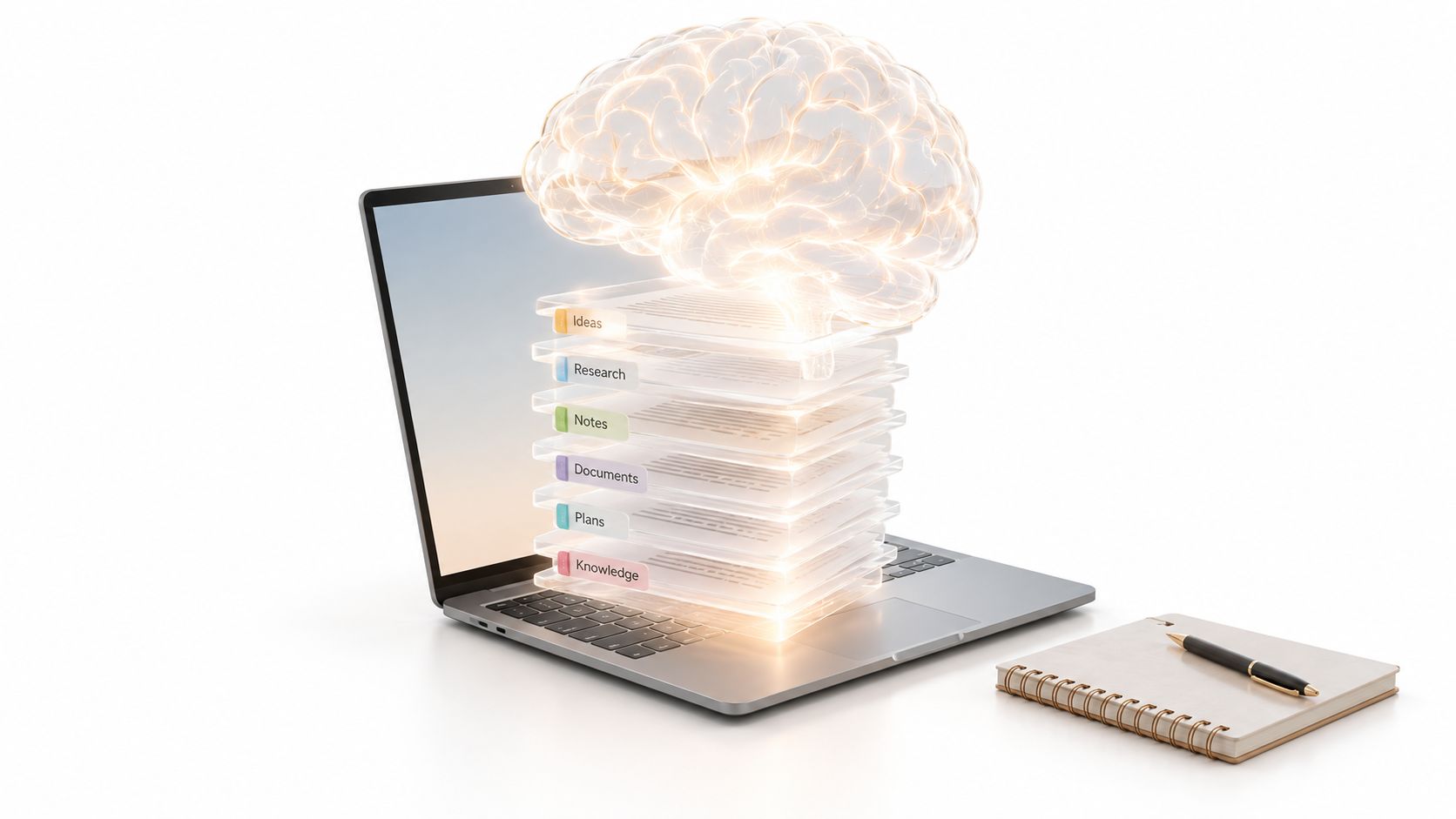
Name folders with descriptive search terms, such as Q4-2025-ProductStrategy-CompetitorAnalysis, rather than Research. Tag documents by themes, use the Document Assistant to summarize long files before storing them, and remove outdated material periodically. A bloated knowledge base can be as unhelpful as an empty one.
Practical rule: Put one major initiative in one Project, then keep its supporting evidence in Library. Your future self shouldn't need a treasure hunt to understand your own work.
For a closer look at this evidence-first workflow, see how to chat with your documents. You can also keep competitor-related research organized alongside notes about what TiedSiren blocks, if that belongs to your project.
A single prompt often produces something that looks finished but still needs structural surgery. Prompt layering works better because each pass has one job. You might ask for rough ideas, then structure, then fact-checking, then tone refinement. The assistant isn't being asked to brainstorm, edit, verify, and sound human while juggling one enormous instruction sandwich.
A writer can sketch ideas in Smart Notepad, send the draft to Claude for structure, use Gemini to check claims, then return to Smart Notepad for a final tone pass. A developer can describe a feature, have GPT o3-mini produce a first implementation, ask Coding Assistant to debug it, and use Black Forest Labs to explore a matching interface direction. A marketer can generate campaign concepts, refine coherence, check trend alignment, and prepare the final copy in one workspace.
Start with two or three layers, not a ceremonial parade of prompts. Save sequences that improve the result in Prompt Gallery, and write down what each layer is supposed to change. Use different models when their strengths differ, but don't switch models just to make the workflow look complex. If the second pass merely rephrases the first, you've added waiting time, not productivity.
Keep every stage in the relevant Project so you can compare the rough idea with the final version later. That record helps a team teach the workflow instead of passing around folklore like, “Use this magic prompt and hope.”
The best layered workflow ends with a human decision, not another layer.
A fifty-page API guide, a stack of research papers, or a long competitor report can consume a morning before you know whether it contains anything relevant. Zemith's Document Assistant lets you filter first. Upload the material, ask for a focused summary, generate questions or flashcards, and create a podcast when listening makes more sense than staring at another PDF.
An engineer learning an unfamiliar API can summarize the documentation, create flashcards for endpoint details, and listen to the podcast version while walking. A student can use quizzes to identify weak areas before reading every paper closely. A product manager can ask for feature comparisons across case studies, then bring the audio version into a team meeting.
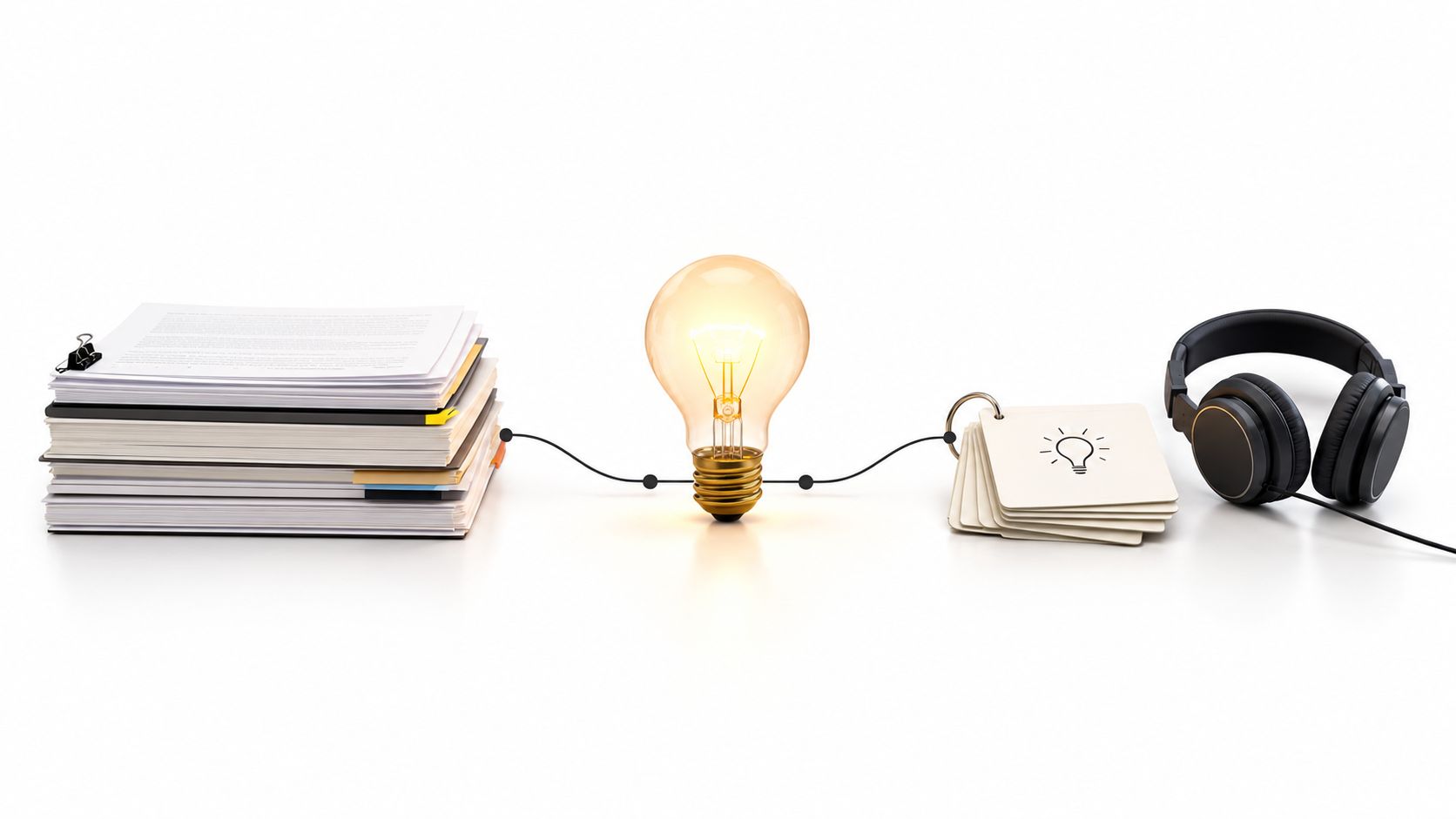
Use the summary to decide which sections deserve close reading. Generate a quiz before reading the full document to prime your attention, then create flashcards for facts you need to retain. Tag important files in Library and compare themes across them instead of reviewing each document in isolation. You can export useful cards to a spaced-repetition tool such as Anki or Quizlet.
The workflow is powerful because it separates triage from mastery. It doesn't give you permission to skip every source. It helps you spend careful attention where the material directly affects your decision. For a practical walkthrough, explore AI document summarization.
A junior developer inherits a large React codebase. The fastest route forward isn't blindly asking for a rewrite. It's asking what the component does, tracing the data flow, rendering it in a live preview, and changing one piece at a time.
Zemith's Coding Assistant can explain code line by line, help debug it, and provide live previews for React and HTML. That makes the feedback loop visible. A frontend developer working with Three.js can adjust parameters and see the result immediately. A DevOps engineer can paste Kubernetes YAML, ask why a field matters, modify it, and test the configuration. A backend developer can examine an N+1 query in the actual code rather than reading a generic explanation detached from the problem.
Ask for an explanation before requesting a fix. Save difficult explanations in Library as future documentation, and add the codebase README to Document Assistant so the assistant has architectural context. You can also ask different models to explain the same code when the first explanation feels too abstract.
Keep the live preview open while you work. Alt-tabbing between an editor, browser, and chat window is a small tax that becomes surprisingly expensive across a day. The point isn't to outsource understanding. It's to make understanding interactive.
Debugging habit: Ask what changed, why it changed, and how you can test it before accepting generated code.
For a useful starting point, read what this code does. Then run the explanation against your own component, not a toy example.
Design review often starts with a vague reaction: “This feels premium,” or “The competitor's page is clearer.” Image analysis turns that reaction into a working brief. Upload a screenshot, ask what creates the visual effect, reconstruct prompts for the style, and generate variations that test a different direction.
A marketer reviewing competitor product pages can identify repeated layout patterns and brief a designer with concrete observations. A UI designer can analyze a successful component, build prompts for alternate use cases, and document the emerging design system. A founder can study a competitor screenshot, adapt the composition to the company's own brand, and create prototypes before commissioning polished design work.

Don't stop at “describe this image.” Ask what makes it feel trustworthy, how the composition directs attention, which elements could be removed, and how the design might change for a different audience. Use object removal to explore alternatives, then save strong prompts in Prompt Gallery. Analyze your own previous work too. Patterns in your choices can be more useful than another round of vague inspiration.
AI-generated variations are drafts, not final brand decisions. Check accessibility, originality, licensing, and whether the result still serves the user. For a related visual workflow, compare the role of an on-device photo editor when privacy or local editing matters.
Blank pages create unnecessary drama. Start with five bullets in Smart Notepad, then let AI autocomplete expand the fragments into a rough draft. Once the ideas exist, use rewriting tools to adjust tone, shorten sentences, generate custom paragraphs, or match a house style.
A content marketer can turn an outline into a first draft, then refine it for brand voice. A technical writer can expand function descriptions into readable documentation and create acronyms for a quick-reference guide. A newsletter writer can jot down five ideas, let autocomplete develop them, and then edit the result into a consistent weekly edition. Someone applying for jobs can tailor several cover letters from the same experience notes without rewriting every sentence from scratch.
Autocomplete performs better when you give it direction. Use bullet points instead of a blank page, and save useful paragraphs in Library as templates for recurring work. Write neutrally first, then ask for a confident, warm, concise, or humble version depending on the audience. Finish with sentence shortening. Wordy thinking often hides inside perfectly grammatical sentences.
The trade-off is obvious: accepting every suggestion can make your writing bland and factually careless. Read every paragraph, restore specific details, and reject anything that doesn't sound like you. The system should remove typing friction, not remove your editorial judgment.
A fast first draft is valuable only if someone still decides what deserves to stay.
Research should happen before the polished argument, not after publication when a reader has already found the weak claim. Zemith's Deep Research combines real-time web search with fact-checking, so you can investigate a market, competitor, product claim, or technical question while the idea is still flexible.
A founder preparing a funding deck can research competitors and market claims before putting them in front of investors. A product manager can check whether a “first” claim is accurate. A journalist can cross-reference evidence and preserve source links. A marketer building battlecards can create a repeatable competitor research Project and update it as the market changes.
Save findings in Library with their source links. Ask the assistant to challenge your assumptions, surface contradictions, and distinguish direct evidence from interpretation. Export research as Markdown when you need to share it, but review the suggested sources yourself. A neat summary can still misread a source.
Pair Deep Research with Document Assistant by uploading reports and asking where they disagree with live web findings. That combination is especially useful when a report represents one point in time and the web contains later changes. For a practical approach to verification, read how AI fact-checking works.
Some work stalls because your hands are on the keyboard when your brain wants to talk. Zemith's AI Live Mode fits that moment. You speak through the mess, keep your screen in view, and turn half-formed thoughts into something you can test while the idea is still warm.
I use it when typing slows me down. A founder can talk through a pitch deck slide by slide and ask for objections before the meeting. A developer can describe a bug while looking at the component, try a fix, then ask a follow-up without rewriting the whole prompt. A designer can review a Whiteboard, check accessibility concerns, and adjust the layout during the same conversation. A writer can explain the argument out loud, hear a few structural options, and go back to the draft with a usable outline.
Set the scene first. “I'm looking at a React component that feels slow” works better than jumping straight into frustration. If the conversation produces something useful, ask for a summary and save it to Library. That turns a good live session into material you can reuse later in Projects or refine with a saved prompt from the Prompt Gallery.
There is a trade-off. Live Mode is great for brainstorming, diagnosis, and early iteration, but text still wins when you need exact phrasing, precise code edits, or instructions another teammate will follow later. Mobile voice notes are handy while commuting or walking, too. Just review the transcript before you treat a clever train-platform idea as company policy.
A product launch generates a roadmap, customer research, development specifications, marketing briefs, screenshots, conversations, and decisions. If those materials live in disconnected tools, every new collaborator asks for context and every meeting repeats history.
Create one Zemith Project for each major initiative. A launch team can collect its roadmap, audience research, competitor analysis, and product notes in one place. A fundraising team can store the pitch deck, financial model, market research, and investor questions together. Researchers can keep citations, analysis decisions, and co-author discussions attached to the paper they support.
Name Projects with a date and scope, such as Q2-2025-LaunchName, rather than Project1. Add the reason behind important decisions, not only the final answer. New team members can use Document Assistant to generate an orientation summary, while Whiteboard helps the group see relationships among ideas.
Avoid creating a separate Project for every tiny task. Too much organization becomes another form of avoidance, usually accompanied by excellent folder names and no finished deliverable. Export project summaries for client or board updates, and link related Projects in Library when work crosses initiatives.
The benefit is shared context. A teammate can ask a question against the same source material instead of reconstructing the backstory from private messages and half-remembered meetings.
The most efficient content program often starts with one detailed source. Write the research report, guide, or long-form article first. Then use Zemith's converters and rewriting tools to adapt the substance for different audiences and formats.
A researcher can turn a study into a blog post, extract a LinkedIn carousel, create a podcast script, and build a social thread from the findings. A creator can convert a YouTube video into a blog, pull key points into an email sequence, and prepare social posts. A developer can turn a technical guide into Markdown for GitHub, a beginner-friendly article, and an advanced thread.
Start with the most detailed format and simplify from there. A product marketer might move from feature announcement to blog post, customer email, LinkedIn post, team message, and internal documentation. Save platform-specific prompts in Prompt Gallery, and tag reusable source material in Library so you can find it later.
Converters produce a strong starting point, not a publish button. A social post needs a different opening than a guide. An email needs a clearer action. A developer audience may tolerate detail that would bury a general reader. Customize each version, check claims against the original source, and remove repeated phrasing that makes every channel sound like the same robot wearing different hats.
For more ideas on building this pipeline, explore content repurposing strategies.
The strongest AI productivity hacks aren't isolated tricks. They're small operating systems for recurring work. Context Stacking prevents you from re-explaining a project. Document-to-Insights helps you decide what deserves close attention. Prompt Layering turns one vague request into a sequence of useful decisions. Converters make a detailed piece of work travel further without forcing you to rebuild it for every channel.
Choose based on your bottleneck. If you spend half your day answering the same background questions, start with Library and Projects. If reading is swallowing your calendar, use Document Assistant to summarize, quiz, and compare before you commit to a deep dive. If writing stalls at the blank page, open Smart Notepad and begin with five bullets. If your team produces fast but reviews slowly, add checkpoints instead of asking the assistant to generate more.
Measure the whole workflow, not just the visible output. The NBER study of 5,179 customer-support agents found that access to an AI conversational assistant increased issues resolved per hour by 13.8%, with agents spending approximately 9% less time per chat and handling about 14% more chats per hour. The gains weren't evenly distributed. The least experienced and lowest-performing workers improved by approximately 35%, while experienced, highly skilled workers saw little or no measurable benefit in some analyses. Read the NBER study for the details.
Software teams need the same discipline. Three randomized field experiments involving 4,867 developers found a combined 26.08% increase in completed tasks for developers using an AI coding tool, although the estimate was noisy and less-experienced developers showed larger gains. The Microsoft Research publication supports using AI for scaffolding, explanations, tests, and repetitive refactoring while people retain ownership of architecture and acceptance criteria.
Don't confuse speed with net productivity. A systematic review of 37 studies found that coding and API-search savings were often offset by quality regressions and rework on complex tasks. Independent telemetry covering more than 10,000 developers across 1,255 teams found AI-assisted developers completed 21% more tasks and merged 98% more pull requests, while review time rose 91%, bugs per developer increased 9%, and average pull-request size grew 154%. The Berkeley California Management Review analysis makes the practical lesson hard to miss. Track revision hours, defects, review effort, and user outcomes alongside output volume.
For writing, a controlled experiment found that ChatGPT reduced writing time by 37%, with participants finishing about 10 minutes faster than a control group whose average completion time was 27 minutes. Evaluator-rated quality increased by 0.45 standard deviations, while rough-drafting time fell by more than half and editing time more than doubled. The Noy and Zhang experiment points toward a healthier division of labor. Let AI help with the first pass, then move your attention to judgment and revision.
Run one workflow on one real task tomorrow. Save the prompts, source documents, decisions, and final result in Library or Prompt Gallery. The second attempt should start with a reusable method, not another blank chat window. If you want to bring research, writing, documents, coding, creative work, and project context into one workspace, start at Zemith.
Zemith brings multi-model AI, Library, Projects, Document Assistant, Smart Notepad, Coding Assistant, Deep Research, Live Mode, image tools, Whiteboard, and format converters into one workspace. Try one of these workflows on a real task, save what works, and visit Zemith to build a more repeatable way of working.






Trusted by teams at






The top models, plus image, video and voice tools, in one plan.
Without Zemith
ChatGPT PlusUS$20.00Claude ProUS$20.00Google AI ProUS$19.99SuperGrokUS$30.00Perplexity ProUS$20.00 MidjourneyUS$10.00
 ElevenLabsUS$6.00Le Chat ProUS$14.99
 RunwayUS$15.00Kling StandardUS$8.80
 Gamma PlusUS$12.00
 Otter ProUS$16.99
 QuillBot PremiumUS$19.95
 Photoroom ProUS$12.99
 Quizlet PlusUS$7.99
Total if paying separatelyUS$234.70/mo
"I love the way multiple tools they integrated in one platform. Going in the right direction."
— simplyzubair
"The quality of data and sheer speed of responses is outstanding. I use this app every day."
— barefootmedicine
"The credit system is fair, models are perfect, and the discord is very responsive. Quite awesome."
— MarianZ
"Just works. Simple to use and great for working with documents. Money well spent."
— yerch82
"The organization of features is better than all the other sites — even better than ChatGPT."
— sumore
"It lives up to the all-in-one claim. All the necessary functions with a well-designed, easy UI."
— AlphaLeaf
"The team clearly puts their heart and soul into this platform. Really solid extra functionality."
— SlothMachine
"Updates made almost daily, feedback is incredibly fast. Just look at the changelogs — consistency."
— reu0691
Hand off the research, writing, design and follow-ups. Zemith picks the tools it needs and brings back finished work.
Search the web, run deep research, read files, create images and run code with GPT, Claude, Gemini, Grok and more.
Zemith keeps working in the cloud and pings you when it's done.
Notion, Linear, Canva, Airtable and more. It asks before it creates or changes anything.
Docs, slides, sheets and PDFs, ready to send.
Chain models and tools on a visual canvas, from one prompt to a finished promo video.
Briefings, reports and reminders run on a schedule and are ready when you need them.
Real-time voice that can see your camera or screen.
The best image and video models, in one studio.
Turn PDFs, links and YouTube videos into podcasts, quizzes, flashcards and mind maps.












 Podcast
 Quiz
Quiz Flashcards
 Mind map
 Infographic