


Every top model, with tools built in.
Search the web, run deep research, read files, create images and run code with GPT, Claude, Gemini, Grok and more.
Compare the best dictation software for Mac in 2026 across accuracy, privacy, offline support, voice commands, pricing, and real-world workflows.
You're drafting an email, capturing a meeting note, or talking through an idea while your hands are busy. Your Mac gets most of it right, then turns a product name into something edible and scatters punctuation like confetti. Now you're editing the tool's mistakes instead of finishing your work.
Dictation is useful only when the finished text takes less effort than typing. The best dictation software for Mac depends on your accent, microphone, environment, preferred language, and the apps where you write. Voice commands, offline behavior, macOS compatibility, privacy, and plan limits matter more once the novelty wears off.
There's also a distinction worth making before downloading anything:
Don't buy a meeting transcriber when you need to dictate into Mail. And don't pay for elaborate automation if Apple's built-in option already handles your messages.
The recommendations below match tools to jobs rather than declaring a universal winner. They also separate current options from a legacy Dragon product that deserves caution, not an impulse purchase. The useful test is straightforward: which tool leaves you with the least cleanup in your real workflow?
[blocked]
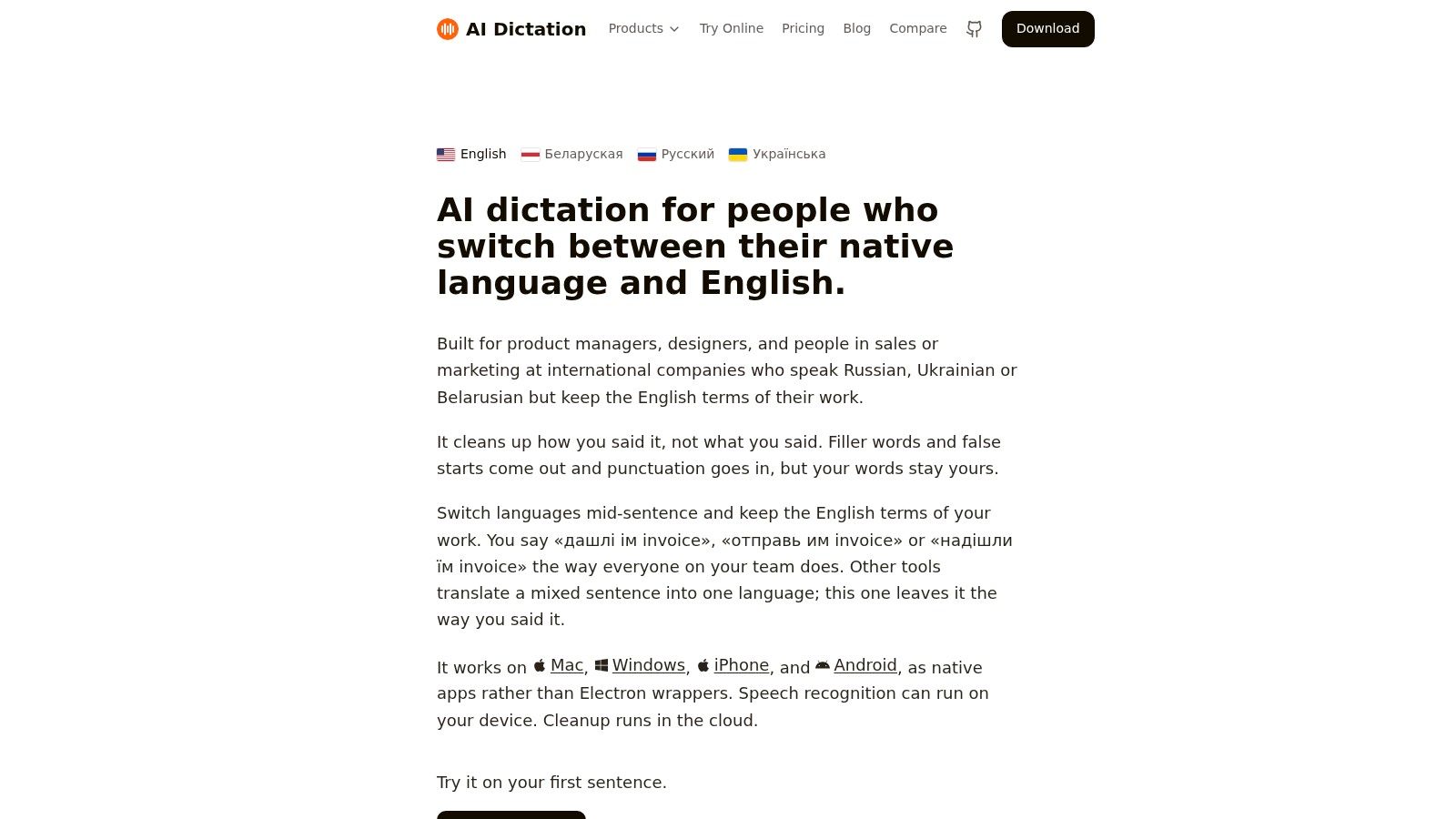
Best for switching between private local dictation and polished cloud-assisted writing.
AIDictation combines macOS voice typing with cleanup designed to produce ready-to-send text. Built by the WritingMate.ai team, it offers Auto Mode to select between on-device recognition and a cloud service, plus explicit Local and Cloud modes.
Local Mode runs Parakeet v3 on Apple Silicon, with offline recognition and no dictation data leaving your Mac. Cloud Mode adds grammar and punctuation cleanup, filler-word removal, context-aware formatting, and handling of spoken self-corrections.
[blocked]
A custom dictionary helps with names, APIs, and specialist terminology. App-specific context rules can make email professional, chat casual, and editor output technical, rather than applying the same writing style everywhere.
AIDictation positions its recognition for accents, mumbled speech, and background noise. Treat that as something to test with your microphone, not a promise that your kitchen extractor fan has finally met its match.
Its free allowance is 2,000 words per month with no account required, according to the linked product website. Monthly, annual, and lifetime Pro options provide unlimited cloud/local models, English translation, audio/video transcription, and meeting recording and transcription.
The security positioning includes 256-bit SSL and SOC 2 pending, as stated on its website. Pending isn't completed certification, and medical dictation support alone doesn't establish suitability for regulated records.
[blocked]
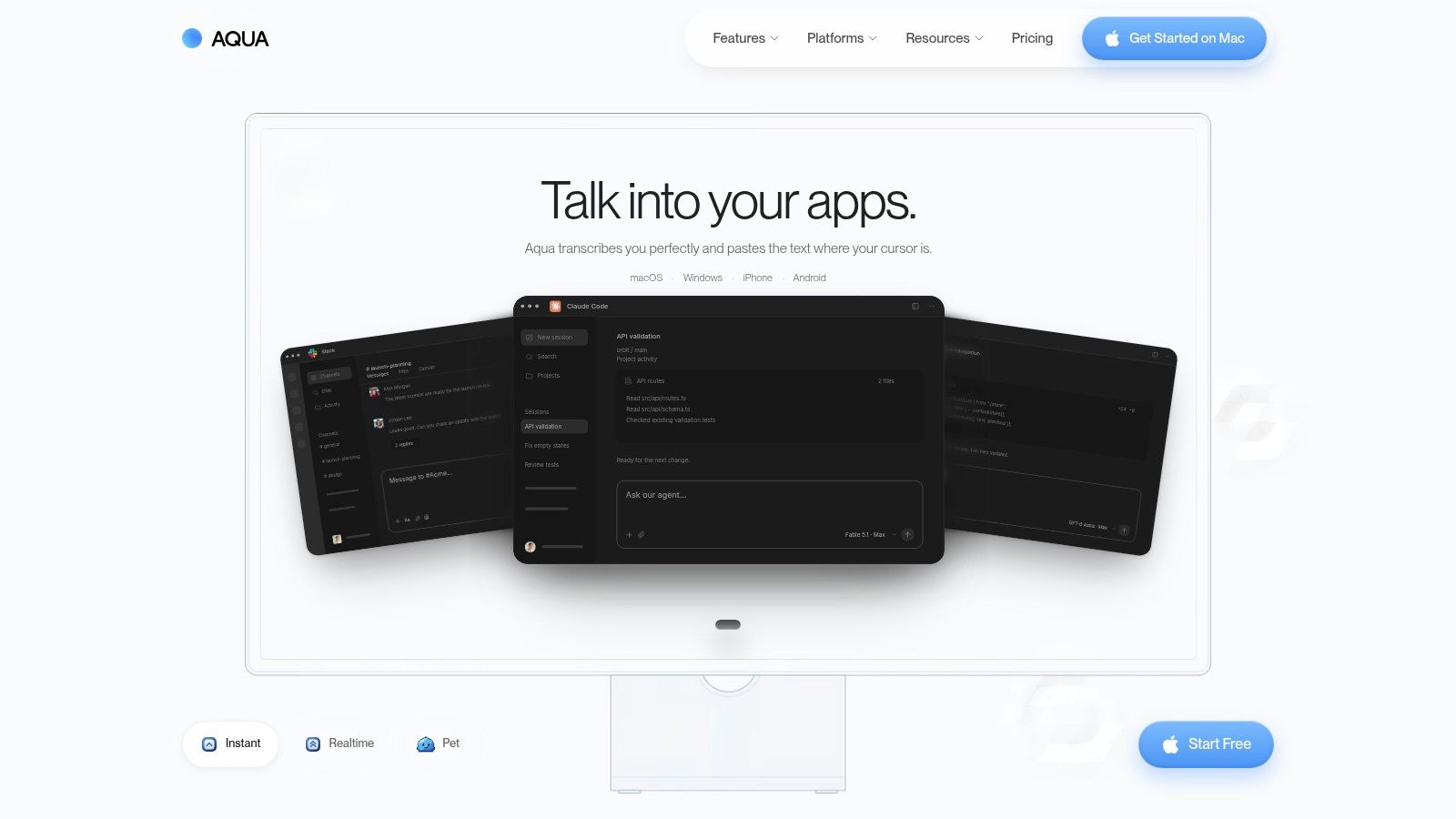
You've dictated a paragraph. Now you want it shorter, clearer, and less like you were thinking aloud. Aqua Voice is particularly interesting when editing matters as much as initial capture.
Aqua Voice inserts formatted speech into text fields across apps. Its Edit Mode lets you select existing text and speak instructions to rewrite, shorten, or format it, rather than moving everything into a dedicated editor.
Judge voice editing by how reliably it changes the selected passage without disturbing the text around it.
Try a practical sequence: dictate an email, select its opening, ask for a shorter version, then format the remaining points. Pay attention to selection behavior and whether the revision preserves names, dates, and intent.
The free starter tier includes 1,000 words, according to the linked Aqua Voice website. Paid Pro and Max plans expand the offering, with custom instructions and an expanded dictionary on Pro.
The trade-off: Pro requires a subscription, and privacy-sensitive users should inspect the service's data practices before speaking confidential content. Aqua Voice makes sense when spoken revision replaces keyboard work, not when you will immediately rewrite every AI-assisted sentence anyway.
[blocked]
Superwhisper suits Mac users who want control over models, modes, and offline operation. That flexibility is valuable, provided you don't turn choosing a speech model into your afternoon's main project.
Superwhisper supports shortcut or push-to-talk dictation across apps, on-device speech models, custom modes and prompts, and audio/video file transcription. A free tier and free local Whisper models offer a starting point; some features and cloud models require Pro.
[blocked]
Create distinct workflows for email, rough notes, and technical prompts. A cleanup instruction that makes client correspondence readable might remove repetition you wanted to preserve in research notes.
The main cost beyond payment is configuration time. If you only dictate occasional messages, Apple Dictation may be simpler.
For work that continues beyond capture, compare the workflow with Zemith's AI voice assistant. Keep the roles clear: choosing how speech becomes text is separate from choosing where you'll develop and organize the resulting ideas.
[blocked]
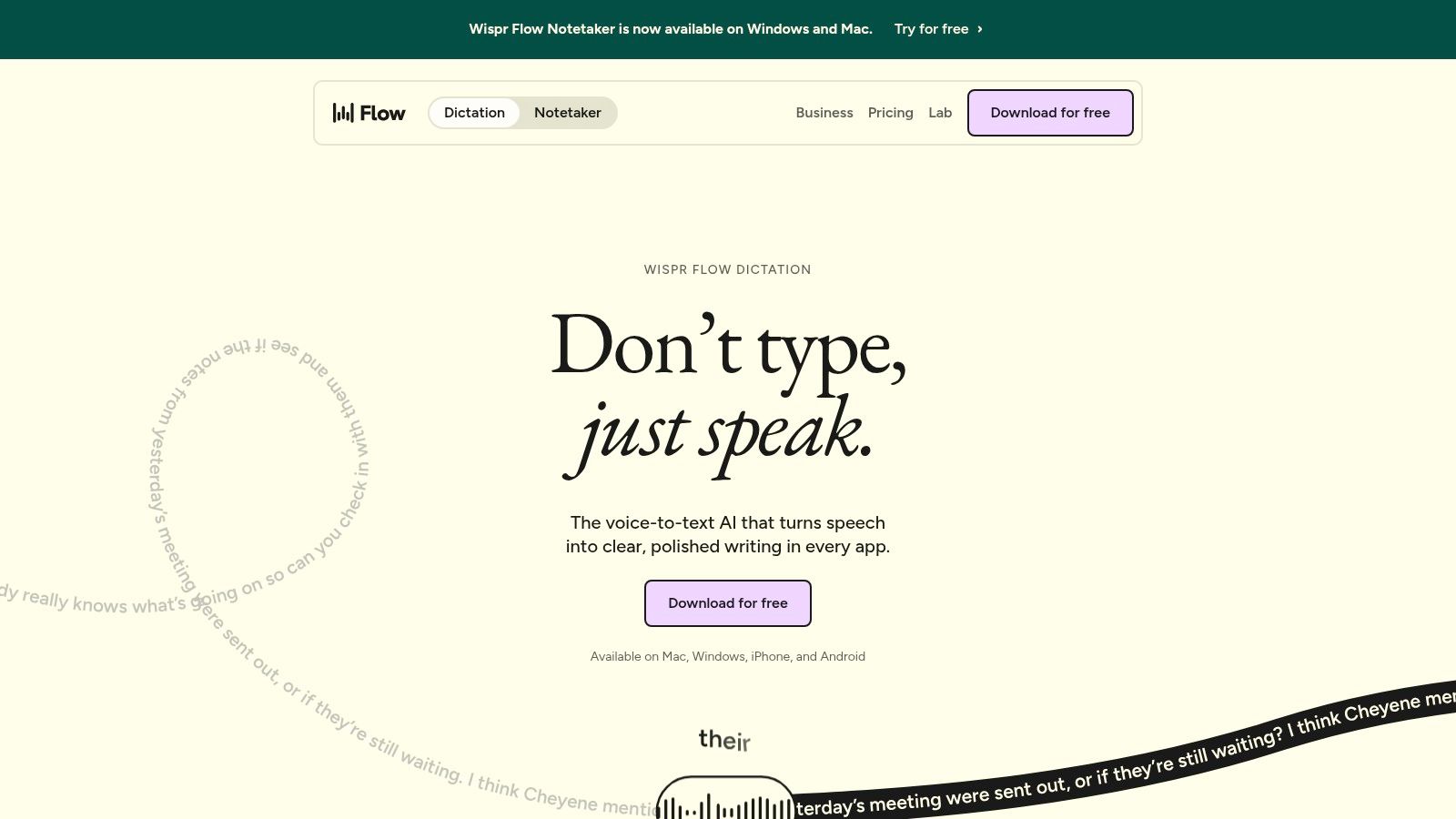
Choose Wispr Flow for a consistent voice-typing workflow across desktop and mobile devices. It's available on Mac, Windows, iOS, and Android, which matters if your working day doesn't stay inside the Apple ecosystem.
Wispr Flow provides system-wide dictation, with AI cleanup and formatting on paid plans. Personal vocabulary helps with recurring terminology, while team plans add shared dictionaries, workspace features, and administration.
The practical question isn't whether the cleaned-up text looks attractive. It's whether the app preserves what you meant when you hesitate, correct yourself, or use specialist language.
Test informal chat and formal writing separately. You don't want every message to your colleague rewritten like an application for planning permission.
Wispr Flow's subscription makes more sense when cross-device convenience and reduced cleanup are daily benefits. If your usage is mostly brief Mac-only notes, compare it against the built-in baseline before paying for a broader platform.
[blocked]
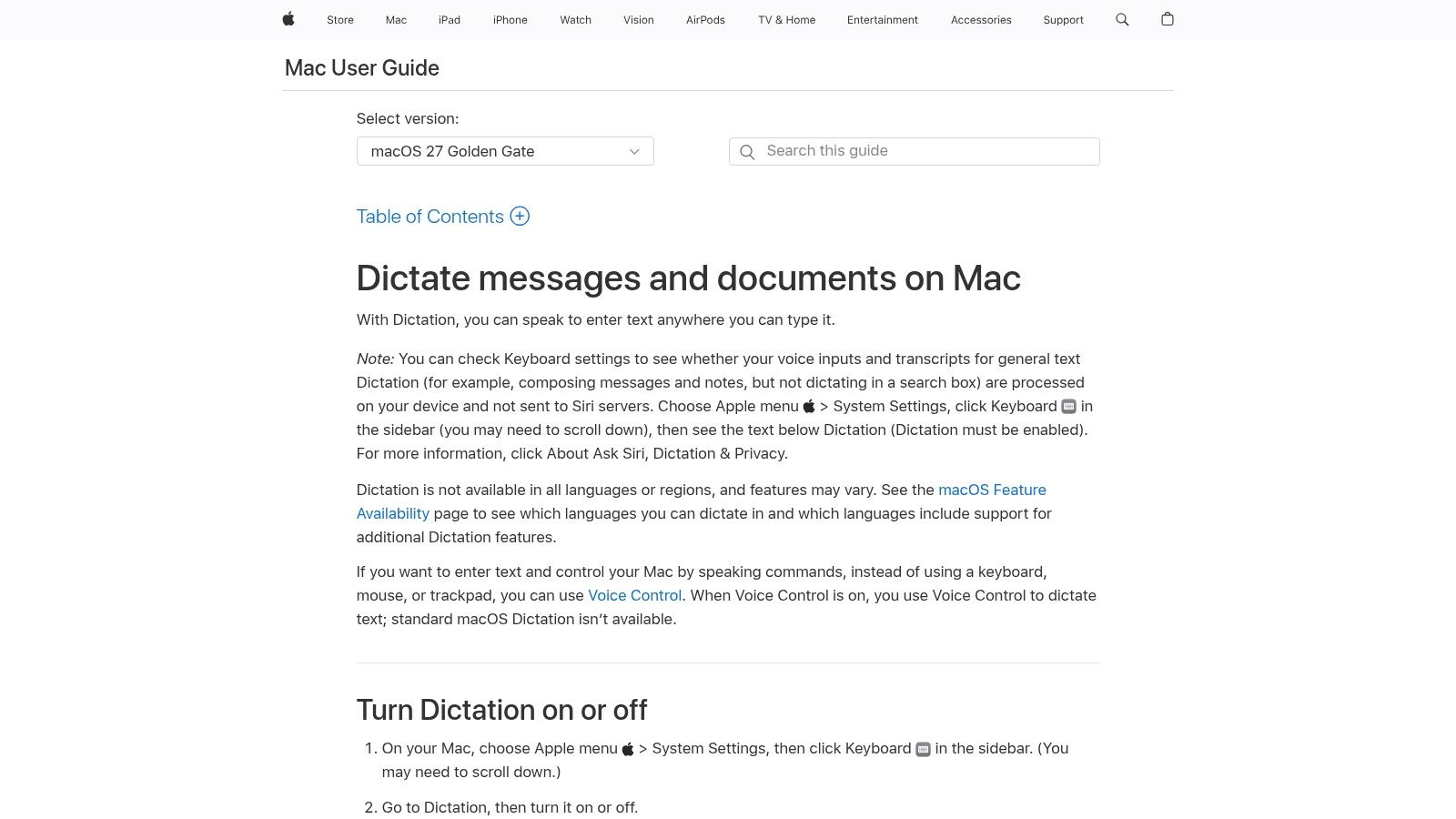
Start here if you want free Mac dictation without another app or subscription. Apple Dictation handles speech entry in many places where you can type, making it a sensible baseline for short messages, notes, and rough drafts.
Apple's Dictation documentation explains configuration and language availability. Behavior varies by language, region, and settings, so don't assume someone else's offline experience applies to your setup.
[blocked]
Dictate a normal email and a paragraph containing your usual terminology. Check punctuation, paragraph breaks, proper nouns, and the effort needed to repair mistakes.
Apple documents optional sharing of Siri and Dictation recordings and the ability to delete eligible recent interactions. Inspect those settings before dictating confidential material.
For a proofreading pass after capture, Zemith's AI text-to-speech offers a different part of the workflow: listening to text rather than entering it. Reading aloud can be useful when your eyes keep skipping the same awkward sentence.
[blocked]
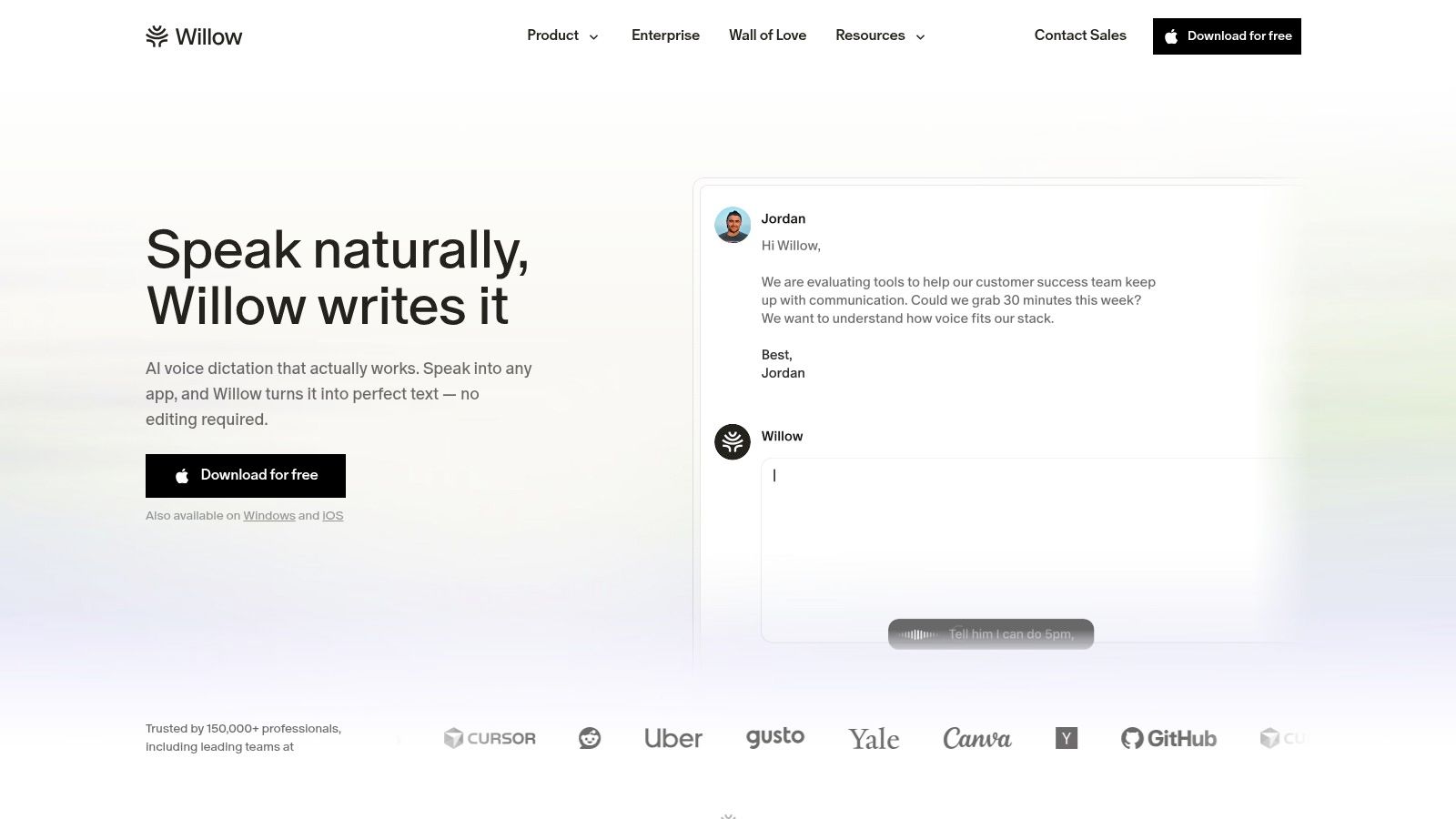
Personalization is only useful if the app learns your preferences without sanding off your meaning. Willow Voice is worth considering when recurring writing style matters more than extensive model configuration.
Willow Voice offers system-wide dictation, a free plan with unlimited use of its basic speech model, and a Pro tier with a more capable model, personalization, writing-style memory, and longer sessions.
That free plan makes it possible to evaluate a regular dictation habit rather than rationing every experiment. However, don't assume the basic model represents the recognition quality or behavior of Pro.
Practical rule: Upgrade for a problem you can name, such as repeated terminology errors or unwanted formatting, not simply because the paid plan sounds smarter.
Try repeated tasks: project updates, client replies, and technical explanations. Check whether personalization preserves distinctions between them rather than making everything sound identical.
Team and enterprise plans add administrative and privacy features, but individuals may not need those controls. Organizations should examine the actual settings and terms rather than treating an enterprise label as a substitute for review.
Willow is a practical shortlist candidate for habitual writers who want less setup. A subscription earns its keep only if the improved model and personalization reduce editing in the documents you produce.
[blocked]
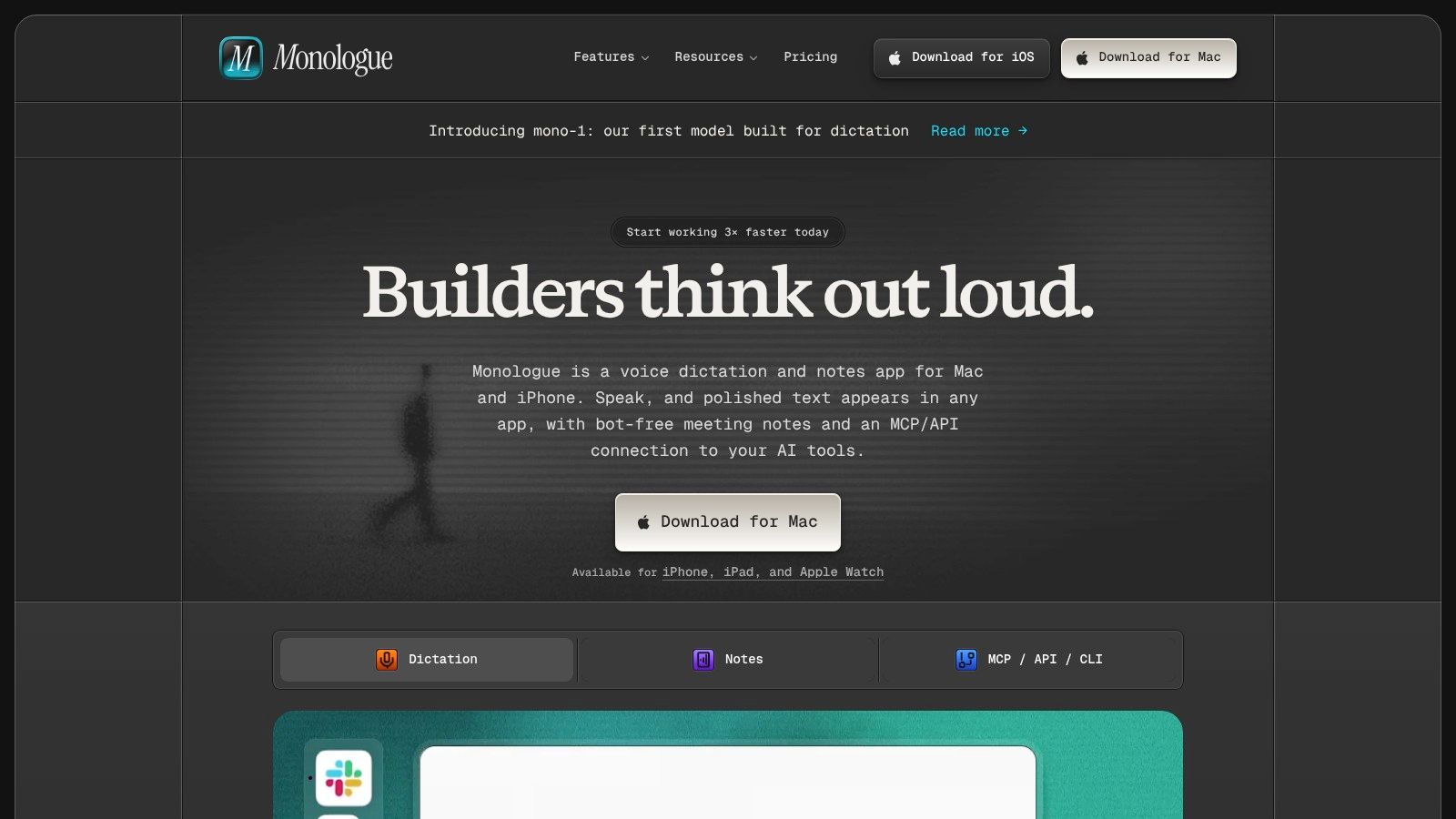
A useful thought rarely arrives politely while the correct document is open. Monologue combines dictation, voice notes, and meeting notes for people whose capture needs extend beyond typing into an app.
Monologue offers across-app dictation and a local transcription option on Mac. Connections through MCP, API, and CLI also make it relevant to technically inclined users who want recorded notes available to other tools.
[blocked]
The appeal is consolidating voice workflows. The downside is paying for meeting and note features when all you needed was a dependable push-to-talk shortcut.
Its free trial includes limited dictation and recorded-note allowances. It's primarily aimed at Apple-device users, so mixed Windows or Android teams should examine the fit carefully.
Compare the capture stage with Zemith's AI note taker when your real objective is usable notes rather than a transcript archive. Avoid paying for overlapping meeting tools unless each has a clear role.
[blocked]
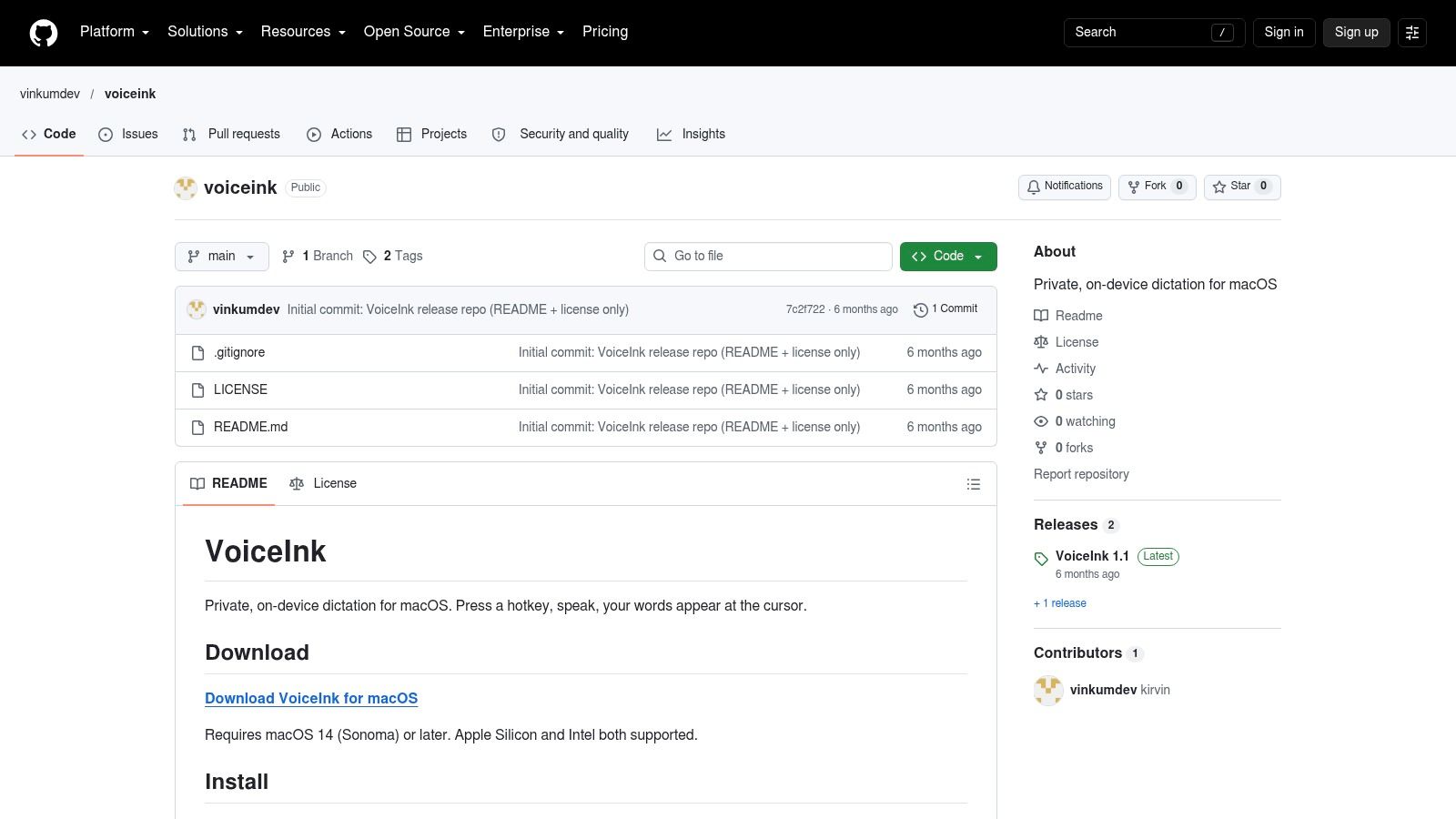
VoiceInk fits users who prioritize on-device transcription and direct control over optional AI polishing. It uses a customizable hotkey to insert dictated text into the active field, with local Whisper or Parakeet engines.
The VoiceInk project page is the place to verify current pricing, compatibility, and release status. Its menu-bar approach and searchable transcript history suit users who want quick access without a large writing interface.
The important distinction is between local recognition and optional external polishing. Using your own API key gives you configuration control, but it doesn't make the polishing stage local.
If capture works but insertion doesn't, inspect the app's permissions and the destination field before blaming speech recognition. Recognition and text placement are separate parts of the job.
VoiceInk is appealing if you're comfortable managing models and API credentials. It's less compelling if your ideal setup involves no configuration decisions whatsoever. Local control is useful, but somebody still has to operate the controls.
[blocked]
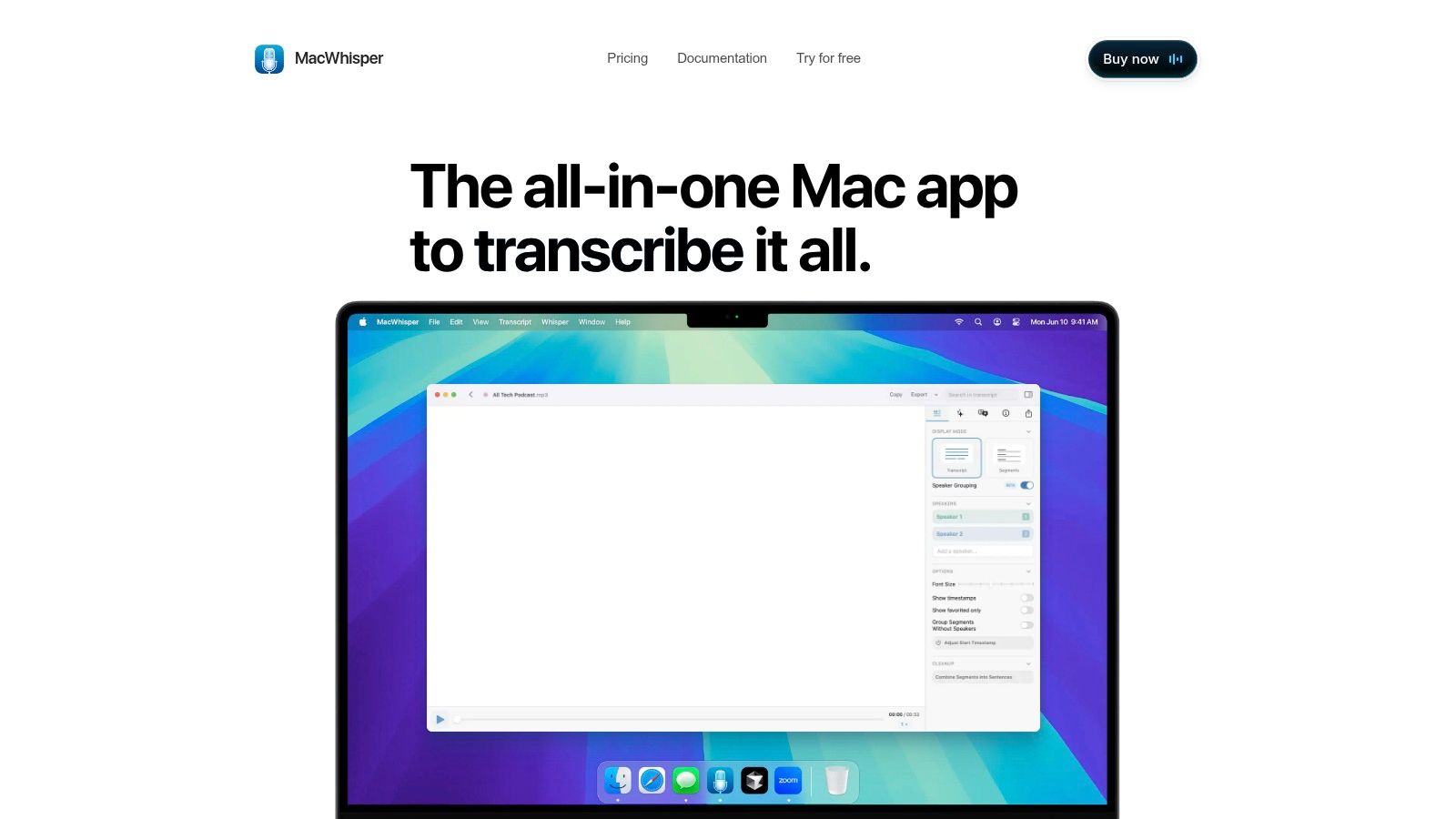
Got an interview recording rather than an empty email? MacWhisper is the more relevant category of tool. It focuses on turning audio and video files into text, with local transcription options, language support, and multiple export formats.
MacWhisper offers a free version and Pro features, including speaker recognition and additional transcription/export capabilities. Its developer website lists a one-time Pro purchase with lifetime updates.
[blocked]
The direct-download and Mac App Store editions differ. Compare the specific edition before purchasing, especially if live dictation is part of your requirement.
Test a representative recording with interruptions, names, and specialist vocabulary. Review speaker labels and export formatting, not just the first readable paragraph.
For the next stage, evaluate Zemith's AI transcription alongside your document workflow. The useful outcome is searchable, reviewable source material that you can turn into summaries or drafts without losing the original context.
Keep recordings available for verification. A fluent transcript is still something to check, particularly before publishing quotations.
[blocked]
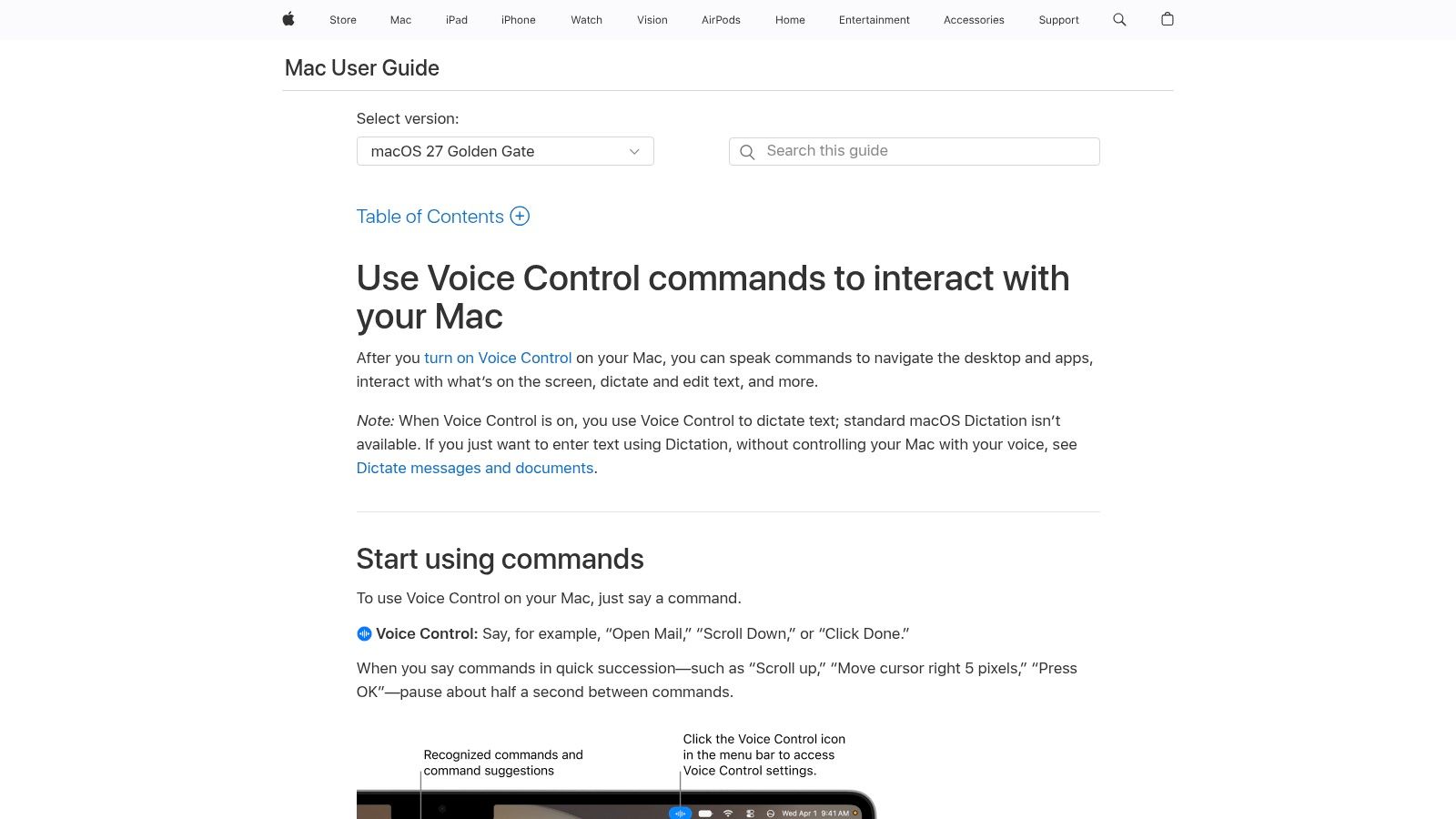
For hands-free operation, don't confuse voice typing with voice control. Apple Voice Control combines dictation with navigation, text selection, editing, deletion, scrolling, and interaction with apps.
Apple's Voice Control guide describes the built-in accessibility feature. It's worth testing before buying another tool when your main difficulty is operating the Mac, not merely entering words.
The compatibility detail matters: standard macOS Dictation is unavailable while Voice Control is enabled. These aren't additive Apple features you can leave running together.
A tool that recognizes speech beautifully can still be the wrong accessibility choice if correcting a sentence requires reaching for the mouse.
Start with a complete task in your actual application: open it, enter text, select a mistaken phrase, replace it, and move on. That reveals more than dictating a clean paragraph into an empty document.
Voice Control is included with macOS, but learning commands takes effort. Its broader interaction model may be unnecessary if all you want is occasional push-to-talk entry.
For accessibility-focused workflows, evaluate correction and navigation first. For quick messages, standard Dictation may feel less involved. The right choice depends on how much of the computer interaction you need to perform by voice.
[blocked]
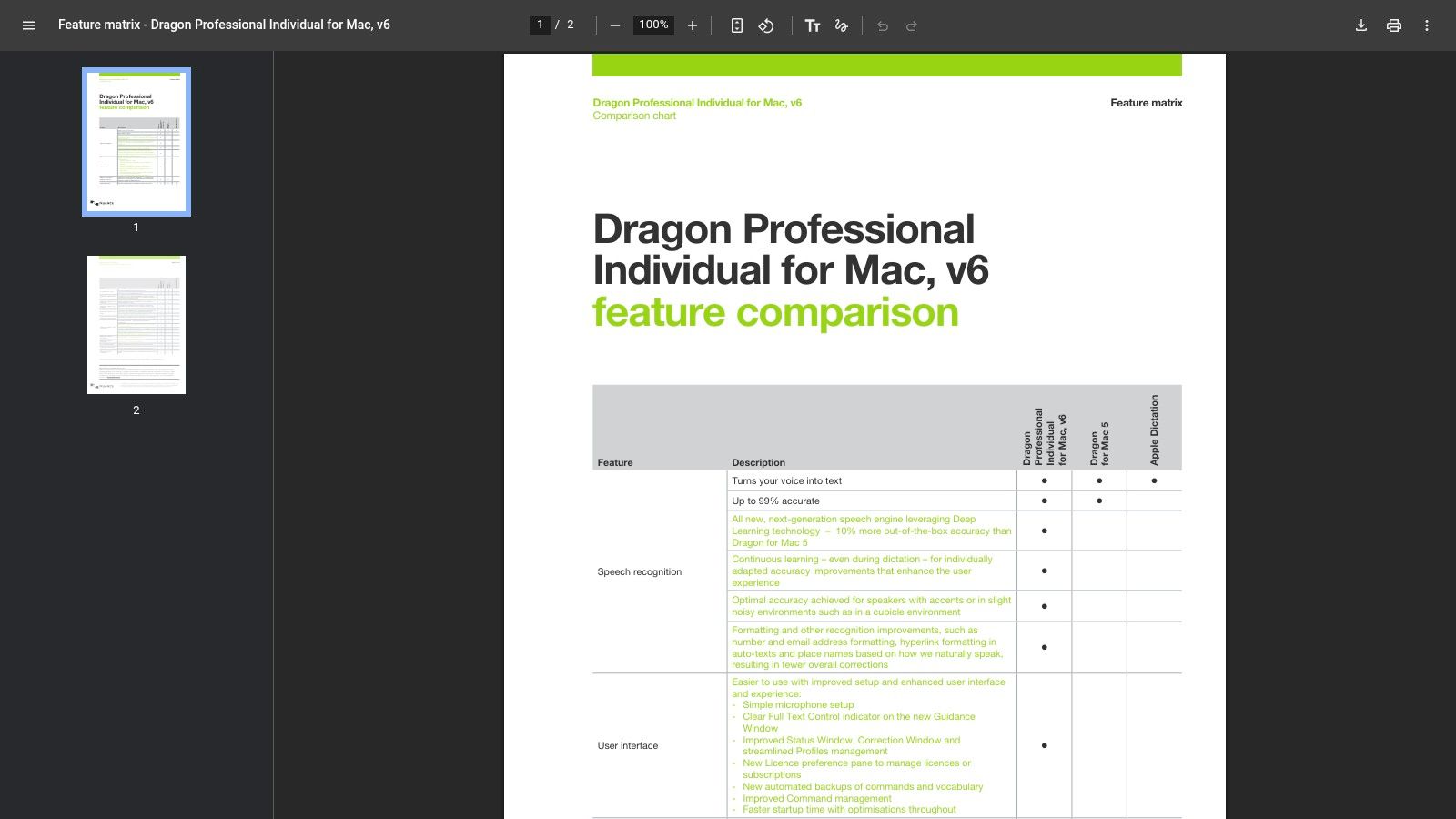
Dragon belongs here as a legacy consideration, not a default recommendation for new Mac buyers. Its historical role in professional dictation doesn't establish present-day availability, support, or compatibility.
The Dragon Professional Individual for Mac feature matrix describes a product designed for dictation and voice commands. Treat that document as historical product information, not proof that you can buy a supported current Mac release.
Existing owners may have vocabulary, commands, and established routines worth preserving. New buyers should be much more cautious.
A familiar name isn't a compatibility strategy. Current apps with accessible downloads or free tiers are generally easier to evaluate against today's workflow.
If you're moving from legacy dictation toward broader automation, consider Zemith's AI agent separately from the speech-input layer. Document assistance and task automation may complement dictation, but they don't replace accessibility commands or guarantee compatibility with an older Dragon installation.
[blocked]
[blocked]
For quick, free Mac dictation, start with Apple Dictation. Choose Superwhisper or VoiceInk when offline processing and configuration control matter, MacWhisper for recorded interviews and media, and Aqua Voice or Wispr Flow when spoken editing or AI cleanup justifies ongoing payment.
AIDictation deserves consideration when you want local recognition and cloud-assisted polish in the same product. Willow Voice suits writers interested in personalization, while Monologue makes sense when dictation, voice notes, and meeting capture all belong in your day. For hands-free navigation and correction, evaluate Apple Voice Control rather than comparing transcription alone.
[blocked]
Use your real microphone, preferred language, normal room, and favorite apps. Include proper nouns, technical vocabulary, spoken corrections, and a paragraph you'd genuinely send to someone.
Don't judge solely by how quickly words appear. In a longitudinal dictation study, average output rose from 10.6 to 18.1 words per minute across eight trials, showing why familiarity with correction and navigation can change the result substantially.
Accent testing matters too. Interspeech research on recognition disparities reported 87.6% accuracy for mainstream accents versus 55.8% for L2 accents in one benchmark; those aren't Mac-product scores, but they're a strong reason to distrust a universal accuracy claim.
Before paying: Compare time to finished text, not time to first transcript.
Grant only necessary permissions and examine cloud-processing, retention, and optional polishing settings. Test offline behavior explicitly, and remember that the privacy of speech recognition is separate from the privacy of the document's destination.
[blocked]
A free tier may cover occasional notes. A one-time purchase may suit a stable transcription workload, while a subscription needs to justify itself through features you repeatedly use, not features you might someday explore.
Dictation also isn't the whole writing process. Research notes still need verification, meeting transcripts need review, and rough ideas need structure before they become useful documents.
Choose a dictation tool that fits your capture needs, then bring a non-sensitive sample into Zemith's connected AI workspace. Use its writing and document tools to turn that sample into a polished draft, research summary, or organized project note, and judge the complete workflow by how much useful work you finish.
Pay less than one AI subscription and get GPT, Claude, Gemini and more, plus 50+ AI tools.






Trusted by teams at






The top models, plus image, video and voice tools, in one plan.
Without Zemith
ChatGPT PlusUS$20.00Claude ProUS$20.00Google AI ProUS$19.99SuperGrokUS$30.00Perplexity ProUS$20.00 MidjourneyUS$10.00
 ElevenLabsUS$6.00Le Chat ProUS$14.99
 RunwayUS$15.00Kling StandardUS$8.80
 Gamma PlusUS$12.00
 Otter ProUS$16.99
 QuillBot PremiumUS$19.95
 Photoroom ProUS$12.99
 Quizlet PlusUS$7.99
Total if paying separatelyUS$234.70/mo
"I love the way multiple tools they integrated in one platform. Going in the right direction."
— simplyzubair
"The quality of data and sheer speed of responses is outstanding. I use this app every day."
— barefootmedicine
"The credit system is fair, models are perfect, and the discord is very responsive. Quite awesome."
— MarianZ
"Just works. Simple to use and great for working with documents. Money well spent."
— yerch82
"The organization of features is better than all the other sites — even better than ChatGPT."
— sumore
"It lives up to the all-in-one claim. All the necessary functions with a well-designed, easy UI."
— AlphaLeaf
"The team clearly puts their heart and soul into this platform. Really solid extra functionality."
— SlothMachine
"Updates made almost daily, feedback is incredibly fast. Just look at the changelogs — consistency."
— reu0691
Hand off the research, writing, design and follow-ups. Zemith picks the tools it needs and brings back finished work.
Search the web, run deep research, read files, create images and run code with GPT, Claude, Gemini, Grok and more.
Zemith keeps working in the cloud and pings you when it's done.
Notion, Linear, Canva, Airtable and more. It asks before it creates or changes anything.
Docs, slides, sheets and PDFs, ready to send.
Chain models and tools on a visual canvas, from one prompt to a finished promo video.
Briefings, reports and reminders run on a schedule and are ready when you need them.
Real-time voice that can see your camera or screen.
The best image and video models, in one studio.
Turn PDFs, links and YouTube videos into podcasts, quizzes, flashcards and mind maps.











 Podcast
 Quiz
Quiz Flashcards
 Mind map
 Infographic