


Every top model, with tools built in.
Search the web, run deep research, read files, create images and run code with GPT, Claude, Gemini, Grok and more.
chatgpt generate images: Learn to craft prompts, fix common issues, and create eye-catching AI art with ChatGPT.
You bet your pixels it can. Not only can ChatGPT generate images, but it does it right inside the chat window, turning your text into eye-popping visuals faster than you can say "digital da Vinci." This magic trick is powered by OpenAI wiring its DALL·E 3 image model directly into the conversation, letting you create art without ever leaving the tab.
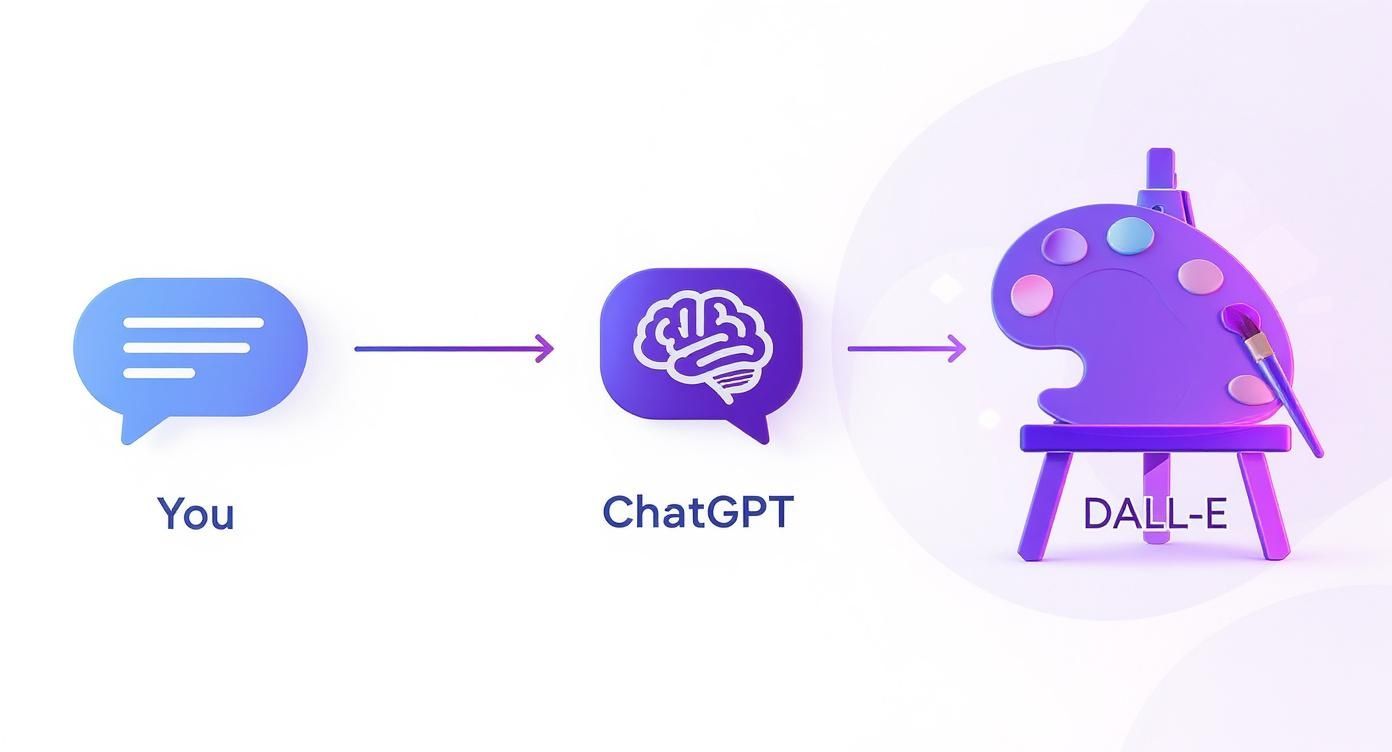
Ever wonder what’s happening behind the curtain when you type "a corgi wearing a top hat" and get that perfect, dapper doggo? It’s less magic, more of a brilliant collaboration between two AIs: a creative writer (ChatGPT) and a super-fast artist (DALL·E 3).
When you ask for an image, ChatGPT doesn't just copy and paste your request. It puts on its fancy creative director hat. It takes your core idea and jazzes it up, automatically adding rich details about the style, setting, lighting, and mood. This souped-up prompt is what it sends over to DALL·E 3, and it's the secret sauce to getting great images from just a few words. You thought you were the prompt master? Think again.
This all-in-one process is a massive upgrade over older tools where you had to guess the magic keywords. Here, the AI does the heavy lifting for you, translating what you want into a language the image model can truly understand.
Here’s a simple breakdown of the dream team you're working with when asking ChatGPT to whip up a visual.
The real genius here is how ChatGPT gets your intent. It’s built to understand the nuance in your words, which makes it much easier to steer the AI toward the image you're picturing in your head.
For instance, a basic idea gets a full-blown artistic treatment:
This infographic gives you a quick visual of that flow, from your text to the final picture.
This seamless translation is why the images come out so well. Keep in mind, to get access to this full creative suite, you'll generally need a ChatGPT Plus subscription, which unlocks the more advanced features and gives you more room to experiment.
Features like this are what’s driving AI into the mainstream. Projections suggest the user base could swell to 800 million by September 2025, especially with new capabilities rolling out. This explosive growth is tied directly to OpenAI's bottom line, which is on track to jump from $1 billion in 2023 to an eye-watering $11.6 billion in 2025, largely thanks to tools like this.
The bottom line: You’re not just barking orders at an image generator. You're collaborating with an AI that polishes your idea before it even starts drawing. It's like having a creative assistant who actually listens.
While ChatGPT's built-in tool is fantastic, it's just one artist in a gallery full of them. What if you're the type who likes to see different interpretations of your idea? A platform like Zemith is a game-changer. It lets you tap into multiple image models like Midjourney and Stable Diffusion from one spot, so you can pick the one that best nails your vision. It's like an all-you-can-eat buffet for AI art.
Okay, theory is great, but let's get our hands dirty and actually create something. This is where the fun begins. We're going to walk through generating your first image with ChatGPT, no fluff involved.
Imagine you need a killer graphic for a local bakery's Instagram feed. The mission? Make people stop scrolling and crave a cupcake. Immediately.
Your gut reaction might be to just type "a cupcake." If you do that, you're basically telling a master chef to just "make some food." You'll get something, but it probably won't be what you pictured. Let's be way more specific.
Give this a try instead:"A photorealistic image of a single gourmet chocolate cupcake with bright pink frosting and rainbow sprinkles, sitting on a rustic wooden table. The lighting is soft and warm, coming from the side."
See what we did there? We gave the AI a recipe with clear ingredients:
Specificity is the secret sauce. The more detailed you are, the closer you'll get to the image in your head. It’s the difference between asking for a dog and asking for a golden retriever puppy who looks like he just stole a cookie and is not sorry about it.
Sooner or later, DALL·E 3 is going to give you something… a little off. Maybe the frosting is a dreary, muted pink, or the sprinkles look like a swarm of tiny, colorful ants. This is totally normal. Don't throw in the towel—it's time to refine your prompt.
Let's say the first attempt came out looking a bit flat. You don't need to start over. Just nudge the AI in the right direction.
You could simply reply with something like:"I like it, but can you make the frosting more vibrant and glossy? And add a bit more depth of field to blur the background."
Think of it less like giving commands and more like having a conversation. You're giving your digital artist feedback to help them nail the final piece.
Pro Tip: Don't forget to ask for more options! A simple "Give me four more variations based on that last prompt" is an effortless way to see different takes. You might stumble upon an angle or lighting style you like even better.
It’s amazing how a single word can completely pivot the entire mood of your image. This is where you can really start to play and experiment. Let's take our cupcake prompt and see what happens when we swap out just one key phrase.
Each tiny change unlocks a whole new creative path. Sometimes, if you're feeling stuck, you can even work backward. If you find an image you love but can't describe, you can use tools to turn that picture back into a prompt. We actually cover this reverse-engineering process in our guide on how to create a prompt from an image, and it's a fantastic way to learn what makes a great prompt tick.
By working this way, you'll quickly get past the common beginner mistakes (like being too vague and ending up with a baker who has seven fingers). This hands-on, iterative process is the fastest way to build your skills. And for those who want to see how different AI models interpret the same idea, a platform like Zemith lets you run prompts through DALL·E, Midjourney, and Stable Diffusion all at once to find the absolute perfect style.
This is the part where you go from just making pictures to actually directing a digital artist. Seriously, the gap between a bland, forgettable image and a jaw-dropping masterpiece almost always comes down to the quality of your prompt.
Think of yourself as an art director. Your words are the only tool you have to guide the AI, so you need to be specific. To get ChatGPT to generate images that really pop, you need to think in layers. A great prompt is like a recipe—you combine the right ingredients to create something amazing.
At its core, a powerful prompt tells the AI four key things: the subject, the style, the environment, and the mood. Nail these, and you gain incredible control over the final output.
Let's take a simple idea: "a robot reading a book."
a robot reading a bookA friendly, retro-style robot with a polished chrome finish, sitting in a cozy armchair in a sunlit library. The atmosphere is peaceful and studious. Rendered in a warm, digital painting style.See the difference? We didn't just name the subject; we gave it a personality ("friendly, retro-style"), a setting ("cozy armchair in a sunlit library"), and an emotional tone ("peaceful and studious"). This is the level of detail the AI thrives on.
You're not just describing a scene; you're building a world in a single sentence. The more vivid your description, the more material the AI has to work with.
Let's be honest, nobody wants to memorize a textbook on prompting. Instead, it's about learning a few key "levers" you can pull. Check out how adding specific elements to a basic prompt completely transforms the final image.
Adding these little modifiers is how you really start to dial in the exact look you're going for.
The ability for us to interact so directly with AI image models has evolved incredibly quickly. OpenAI made a huge leap when it baked image generation right into chat with its GPT-4o model. This lets you not just create but also edit complex images like logos and infographics right in the conversation. The demand was so massive that it briefly caused a GPU shortage, as Sam Altman noted, which just goes to show how hungry people are for these creative tools.
Sometimes, the most important instruction is telling the AI what to leave out. This is called negative prompting, and it's your secret weapon for cleaning up weird artifacts or steering the image in the right direction.
Does your character have an extra finger? Does the image look too cluttered? Negative prompts can fix that.
While ChatGPT doesn't have a separate input box for negative prompts like some other tools, you can just build it right into your main request.
Try adding phrases like these:
This helps rein in the AI's more "creative" interpretations and keeps your final image focused and professional. Getting comfortable with these techniques is a core part of what's known as prompt engineering. If you're ready to go from Padawan to Jedi Master, our complete guide breaks down what prompt engineering is and how you can master it.
Alright, you’ve got the basics down. Now, let’s get into the techniques that really separate the beginners from the pros. This is where you learn to bend the AI to your will and troubleshoot like someone who’s been doing this for years.
One of the most common frustrations I hear about is character consistency. You’ve finally nailed the perfect mascot for your brand—let's call him "Cyber the Corgi"—but when you ask for another image of him, suddenly his spots are gone or his ears look completely different. It's a classic AI headache.
The best way I've found to deal with this is to get ridiculously specific. Create a mini "character sheet" and feed it into the prompt every single time you generate an image of that character. Think eye color, unique fur patterns, the exact shade of their collar—everything. The more detail you lock in, the less room the AI has to improvise.
Here's something most people don't think to do: instead of just asking the AI to make an image, ask it for ideas. This is a seriously underrated move when you're feeling a bit stuck.
Treat ChatGPT less like a tool and more like a creative collaborator.
For example, try prompting it with something like:"I need an image for a blog post about sustainable coffee farming. Can you brainstorm five different visual concepts for me? I'm open to different styles, moods, and compositions."
You'll get back a list of solid starting points, like "a macro shot of a single coffee bean sprouting" or "an isometric illustration of a farm powered by solar panels." From there, you just pick your favorite and tell the AI to bring it to life. If you want to see what this looks like in practice, we have a ton of creative AI image prompt examples that will get your own ideas firing.
Every AI model has its own weird habits. We've all seen the infamous "AI hands," where your perfectly rendered character has seven fingers or a thumb growing out of their wrist. Or what about when the AI just gets stuck on a strange detail and won't let it go?
The simplest fix is often the best one. Don't overthink it—just regenerate the image with a slightly different prompt. Sometimes, adding a simple phrase like "...with anatomically correct hands" is all it takes to snap the AI back on track.
Another pro move that will save you a ton of time is to define your image format right in the prompt. Instead of cropping and resizing later, get it right from the start.
"--ar 16:9" or "make it a 16:9 aspect ratio" to your prompt."--ar 9:16" or "in a 9:16 aspect ratio" for that perfect vertical layout.It’s small adjustments like these that make all the difference. Mastering these little tricks is how you go from just using an AI to truly directing it. And if you find ChatGPT is still giving you trouble with a specific request, don't forget you can use a platform like Zemith to easily send the exact same prompt to other models like Midjourney or Stable Diffusion and see which one nails your vision.
Using ChatGPT to generate images is a blast, but let's be real—it's like trying to build a whole house with just a hammer. It’s a fantastic starting point, but if you're serious about creating consistently high-quality visuals, you'll quickly realize you need a full toolbox.
This is where a centralized creative hub completely changes the game. Think of a platform like Zemith.com as your mission control for AI. Instead of jumping between a dozen different tabs and subscriptions, it puts DALL·E 3 right alongside other powerhouses like Midjourney and Stable Diffusion in one clean dashboard.
So, you've crafted the perfect prompt. Rather than being stuck with how just one AI interprets it, imagine running that same prompt across several models at once. This lets you cherry-pick the absolute best result—maybe one model nails the photorealism you're after, while another gives you the perfect cartoon flair.
It’s about having the right tool for every single job. When you bring all these AIs under one roof, you go from being a user to a director with a whole studio of digital artists at your command. The demand for this is massive; as of 2025, ChatGPT-powered image tools have exploded to over 220 million monthly active users, fielding more than 12 million requests every hour. If you're curious, you can discover more insights about AI image generation trends.
A unified platform isn't just about having more options; it’s about making your life easier. Instead of wrestling with scattered files and inconsistent outputs across different services, everything stays organized in one spot. This makes it so much simpler to manage projects, compare different image variations, and maintain a cohesive visual style. Our guide on creative workflow management software gets into the nitty-gritty of how a structured process can save you a ton of time and headaches.
The Big Picture: The goal is to spend less time fumbling with tools and more time actually creating. A unified workspace lets you focus on your vision, not on the logistics of hopping between different AIs.
If you're looking to explore other options or just want to see what's out there, this guide to the 12 best free AI image generators is a great resource. In the end, the best workflow is the one that gets out of your way and lets your creativity take center stage.
It’s totally normal to have a few questions bouncing around when you first dive into making images with ChatGPT. Honestly, most people run into the same handful of curiosities. Let’s get them sorted out.
Yes, you absolutely can. OpenAI's policy is pretty clear: you own the images you create. That means you're free to use them for your marketing campaigns, blog posts, social media, or even on stuff you sell.
A word of caution, though. It’s always smart to double-check their terms of service every now and then for any updates. And definitely avoid prompting for things like copyrighted characters or famous logos—that’s just asking for trouble down the line.
Sooner or later, ChatGPT will refuse to generate an image for you. Don't take it personally. It has safety guardrails built in to block harmful or inappropriate content.
If your prompt gets rejected, it probably triggered a filter for things like violence, hate speech, or adult themes. The system also blocks requests for images of real public figures to prevent misinformation. The fix is usually pretty simple: just rephrase your prompt to be more neutral and try again.
This is the big one, right? Getting consistent characters is one of the trickiest parts of AI art, but it's definitely doable. The secret is to be obsessively detailed and then reuse those exact details every single time.
Think of it like giving an artist a super-specific character sheet.
My Two Cents: Consistency is a real struggle with AI image tools. The best trick I've found is to nail down your character's description and then copy-paste it into every new prompt you create for them. It works wonders.
If you really need top-tier consistency, you might find that a dedicated platform gives you more control. Testing your prompts across different models on a platform like Zemith can reveal which one is best at keeping your characters looking right, saving you from a world of six-fingered headaches.
Tired of jumping between different AI tools to find the perfect image? Zemith brings DALL·E 3, Midjourney, Stable Diffusion, and more into a single, powerful workspace. Stop juggling subscriptions and start creating faster at https://www.zemith.com.






Trusted by teams at
The top models, plus image, video and voice tools, in one plan.
Without Zemith
ChatGPT PlusUS$20.00Claude ProUS$20.00Google AI ProUS$19.99SuperGrokUS$30.00Perplexity ProUS$20.00 MidjourneyUS$10.00
 ElevenLabsUS$6.00Le Chat ProUS$14.99
 RunwayUS$15.00Kling StandardUS$8.80
 Gamma PlusUS$12.00
 Otter ProUS$16.99
 QuillBot PremiumUS$19.95
 Photoroom ProUS$12.99
 Quizlet PlusUS$7.99
Total if paying separatelyUS$234.70/mo
"I love the way multiple tools they integrated in one platform. Going in the right direction."
— simplyzubair
"The quality of data and sheer speed of responses is outstanding. I use this app every day."
— barefootmedicine
"The credit system is fair, models are perfect, and the discord is very responsive. Quite awesome."
— MarianZ
"Just works. Simple to use and great for working with documents. Money well spent."
— yerch82
"The organization of features is better than all the other sites — even better than ChatGPT."
— sumore
"It lives up to the all-in-one claim. All the necessary functions with a well-designed, easy UI."
— AlphaLeaf
"The team clearly puts their heart and soul into this platform. Really solid extra functionality."
— SlothMachine
"Updates made almost daily, feedback is incredibly fast. Just look at the changelogs — consistency."
— reu0691
Hand off the research, writing, design and follow-ups. Zemith picks the tools it needs and brings back finished work.
Search the web, run deep research, read files, create images and run code with GPT, Claude, Gemini, Grok and more.
Zemith keeps working in the cloud and pings you when it's done.
Notion, Linear, Canva, Airtable and more. It asks before it creates or changes anything.
Docs, slides, sheets and PDFs, ready to send.
Chain models and tools on a visual canvas, from one prompt to a finished promo video.
Briefings, reports and reminders run on a schedule and are ready when you need them.
Real-time voice that can see your camera or screen.
The best image and video models, in one studio.
Turn PDFs, links and YouTube videos into podcasts, quizzes, flashcards and mind maps.







 Podcast
 Quiz
Quiz Flashcards
 Mind map
 Infographic