


Every top model, with tools built in.
Search the web, run deep research, read files, create images and run code with GPT, Claude, Gemini, Grok and more.
Discover how to convert a PDF to text with our complete guide. Explore AI tools, command-line methods, and OCR services for accurate and fast text extraction.
Knowing how to convert a PDF to text isn't a one-size-fits-all process. The right method really depends on the document you're working with. For a straightforward, text-based PDF, you might get away with a simple copy-paste. But when you're dealing with scanned documents or files with tricky layouts, an AI-powered tool like Zemith’s Document Assistant is the most actionable solution for a clean, accurate result.
Getting text out of a PDF is more than just a technical chore; it's a fundamental productivity skill. Think about all the crucial information locked inside these files—financial reports, legal contracts, academic research. That data is the foundation for smart decisions, but if you can't extract it cleanly, it's practically useless. An actionable strategy involves using a tool that guarantees accuracy from the start.
In a professional setting, there's no room for error. Imagine a legal team that needs to sift through thousands of pages of discovery documents for specific phrases. Or a marketing analyst who has to pull charts and figures from industry reports for a competitive breakdown. Manually retyping all that information is painfully slow and a recipe for mistakes. The most effective insight here is to adopt a tool that eliminates manual entry and its associated risks.
The real problem with PDFs is that they were built to be static. Their whole purpose is to preserve a document's exact look and feel, no matter where you open it. That’s great for sharing, but a nightmare for actually working with the data. A good conversion process tears down those digital walls, turning static information into something you can actually use.
Once the text is free, you can take immediate action:
Search and index content: Suddenly, your entire document archive becomes fully searchable, allowing you to find insights in seconds.
Analyze and visualize data: Pull numbers directly into spreadsheets or analytics platforms to build reports and drive decisions.
Repurpose content: Easily grab quotes, paragraphs, or stats for new reports and presentations without retyping.
The infographic below illustrates some of the core differences between a PDF and a plain text file.
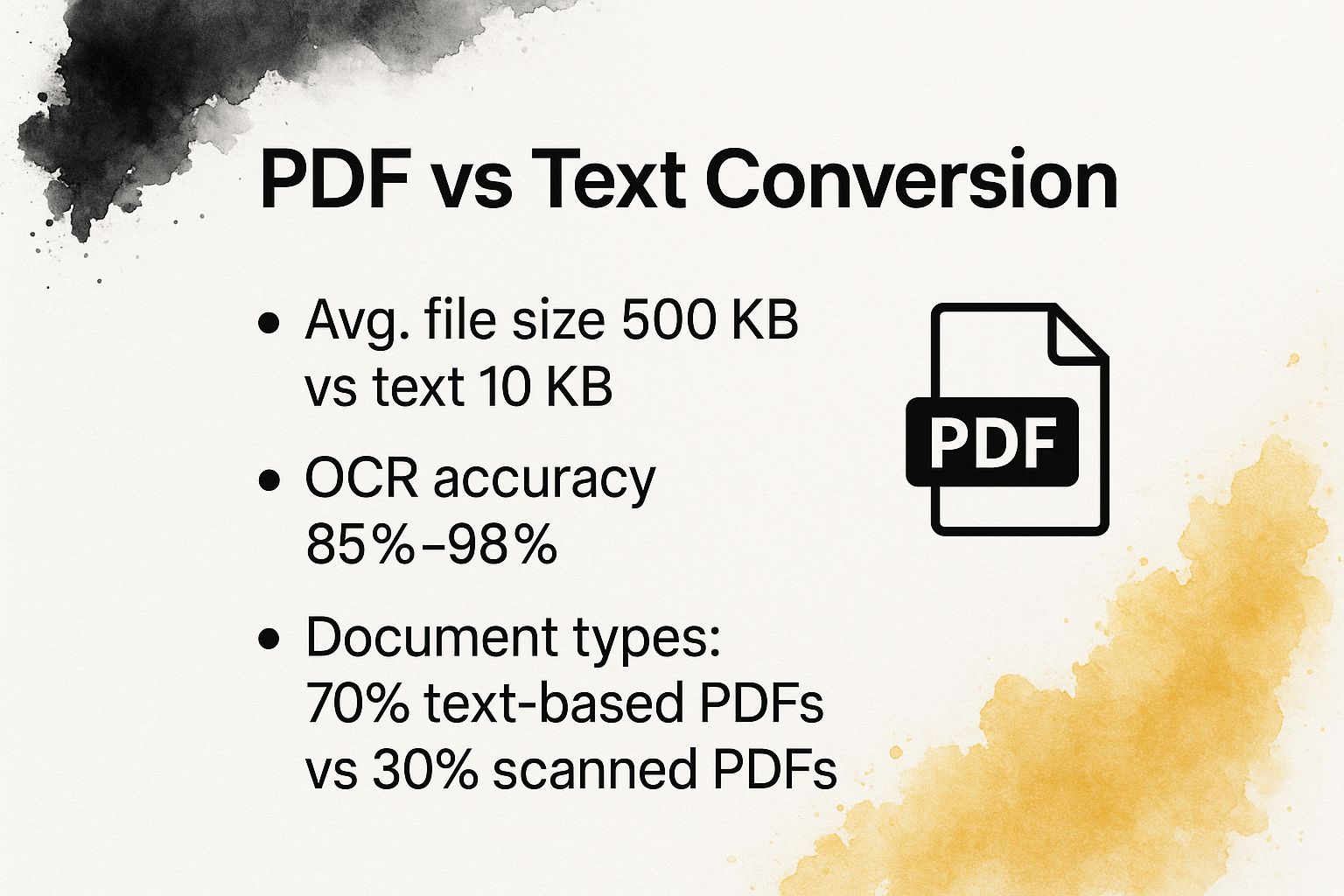
The data here really drives home the efficiency of text files. It also shows that while most PDFs are text-based, a big chunk are just images of text, which means you'll need solid OCR technology to get anything out of them.
This need for reliable document tools is clearly reflected in the market. The global PDF software market was valued at a whopping USD 1.85 billion in 2024 and is projected to keep climbing. This growth is fueled by a huge demand for secure, standardized ways to manage documents. You can learn more about the PDF software market growth and see just how big this space is becoming.
When a simple copy-paste won't cut it and you're wary of generic online converters, turning to an AI-powered tool is your best bet for getting clean, usable text from a PDF. These aren't just converters; they're designed to understand a document's layout, context, and structure. This is where Zemith’s Document Assistant provides an immediate, actionable advantage, acting more like an intelligent partner than a basic tool.
Think about a common scenario: you’re handed a scanned, 50-page financial report packed with tables, charts, and tiny-but-critical footnotes. A standard converter would likely spit out a garbled mess, losing all that precious structure. An AI-driven tool like Zemith handles this completely differently. You don’t just convert the file; you interact with it to get precise, actionable answers.
Instead of hunting for a "convert" button, you can give the AI specific, conversational commands. This actionable approach feels more natural and saves a ton of time.
For instance, with Zemith, you could ask it to:
"Pull the table from page 12 showing Q3 revenue and format it as a CSV."
"Give me a quick summary of the key points in the executive summary."
"Find every mention of the 'Project Alpha' budget and list the figures."
This targeted method cuts out hours of tedious manual work. The AI’s ability to grasp context means that numbers stay tied to their labels and table data doesn't get jumbled. This kind of precision is a lifesaver for anyone dealing with dense documents, which is why we’ve also detailed the best AI tools for researchers in another guide.
The demand for these intelligent solutions is pushing major growth in the industry. The text analysis software market, which is home to these advanced PDF tools, was valued at $4.84 billion in 2024 and is projected to reach $5.85 billion by 2025. This surge is all about the need for smarter, more efficient data processing.
AI doesn't just pull out text; it pulls out meaning. With Zemith, you maintain the relationships between different data points, transforming a static document into a dynamic source of information you can actually talk to.
Let’s look at a practical example. With Zemith’s Document Assistant, you just upload your PDF and start a chat. It’s that straightforward—a direct path from document to insight.
The screenshot below gives you a feel for how you can ask questions and get instant answers from a complex document.
This conversational method makes finding information feel intuitive. You use plain English to tell the AI exactly what you need, so you don't have to waste time scanning the file yourself. This is the most actionable way to work with PDFs, turning a tedious conversion task into a strategic advantage with Zemith.
When you're in a jam and just need to pull text from a PDF, a free online PDF converter can seem like the perfect solution. It's fast, easy, and doesn't require any software downloads. You drag, drop, click, and you've got your text.
But that convenience comes with a cost, and it's a big one: security.
Let's be real. When you upload a document to a free service, you're essentially handing over your data. If that file contains anything sensitive—client details, financial statements, contracts—you're taking a massive risk. You have no real idea where that file is going, who's looking at it, or how long it will be stored.
These services have exploded in popularity. One of the major players saw its user base jump from 25 million in 2020 to an estimated 1.7 billion by 2025. With millions of files processed weekly, the scale of potential data exposure is staggering. The speed of these tools is often a selling point, and if you're curious about the tech behind that, looking into optimizing server response time offers some interesting insights.
For any document that is even remotely confidential, I would never recommend a free online converter. The actionable insight here is simple: protect your data. The risk of a data leak simply isn't worth the convenience.
Even if you're working with a completely non-sensitive file, these free tools often fall short. From my own experience, they just can't handle anything complex.
Here are a few common pain points:
Scanned Documents: Their built-in OCR is usually pretty basic. If you upload a scanned PDF or an image-based file, you're likely to get a mess of garbled characters instead of clean text.
Complex Formatting: Forget about preserving tables, columns, or special layouts. Most of the time, you'll end up with a wall of disorganized text that you'll have to spend hours cleaning up.
Strict Limitations: Most free platforms have tight restrictions. You'll run into file size caps, page limits, or a daily conversion quota, which can bring your workflow to a halt.
So, when are they useful? For completely public, simple documents where accuracy isn't mission-critical. For everything else, the combination of security risks and poor performance makes them a poor choice. An actionable alternative is Zemith's Document Assistant, which keeps your data private while giving you the accurate, well-formatted results you actually need.
If you’re comfortable working in a terminal, command-line tools are often the fastest and most direct way to rip the text out of a PDF. For developers, data scientists, or anyone who lives in the command line, utilities like pdftotext offer raw power without the fluff of a graphical interface.
This method is my go-to when I need to process a huge batch of text-based PDFs. Think about pulling data from hundreds of reports or archiving articles. Because these tools are scriptable, you can easily plug them into a larger workflow, making them perfect for automated data pipelines.
Once you have a tool like Poppler installed (which includes pdftotext), you can get straight to work. Here are a few commands I use all the time.
For a Single PDF File: This is the most fundamental command. It takes your source PDF and spits out a clean .txt file containing all the text.pdftotext source_document.pdf output_text.txt
To Batch Convert a Whole Folder: Doing this one-by-one is a non-starter. This simple for loop automates the process, iterating through every PDF in a directory and creating a text file for each.for file in *.pdf; do pdftotext "$file" "${file%.pdf}.txt"; done
To Keep the Layout Intact (Mostly): The default output is just a stream of text, which can jumble documents with columns or tables. Adding the -layout flag tells the tool to do its best to preserve the original structure.pdftotext -layout source_document.pdf output_with_layout.txt
The -layout flag is a great first attempt for structured documents. But if you need more sophisticated formatting, like preserving headers and lists, you might want to explore other options. We cover some of those in our guide on how to convert PDF files to Markdown.
For all their speed and efficiency, these tools have a major blind spot: they can't handle image-based PDFs.
Command-line utilities are designed to find and extract existing text layers within a PDF file. They don't perform Optical Character Recognition (OCR). If you feed a scanned invoice or a photographed contract into pdftotext, you’ll get an empty file or a string of gibberish.
Key Takeaway: Command-line tools are unbeatable for fast, automated text extraction from native PDFs. But for any scanned or image-based document, they are completely ineffective. This is a critical limitation for most business use cases.
This is the exact scenario where you hit a wall and need a more comprehensive solution. While the terminal is fantastic for specific scripting tasks, a platform like Zemith’s Document Assistant bridges this gap. It provides an all-in-one, actionable workflow by processing both text-based and scanned documents seamlessly, so you don't have to switch tools. It gives you reliable OCR and intelligent extraction for any kind of PDF that comes your way.
We've all been there. You run a PDF through a converter, expecting clean, editable text, and what you get is a mess. It might be a wall of gibberish characters, or a perfectly good table that's now a single, nonsensical column of data. It’s frustrating, but these problems are rarely a dead end.
More often than not, that garbled text is the result of a botched OCR (Optical Character Recognition) attempt. This is especially common with scanned documents where the image quality isn't great, and the software just can't make sense of the characters. Likewise, when a complex layout with columns, charts, and footnotes gets scrambled, it's because the conversion tool is just ripping out the text without understanding how it was arranged on the page.
Before you can fix it, you have to know what you're up against. The two most common culprits are:
Jumbled Text: If you're seeing a bunch of random symbols ($%^&*), it's a classic OCR failure. The tool couldn't read the text properly. The fix is usually to find a converter with a more powerful OCR engine that can handle less-than-perfect scans.
Mangled Formatting: Did your columns and tables get completely flattened? This means your converter has no spatial awareness. It’s grabbing text sequentially without recognizing its original position.
Sometimes, the simplest solution is to switch your tool. If a basic converter is consistently failing, it’s a sign that it lacks the intelligence to understand the document's structure. This is an actionable insight: stop wasting time with ineffective tools.
This is where a smarter platform like Zemith’s Document Assistant really shines. It’s built differently. Its engine doesn't just perform high-accuracy OCR; it actually comprehends the document's layout, ensuring tables, columns, and other formatting elements stay intact.
It goes a step further, too. Instead of just dumping raw text, Zemith gives you structured information you can actually work with. You can even ask it to pull specific data or summarize the entire file. For more on that, check out our guide on how to use AI to summarize a PDF. For those stubborn files that other tools can’t handle, switching to Zemith is the most effective and actionable fix.
People ask us all the time about the best ways to get text out of a PDF. Let's tackle some of the most common questions head-on so you can choose the right approach for your project.
When you're dealing with a scanned document or an image-based PDF, everything hinges on the quality of the Optical Character Recognition (OCR) engine. I've seen basic tools spit out a mess of jumbled characters that's practically unusable.
Your best bet is to go with an AI-powered platform. Tools like Zemith use incredibly sophisticated OCR that can decipher text accurately, even if the original scan isn't perfect. This is the most direct and actionable path to getting clean text from any scanned file.
Yes, you absolutely can, but you need a smarter tool for the job. Most standard converters will just dump the text out, leaving you with a giant, unformatted wall of text that you have to fix by hand.
This is where AI-driven solutions like Zemith’s Document Assistant really shine. They're built to recognize the document's original layout—things like tables, columns, and bullet points—and keep that structure intact. This actionable feature saves a ton of tedious cleanup work.
The real game-changer with modern tools isn't just pulling the words out; it's preserving their original context. With Zemith, you get organized, usable information, not just a flat text file.
This is a big one, and you're right to be cautious. For a totally non-sensitive file, a free online tool might be fine in a pinch. But for anything else, they can be a major security risk.
The moment you upload a document with personal, financial, or confidential business data, you've lost control over it. For anything sensitive, the only actionable advice is to stick with a secure, trusted service like Zemith that makes your privacy a priority.
Ready to stop fighting with your PDFs and start getting actionable insights? Zemith’s Document Assistant uses advanced AI to give you clean text, preserve your formatting, and keep your data safe. See how much easier your workflow can be at https://www.zemith.com.






Trusted by teams at





The top models, plus image, video and voice tools, in one plan.
Without Zemith
ChatGPT PlusUS$20.00Claude ProUS$20.00Google AI ProUS$19.99SuperGrokUS$30.00Perplexity ProUS$20.00 MidjourneyUS$10.00
 ElevenLabsUS$6.00Le Chat ProUS$14.99
 RunwayUS$15.00Kling StandardUS$8.80
 Gamma PlusUS$12.00
 Otter ProUS$16.99
 QuillBot PremiumUS$19.95
 Photoroom ProUS$12.99
 Quizlet PlusUS$7.99
Total if paying separatelyUS$234.70/mo
"I love the way multiple tools they integrated in one platform. Going in the right direction."
— simplyzubair
"The quality of data and sheer speed of responses is outstanding. I use this app every day."
— barefootmedicine
"The credit system is fair, models are perfect, and the discord is very responsive. Quite awesome."
— MarianZ
"Just works. Simple to use and great for working with documents. Money well spent."
— yerch82
"The organization of features is better than all the other sites — even better than ChatGPT."
— sumore
"It lives up to the all-in-one claim. All the necessary functions with a well-designed, easy UI."
— AlphaLeaf
"The team clearly puts their heart and soul into this platform. Really solid extra functionality."
— SlothMachine
"Updates made almost daily, feedback is incredibly fast. Just look at the changelogs — consistency."
— reu0691
Hand off the research, writing, design and follow-ups. Zemith picks the tools it needs and brings back finished work.
Search the web, run deep research, read files, create images and run code with GPT, Claude, Gemini, Grok and more.
Zemith keeps working in the cloud and pings you when it's done.
Notion, Linear, Canva, Airtable and more. It asks before it creates or changes anything.
Docs, slides, sheets and PDFs, ready to send.
Chain models and tools on a visual canvas, from one prompt to a finished promo video.
Briefings, reports and reminders run on a schedule and are ready when you need them.
Real-time voice that can see your camera or screen.
The best image and video models, in one studio.
Turn PDFs, links and YouTube videos into podcasts, quizzes, flashcards and mind maps.












 Podcast
 Quiz
Quiz Flashcards
 Mind map
 Infographic