


Every top model, with tools built in.
Search the web, run deep research, read files, create images and run code with GPT, Claude, Gemini, Grok and more.
A document summary tool can save hours, but only if the summary is accurate. Here's what to test, what to check, and where Zemith fits in.
Say a 60-page report lands in your inbox at 4pm, just before a meeting. You need the recommendation, the risks and whatever awkward detail someone will ask about. A document summary tool can help you get oriented, but a polished paragraph isn't proof that it understood the report.
The useful test isn't whether the summary sounds smart. It's whether you can find the evidence behind it, spot what it left out and ask a follow-up question without starting your reading from scratch.
A document summary tool reads a file, identifies relevant information and produces a shorter version. Depending on the product, you can also ask questions, change the audience or turn the material into quizzes and flashcards.
Think of a sharp intern who skims the stack and returns the paragraphs you need. Helpful, absolutely. But that intern might skip the caveat that changes the recommendation, so don't send them straight to the board meeting unsupervised.
The basic process looks like this.
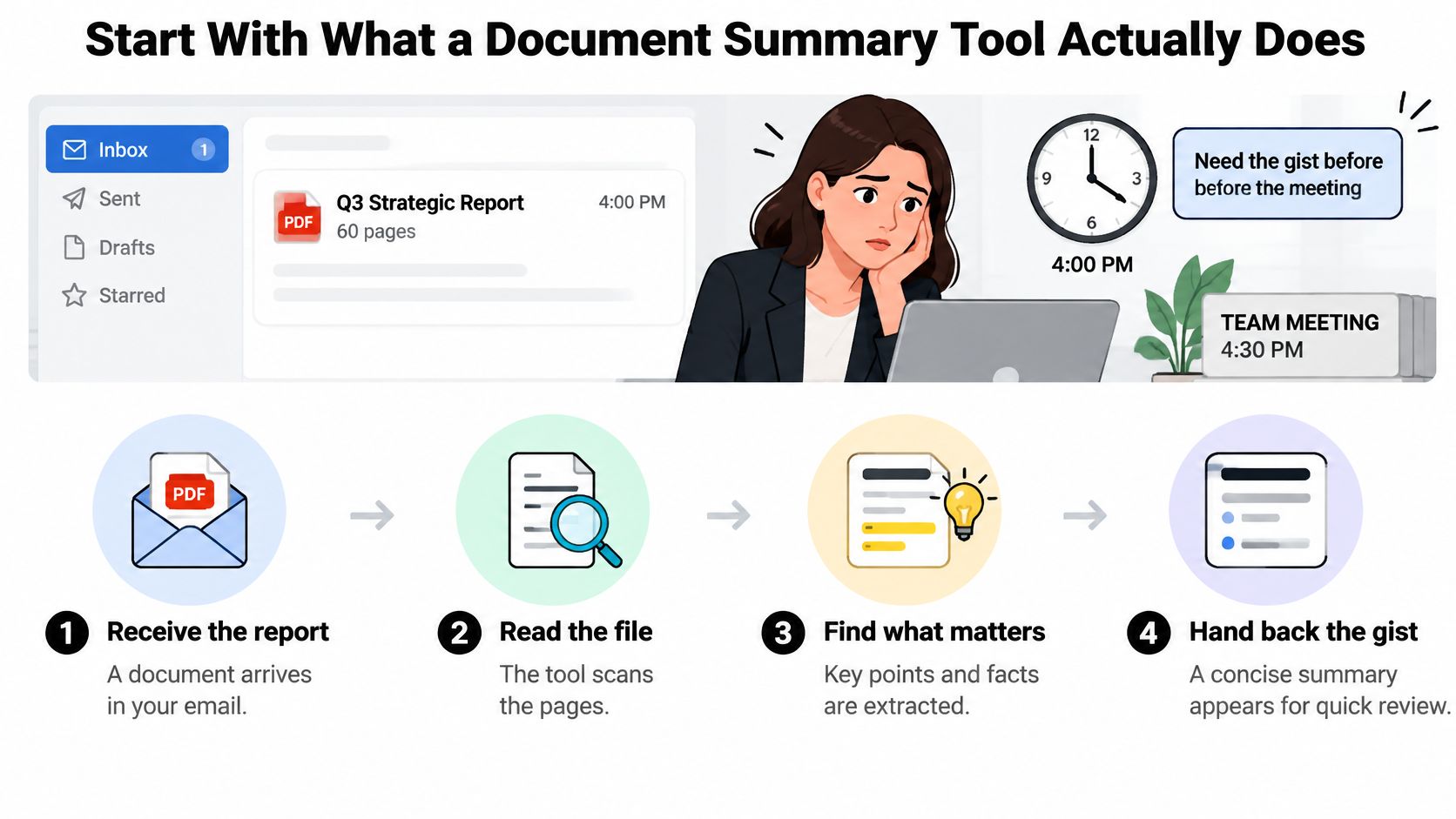
Extractive summarization selects sentences already in the document; abstractive summarization rewrites the information. Hans Peter Luhn's 1958 method scored sentences using concentrations of important words, establishing the select-salient-information-first approach described in this review of automatic text summarization.
Modern document assistants commonly use large language models to produce rewritten summaries and conversational answers. Rewriting makes dense material easier to follow, but it also gives the system room to change a qualification, attribution or relationship between facts.
A generic request to summarize gives the tool permission to decide what's important. A focused request makes that choice yours.
Practical rule: Treat the summary as a reading starter, not a replacement for the source.
Use this scorecard for comparing document summary tools on a file you know well. Give yourself ten minutes for an initial comparison, then investigate any failure before committing.
Accuracy comes before presentation. A citation should take you to evidence that supports the actual claim, not merely to a page discussing the same topic.
Next, test customization by keeping the source constant and changing the assignment. A risk brief for counsel should differ from a plain-language overview for a customer.
Legal work makes that distinction concrete. If you're extracting facts to structure an effective settlement demand, Ares's guide offers a useful companion for organizing the eventual letter. Your summarizer still needs to distinguish documented facts, allegations and missing evidence rather than flattening them into a confident narrative.
Format support means more than accepting an upload. Check whether headings, tables and speaker labels survive extraction. A transcript without reliable speaker attribution isn't ready for quote selection.
For integration, follow an answer through your actual workflow. Can you keep the source, notes and follow-up discussion together, or do you spend the saved reading time rebuilding context elsewhere?
For long-document handling, choose a meaningful detail near the end, not a phrase repeated throughout the report. Ask for both the answer and its location.
Finally, inspect language and scan support using a difficult page. A tool that admits extraction uncertainty is more useful than one that confidently summarizes scrambled text.
Rate each criterion from 1 to 5 using your own document. Treat an accuracy score of 2 or below as a dealbreaker, regardless of how attractive the interface looks. This is a practical selection rule, not a scientific benchmark.
Summaries can be wrong in ways that read perfectly: research on factual consistency in abstractive summarization discusses factual inconsistencies in roughly 30% of summaries, including factual errors in 23% of BERTSum outputs and 27% of BART outputs on the CNN/Daily Mail dataset. Those are findings about particular summarization evaluations, not a measured error rate for every current product.
The practical lesson is to review claims, not writing style. Smooth transitions won't tell you whether a deadline, exception or causal explanation survived the rewrite.
Use this reference to prioritize your review.
Claims that need a manual check first
An accurate sentence can still give a misleading overall impression. Say a report recommends expansion only if staffing improves, but the summary includes the recommendation without the condition. You need to record the missing dependency, not merely check the recommendation as correct.
For financial documents, Artul.ai's discussion of looking beyond earnings call recaps is a useful companion when deciding what deserves deeper inspection. Apply the same discipline to guidance in our AI fact-checking guide: evidence first, confident wording second.
Keep supported, contradicted and unsupported claims separate. Uncertainty isn't an error you should quietly rewrite away.
A five-minute fact-check now beats a very large correction after the report has gone out. For high-stakes work, expand that review to match the consequences rather than treating the time limit as a guarantee.
A long-document AI summarizer needs more than a generous upload limit. A cross-domain long-document benchmark covering documents up to 32,000 tokens found substantial performance declines beyond 16,000 tokens, with particularly visible losses in completeness and factuality in specialized domains.
In that benchmark, timeline and overview summaries tended to omit important information, while reasoning-intensive summaries showed more factual errors. Don't interpret a successful upload as confirmation that every part received equally reliable treatment.
Look for hierarchical processing: the tool segments the document, summarizes each section with source references, then synthesizes those intermediate summaries. Keeping the original headings makes it easier to notice that an appendix, limitation or dissenting view never reached the final output.
There's a trade-off. Section-by-section processing makes local evidence easier to inspect, but the synthesis still needs to connect definitions and dependencies across sections. Ask whether a conclusion depends on a qualification elsewhere in the file.
Judge the result separately on key-point coverage, instruction following and factual accuracy. Matching the original's vocabulary isn't enough.
For a scanned PDF summarizer, the first question is whether the extracted text is readable. An OCR-driven multilingual pipeline study highlights how recognition errors can impair downstream translation and summarization, including material across English, Hindi and Tamil.
Compare a difficult page with its extracted text before processing the full file. Check table reading order, decimal points, negative signs and whether a heading has been inserted into a sentence. For mixed-language files, test a representative page before a full run and specify the desired output language.
The strongest use cases end with something you can do: select a paper, answer a question or trace a customer complaint to its source. A shorter document isn't much of an outcome by itself.
For study and research, keep the original material accessible while you work.
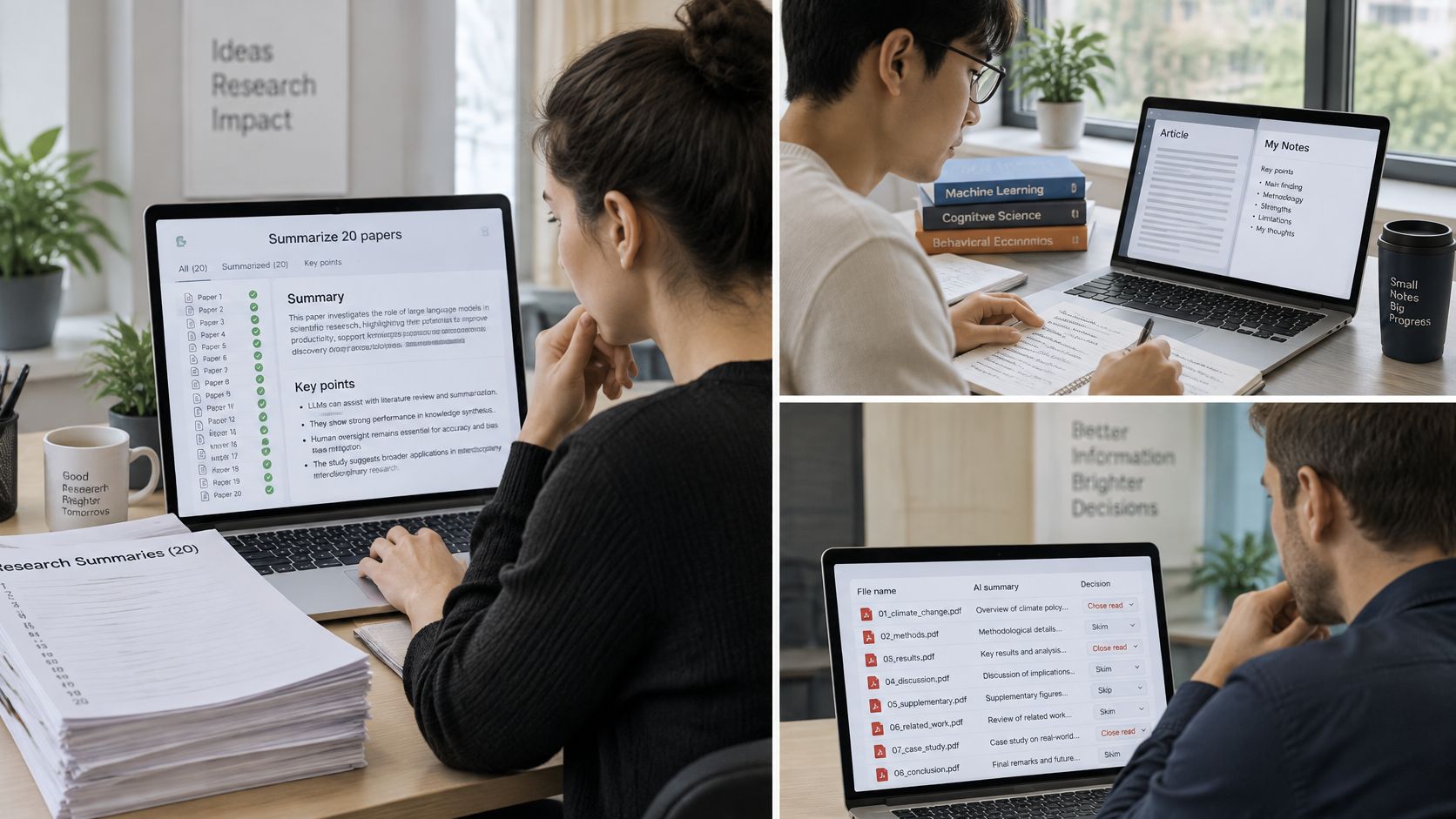
Say you're sorting twenty papers for a literature review. Ask for the research question, method, population, findings and limitations using the same fields for each paper.
Use the results to decide what deserves close reading, not to manufacture a conclusion across incompatible studies. Keep excluded papers and your reasons for excluding them, too.
Our guide to AI tools for research can help you choose complementary tools for discovery and organization. Self-check: Do you need a polished overview, or a defensible shortlist of sources?
Summarize the chapter, generate a short quiz and answer without looking back. Then revisit the concepts you missed rather than rereading everything with increasingly decorative highlighting.
A systematic review of retrieval-practice studies covered 49 effect sizes and 5,374 participants, with 57% of findings showing medium or large learning benefits. That supports active recall, not a claim that any particular AI quiz guarantees better learning.
Zemith offers summaries, quizzes and flashcards for this sequence. We also turn uploaded meeting or lecture recordings into timestamped transcripts that can be summarized in one click.
The brain still expects to participate. Terrible news for anyone hoping to outsource homework completely. Self-check: Can you explain the concept with the summary closed?
For a research or marketing team, we support uploading interview transcripts or recordings and extracting themes, pain points and quotes. Ask for contrary examples alongside recurring themes, and verify selected quotes against the transcript or recording.
The same evidence-first approach helps proposal teams reviewing opportunities found through SamSearch's government RFP database. Separate mandatory requirements, evaluation criteria and unanswered questions before deciding whether to pursue an opportunity.
Don't turn repeated mentions into a prevalence claim unless you've checked the underlying sample and coding. Self-check: Can a teammate trace each theme or requirement to the source without asking you what it meant?
Our document assistant makes sense when your problem isn't just reading a PDF. It's keeping that PDF connected to the questions, notes and study materials you create around it.
The workspace gives those related activities a shared home.
Our Projects keep files, chats and instructions together, so every answer starts with context. That reduces the need to explain the document and your task again with each follow-up.
A project can also contain PDFs, documents, websites and YouTube videos. That helps when the relevant information spans a report, an explanatory article and a recorded presentation. Keep source-specific questions explicit so you can distinguish what each item establishes.
The document assistant workflow guide offers another way to think about organizing this work. For a visual walkthrough, watch the product demonstration.
We can turn PDFs, links and YouTube videos into podcasts, quizzes, flashcards and mind maps. Choose the output for the next task: flashcards for recall, a mind map for relationships or audio for reviewing an explanation away from the screen.
For the integration criterion, the benefit is keeping summaries alongside chats and notes instead of maintaining an export-and-paste routine. That convenience doesn't establish that a particular answer is correct. Use a citation or passage reference to return to the source, and apply extra scrutiny to high-stakes claims.
Confidentiality needs a separate decision. The product details available here don't establish confidential-upload protections or a retention period, so don't assume either; confirm current handling, deletion and retention terms before uploading client or internal files. Use a public or redacted document for your initial test.
Workspace habit: Keep unresolved questions in the project instructions, not buried in an old chat.
For a quarterly-report project, add the report and request a brief separating reported results, management explanations and open questions. For a research topic, group the papers and supporting media, then maintain a comparison note distinguishing agreements, contradictions and evidence gaps.
A tool that works on your own files beats one that wins a generic demo. Choose material you understand well enough to recognize a plausible mistake.
Zemith is a practical option for this test. Our chat-with-PDF feature lets you ask questions about PDFs, documents, websites and YouTube videos from one place, while the same verification routine still applies.
Don't choose based on how little the summary makes you want to read. Choose based on how efficiently it helps you find and understand the right evidence. Run the test on one file this afternoon.
Visit Zemith to put a document, its follow-up questions and your working notes in one project. Upload a familiar PDF, request a focused summary and check its important claims before turning it into your next brief, quiz or set of flashcards.
Pay less than one AI subscription and get GPT, Claude, Gemini and more, plus 50+ AI tools.


Trusted by teams at






The top models, plus image, video and voice tools, in one plan.
Without Zemith
ChatGPT PlusUS$20.00Claude ProUS$20.00Google AI ProUS$19.99SuperGrokUS$30.00Perplexity ProUS$20.00 MidjourneyUS$10.00
 ElevenLabsUS$6.00Le Chat ProUS$14.99
 RunwayUS$15.00Kling StandardUS$8.80
 Gamma PlusUS$12.00
 Otter ProUS$16.99
 QuillBot PremiumUS$19.95
 Photoroom ProUS$12.99
 Quizlet PlusUS$7.99
Total if paying separatelyUS$234.70/mo
"I love the way multiple tools they integrated in one platform. Going in the right direction."
— simplyzubair
"The quality of data and sheer speed of responses is outstanding. I use this app every day."
— barefootmedicine
"The credit system is fair, models are perfect, and the discord is very responsive. Quite awesome."
— MarianZ
"Just works. Simple to use and great for working with documents. Money well spent."
— yerch82
"The organization of features is better than all the other sites — even better than ChatGPT."
— sumore
"It lives up to the all-in-one claim. All the necessary functions with a well-designed, easy UI."
— AlphaLeaf
"The team clearly puts their heart and soul into this platform. Really solid extra functionality."
— SlothMachine
"Updates made almost daily, feedback is incredibly fast. Just look at the changelogs — consistency."
— reu0691
Hand off the research, writing, design and follow-ups. Zemith picks the tools it needs and brings back finished work.
Search the web, run deep research, read files, create images and run code with GPT, Claude, Gemini, Grok and more.
Zemith keeps working in the cloud and pings you when it's done.
Notion, Linear, Canva, Airtable and more. It asks before it creates or changes anything.
Docs, slides, sheets and PDFs, ready to send.
Chain models and tools on a visual canvas, from one prompt to a finished promo video.
Briefings, reports and reminders run on a schedule and are ready when you need them.
Real-time voice that can see your camera or screen.
The best image and video models, in one studio.
Turn PDFs, links and YouTube videos into podcasts, quizzes, flashcards and mind maps.













 Podcast
 Quiz
 Flashcards
 Mind map
 Infographic