


Every top model, with tools built in.
Search the web, run deep research, read files, create images and run code with GPT, Claude, Gemini, Grok and more.
Discover how an AI assistant for documents transforms reading and research. Learn key features, real workflows, and how Zemith turns files into podcasts
You've got a folder full of PDFs, a deadline breathing down your neck, and the sinking feeling that “just skim the important parts” stopped being realistic about three documents ago. Research papers, contracts, quarterly reports, training manuals, meeting notes. They're all waiting patiently, like a tiny paper-based jury judging your time management.
An AI assistant for documents can help, but it isn't a magic wand that replaces judgment. Think of it as a tireless reading partner that can find information, explain dense passages, compare files, and turn static text into useful formats. The best tools don't just answer questions. They help you work with information.
Suppose you're preparing a presentation from a stack of research papers. One file contains the background, another has the methodology, a third includes the figures you need, and a fourth contradicts a conclusion from the first. You could search each PDF manually, copy passages into a notebook, and spend an afternoon trying to remember which document said what.
Or you could give the collection to an AI document assistant and ask focused questions such as:
That shift matters. Traditional document work often forces you to move between reading, searching, copying, organizing, and rewriting. An assistant brings those actions into one conversation, so you can spend more time deciding what the information means and less time wrestling with file formats.
Practical rule: Use AI to reduce the mechanical reading load, but keep human review for decisions, evidence, and final wording.
The modern document assistant has grown beyond the old “summarize this PDF” trick. Chat-based generative AI became mainstream in 2022, after earlier language-model advances such as OpenAI's GPT-3, released in 2020 with 175 billion parameters, helped establish large-scale few-shot language tasks. The history is documented in this overview of AI development, which also describes how document automation evolved into an enterprise workflow category.
That evolution explains why users now expect more than a paragraph of highlights. They want searchable libraries, cross-file reasoning, quizzes, flashcards, audio versions, and answers that point back to the source. Before uploading a pile of files, it can also help to understand how to convert a PDF to text, especially when the original document uses scans or unusual formatting.
Document assistants can also support the presentation stage. If your research needs to become a multimedia briefing, these digital signage presentation tips offer useful guidance on combining PDFs, images, video, and office files without creating a visual soup.
A normal search box behaves like a bloodhound. Give it a phrase, and it follows the exact scent of matching words. An AI assistant behaves more like a researcher who has read the material and can interpret a question even when your wording doesn't match the document.
That difference comes from several connected operations. First, the system extracts text and other document elements. It then breaks the material into smaller passages, represents their meaning in a searchable form, retrieves relevant sections, and generates an answer using that retrieved context. This general approach is often called retrieval-augmented generation, or RAG.
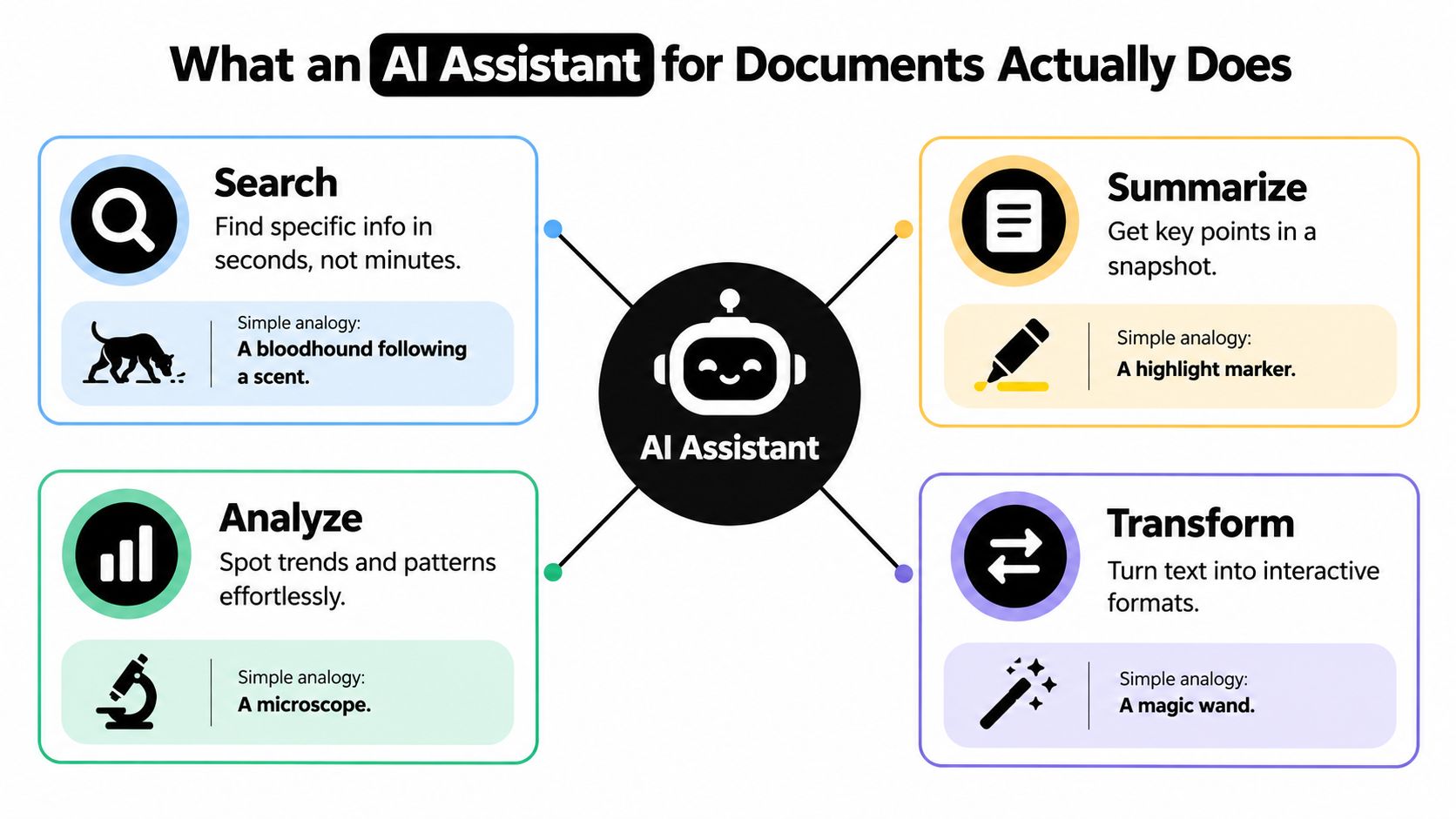
The important word is context. A keyword tool may find every occurrence of “renewal,” but it won't necessarily distinguish a contract renewal clause from a discussion of renewing a subscription. A document assistant can use nearby passages and your question to interpret the request more intelligently.
For a practical introduction to the wider topic, this AI research assistant explained guide provides helpful context around using AI for information-heavy work. You can also explore how AI assistants work if you want a deeper look at the mechanics behind prompts, retrieval, and generated responses.
One file is useful. A workspace containing related files is much more powerful. You might ask an assistant to compare a policy with an employee handbook, match a product brief to customer feedback, or find where two reports use different definitions.
That doesn't mean the system “understands” your library in the same way a human expert does. It means the assistant can retrieve related passages and use them together, provided the files are available, legible, and correctly indexed. Good tools should make that evidence visible rather than presenting a polished answer with no trail back to the source.
Not all PDFs are equal, and an assistant that performs beautifully on a clean text document may struggle with a scanned annual report. The problem often begins before the language model generates a single sentence.
A document can contain selectable text, scanned images, nested tables, footnotes, charts, captions, sidebars, and columns that change the reading order. If the system extracts those elements incorrectly, its later answer may sound confident while attaching the right sentence to the wrong table or missing a qualification buried in an image.
Independent coverage in 2025 describes a meaningful gap between text-heavy and mixed-content workflows. Some retrieval-augmented setups reached roughly 92% to 94% accuracy on text-heavy material, while mixed-content documents fell to about 78% to 85%, and layout problems appeared in about 1 in 5 cases. These figures come from coverage of document AI accuracy gaps, and they're useful because they challenge the cheerful assumption that every “chat with PDF” tool handles every file equally well.
For high-stakes work, ask the assistant to show supporting passages, page references, or citations. Test it with questions whose answers you already know. If it can't locate the evidence, the correct response is uncertainty, not creative improvisation.
Document-specific evaluation matters for the same reason. Recent benchmark work emphasizes coverage, hallucination, retrieval scope, and reasoning across text, tables, and figures rather than relying only on generic question-answering scores. The document RAG benchmark research explores these failure modes directly.
Summary quality also deserves a proper test. Overlap-based metrics such as ROUGE don't fully capture whether a long summary preserves meaning or invents implications. More semantic and factuality-oriented approaches include BERTScore, MoverScore, and BARTScore, as discussed in this review of long-document summarization evaluation.
A summary is useful, but it's usually a passive format. You read it, nod thoughtfully, and then discover later that your brain stored approximately three bullet points and a vague sense of achievement.
The more interesting workflow is document transformation. Give an assistant a textbook chapter, product manual, research report, or training document, then ask it to reshape the same source for a different activity. The information stays grounded in the file, while the format changes to match the way you need to use it.

A student could upload a difficult chapter and request:
The transformation becomes more useful when you specify the audience and purpose. “Summarize this” is vague. “Create flashcards for a beginner who needs to distinguish these concepts on an exam” gives the assistant a better target.
The same idea works outside education. A compliance team could turn a policy into scenario-based questions. A product manager could convert a requirements document into a decision briefing. A sales team could transform a technical specification into customer-friendly talking points. A researcher could request a podcast-style explanation of a dense paper before returning to the original methodology.
For a convert document to podcast AI workflow, the key is to treat audio as a first pass, not a replacement for the source. Ask the assistant to preserve important qualifications, define unfamiliar terms, and separate established findings from open questions. Then listen while commuting, walking, or doing the dishes. Your kitchen may become a surprisingly effective seminar room.
This short video offers another way to think about practical AI document workflows:
You can also turn the output into a study loop: listen to the podcast, answer the quiz without looking at the source, review missed flashcards, and ask follow-up questions about the weak spots. That's more active than collecting summaries in a folder called “Read Later,” where documents go to enjoy a peaceful retirement.
For a focused workflow, turn text into a podcast describes the practical path from written material to listenable content.
The right document workflow depends less on the label “AI assistant” and more on what you're trying to produce. A student, developer, marketer, and legal professional may upload similar file types, but they need very different outputs.
A student rarely needs a beautiful summary alone. They need to know whether they can recall the material without help. A useful prompt asks for flashcards grouped by concept, a quiz with plausible wrong answers, and a list of terms that require the original source for full context.
A developer reviewing API documentation may ask, “What authentication method does this endpoint require?” Then they may follow up with, “Show the limitations, error responses, and a minimal implementation outline.” The assistant should answer from the relevant documentation, preserve version context, and avoid turning an optional parameter into a mandatory one.
Researchers often work across a collection of papers rather than a single file. They might ask where sources agree, which methods differ, and what limitations recur. Marketers can use a similar pattern with competitor analyses, customer interviews, and campaign briefs, asking the assistant to separate direct evidence from interpretation.
For teams refining repeated processes, AI workflow optimization can help connect document work to broader routines rather than treating every upload as an isolated task.
The best prompt usually names the role, the source boundary, the desired format, and the level of certainty required. “Answer only from the uploaded files and identify missing evidence” is much safer than “Tell me everything important.”
Most users don't need another lonely PDF chatbot. They need fewer browser tabs and a place where documents, notes, research, and outputs stay connected.
Zemith's Document Assistant supports document chat, summaries, quizzes, flashcards, and podcast conversion. Its broader workspace includes a Library for organizing documents and chats, plus Projects for keeping topic-specific information and conversations together. That structure matters because a useful answer often depends on more than one file.
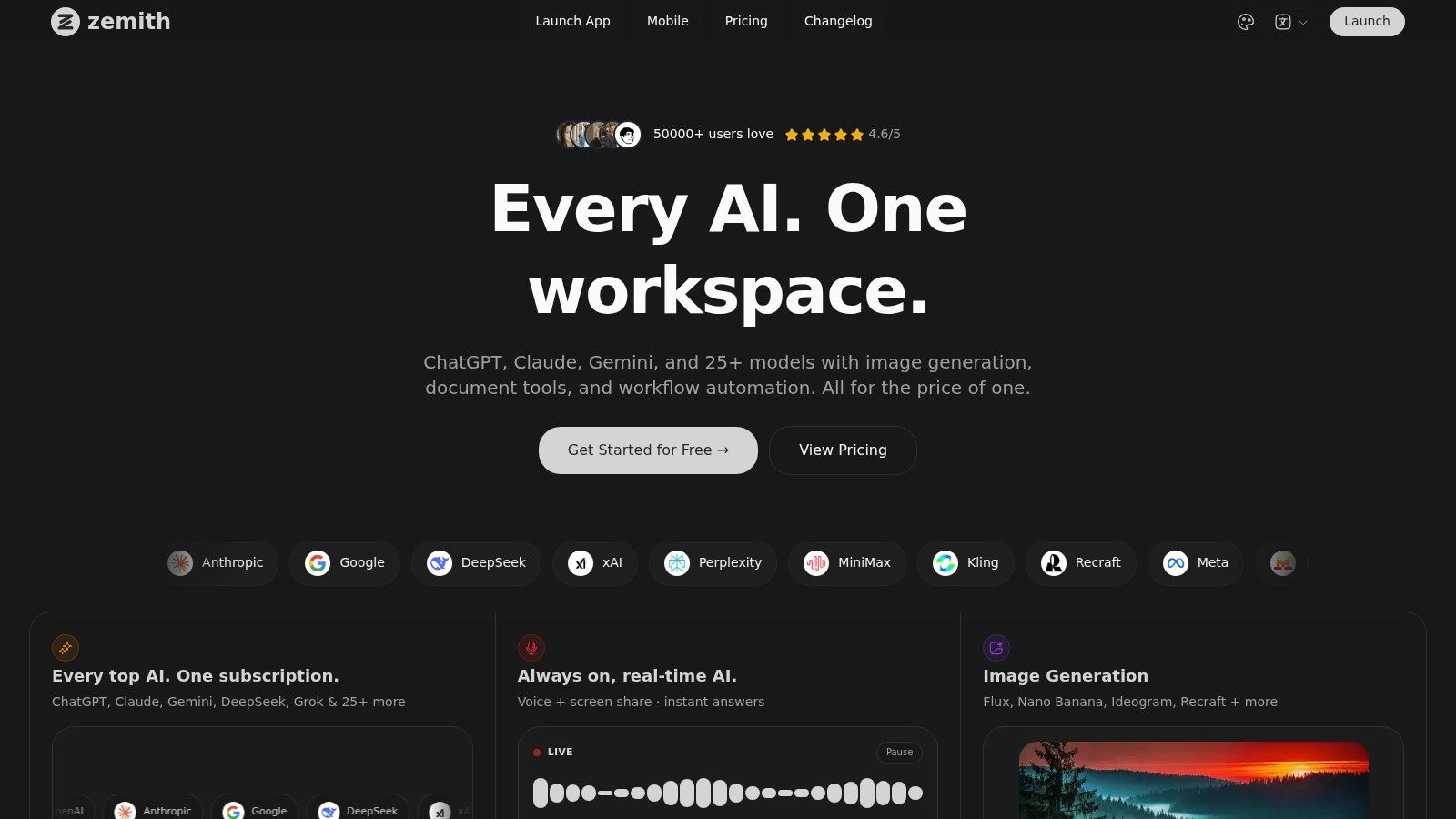
A typical Zemith workflow might look like this:
That last step changes the mental model. The document isn't the end product. It's source material that can feed writing, research, design, teaching, and software work.
Zemith also offers access to multiple AI models through one interface, alongside creative image tools, coding support, Deep Research, AI Live Mode, a whiteboard, and mobile access. Those features don't remove the need to verify important claims, but they can reduce the constant copy-and-paste routine between specialized subscriptions.
The practical advantage is continuity. You can move from “summarize this report” to “turn the findings into a briefing” to “draft a simple dashboard concept” without rebuilding the context from scratch each time. For a closer look at that approach, see this guide to a multi-model AI platform.
Productivity improvements become easier to understand when you measure the work, not the excitement of the demo. Track how long it takes to locate information, prepare a first draft, compare documents, and create learning material before and after you introduce an assistant.
Workplace evidence points to several concrete mechanisms. A 2024 Microsoft Research workplace study found that Copilot users created and edited 10% more documents and read 11% fewer emails, as reported in the Microsoft Research workplace study. A related Microsoft analysis released in 2026 found that workers who used the system more than 100 times over a 20-week post-adoption period showed a 21.2% increase in productivity actions, while document-intensive work completed 5% to 25% faster for treated workers who adopted the tool, using the same source.
The gains aren't evenly distributed. An earlier Microsoft-linked NBER study found a 14% average productivity increase overall and a 34% improvement for novice and low-skilled workers, suggesting that drafting, summarizing, and text refinement can be particularly valuable for people who need more help structuring written work.
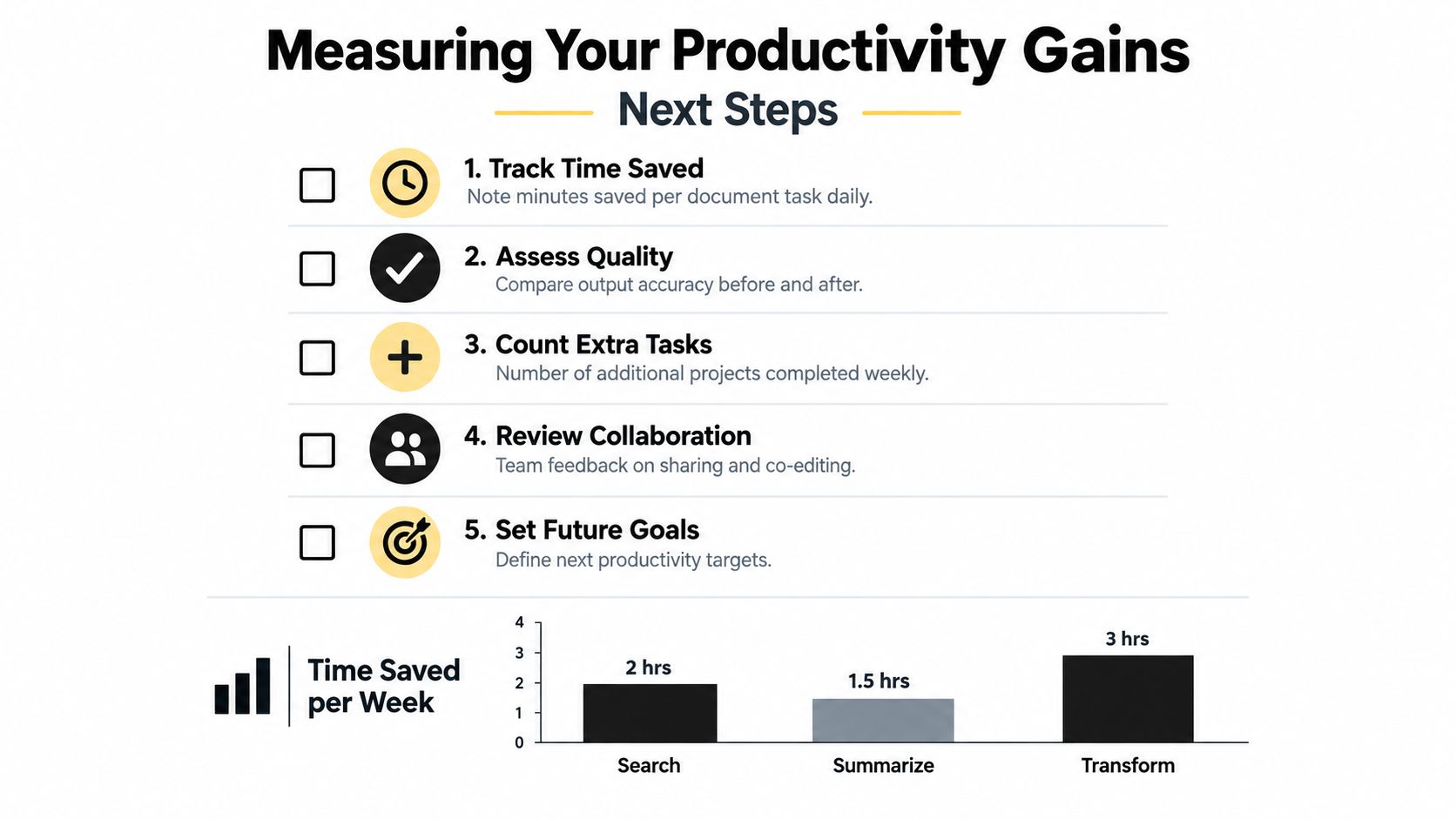
Adoption works better when the assistant becomes part of a routine rather than a novelty tab. The NBER reports that 39.4% of surveyed respondents had used generative AI, 28% of employed respondents used it for their job, 24.2% used it at least one day in the previous week, and 10.6% used it every workday in the previous week, according to its workplace adoption summary.
The Federal Reserve also notes that worker surveys commonly report AI use rates between 20% and 40%, with higher use in some occupations, as described in its analysis of workplace AI uptake. Start small, verify carefully, and let the workflow earn its place.
If you're ready to turn overloaded folders into searchable, interactive workspaces, visit Zemith to explore its Document Assistant for summaries, quizzes, flashcards, podcasts, and cross-document research. Upload one real file, ask one useful question, and build from there.
Pay less than one AI subscription and get GPT, Claude, Gemini and more, plus 50+ AI tools.






Trusted by teams at






The top models, plus image, video and voice tools, in one plan.
Without Zemith
ChatGPT PlusUS$20.00Claude ProUS$20.00Google AI ProUS$19.99SuperGrokUS$30.00Perplexity ProUS$20.00 MidjourneyUS$10.00
 ElevenLabsUS$6.00Le Chat ProUS$14.99
 RunwayUS$15.00Kling StandardUS$8.80
 Gamma PlusUS$12.00
 Otter ProUS$16.99
 QuillBot PremiumUS$19.95
 Photoroom ProUS$12.99
 Quizlet PlusUS$7.99
Total if paying separatelyUS$234.70/mo
"I love the way multiple tools they integrated in one platform. Going in the right direction."
— simplyzubair
"The quality of data and sheer speed of responses is outstanding. I use this app every day."
— barefootmedicine
"The credit system is fair, models are perfect, and the discord is very responsive. Quite awesome."
— MarianZ
"Just works. Simple to use and great for working with documents. Money well spent."
— yerch82
"The organization of features is better than all the other sites — even better than ChatGPT."
— sumore
"It lives up to the all-in-one claim. All the necessary functions with a well-designed, easy UI."
— AlphaLeaf
"The team clearly puts their heart and soul into this platform. Really solid extra functionality."
— SlothMachine
"Updates made almost daily, feedback is incredibly fast. Just look at the changelogs — consistency."
— reu0691
Hand off the research, writing, design and follow-ups. Zemith picks the tools it needs and brings back finished work.
Search the web, run deep research, read files, create images and run code with GPT, Claude, Gemini, Grok and more.
Zemith keeps working in the cloud and pings you when it's done.
Notion, Linear, Canva, Airtable and more. It asks before it creates or changes anything.
Docs, slides, sheets and PDFs, ready to send.
Chain models and tools on a visual canvas, from one prompt to a finished promo video.
Briefings, reports and reminders run on a schedule and are ready when you need them.
Real-time voice that can see your camera or screen.
The best image and video models, in one studio.
Turn PDFs, links and YouTube videos into podcasts, quizzes, flashcards and mind maps.












 Podcast
 Quiz
Quiz Flashcards
 Mind map
 Infographic