


Every top model, with tools built in.
Search the web, run deep research, read files, create images and run code with GPT, Claude, Gemini, Grok and more.
Learn how to generate SRT files with proven methods, from manual workflows to AI transcription. Step-by-step instructions, formatting rules, and pro tips
You've exported the captions, uploaded the .srt file, and pressed play. Then the first line appears late, the second disappears before the speaker finishes, and a speaker's name has somehow become an entirely different word. The export button did its job. Your subtitle workflow didn't.
To generate an SRT file that people can read, you need more than transcription. You need sensible cue boundaries, clean timecodes, readable line lengths, and a format choice that matches the destination. SRT is wonderfully simple, which is why it works almost everywhere, but that simplicity leaves plenty of room for tiny formatting mistakes and very visible editorial problems.
[blocked]
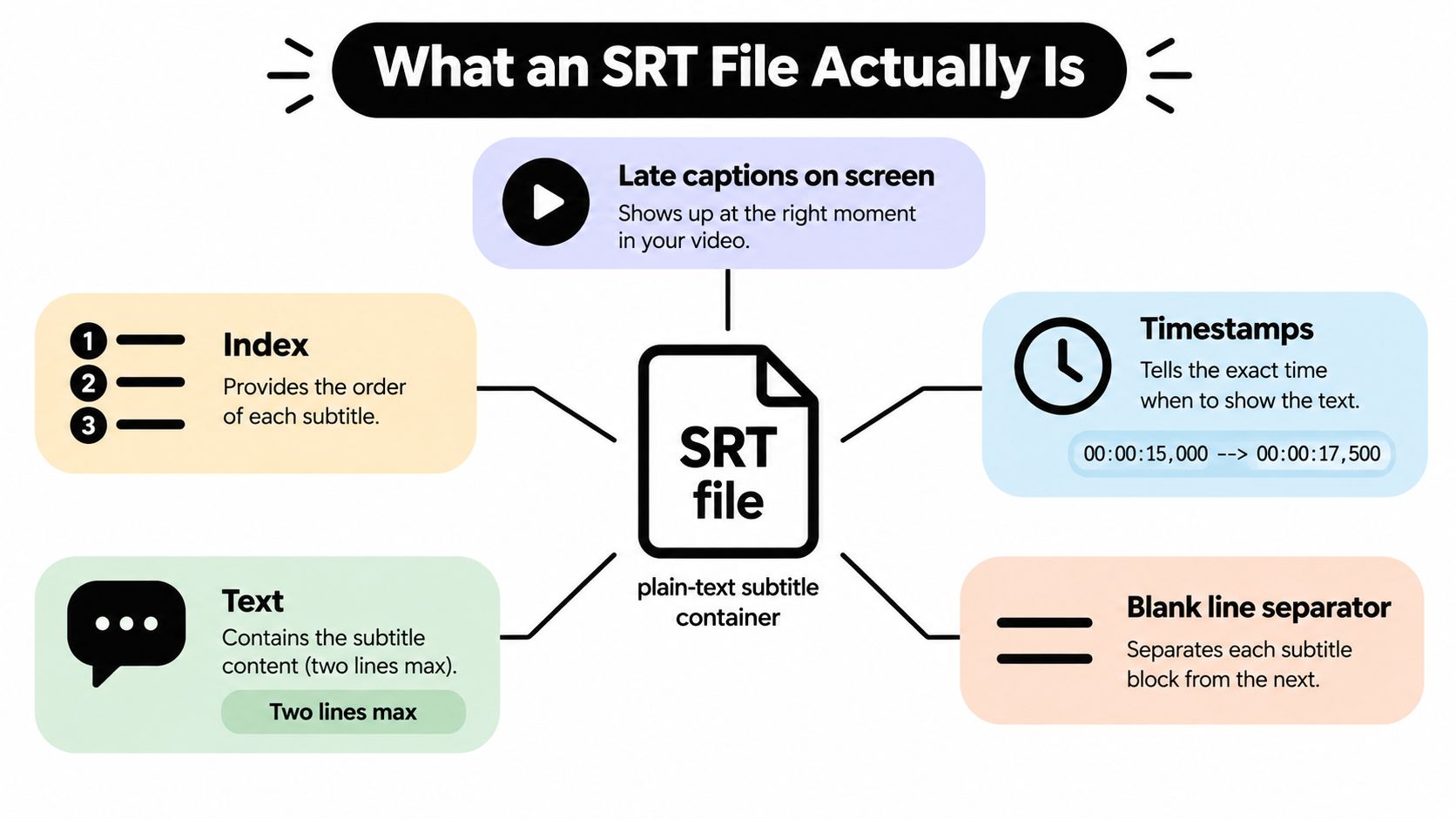
An SRT file is a plain-text subtitle container. It doesn't contain the video or audio. It contains a series of timed caption cues, and each cue follows the same basic pattern:
The usual timestamp format is HH:MM:SS,mmm --> HH:MM:SS,mmm, including a comma before the milliseconds. A minimal file looks like this:
1
00:00:01,000 --> 00:00:03,500
Welcome to the editing walkthrough.
2
00:00:03,500 --> 00:00:06,200
Let's clean these captions before publishing.
There's no title block, no required language declaration, and no rich design layer. The .srt extension tells the receiving application what it is, while the filename is commonly paired with the media filename, such as MyVideo123.mp4 and MyVideo123.srt. The Library of Congress description of the SubRip format confirms that the file stores subtitle timing and text rather than the media itself.
[blocked]
SRT emerged from SubRip, a Windows program released around 2000 that extracted DVD subtitles using optical character recognition. It became a de facto standard, not because a formal standards body published one definitive specification, but because video players, editors, and distribution systems adopted it. Its plain-text structure is easy for a person to inspect and easy for software to generate programmatically.
That makes SRT a practical lowest-common-denominator format across common video workflows. You can create one from a transcript, export one from a subtitle editor, or generate one with a speech-to-text system. It's also why the format remains common in workflows involving YouTube uploads and editors such as Premiere Pro. The history and structure of SRT files explain how that broad compatibility grew from a simple extraction format into a general interchange format.
The trap is that plain text has no guardrails. A missing blank line, a malformed timestamp, a sequence number in the wrong place, or the wrong millisecond separator can make an otherwise sensible file fail to import or display correctly. Modern workflows generally use UTF-8, and a byte-order mark can also cause trouble in some parsers.
Practical rule: If you can't open the file in a plain-text editor and immediately recognize the cue structure, don't deliver it yet.
Subtitle readability adds another layer. Research involving large subtitle corpora describes common constraints of 40 to 50 characters per line, a maximum of two lines, and display times between 1 and 6 seconds, depending on the amount of text and the context. The OpenSubtitles research presentation also illustrates how subtitle work has grown from DVD extraction into large-scale localization, accessibility, and machine-translation workflows.
That's the reason this guide treats post-generation cleanup as the essential job. Producing a file is easy. Producing a file that reads naturally, stays synchronized, and survives the destination player takes judgment.
[blocked]
There isn't one correct way to generate an SRT file. The sensible method depends on the source, the amount of dialogue, your deadline, and how much cleanup you're prepared to do afterward.
[blocked]
Manual typing still makes sense for a tiny clip, especially when you're rewriting every line anyway. Subtitle Edit gives you a visual timeline and text editor, while Notepad or another plain-text editor lets you inspect the actual file structure.
The drawback is that manual typing combines three jobs that should ideally be separated: listening, writing, and timing. You'll often create cues that technically work but feel uncomfortable because they break in the middle of a phrase or vanish before the reader finishes.
[blocked]
A scripted workflow is useful when you're handling repeated media processing. ffmpeg can extract softcoded subtitle tracks when they already exist. Tools such as Autosub can create speech-to-text captions, and whisper.cpp can write SRT output through its subtitle format option.
This approach rewards people who already maintain local media pipelines. It's less forgiving if you need to diagnose a bad transcript, review names, or adjust boundaries visually. Automation gets you repeatability, not editorial judgment.
[blocked]
Services such as Rev, Otter, and Descript are practical when you want a transcript and downloadable subtitle file without building a pipeline. They're especially useful when the source audio is clear and the speaker stays reasonably close to a single language.
The first draft still needs review. Automated systems can hear the words correctly but choose an awkward caption boundary, or they can produce a plausible-looking word that's wrong in context. A product name, surname, technical term, or short overlapping utterance deserves a manual check.
[blocked]
An AI workspace can be the middle ground between a command-line pipeline and a standalone transcription service. For example, Zemith's speech workspace supports a workflow where uploaded audio or video is transcribed with timestamps and exported as an SRT file.
That's useful when you want fewer handoffs. The important distinction is that “automatically exported” doesn't mean “ready for publication.” You still need to inspect the transcript, check the cue boundaries, and test the finished file against the actual video.
Choose the workflow by volume and tolerance for error, not by the length of the feature list. A two-minute interview and a multilingual lecture may both need an SRT file, but they don't need the same production method.
[blocked]
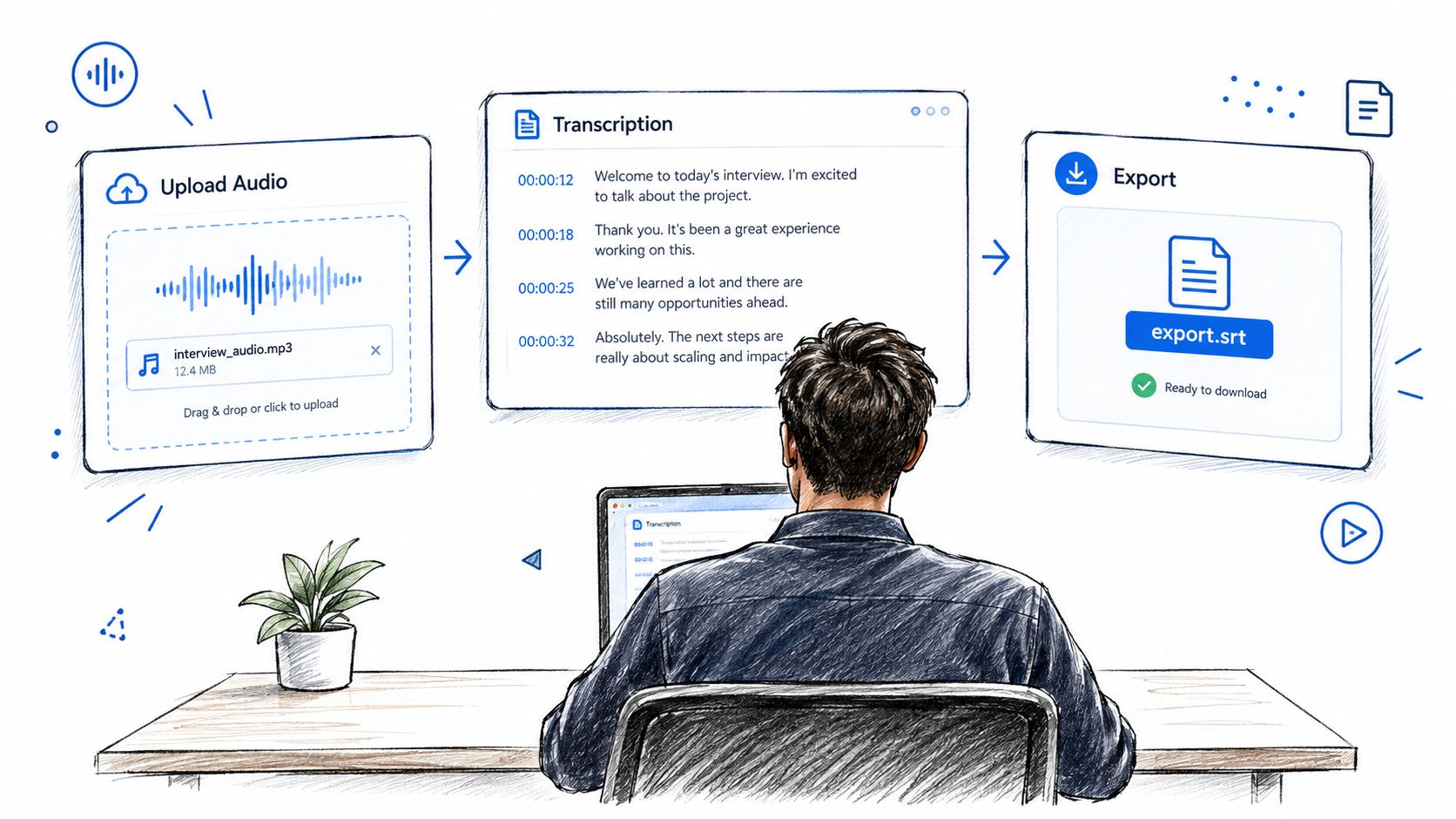
A subtitle file can look finished while still failing in playback. Start with the audio or video, upload it to Zemith, choose the transcription model and source language, and let the workspace build the first transcript. Longer recordings may be processed in chunks, so review the result against the full recording rather than treating each processed segment as a separate edit.
[blocked]
Automatic recognition handles clear speech well, but it cannot resolve every meaning from sound alone. Check these areas before generating the file:
Keep the text aligned with the audio or waveform while editing. Correct the wording first, then check whether each cue still begins and ends at a meaningful point. A caption that starts halfway through an idea can be technically synchronized and still feel late. Line length matters too. Split captions at natural phrases rather than forcing a long sentence into one block.
If the recording switches languages, correct the language setting before exporting. A wrong setting can affect punctuation and recognition behavior, especially when speakers move between languages.
The AI transcription workflow in Zemith reduces the number of times you need to copy, download, re-upload, and reconcile versions. It does not replace a listening pass. It gives that pass a cleaner starting point.
Choose the SRT export rather than a general transcript download. The resulting file should contain sequential blocks, SRT timestamps, plain subtitle text, and blank separators. Confirm that it is saved as UTF-8 without an unwanted byte-order mark if the destination parses files strictly.
Here's a short walkthrough of the review that should happen before export.
Open the downloaded file in Notepad or another plain-text editor. Look for stray headers, unexpected metadata, broken arrows, incorrect punctuation, or paragraphs without timestamps. Then load the SRT in VLC, Premiere Pro, DaVinci Resolve, or the destination platform and watch the video. Word-level timing can be accurate while sentence-level timing still feels wrong. The export is a first pass, not the finished subtitle track.
[blocked]
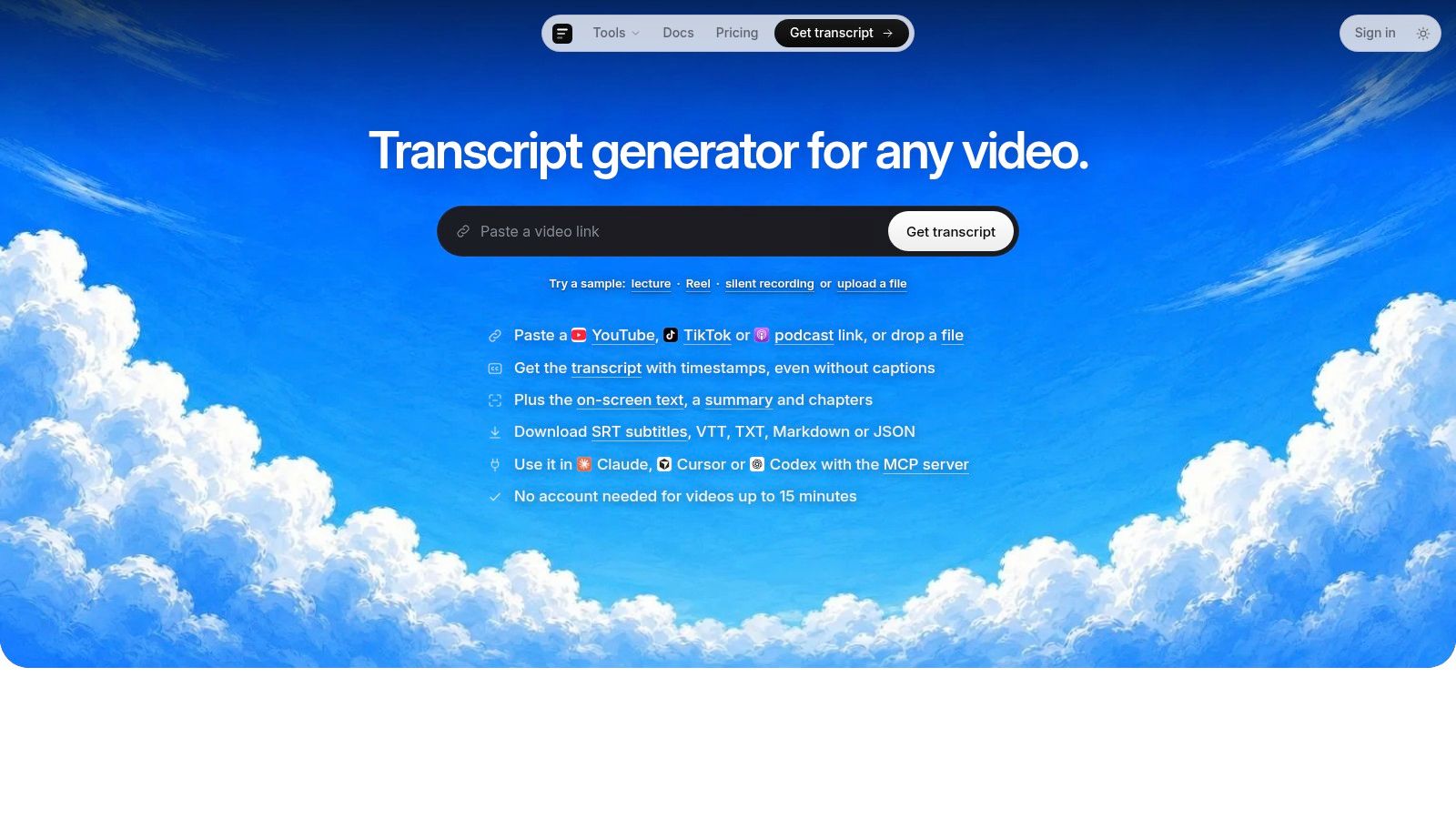
Scribiz is a web and Mac tool for extracting context from video and audio. It can generate transcripts, read on-screen text, and produce summaries and chapter lists from links or uploaded files. For someone trying to create subtitles, its useful role is broader than just turning speech into text.
It can work with YouTube links, direct media links, podcast feeds, and uploaded files. It can also transcribe sources without existing captions by listening to the audio, which matters when a platform's caption track is missing or unreliable. For editing workflows, outputs can be downloaded as SRT, VTT, TXT, Markdown, or JSON.
[blocked]
Scribiz is a reasonable choice when your input isn't just a clean local audio file. You might be pulling a transcript from a YouTube video, checking a recording with slides, or working with a video where important text appears on screen as well as in the dialogue.
Its scene and text analysis can add timestamped notes for slides, code, and other visible material. Speaker labeling can help with multi-person audio, particularly when there are two distinct voices. That information can guide your caption cleanup, even when the final delivery file remains a simple SRT.
You can use generate SRT file with Scribiz when you need a direct subtitle output from a supported link or uploaded recording. The service also offers a CLI, API, MCP server, and Mac app for teams that need structured outputs downstream rather than a one-off download.
The trade-off is workflow complexity. If all you need is a short, clean recording and a quick export, a focused transcription tool may be simpler. If you need captions, a transcript, chapter markers, on-screen text, and automation from the same source, Scribiz addresses a broader problem.
It also suits people who want to avoid low-quality caption tracks. The tool can listen to the audio instead of blindly downloading whatever captions a platform supplies. That distinction matters because an existing caption file may be incomplete, badly timed, or generated from a different edit.
An SRT generator is valuable when it gets you close to delivery. A context-extraction tool becomes more valuable when the subtitle file is only one of several outputs you need.
[blocked]
A valid SRT cue is rigid even though the format looks informal. The index comes first, the timestamp line comes second, the subtitle text follows, and a blank line separates that cue from the next one. The general subtitle format reference from BroadStream describes the sequence and the common errors that cause import or playback problems.
[blocked]
This block follows the expected structure:
This one has several problems:
The index has punctuation, the timestamp uses a period instead of a comma, the arrow is malformed, and there's no blank line separating the cues. Some applications will reject the file. Others will import it partially, which is more annoying because the failure hides inside an apparently successful workflow.
A few rules prevent most failures:
00:00:15,000, not the period convention used by WebVTT.--> with two hyphens and a right-pointing angle bracket.[blocked]
A parser may accept a long sentence, but that doesn't mean viewers can read it before the cue disappears. Break captions at natural speech boundaries, usually after a clause or sentence, rather than splitting a name or noun phrase across lines.
Display duration matters too. Common subtitle practice places cues between 1 and 6 seconds, with short captions needing enough time to register and dense text needing enough time to read. If the speaker talks quickly, shorten the text per cue rather than forcing a crowded block into the same time window.
SRT itself doesn't provide dependable styling, positioning, or color controls. Treat the text as fixed output. If your workflow requires advanced positioning or visual design, choose another format rather than trying to persuade a plain-text file to become a tiny typesetting engine.
For a practical validator, check every cue for index order, timestamp syntax, overlap, blank-line separation, and line count. Then test it in the destination player. A file can be structurally valid and still create stacked captions if two cues overlap or display text faster than a viewer can follow.
You can also consult the Zemith FAQ when you're checking questions about transcription and export behavior. The final authority, however, is always the actual file loaded against the actual edit.
[blocked]
Auto-generated subtitles often fail in ways that look small on paper but feel awful in playback. One cue may cover two complete thoughts, a leftover “thanks for watching” may appear from a previous edit, two captions may overlap, and a music cue may continue long after the sound has ended.
The correction process is editorial, not merely technical. Start by playing the media with the SRT loaded, then mark the moments where the caption feels late, early, crowded, or unrelated to the image.
[blocked]
Split long cues at natural sentence or clause boundaries. If one caption contains two sentences, don't preserve the automated block just because its timestamps technically cover both. Create separate cues that follow the speaker's meaning.
Remove filler and stutters when they don't add meaning. Keep a repeated word if it communicates hesitation, emotion, or a deliberate speaking style. Delete stray dialogue from an earlier edit, and don't leave a caption in place just because the transcription engine confidently recognized it.
Speaker labels should be purposeful. Add them when the viewer needs help identifying a voice, especially in a conversation where the visual edit doesn't make the change obvious. Don't decorate every cue with labels that consume the line length and compete with the dialogue.
Non-speech sounds also need judgment. Include a sound cue when the sound carries meaning for the audience, such as a significant door slam or an off-screen alarm. Skip incidental noise that doesn't improve understanding.
[blocked]
If the whole subtitle track is early or late because the audio was trimmed at the head, use a global offset rather than editing every cue individually. Shift all start and end times by the same amount, then inspect the beginning, middle, and end of the file. A global correction is appropriate for a consistent offset. It won't fix drift that increases over the duration of the recording.
For local problems, edit the affected cue boundaries. Remove overlaps unless the destination specifically expects them. If one cue ends after the next has started, decide which phrase owns the shared moment and give each line a clean window.
A useful cleanup pass looks like this:
The Zemith tools workspace can support a broader media workflow, but no export tool can decide whether a speaker's pause is meaningful in the same way an editor can. Automation should reduce repetitive work. It shouldn't replace the final listen.
[blocked]
SRT is a strong default because it's simple and widely accepted. It's the wrong choice when the destination needs capabilities that SRT doesn't reliably carry, such as advanced positioning, region-based styling, language metadata, or detailed accessibility markup.
Use WebVTT for a browser-based HTML5 player. WebVTT supports web-native cue behavior, positioning, metadata, and styling features that SRT doesn't provide. It also uses a period rather than a comma before milliseconds, so converting between the formats requires more than changing the file extension.
Use TTML or DFXP when a broadcaster, streaming pipeline, or OTT delivery specification requires XML-based timed text. Those workflows may need regions, styling, or accessibility information that doesn't belong in a basic SRT file.
Burned-in captions are a different choice again. They become part of the video image, so they're useful when the audience may watch without enabling a caption track or when the visual treatment is part of the creative. The cost is obvious: burned-in text can't be switched off, corrected independently, or restyled without exporting the video again.
A useful decision rule is simple:
Don't export SRT by reflex. First ask whether the destination needs an editable caption track, a browser-native format, structured delivery metadata, or permanently visible text. The fastest workflow is the one that avoids converting the wrong file later.
[blocked]
A repeatable SRT workflow has five stages. Keep them separate so a transcription error doesn't become a formatting error and a formatting error doesn't get mistaken for a timing problem.
.srt file, pair it with the media using a clear filename, and play it in the destination editor or player.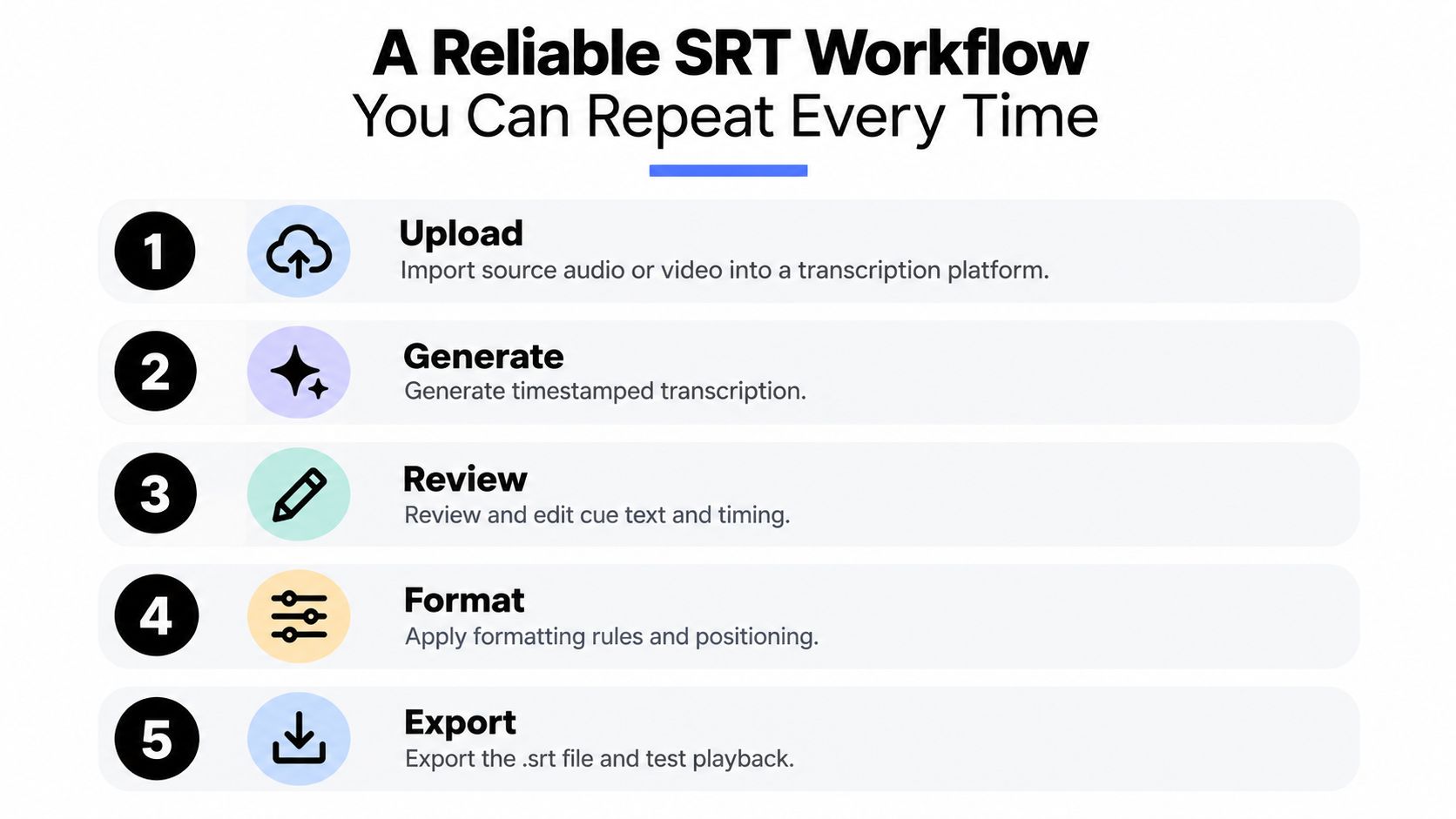
The workflow is deliberately boring. Boring is good when a missing blank line can derail an otherwise finished delivery. Tools such as the Zemith AI workflow builder can help teams connect repeatable processing steps, but the final review still belongs to someone who can hear whether the caption lands naturally.
AI transcription engines are bringing generation, segmentation, formatting, and cleanup closer together in one pass. That shifts manual work from rebuilding captions to reviewing the decisions that matter, especially names, code-switching, overlapping speech, and awkward boundaries.
If you need to generate an SRT file from your next recording, start with the original media, export a timestamped draft, and reserve time for a real playback review. Upload the cleaned file to your destination only after checking the text in a plain editor and watching the captions against the video. For a workflow that combines transcription and subtitle export, try the relevant Zemith tools at zemith.com and treat the first generated file as a draft until your ears and eyes approve it.







Trusted by teams at






The top models, plus image, video and voice tools, in one plan.
Without Zemith
ChatGPT PlusUS$20.00Claude ProUS$20.00Google AI ProUS$19.99SuperGrokUS$30.00Perplexity ProUS$20.00 MidjourneyUS$10.00
 ElevenLabsUS$6.00Le Chat ProUS$14.99
 RunwayUS$15.00Kling StandardUS$8.80
 Gamma PlusUS$12.00
 Otter ProUS$16.99
 QuillBot PremiumUS$19.95
 Photoroom ProUS$12.99
 Quizlet PlusUS$7.99
Total if paying separatelyUS$234.70/mo
"I love the way multiple tools they integrated in one platform. Going in the right direction."
— simplyzubair
"The quality of data and sheer speed of responses is outstanding. I use this app every day."
— barefootmedicine
"The credit system is fair, models are perfect, and the discord is very responsive. Quite awesome."
— MarianZ
"Just works. Simple to use and great for working with documents. Money well spent."
— yerch82
"The organization of features is better than all the other sites — even better than ChatGPT."
— sumore
"It lives up to the all-in-one claim. All the necessary functions with a well-designed, easy UI."
— AlphaLeaf
"The team clearly puts their heart and soul into this platform. Really solid extra functionality."
— SlothMachine
"Updates made almost daily, feedback is incredibly fast. Just look at the changelogs — consistency."
— reu0691
Hand off the research, writing, design and follow-ups. Zemith picks the tools it needs and brings back finished work.
Search the web, run deep research, read files, create images and run code with GPT, Claude, Gemini, Grok and more.
Zemith keeps working in the cloud and pings you when it's done.
Notion, Linear, Canva, Airtable and more. It asks before it creates or changes anything.
Docs, slides, sheets and PDFs, ready to send.
Chain models and tools on a visual canvas, from one prompt to a finished promo video.
Briefings, reports and reminders run on a schedule and are ready when you need them.
Real-time voice that can see your camera or screen.
The best image and video models, in one studio.
Turn PDFs, links and YouTube videos into podcasts, quizzes, flashcards and mind maps.
1200:00:15,000 --> 00:00:17,500The export is ready.12.00:00:15.000 -> 00:00:17.500The export is ready.1300:00:17,500 --> 00:00:19,000Upload it now.














 Podcast
 Quiz
Quiz Flashcards
 Mind map
 Infographic