


Every top model, with tools built in.
Search the web, run deep research, read files, create images and run code with GPT, Claude, Gemini, Grok and more.
Multimodal AI app explained: what it handles (text, images, audio, video), how it's built, where it helps, and how to test one before you trust it.
You've snapped a whiteboard photo after a meeting, dropped a hefty PDF into a chat, and now you're on the train asking a follow-up question out loud. Your hands are full. Your files are scattered. You'd rather not open another app just to turn the answer into something useful.
That's the appeal of a multimodal AI app: work with the material you have, in the format you have it. The catch? An app that reads typed notes beautifully might still misread the same notes in a photograph. Choosing well means testing each input type, not trusting a shiny feature label.
Say your whiteboard contains a launch timeline, your PDF contains the project requirements, and your spoken question is: Which deadlines conflict?
A useful app needs to read the handwriting, find the relevant requirements, understand your question, and connect the evidence. Merely accepting those files isn't enough. It has to use them together.
A multimodal AI app accepts different kinds of input, such as text, images, audio, video, and documents, and responds in one or more formats.
Think of a kitchen. A chef who only reads recipes can follow written instructions. A chef who can also inspect the plate, taste the sauce, and listen to the customer has more information to work with. Multimodal AI follows a similar idea, although its version of tasting is mathematical, and considerably less enjoyable.
What each modality can take in and produce
These are possible capabilities across apps, not a promise that every app supports every cell. Image understanding and image generation, for example, may use different tools. Documents also act as containers: a PDF might contain selectable text, scanned pictures, or both.
Old recordings, presentation decks, and project notes can become useful source material rather than digital attic furniture. Contesimal's guide to using an AI research assistant to uncover value in your content archives offers a useful starting point for that kind of reuse.
The output matters just as much as the upload. If you need spoken study notes, a text-only summary leaves you with another conversion job.
Which input do you use most: documents, screenshots, recordings, or video? That answer tells you which row deserves your closest attention.
Each media type first becomes a numerical representation the model can process. The app then combines information from those representations, directly or through intermediate steps, to generate a response.
The simplified flow looks like this:
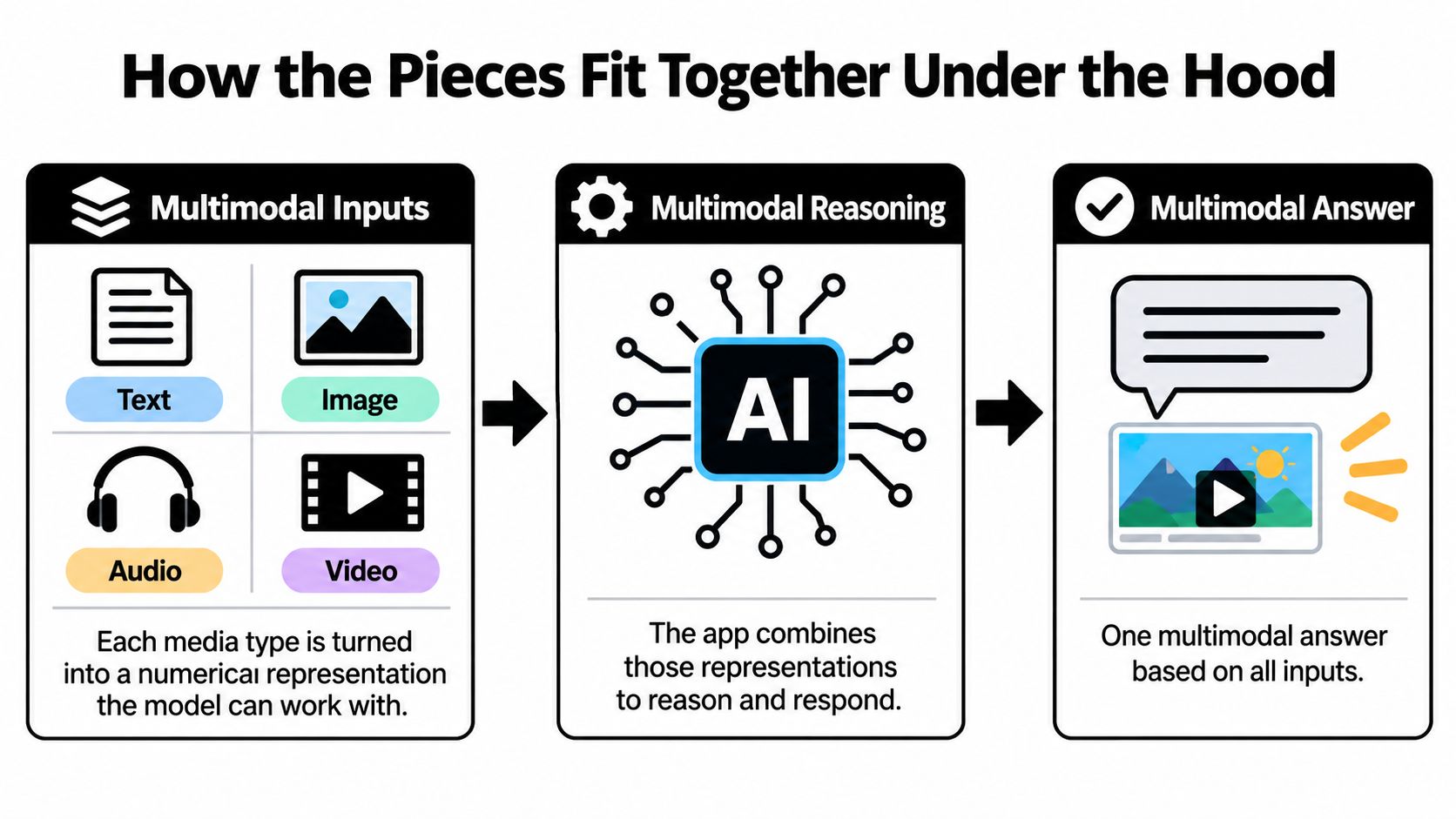
That diagram hides an important distinction: one interface doesn't necessarily mean one model.
Three common multimodal architectures compared
These are useful architectural patterns, not rigid boxes. An app can combine them, using a native model for conversation and specialist tools for transcription or image editing.
A modular pipeline resembles a relay race. A speech tool transcribes your request, a vision tool extracts information from an image, and a language model prepares the answer. If the first runner drops a customer's name, the final runner may confidently deliver the wrong name.
A native multimodal model can reduce those explicit handoffs, but it still has to align evidence correctly. The spoken name “Mae” must match the written name in the document. A chart's blue line must match the right legend entry, not the nearest caption.
The breadth of this problem is reflected in MEGA-Bench, which assembled 505 realistic tasks spanning seven input formats and six output formats. Accepting mixed media is only the beginning; following the right instructions across those formats is the harder part.
For a practical application-level explanation, our guide to using AI in an app helps connect models, tools, and user actions.
Choose a workspace when you want to change models without rebuilding your working environment. Choose a modular build when you need detailed control over individual components. Neither choice excuses a missed baton.
A developer has a broken checkout screen and a stack trace that looks like alphabet soup. Instead of describing the layout from memory, they provide both the screenshot and the error, request a likely cause, and test the proposed patch.
This is the useful sequence: inspect, fix, verify.
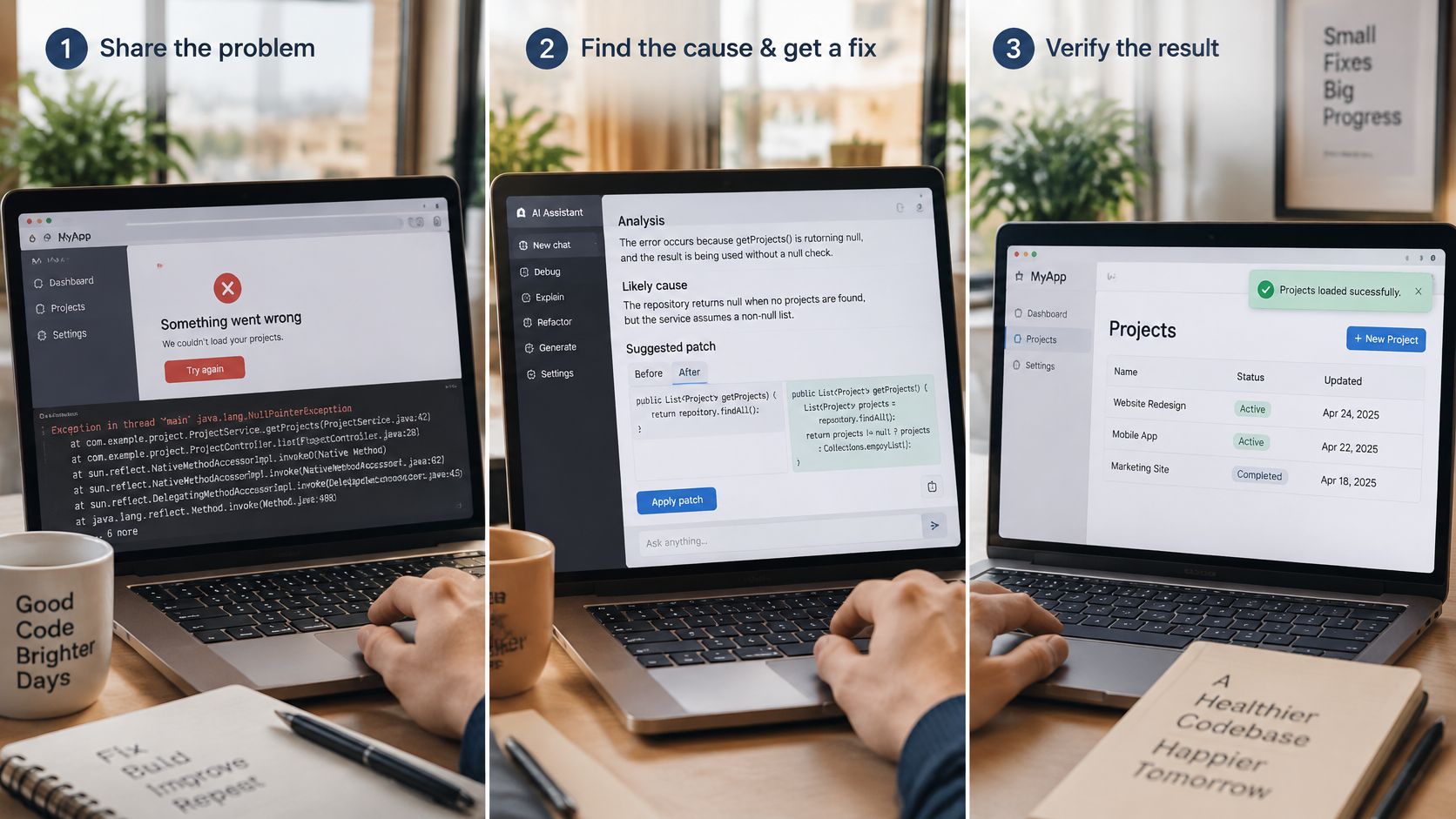
While the tests run, the developer could request a spoken explanation. The benefit isn't only generated code. It's moving from visual evidence to a proposed change and then to an understandable explanation.
A researcher supplies papers and asks where the authors disagree on the main claims. After verifying the cited passages, they turn the comparison into flashcards. A marketer starts with a product photo, removes the background, drafts audience-specific captions, and prepares a short video script.
In our workspace, users can chat with documents in an AI library, use an AI-powered notepad, and organize material in a Media Collection. Those tools give the research and marketing examples somewhere to keep source material and working drafts.
Other useful combinations include:
For customer-service workflows, Sift AI's examples of handling screenshots and voice notes in support show why mixed evidence can be more useful than a typed description alone.
For video-based work, our guide to video analysis provides a practical companion. You can also explore the format through this video:
The broader adoption figures need careful interpretation. Stanford's 2025 AI Index reports organizational AI use rising from 55% in 2023 to 78% in 2024, while generative AI use in a business function rose from 33% to 71%. Its productivity review reports 26.08% higher average task completion in a field experiment involving 4,867 developers, not a universal multimodal productivity guarantee. More specifically, Altman Solon's survey of more than 400 executives found 13% used multimodal tools in February 2024, while 59% were highly likely to adopt a solution within three years.
The useful value is in the connections between formats. Whether those connections help you is something you can measure.
An app can answer a typed question correctly and still fumble a screenshot containing exactly the same information. That's the modality gap, and it's a better reason to test than any leaderboard position.
VISTA-Bench reports substantial performance degradation when semantically identical content is presented as visualized text. Possible weak points include text recognition, layout interpretation, and integrating extracted information with reasoning.
Use non-sensitive files with answers you can check. Save the original prompt and expected answer so you can repeat the comparison after changing models.
Five quick tests for multimodal accuracy
For a repeatable record of inputs, expected results, and failures, Figr's test case creation guide offers a useful structure. Our audio-to-text AI guide can help you prepare the transcription part.
Diagnostic rule: Check what the app read before judging what it concluded.
Extraction accuracy asks whether the app captured the source correctly. Reasoning accuracy asks whether it used that captured information correctly. If it reads a table cell incorrectly, fix the extraction path; if it reads every cell correctly but calculates the wrong result, investigate the reasoning or calculation step.
Public benchmark scores help you shortlist candidates. Your own awkward scans, noisy recordings, and badly labeled charts tell you whether a candidate belongs in your workflow.
A polished demonstration rarely includes your largest recording, weakest mobile connection, or spreadsheet with merged cells from a previous geological era. Those are precisely the files worth trying before you commit.
File handling comes first. Upload a representative PDF, audio file, and video clip. Confirm whether the app accepts the formats you use, what happens when an upload is too large, and whether long recordings need manual splitting.
Live voice needs a separate trial on your actual phone and network. Test interruptions, speaker playback, and whether the app retains the question after a connection hiccup. Accessibility-focused evaluation has also identified persistent weaknesses in multimodal systems, including complex-scene understanding and hallucination control, in an evaluation of 12 models.
Use these buying criteria:
Don't compare subscriptions by message count alone. A cheap answer that needs extensive repair can cost more working time than a better-supported workflow.
Our AI model pricing comparison can help frame the model-choice part of that decision. For your own evaluation, record cost per usable finished task, including retries and manual cleanup.
A successful upload is just the entrance exam. The result still has to survive editing, sharing, and tomorrow's repeat run.
Adding a microphone and an image upload button doesn't automatically make an app accessible. Users need control over how information arrives, how much they receive, and whether they can inspect an alternative format.
Accessibility is a core requirement, not a bonus:
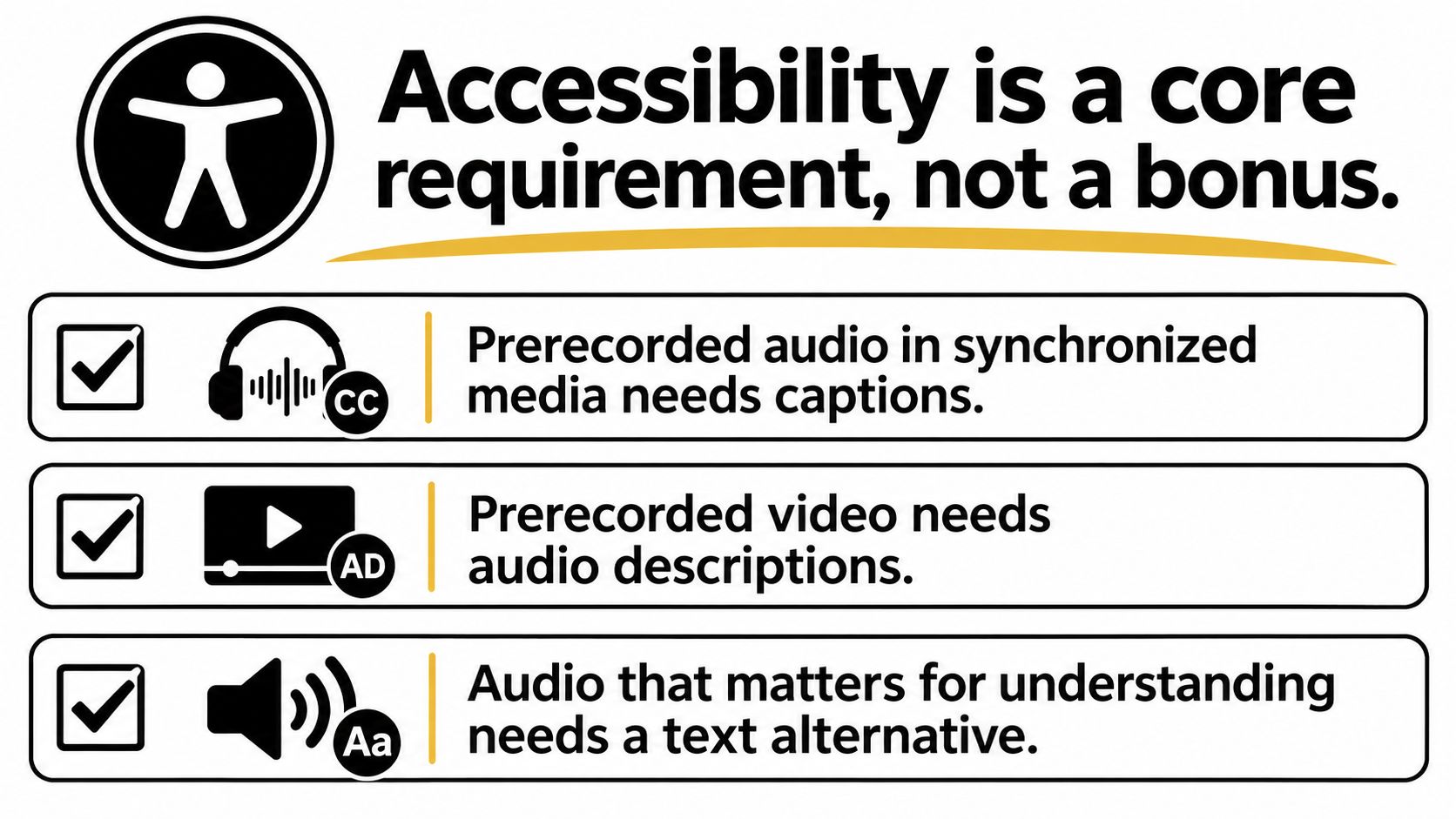
WCAG 2.2 includes requirements for captions for prerecorded and live audio in synchronized media, audio descriptions for prerecorded video in synchronized media, and controls to pause, stop, or independently adjust web audio that autoplays for more than three seconds. Specific exceptions and conformance levels matter, so assess the applicable criteria rather than treating every audio file identically.
For a document-to-podcast workflow, supply a readable transcript. For generated video, check captions and essential visual descriptions. Our guide to describing an image helps distinguish useful visual information from decorative detail.
Trust also changes when an app can act. In PwC's 2025 survey of 308 US executives, 28% identified lack of trust as a top-three AI-agent challenge, while trust for financial transactions stood at 20%.
Keep perception, recommendation, and execution separate. Reading an invoice shouldn't become permission to pay it.
Use this checklist before sensitive or public work:
The European Commission's AI Act implementation timeline schedules Article 50 transparency requirements and broader enforcement from 2 August 2026. For EU-facing work, determine which obligations apply to your role and use case, then preserve the source and production records needed to support them.
The familiar alternative is a browser full of specialist tools: chat in one tab, transcription in another, image editing somewhere else, and a presentation draft hiding behind everything. You become the integration layer, mostly through copying and pasting.
Zemith brings together more than 20 AI models in one app, with the ability to switch models mid-chat. That gives you a way to compare approaches without abandoning the working conversation.
Here's the workspace view:
Multimodal tasks and the Zemith tool that handles them
Our Library and Projects organize documents, conversations, and shared context. For an ongoing research topic, that provides a more coherent working arrangement than repeatedly assembling the same source material across separate apps.
For repeated jobs, our AI workflow builder chains prompts, models, and image tools into reusable pipelines. You can organize a sequence around the finished deliverable rather than manually restarting each stage.
Our agent can connect to Notion, Linear, Canva, and Airtable through plugins, and it asks for approval before creating or changing anything in connected apps. That approval step lets you inspect the proposed action before it affects the destination.
Consolidate the workspace when it reduces handling work. Keep a specialist tool when it produces a result you can't yet match.
A single interface doesn't make every model equally capable. Compare document fidelity, image-edit quality, transcription corrections, and export usability on your material. The best arrangement may be one workspace for most work plus a specialist for a difficult edge case.
Choose a repeated task involving different formats: a PDF briefing turned into slides, for example, or lecture audio turned into revision cards. Pick something routine enough that you know what a good result looks like.
Don't start with your most confidential contract or a deadline that's already on fire. Start with material you can safely inspect and correct.
Our Plus plan costs US$15.99 per month and includes every model listed on the page plus 50+ AI tools. That offers a way to compare a broader range of capabilities without choosing a separate subscription for each stage.
If you'd rather begin with a smaller commitment, our free AI Quiz Generator, AI Flashcard Generator, YouTube Transcript Generator, and AI Translator let you try individual parts of a workflow. Use a familiar source and judge whether the output helps you finish the next task.
The decision doesn't need to be dramatic. If a workflow saves effort but introduces unreliable citations, fix that problem before expanding it. If it produces a useful draft but not a publishable result, assign it the draft.
Start small, test on real files, and expand only when the numbers agree.
Bring a document, recording, or image to Zemith and try turning it into the next deliverable you need. Our workspace combines document chat, creative tools, audio features, and reusable workflows, so you can test the connections between formats instead of juggling separate apps. Choose one repeatable job, check the result against its source, and keep what earns its place.
Pay less than one AI subscription and get GPT, Claude, Gemini and more, plus 50+ AI tools.


Trusted by teams at






The top models, plus image, video and voice tools, in one plan.
Without Zemith
ChatGPT PlusUS$20.00Claude ProUS$20.00Google AI ProUS$19.99SuperGrokUS$30.00Perplexity ProUS$20.00 MidjourneyUS$10.00
 ElevenLabsUS$6.00Le Chat ProUS$14.99
 RunwayUS$15.00Kling StandardUS$8.80
 Gamma PlusUS$12.00
 Otter ProUS$16.99
 QuillBot PremiumUS$19.95
 Photoroom ProUS$12.99
 Quizlet PlusUS$7.99
Total if paying separatelyUS$234.70/mo
"I love the way multiple tools they integrated in one platform. Going in the right direction."
— simplyzubair
"The quality of data and sheer speed of responses is outstanding. I use this app every day."
— barefootmedicine
"The credit system is fair, models are perfect, and the discord is very responsive. Quite awesome."
— MarianZ
"Just works. Simple to use and great for working with documents. Money well spent."
— yerch82
"The organization of features is better than all the other sites — even better than ChatGPT."
— sumore
"It lives up to the all-in-one claim. All the necessary functions with a well-designed, easy UI."
— AlphaLeaf
"The team clearly puts their heart and soul into this platform. Really solid extra functionality."
— SlothMachine
"Updates made almost daily, feedback is incredibly fast. Just look at the changelogs — consistency."
— reu0691
Hand off the research, writing, design and follow-ups. Zemith picks the tools it needs and brings back finished work.
Search the web, run deep research, read files, create images and run code with GPT, Claude, Gemini, Grok and more.
Zemith keeps working in the cloud and pings you when it's done.
Notion, Linear, Canva, Airtable and more. It asks before it creates or changes anything.
Docs, slides, sheets and PDFs, ready to send.
Chain models and tools on a visual canvas, from one prompt to a finished promo video.
Briefings, reports and reminders run on a schedule and are ready when you need them.
Real-time voice that can see your camera or screen.
The best image and video models, in one studio.
Turn PDFs, links and YouTube videos into podcasts, quizzes, flashcards and mind maps.












 Podcast
 Quiz
 Flashcards
 Mind map
 Infographic