


Every top model, with tools built in.
Search the web, run deep research, read files, create images and run code with GPT, Claude, Gemini, Grok and more.
What is live preview? See how real-time rendering shows your edits as you make them, where it saves time, and where it can mislead you.
Live preview shows the rendered result of what you are editing and updates it within a fraction of a second, with no manual refresh or publish step. A 2026 test of real-time HTML, CSS, and JavaScript preview put the average update at 40–70 milliseconds, with typing staying under 10 milliseconds.
You're probably mid-fix on a button, a heading, or a React component that looked fine until the label wrapped. The old habit is save, switch windows, reload, lose your place, and do it again. If you've reloaded a page so often it started to feel like cardio, you're not alone.
A pretty frame is still only a promise. It proves the pixels in front of you. It doesn't prove a login, a database, or a snippet an AI wrote five minutes ago.
Change a button color. Save. Alt-tab. Hit reload. Squint, because the padding is still four pixels off. That's the loop almost everyone who has shipped a page knows by heart.
Live preview is the shortcut out of that loop. It shows the rendered result of what you're editing and updates it within a fraction of a second, with no manual refresh and no publish step.
Without it, you send a jacket off to be altered and pick it up next week to check the sleeve. With it, the tailor holds the sleeve in the mirror while the pins are still going in. You say "shorter," and you see shorter.
The word live is doing the heavy lifting. The gap between your action and the result stays small enough that the feedback feels like a conversation, not a report you read later.
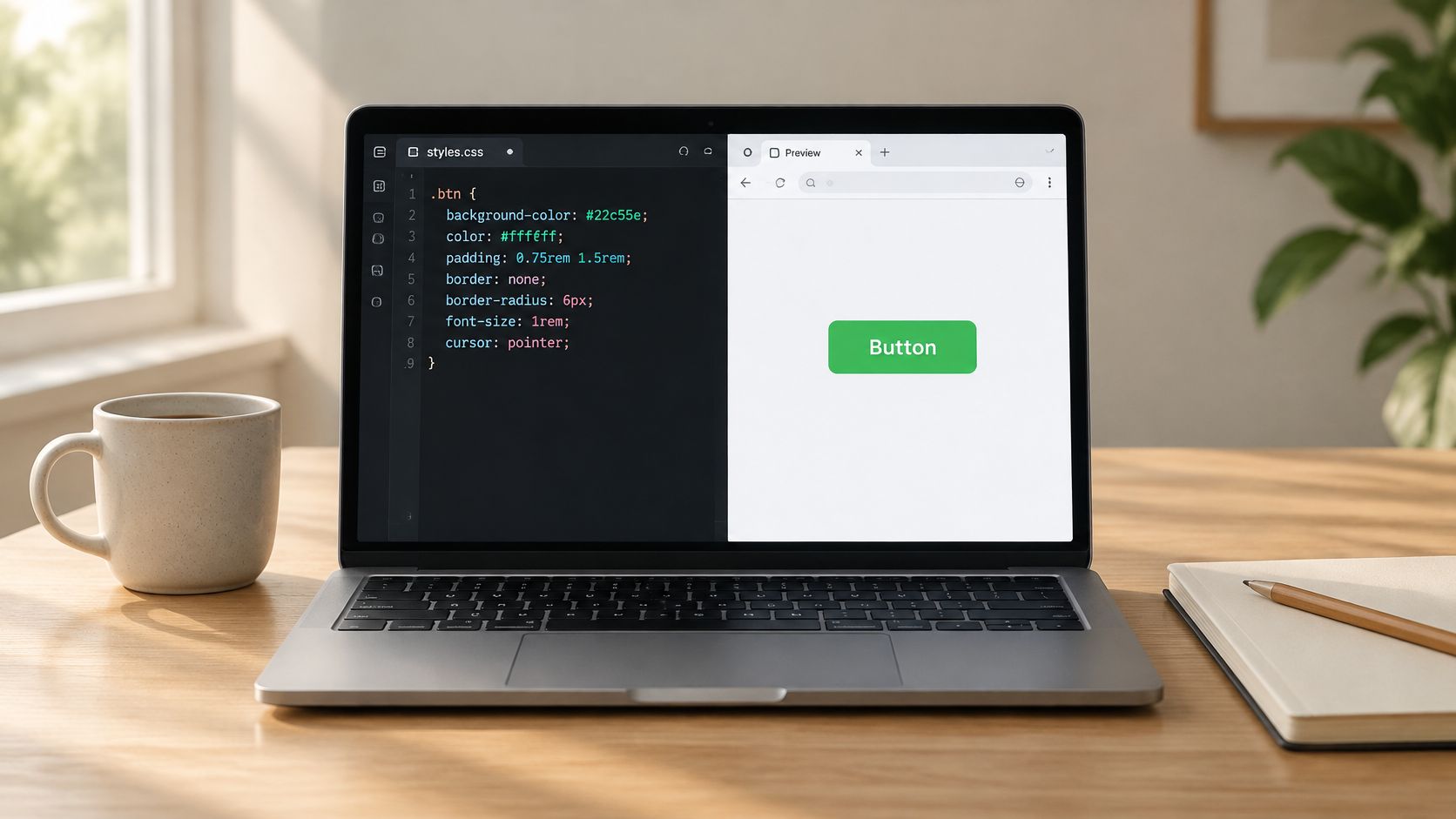
You'll usually meet it as a side panel or a framed window beside the editor for HTML, CSS, and React. Writing tools do a cousin of the same trick for Markdown and formatted text. The idea isn't stuck inside code. It fits any job where the result is visible while you make it, including layouts, slides, and documents.
Live preview turns editing from writing blind into writing while watching.
Picture the last time you reloaded a page six times for one small fix. That afternoon is the whole sales pitch.
What is live preview in practice is a short pipeline, not a magic pane. Your editor watches the file. Something notices the change. The code gets transformed. The browser draws the new result. React Native's 2016 write-up of hot reloading is the historical root of the modern version of that loop.
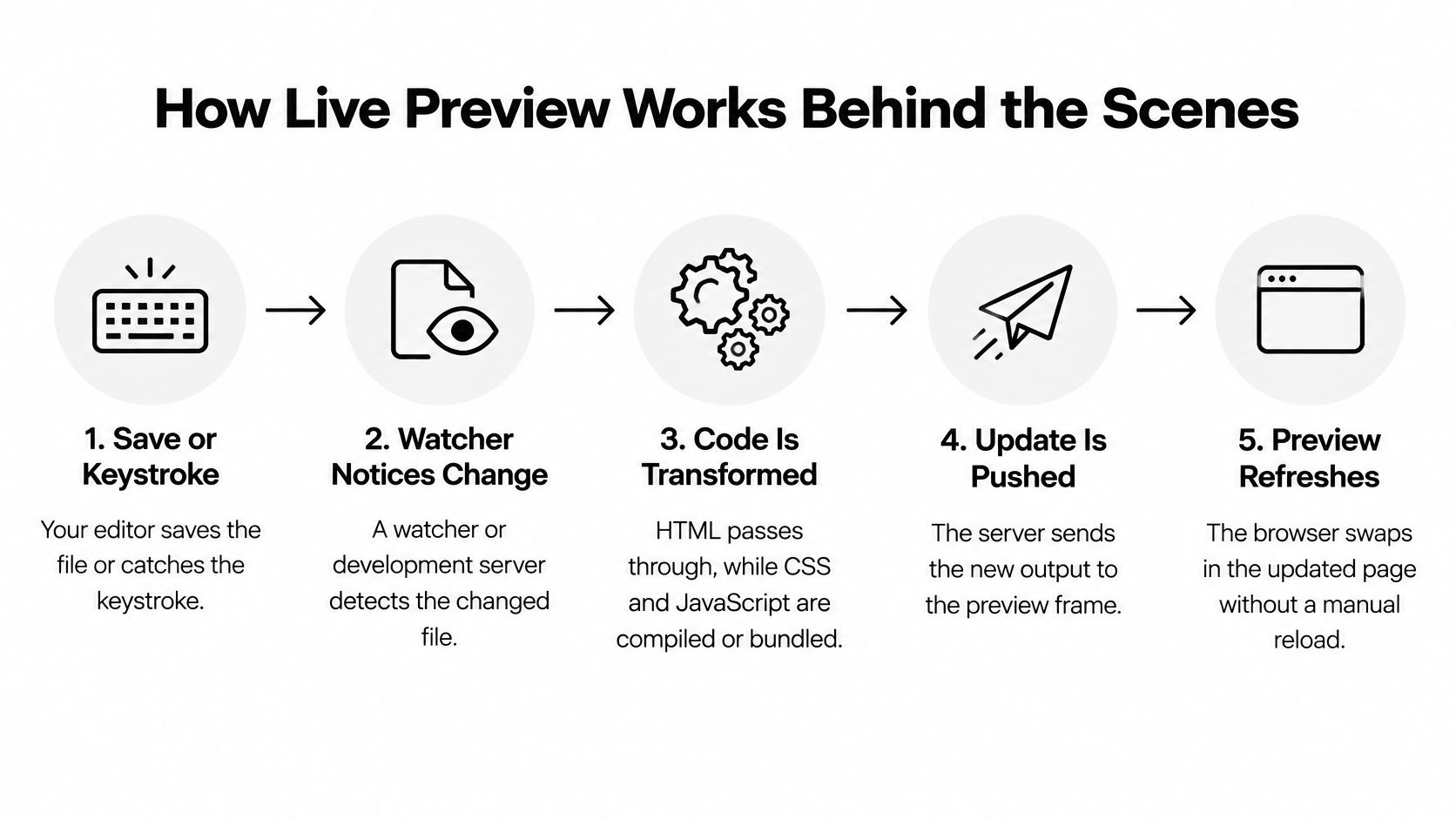
Not every refresh is the same refresh. A full reload throws the page away and starts over, which often wipes form text and component state. Style injection swaps only the changed CSS, so the page stays put. Hot module replacement (HMR), the technique associated with webpack, swaps changed JavaScript modules in place.
React Native documented that approach on March 24, 2016, and shipped hot reloading in version 0.22. HMR sends the changed modules to a lightweight runtime, replaces the old module code, and can keep application state. Basic live reload may reset that state. Fast Refresh guidance says most edits should show up within one or two seconds when a module exports only React components. If the file also exports non-component values, or it's imported outside the component tree, you can fall back to a full reload.
Here's the practical test. Type something into a form, save, and see whether the text survives. If it vanishes, you're on a reload. If it stays, you're closer to HMR. If you're generating the markup itself, a walkthrough on how to generate HTML code pairs well with watching which of these four paths your tool takes in practice.
A writer pastes an AI-written HTML section into a blog draft and watches the layout snap at phone width within seconds. That's the win. Finding the same break after you hit publish is the expensive version of the same discovery.
Different jobs preview different things, and they catch different first bugs.
Front-end layout is the everyday case. You nudge spacing, type, and color, and you see the phone-width break before a reviewer does. React components are pickier. You're checking one component's props and state, including the branch that only renders when a flag is true. AI-generated code is the sneaky row. A snippet can run, look almost right, and still fall apart on the first click.
Writers get a quieter version of the same loop. A Markdown preview shows heading order, a broken link, and a line break that makes a sentence look drunk. Designers catch a crop that's too tight, contrast that fails in daylight, or a background-removal edge that looks like a bad haircut. Team reviews just mean other people see the rendered thing before it ships, instead of arguing from a screenshot in a thread.
Zemith's coding assistant sits in that AI-generated row. It can show live previews for React components and HTML next to an explanation of the code, so you can see whether a generated snippet renders before it lands in a project. Don't confuse that with AI Live Mode. Live Mode is a real-time audio conversation about what you can see. It's live feedback, not a visual preview. Talk through a screen when you want a second brain. Use the frame when you need to know if the button really exists.
If you're still choosing a workflow, rapid prototyping techniques are the longer version of "build the small thing first." Pick the row that matches the work you do before lunch. That's the one worth setting up today.
The speed claim isn't a vibe. A 2026 study of a client-side web development environment tested real-time HTML, CSS, and JavaScript previewing across Chrome, Firefox, and Edge. Average preview-update latency was 40–70 milliseconds. Editor input latency stayed below 10 milliseconds.
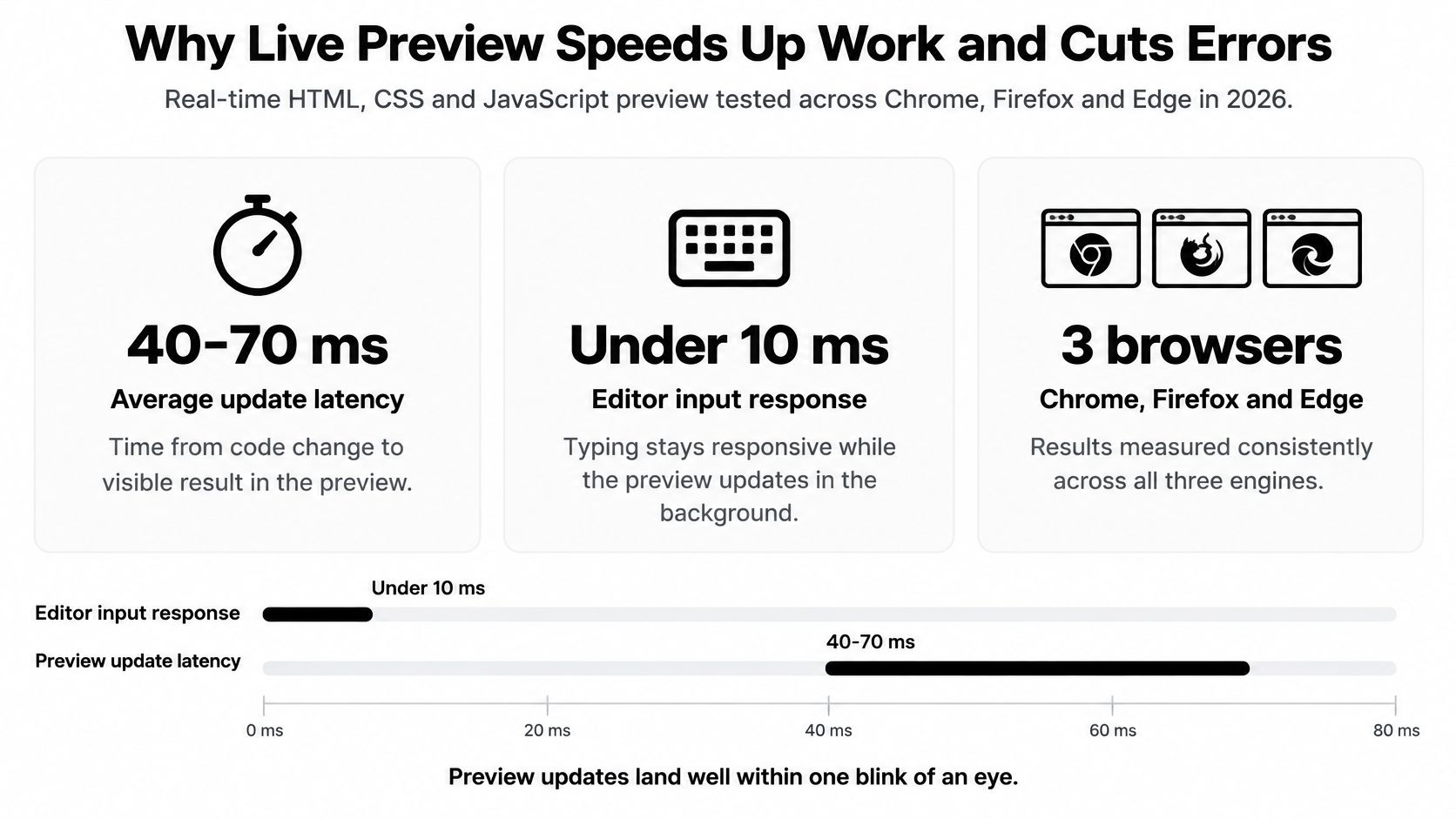
In the same research, a usability study of 25 participants found that 92% preferred real-time preview over a manual-refresh workflow, and 88% called the interface intuitive.
A delay around a tenth of a second, or less, stays under the point where the interface feels late. You keep the thought you had. You don't context-switch into "where was I." Fast Refresh's one-to-two-second window, already in the table above, is the slower cousin. It's still fast enough that you're editing, not waiting on a build cult.
The time you get back isn't only the reload itself.
Errors shrink for the same reason. A broken layout caught while you're still on the line you changed is a seconds-long fix. The same bug found after deployment means searching through everything you touched that week. How to debug code gets much less dramatic when the failure is still on screen.
Google's Core Web Vitals guidance is the reminder that "it appeared" isn't "it feels fine." Loading, visual stability, and input responsiveness can all be wrong on a page that looks finished. A live frame lets you click, watch images land, and notice a layout jump before Lighthouse becomes a postmortem.
A useful preview keeps typing responsive, lands changes in roughly tenths of a second, and doesn't steal your scroll position or visual context on every update.
Judge any tool against that line. If typing stutters, or the page jumps back to the top, the feature is live in name only.
A preview that looks right does not prove the app works. That's the myth, and it's an expensive one, especially with AI-generated code that renders cleanly and then fails the first real integration.
Most browser previews run inside an iframe. That frame keeps the experiment off the host page, which is good. It also means the preview often can't reach your production database, authentication, environment variables, or server-side rendering. The glossary note on live preview puts the trade-off plainly. Lightweight HTML and CSS can update quickly. React previews that need bundling, dependency installation, a development server, or a heavier browser runtime cost more CPU and memory. Large projects, or a burst of simultaneous edits, can lag, drop unsupported features, or drift from production.
Debouncing is the quiet compromise. The tool waits a beat instead of rendering on every keystroke, which saves work and adds delay. You feel that delay as "did it hear me?"
Preserved state has a similar trap. It speeds iteration, and it can hide bugs that only appear on a clean load. Reload from scratch before you trust a result. If you're checking whether a person can use the thing, how to conduct usability testing belongs after the pretty frame, not instead of it.
Match the mode to the question. "Does this heading wrap?" is a static render. "Does this click handler fire?" is a sandboxed client render. "Does checkout still work with the live API?" is staging. A green preview answers the first two on a good day. It does not answer the third.
A frame that looks separate isn't automatically safe. Visual isolation means the preview doesn't paint over your editor or poke the parent page. Data isolation means it can't read the parent DOM, cookies, or local storage. Those are different promises, and a lot of tools only keep the first one.
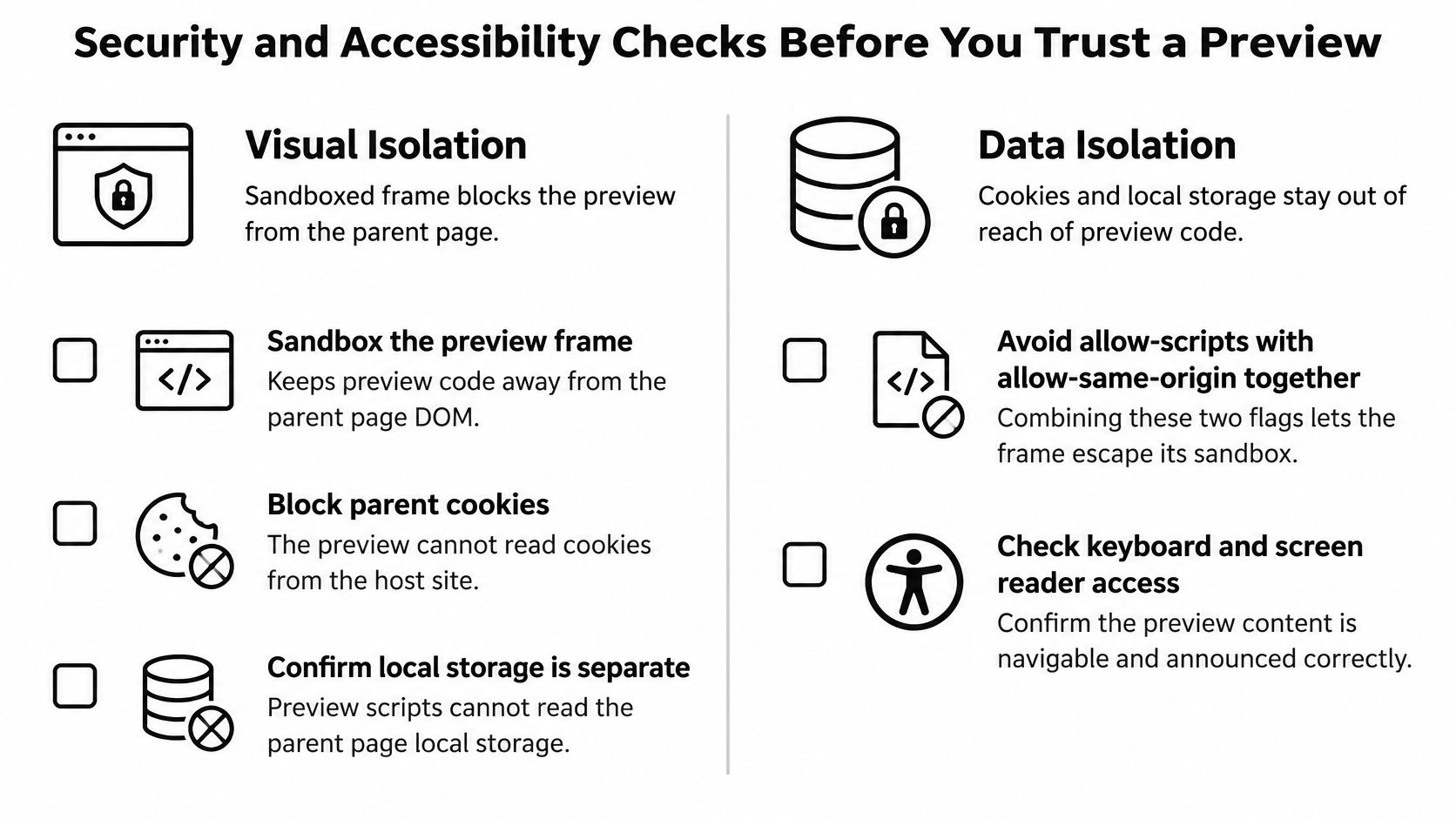
Zemith's HTML live preview notes make the practical point. Safety depends on the implementation, not the label. A sandbox can block the parent DOM, cookies, and local storage. Turn on scripts, network requests, authentication, or same-origin behavior, and the attack surface grows. Combining allow-scripts with allow-same-origin can undermine the sandbox, so permissions need to stay narrow. Content Security Policy headers such as frame-ancestors and frame-src control who may embed the frame and what that frame may embed. Be careful with postMessage too. It's a mailbox, not a locked door.
Before you run AI-generated React, HTML, or JavaScript from an unknown source, read it like a stranger's USB stick.
Draft or private content needs its own authorization. A preview URL is not a permission. Don't infer access from the fact that an iframe requested the page.
WCAG 2.2 asks for information and interface components to be perceivable, text alternatives for non-text content, and dependable operation across user agents, including assistive technologies. Live audio in synchronized media needs captions.
While the piece is still small, check that the keyboard reaches every control, images have alt text, headings follow a sensible order, focus is visible, contrast is readable, and any audio has captions. These checks are easiest before the component grows friends. Software testing best practices are the wider habit. This list is the five-minute version you can do in the preview itself.
Don't start by previewing the whole app. Start with one piece you already understand, so a weird render is obviously the tool and not your architecture.
Zemith's coding assistant is a reasonable place to try that routine. It can generate a React component or an HTML section, render the live preview, explain the code, and surface errors, so you can judge the output before it touches a real project. Smart Notepad helps tighten the copy you see in that same frame, so a clumsy label gets fixed in the same pass as the padding.
Pick one component today and time how long the first fix takes. Do the same loop for a week, then compare the two numbers. If the second one isn't smaller, the preview isn't earning its keep, and you should change the tool rather than blame your typing.
Zemith puts code generation, explanations, and live previews for React and HTML in one workspace, so you can see a component before it ever lands in a repo. If you're tired of refresh loops and green frames you don't quite trust, open Zemith and run the six-step check on one small piece today.
Pay less than one AI subscription and get GPT, Claude, Gemini and more, plus 50+ AI tools.







Trusted by teams at






The top models, plus image, video and voice tools, in one plan.
Without Zemith
ChatGPT PlusUS$20.00Claude ProUS$20.00Google AI ProUS$19.99SuperGrokUS$30.00Perplexity ProUS$20.00 MidjourneyUS$10.00
 ElevenLabsUS$6.00Le Chat ProUS$14.99
 RunwayUS$15.00Kling StandardUS$8.80
 Gamma PlusUS$12.00
 Otter ProUS$16.99
 QuillBot PremiumUS$19.95
 Photoroom ProUS$12.99
 Quizlet PlusUS$7.99
Total if paying separatelyUS$234.70/mo
"I love the way multiple tools they integrated in one platform. Going in the right direction."
— simplyzubair
"The quality of data and sheer speed of responses is outstanding. I use this app every day."
— barefootmedicine
"The credit system is fair, models are perfect, and the discord is very responsive. Quite awesome."
— MarianZ
"Just works. Simple to use and great for working with documents. Money well spent."
— yerch82
"The organization of features is better than all the other sites — even better than ChatGPT."
— sumore
"It lives up to the all-in-one claim. All the necessary functions with a well-designed, easy UI."
— AlphaLeaf
"The team clearly puts their heart and soul into this platform. Really solid extra functionality."
— SlothMachine
"Updates made almost daily, feedback is incredibly fast. Just look at the changelogs — consistency."
— reu0691
Hand off the research, writing, design and follow-ups. Zemith picks the tools it needs and brings back finished work.
Search the web, run deep research, read files, create images and run code with GPT, Claude, Gemini, Grok and more.
Zemith keeps working in the cloud and pings you when it's done.
Notion, Linear, Canva, Airtable and more. It asks before it creates or changes anything.
Docs, slides, sheets and PDFs, ready to send.
Chain models and tools on a visual canvas, from one prompt to a finished promo video.
Briefings, reports and reminders run on a schedule and are ready when you need them.
Real-time voice that can see your camera or screen.
The best image and video models, in one studio.
Turn PDFs, links and YouTube videos into podcasts, quizzes, flashcards and mind maps.














 Podcast
 Quiz
Quiz Flashcards
 Mind map
 Infographic