


Every top model, with tools built in.
Search the web, run deep research, read files, create images and run code with GPT, Claude, Gemini, Grok and more.
A candid, use-case-driven guide to the best productivity tools online, with honest pros, cons, and picks for workflows, teams, and all-in-one AI work.
Too many tabs, too little done? You've got a task app open in one window, a document tool in another, and an AI subscription somewhere in the browser wilderness. The apps all promise to save time, but they don't necessarily share files, context, or even your definition of “urgent.” Meanwhile, your browser has become a small archaeological site of tabs you swear you'll read later.
That's the gap conventional productivity advice tends to miss. The question isn't just which tool has the longest feature list. It's which one fits the shape of your week, and whether it reduces busywork without adding another system you have to maintain. This use-case-driven tour of the best productivity tools online gives each pick a job, with practical pros, honest drawbacks, and notes on when a popular choice isn't the right one. Jump to the scenario that sounds like your calendar, your project board, or your current open-tab situation.
Online productivity tools have become part of everyday work, not a sidecar: a 2025 digital-workplace survey found that employees spent 72% of their weekly working hours using workplace applications, and Empower's digital workplace report found that Microsoft 365 and Google solutions were both widely used among respondents. That makes switching between tools a real workflow decision, not just an aesthetic one. If you're comparing more options before picking a stack, explore productivity tool directories for 2026.
Pick Zemith if your week moves from research to writing, study materials, and creative work. It brings models such as Claude, GPT, and Gemini into one productivity-focused platform, with more than 50 tools alongside chat, search, voice, and file features. That breadth is useful when a task changes shape halfway through. It can also mean more options than you need if your work calls for a simple task list.
Use web search and deep research to explore a question, then chat with files or organize material in a project with memory. Zemith can also help create documents and presentations, turn PDFs, links, or YouTube videos into podcasts, quizzes, flashcards, and mind maps, and generate images and video. For repeatable work, visual workflows can chain prompts, models, and tools; cloud tasks and scheduled work can run in the background. Plugins connect apps, while FocusOS helps keep chats, notes, and whiteboards together as you work. See this comparison of online productivity tools to weigh an all-in-one workspace against a collection of separate apps.
Best use: Bring a research question, source files, and a rough outline into one project, then shape the material into a document or presentation.
The trade-off is breadth: an all-in-one platform can reduce app switching, but a large toolset takes time to learn, and it may be unnecessary if you only need one focused function. Zemith's free tools include an AI Quiz Generator, AI Flashcard Generator, YouTube Transcript Generator, and AI Translator, so you can start with a specific job before building a wider workflow.
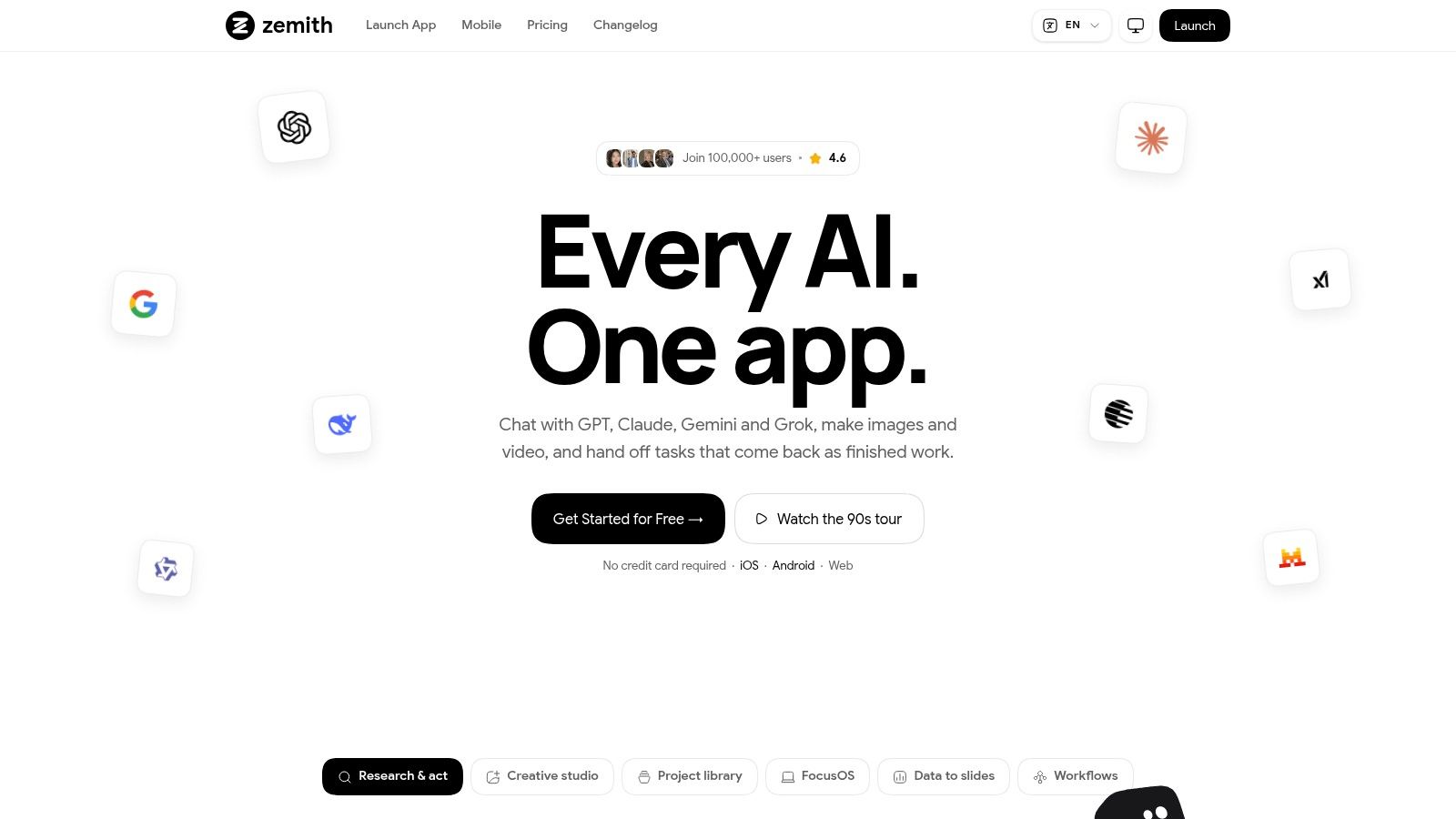
Pick Notion if your work needs a home for both reference material and active projects. Its pages and databases can hold meeting notes, a team wiki, project plans, research, and task tracking without forcing everything into a rigid template. That flexibility is the appeal. It's also the catch: an empty workspace can feel like a box of building blocks when all you wanted was somewhere to write down the plan.
Start small. Make one project page, add a task database only if you'll use it, and link the notes that people need to find later. Don't spend a week designing a dashboard before you've learned what you track. Templates can give you a starting point, but every new view and property adds a little upkeep.
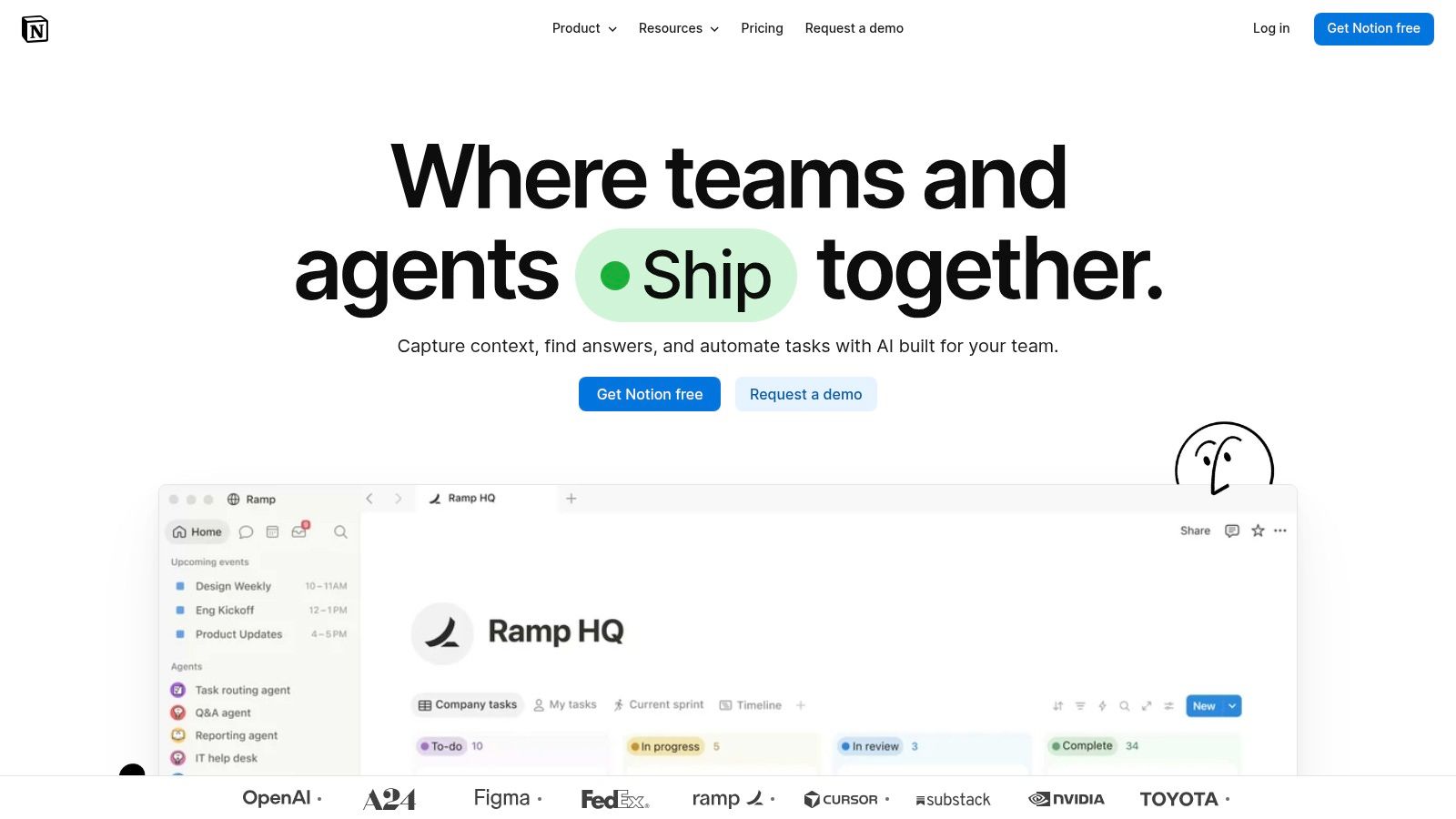
Notion suits individuals and teams who like shaping their own system and connecting planning with knowledge management. It's less attractive if your team needs a ready-made process with minimal setup, or if nobody has ownership of maintaining shared pages. AI features are available on eligible plans, so check the plan details before building an AI-dependent workflow. If your main goal is capturing and organizing notes, compare the choices in this guide to AI note-taking approaches.
Pick ClickUp if project coordination is scattered across task lists, docs, dashboards, and status updates. It brings those work-management pieces into one platform, with tasks, project views, Docs, goals, dashboards, automations, and AI features or add-ons. A team can configure different views for different kinds of work without sending everyone to a new app for each project.
The trade-off is the amount of choice. ClickUp can be shaped around a team's process, but people still have to understand the settings, decide which features matter, and agree on how work gets represented. If every department builds its own elaborate system, centralization can turn into a collection of elaborate systems. Check the current feature and plan limits before you commit important team workflows to a specific setup.
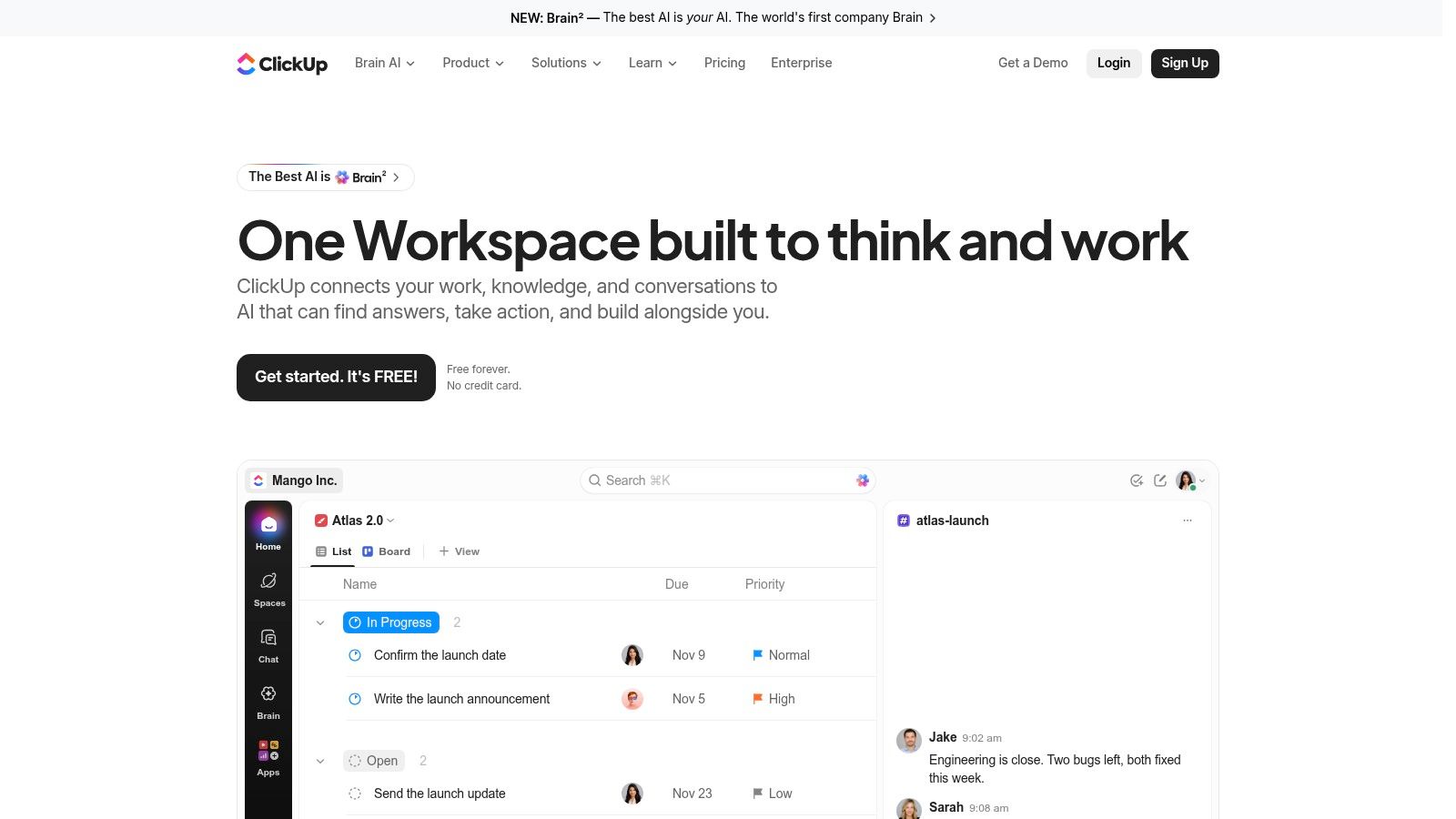
ClickUp offers a free entry point, which makes it easier to test whether your team will use its broader workspace. Keep the pilot narrow: pick one team, define a task workflow, and agree on where decisions and files live. If you need a clearer foundation before expanding the setup, use these project management best practices to decide what belongs in the system and what should stay out.
Pick Asana when work is getting lost between “someone should do that” and an actual named owner. Tasks and projects make assignments, deadlines, and progress visible across a team. List, board, calendar, and timeline views let people see the same work from different angles, while forms and reporting help teams collect requests and track what's moving.
Asana is especially useful when several people depend on each other's work. A launch plan, for example, can show who owns the copy, design, review, and delivery rather than burying those handoffs in a chat thread. Asana's Anatomy of Work research reported that knowledge workers spend 60% of their time on “work about work,” including searching for information, switching apps, and managing coordination. Asana's explanation of work about work is a useful reminder to make project context visible, not just create more tasks.
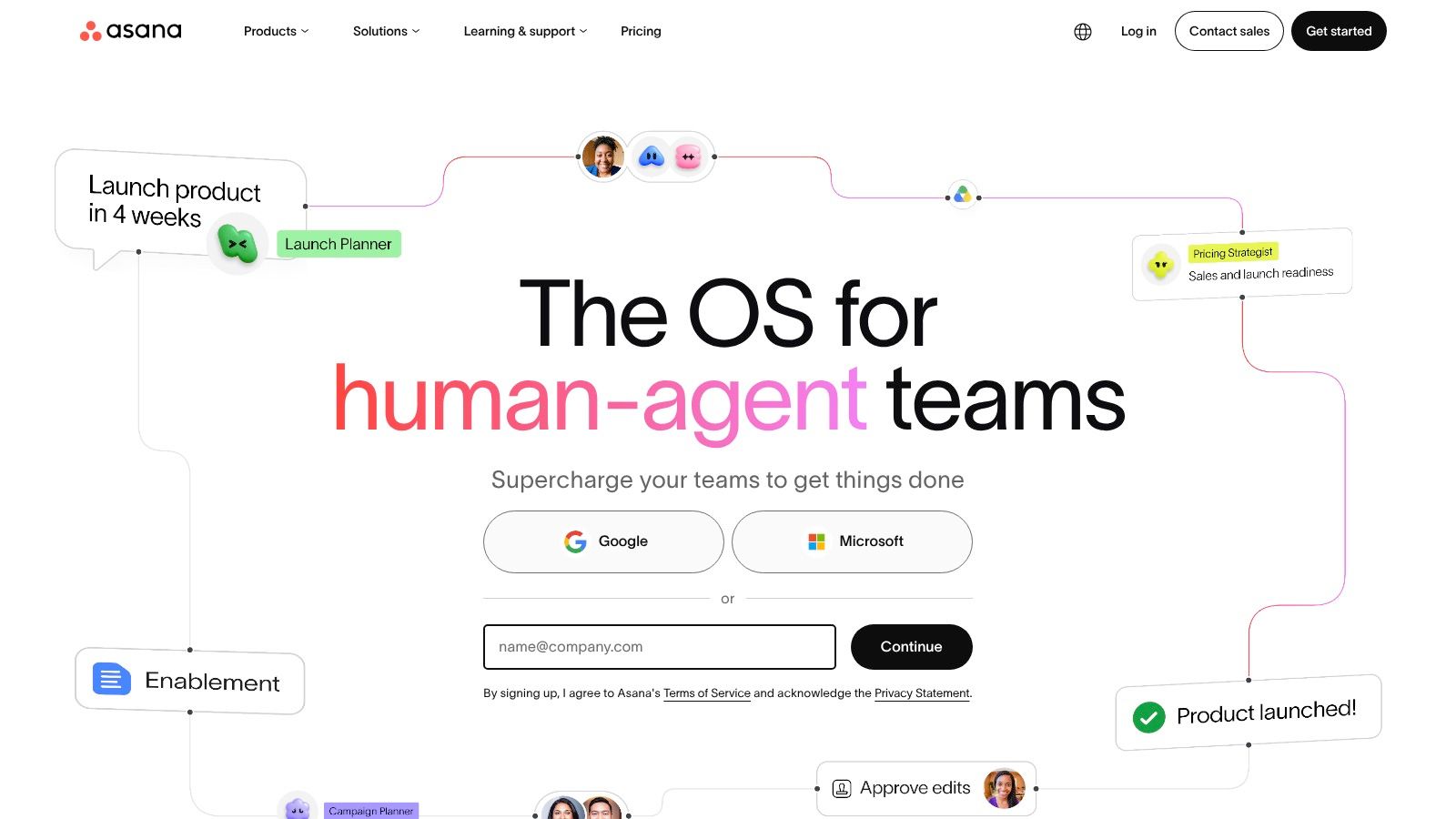
The free Personal plan supports basic collaboration. Advanced reporting and resource management call for higher tiers, and paid plans are priced per user, so match the plan to the work you need to coordinate. For a personal list of errands, Asana can be more ceremony than you need. A focused task manager will likely feel lighter.
Pick Google Workspace if your team already works in Google accounts and needs shared files that are easy to edit together. Gmail and Calendar handle communication and scheduling, Drive stores shared files, and Docs, Sheets, and Slides cover common office work. Meet and organization-level administration are also available on business plans.
The main advantage is that the pieces are familiar and browser-based. A collaborator can review a Doc, update a spreadsheet, and join a Meet without a complicated file handoff. That's particularly practical for distributed teams that need one current version rather than a parade of attachments named “final,” “final-revised,” and “really-final.”
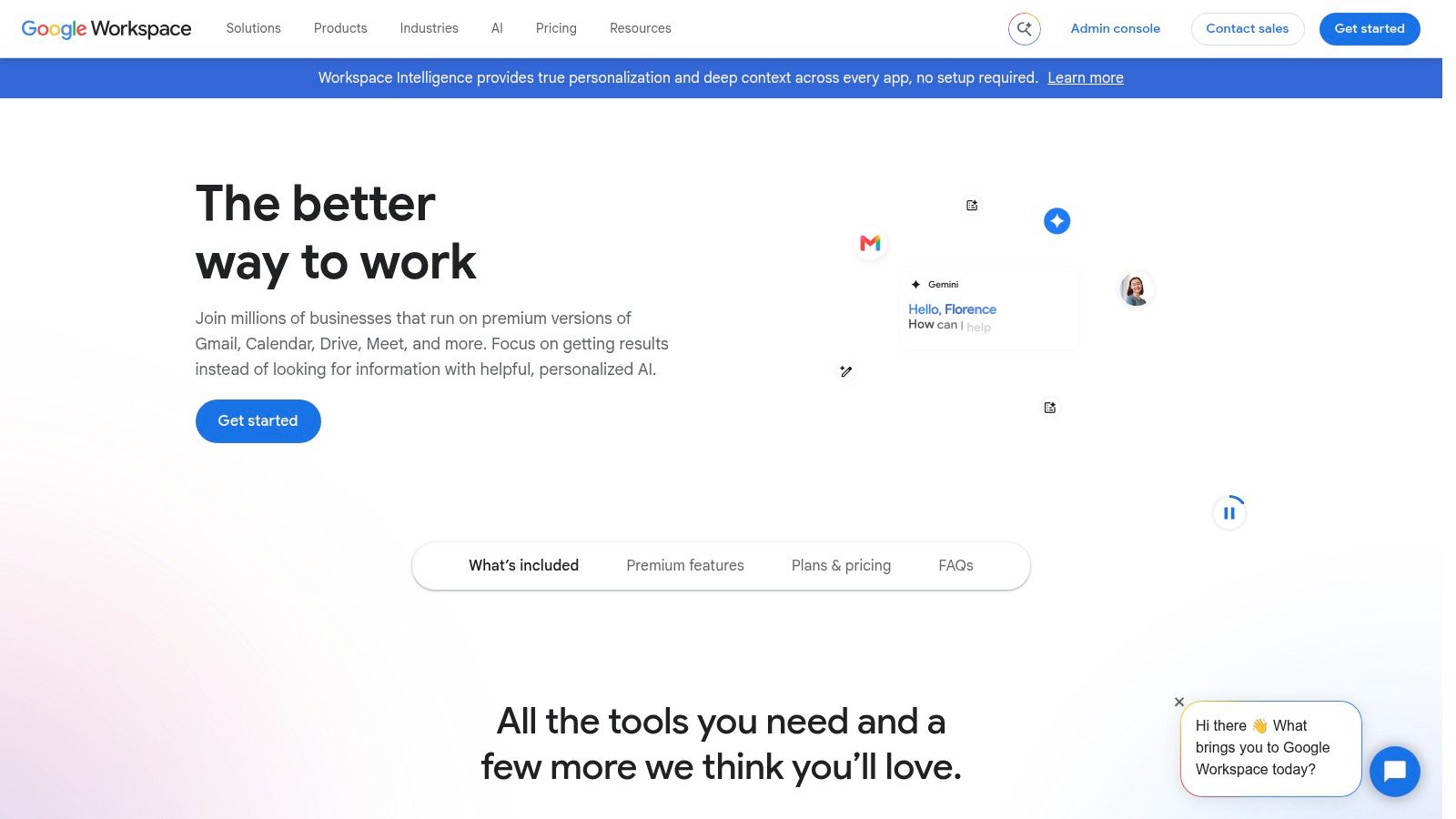
Business features and custom-domain email require a subscription, and storage and included tools vary by plan. Don't pick Workspace just because someone sent you a Doc once. If your company relies on Microsoft file formats, desktop Office workflows, or existing Microsoft administration, Microsoft 365 may fit better. Choose the ecosystem your collaborators already use, then make shared-drive and file-naming habits explicit so convenience doesn't turn into a shared folder called “Misc.”
Pick Microsoft 365 if Word, Excel, and PowerPoint files are a daily part of your job. The suite combines those familiar applications with Outlook, OneNote, cloud storage, and, depending on the plan, Teams and AI features. It supports both desktop and online workflows, which helps when your work moves between a browser, a laptop app, and colleagues who expect Office files.
The desktop applications and file compatibility are the draw. If you review detailed spreadsheets or maintain documents with established formatting, replacing that workflow just to standardize on browser-only tools may cause more friction than it removes. Microsoft's cloud productivity services trace back to the launch of Office 365 in 2011, part of the shift toward subscription software and online collaboration described in TechTarget's history of cloud computing.
Plan names and included features can be difficult to compare, and some AI functionality depends on subscription or eligibility. If you only need a personal to-do list, this suite is more than you need. If you need office documents, email, meetings, and storage, it can reduce the number of separate services you maintain. For distributed work that needs clear handoffs, here are more remote work collaboration tools.
Pick Todoist if your main productivity problem is remembering what you promised to do. It focuses on task capture, due dates, recurring tasks, projects, reminders, filters, and list or board layouts. Natural-language entry makes it quick to turn “send the draft Friday” into a task rather than opening a form and negotiating with several dropdown menus.
Todoist works for both personal planning and work tasks, with shared team projects available through its Business plan. It's comparatively easy to learn, and the free plan gives you a way to try its core workflow. The limitation is deliberate: Todoist isn't a full document library, company wiki, or advanced project-reporting system. That simplicity is useful until your team needs dependencies, detailed status reporting, or a place to keep project decisions.
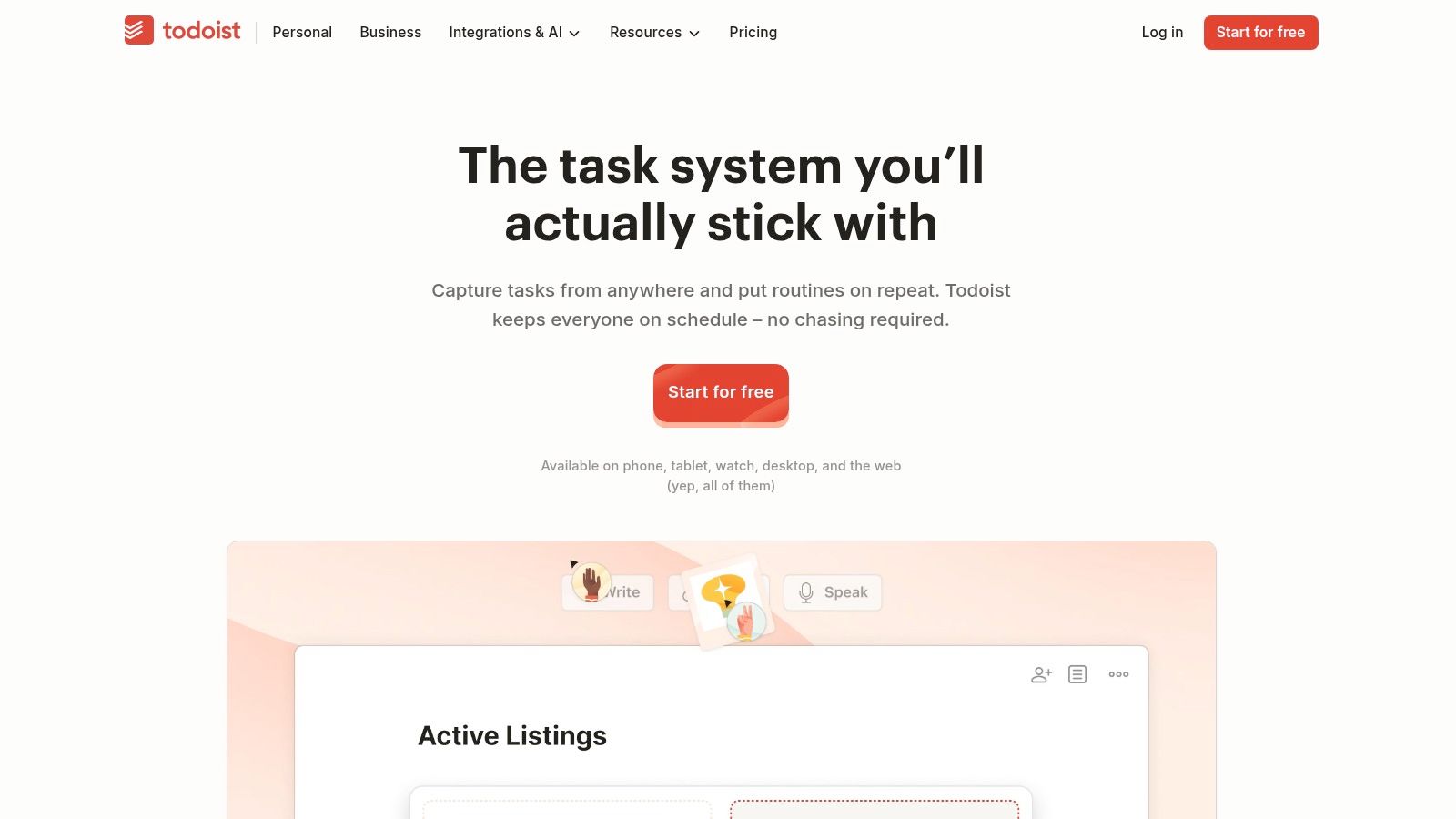
A practical setup is to keep projects broad enough to reflect outcomes, then use labels or filters only when they help you choose what to do next. Don't build an intricate taxonomy for a task list you'll stop opening. Teams that work remotely may also want to choose a complementary option from this guide to communication software for distributed teams, rather than trying to make a to-do app do the job of a shared communication hub.
Pick Trello if you understand work by looking at its stages. Its boards, lists, and cards make a workflow easy to scan, which works well for an editorial calendar, a small-team request queue, or a personal pipeline from “ideas” to “done.” Cards can include assignees and due dates, while Power-Ups add integrations and paid plans offer automation and additional views.
Trello's visual simplicity is its best feature. A new collaborator can usually understand a board without sitting through a tour of seventeen filters. Keep the workflow straightforward: one board, a manageable set of lists, and cards that state a specific next action. If every task needs extensive dependencies, detailed reporting, and multiple levels of planning, the board can become a very colorful way of hiding complexity.
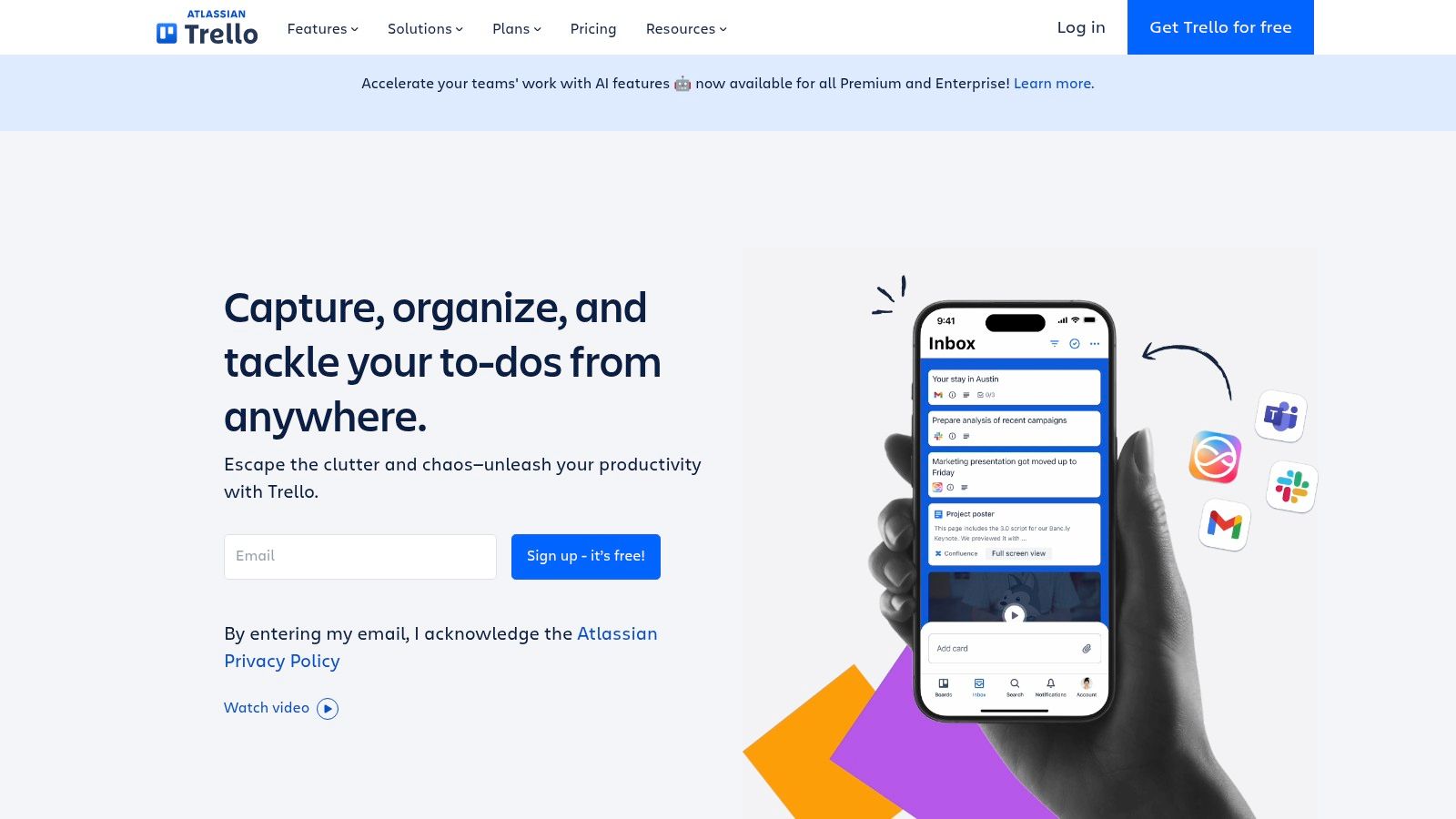
The free plan supports small workspaces, and the boards are easy to adapt to a basic process. Some views and administrative controls require paid plans, so check those limits if you're standardizing across a team. Trello is a strong choice for “what stage is this in?” It's a weaker fit when the harder question is “what depends on this, who needs to review it, and what else is blocked?”
Pick Obsidian if you want a personal knowledge base that stays accessible as local files. It stores notes as Markdown, lets you connect related ideas with links, and provides graph views for exploring those connections. The core app is free for personal use, and offline access makes it appealing when you'd rather keep notes on your device than depend on a hosted workspace.
That control comes with setup. You may want to choose community plugins, decide how to structure folders, and arrange a cross-device sync option. Obsidian's optional Sync and Publish services provide ways to extend the local setup, but cross-device sync is a paid add-on. Collaboration is also less integrated than in an online workspace designed around teams.
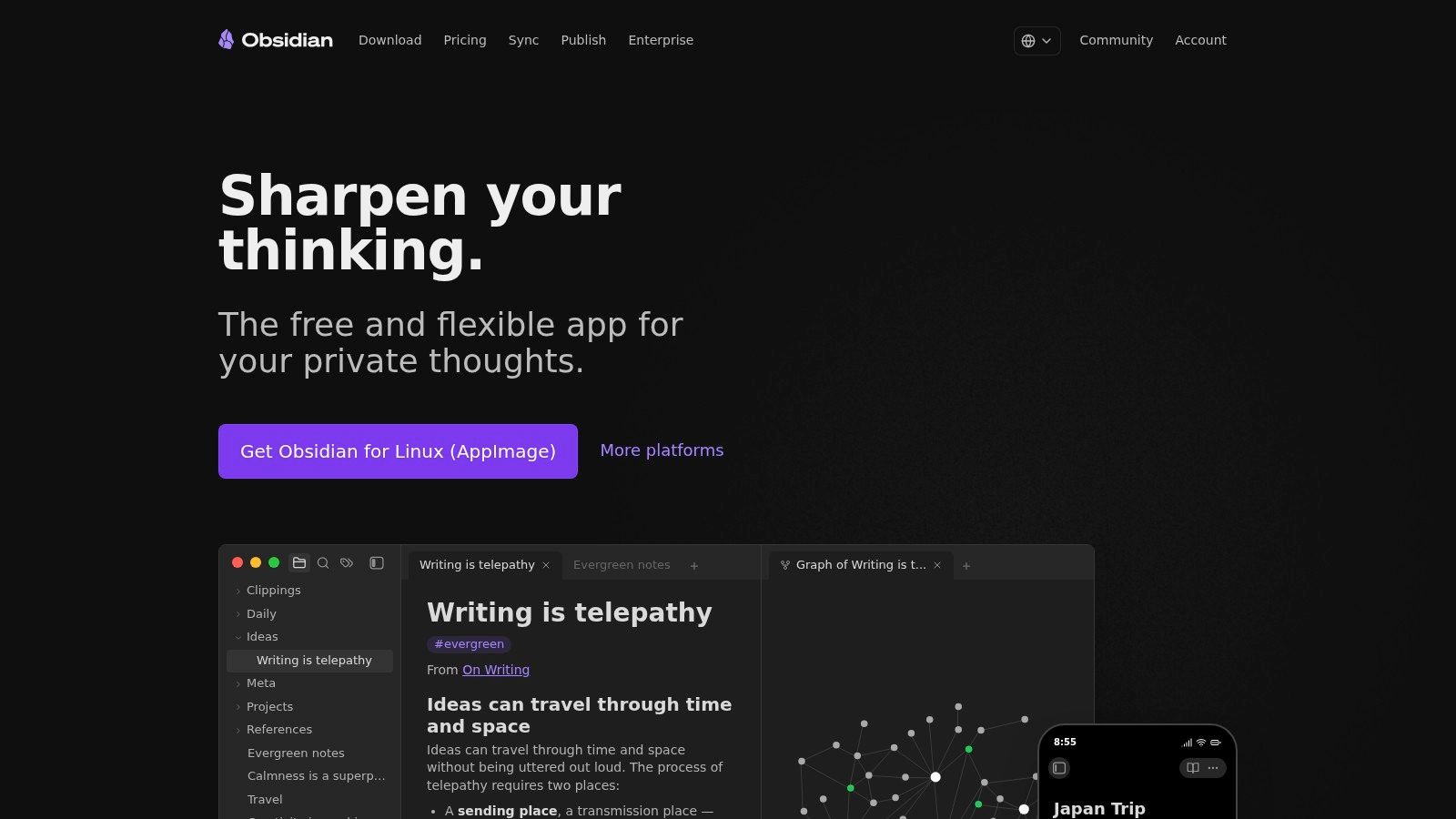
Obsidian rewards people who enjoy shaping their own system and want notes to remain plain files they can open elsewhere. It's not the easiest recommendation for a team that needs live co-editing and shared permissions from day one. If you're comparing note systems, use this guide to different note-taking apps to match the structure to your habits rather than chasing the fanciest graph.
Pick Linear if your week revolves around software issues, project cycles, and engineering priorities. It organizes work around issues and projects, with team workflows, integrations, and planning features designed to keep engineering work visible. For a development team, that focus can make it easier to move from a reported bug to a prioritized issue and an owner.
Linear is less suited to general personal productivity. Its workflows are oriented toward software development, so a marketing team looking for a broad campaign calendar may find its assumptions awkward. Reporting and some controls also depend on higher tiers. That's not a flaw so much as a reason to choose by use case: a specialized tool can feel clean because it doesn't try to be everyone's everything.
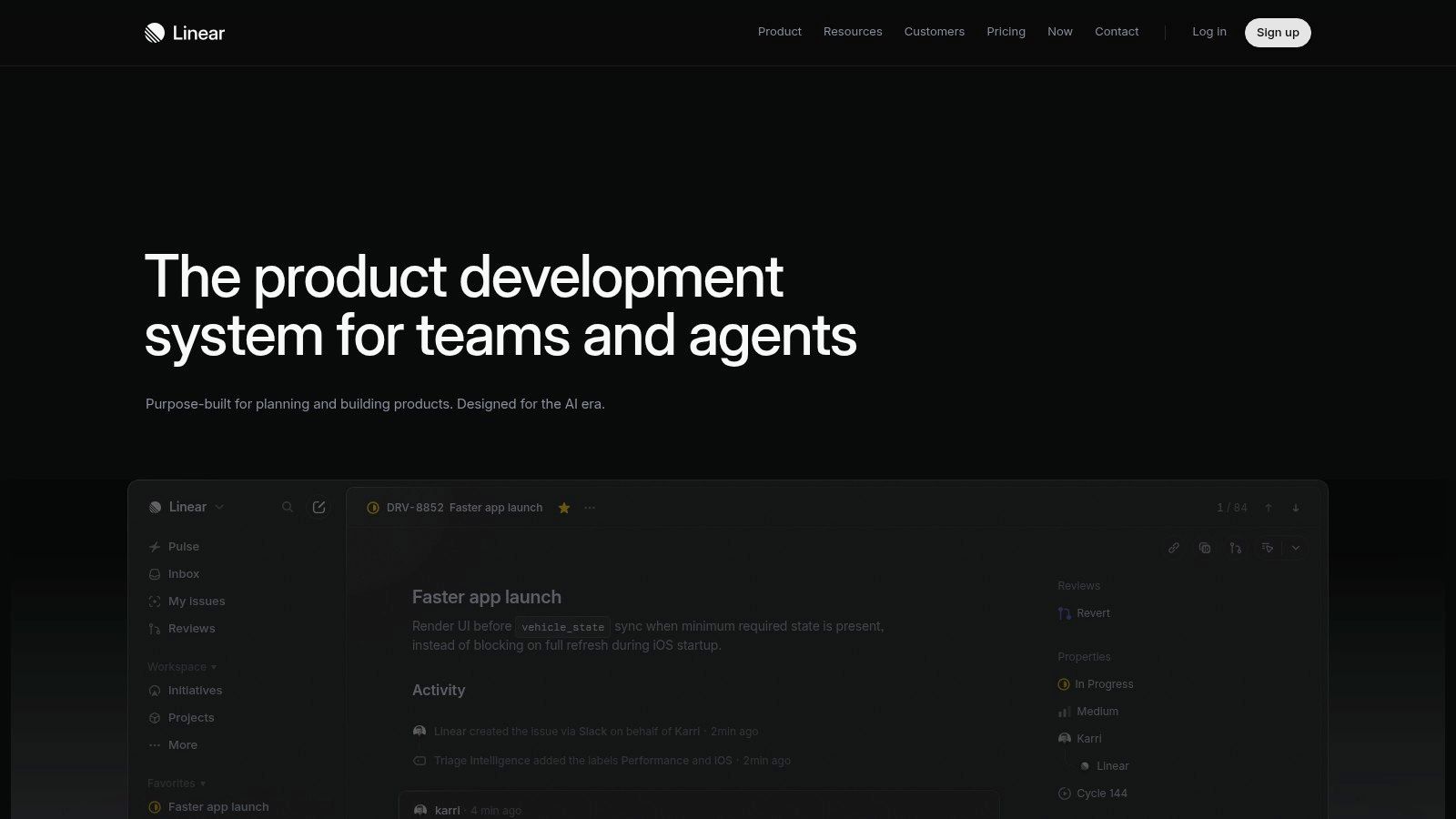
Linear offers a free plan, so a small engineering group can test how issues, projects, and cycles fit its existing process. Before migrating, agree on how work gets triaged, what counts as a project, and where product decisions live. Otherwise, the team may transfer its old confusion into a cleaner-looking interface. For engineering work, the best system is the one that keeps priorities clear without making every small fix feel like a planning summit.
The right choice depends on the work that fills your week: research, team coordination, personal planning, or software delivery. Use the “Best for” column to narrow the field, then weigh the free option against the setup each tool asks of you.
A simple task list and a configurable team workspace solve different problems. If your work crosses research, documents, creative tasks, and planning, Zemith brings AI tools for those jobs into one platform. That breadth can reduce app switching, though a focused tool may be quicker to learn when you only need one specific workflow.
Which part of your week eats the most time: keeping tasks on track, coordinating a team, organizing research, or creating documents? Choose a tool around that work, not a feature that looked exciting during a late-night comparison. Todoist fits personal follow-through; Asana, ClickUp, or Trello suit teams that need shared task ownership, with different levels of structure. Obsidian suits a private, linked knowledge base, while Linear focuses on software issue tracking. For documents and meetings, choose Google Workspace or Microsoft 365 based on the formats and accounts your team already uses.
Then check for overlap. A task list in one app, another tucked into a project platform, and a third reminder system on your phone can mean more places to check without helping you finish more. Keep tools that serve distinct jobs; remove or stop paying for duplicates no one uses.
A new tool only helps if the people doing the work know where to put information and what to do with it next.
Some weeks span several kinds of work. Research can involve web searches, document analysis, and a report; creative work might move from an idea to writing, slides, or visual assets. Zemith brings models such as Claude, GPT, and Gemini together with research, file, writing, and creative tools in one productivity-focused workspace. Its tools can also turn PDFs, links, and YouTube videos into podcasts, quizzes, flashcards, and mind maps. It won't replace every specialized task manager or team platform, so keep those where they serve a distinct job. For mixed AI workflows, though, one workspace can reduce the need to switch between separate apps at every stage.
A unified workspace helps when it makes the next step easier. Online applications already take up part of daily knowledge work, but access alone does not guarantee regular use. A Frost & Sullivan survey of 406 organizations found that 78% of the workforce used its collaboration environment for 10% or less of available working time. Telstra's collaboration report highlights the practical difference between having access and building a habit. Track whether a tool helps people finish work, not just whether they sign in.
This week, list the apps you use for tasks, notes, research, documents, and AI. Mark duplicate jobs, cancel what overlaps, and choose one tool to try on a real piece of work. Zemith offers free tools including an AI Quiz Generator, AI Flashcard Generator, YouTube Transcript Generator, and AI Translator. Explore those with a task from your week, and keep using any tool only if it earns a regular place in your workflow.
Zemith brings multiple AI models and more than 50 tools for research, documents, writing, and creative work into one workspace. To cut down on app-hopping, explore Zemith and try one of its free tools on a real task from your week.
Pay less than one AI subscription and get GPT, Claude, Gemini and more, plus 50+ AI tools.






Trusted by teams at






The top models, plus image, video and voice tools, in one plan.
Without Zemith
ChatGPT PlusUS$20.00Claude ProUS$20.00Google AI ProUS$19.99SuperGrokUS$30.00Perplexity ProUS$20.00 MidjourneyUS$10.00
 ElevenLabsUS$6.00Le Chat ProUS$14.99
 RunwayUS$15.00Kling StandardUS$8.80
 Gamma PlusUS$12.00
 Otter ProUS$16.99
 QuillBot PremiumUS$19.95
 Photoroom ProUS$12.99
 Quizlet PlusUS$7.99
Total if paying separatelyUS$234.70/mo
"I love the way multiple tools they integrated in one platform. Going in the right direction."
— simplyzubair
"The quality of data and sheer speed of responses is outstanding. I use this app every day."
— barefootmedicine
"The credit system is fair, models are perfect, and the discord is very responsive. Quite awesome."
— MarianZ
"Just works. Simple to use and great for working with documents. Money well spent."
— yerch82
"The organization of features is better than all the other sites — even better than ChatGPT."
— sumore
"It lives up to the all-in-one claim. All the necessary functions with a well-designed, easy UI."
— AlphaLeaf
"The team clearly puts their heart and soul into this platform. Really solid extra functionality."
— SlothMachine
"Updates made almost daily, feedback is incredibly fast. Just look at the changelogs — consistency."
— reu0691
Hand off the research, writing, design and follow-ups. Zemith picks the tools it needs and brings back finished work.
Search the web, run deep research, read files, create images and run code with GPT, Claude, Gemini, Grok and more.
Zemith keeps working in the cloud and pings you when it's done.
Notion, Linear, Canva, Airtable and more. It asks before it creates or changes anything.
Docs, slides, sheets and PDFs, ready to send.
Chain models and tools on a visual canvas, from one prompt to a finished promo video.
Briefings, reports and reminders run on a schedule and are ready when you need them.
Real-time voice that can see your camera or screen.
The best image and video models, in one studio.
Turn PDFs, links and YouTube videos into podcasts, quizzes, flashcards and mind maps.











 Podcast
 Quiz
Quiz Flashcards
 Mind map
 Infographic