Someone just emailed back your 18-page vendor agreement with the note, "Just fixed a couple of typos, ready to sign!" Track Changes is off. The filename is Master_Agreement_FINAL_updated_v2.docx. Now you're squinting at two open windows on your laptop, playing the world's least fun game of Spot the Difference while hoping nobody swapped Net 30 for Net 90 on page 14.
Learning how to compare two documents properly saves you from eyeballing paragraphs at 4:45 PM on a Friday. Beyond that, a good comparison isn't just a mechanical word diff that highlights every comma. It checks whether the meaning shifted, whether a single number or negation flipped an obligation, and whether formatting tweaks broke the document's structure or accessibility for the people who have to read it.
You'll get the fastest, safest results when you pair native file comparison tools with an AI review pass that helps you sort the noise from the genuine edits. Below is the exact workflow for picking the right tool, prepping messy files, checking what changed, and knowing where AI summaries shine (and where they can still trip you up).
Pick the Right Tool for Your Two Files
Start with the file formats sitting in your downloads folder, not a software feature list. Every time someone tries to shove a PDF into Word just to run a diff, formatting breaks, tables explode, and half the page turns red for no reason. Match the tool to the files first and you skip 80% of the headache right away.
For Microsoft Word .docx files, Word's Legal Blackline is the cleanest option because it generates a third document with tracked edits while leaving both originals intact. If your team works across Microsoft and Google, the Google Docs Help guide on comparing documents confirms you can compare a Google Doc directly against a .docx stored in Google Drive without converting the Word file first, as long as you open the right primary file as your baseline. For PDFs like signed forms, design proofs, or proposals, Adobe Acrobat's Compare Files documentation lays out a dedicated side-by-side workflow that places the older file on the left, the newer version on the right, and lets you jump through edits in sequence with Go to First Change.
Once a native compare produces a clean change list, Zemith's Document Assistant works as your add-on review layer for summarizing differences and pulling out action items across files. Use the breakdown below to pick your setup before you click anything.
Three Quick Scenarios to Match Your Desk
Think about what's open on your screen right now. Different files call for different moves:
- Vendor contract redline in Word: Say a supplier sends back a
.docx service agreement without tracked edits. Run Word Legal Blackline against your saved draft, especially if you're organizing deal files and choosing a data room for selling where clean audit trails and version history matter to every reviewer.
- HR policy update in Google Docs: If your ops lead edited the handbook in Google Docs while legal emailed back a
.docx copy, drop the Word file in Google Drive, open your primary Google Doc, and run Compare documents so you don't create duplicate conversions.
- Revised signed form in PDF: When a client returns a countersigned order form as a PDF, open both files in Adobe Acrobat so you catch layout shifts, checkbox ticks, and missing signature lines alongside text edits.
One trap catches people every single week: comparing a scanned PDF directly against a born-digital PDF. Because a scan is a flat image of text, the comparison engine sees character-level mismatches everywhere and flags the whole page as rewritten. Clean up scans first before you trust a single red highlight.
Prep Both Files So the Diff Means Something
Pressing compare on two messy files is like running a spellchecker on a grocery list written in the dark. You'll get plenty of red squiggles, and almost none of them will help you. Five minutes of file prep prevents hours of chasing phantom edits.
Before touching any comparison menu, look closely at your filenames and formatting. Anyone who has ever worked in an office has seen Proposal_final_FINAL_v2_clean_REAL.pdf sitting in a shared folder. That filename isn't version control, it's a cry for help. Clear naming stops you from reversing the baseline and reading every addition backward.
Why Scanned PDFs Sabotage Document Comparisons
If either file is a scanned PDF or an image-heavy export, text extraction makes or breaks your accuracy. A NIST study on image quality and optical character recognition reported character-recognition error rates ranging from 1% to 74% as print and image quality degraded. Even in NIST's controlled Federal Register image benchmark, 53% of ground-truth files had estimated error below 1%, while 17% fell between 1% and 5%.
That variation means a visually identical contract can look heavily rewritten after a sloppy scan turns 10 into l0 or drops a decimal point. Before you compare scanned files, deskew and de-noise the pages, run layout-aware OCR that keeps page coordinates, and read our guide on how to convert a PDF to text cleanly so OCR artifacts don't masquerade as legal edits.
Prep rule worth taping to your monitor: Never treat a diff on a scanned document as substantive until you spot-check two or three OCR pages directly against the original scans.
Your Five-Step Pre-Compare Checklist
Run through these five steps in order before you generate a single redline:
- Pick the baseline and mark it in the filename. Decide which version is the starting point so every addition and deletion reads in the right direction.
- Date-stamp both files clearly. Rename them with consistent version tags like
policy_v3_2026-03-04.docx and policy_v4_2026-03-11.docx so nobody opens last month's draft by mistake.
- Accept or clear old tracked changes in both files. Leftover review marks from three weeks ago collide with new edits and turn the output into visual spaghetti.
- Check shifting headers, footers, and OCR text. Changing a single date in a footer can trigger a false change on every page, and running OCR on scans lets you spot-check two or three pages for garbled characters before you compare.
- Save an untouched backup copy of both originals. Keep a locked reference copy in an
Originals folder so you always have proof of what arrived in your inbox.
Once you have two clean, labeled, untouched files sitting side by side, your comparison tool can finally show you real edits instead of formatting junk.
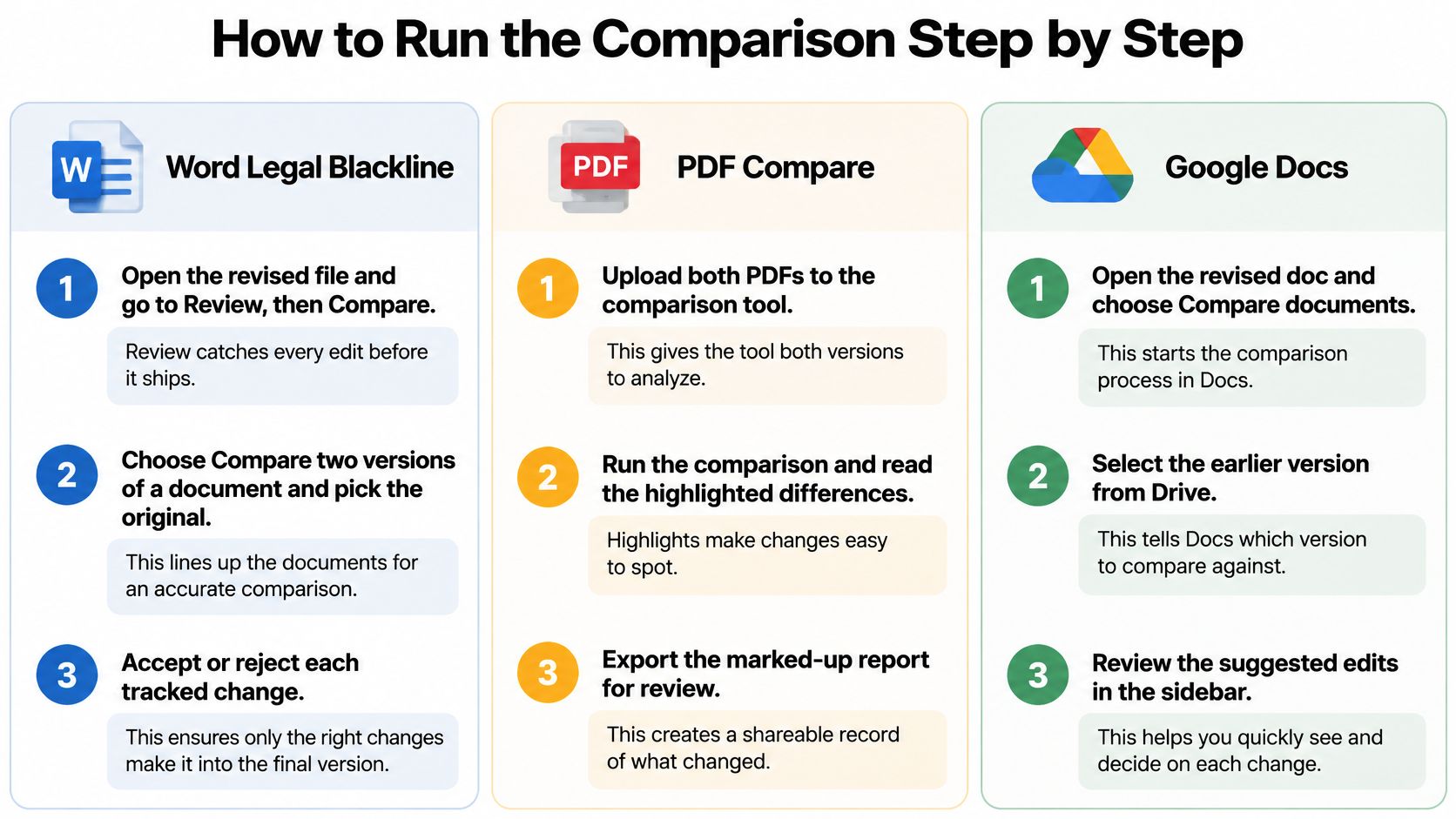
How to Run the Comparison Step by Step
A payment date flips from the 30th to the 13th, a liability cap loses a zero, and a Heading 1 drops to body text. A word-level redline will mark all three. Only the first two look obvious, and a short summary of "wording tweaks" can bury the number and the heading that a screen reader uses to move through the file.
Pick the path that matches the files in front of you. Word's Legal Blackline fits contracts, SOPs, and editorial drafts. Google Docs covers a browser comparison against a .docx. Acrobat is the one that still sees tables, images, and layout.
Compare Two Word Documents With Legal Blackline
Legal Blackline does not overwrite either source file. It builds a third document that shows every difference between the original and the revised version. If either file still holds tracked changes, Word prompts you to accept them first so the original is treated as accepted and the newer changes appear as tracked edits.
- Open the revised
.docx file and go to Review, then Compare. Starting from the Review tab puts the comparison tools in one place without digging through file menus.
- Select "Compare two versions of a document (legal blackline)." This option keeps both originals untouched instead of merging several reviewers' edits into one draft.
- Set the older file as Original and the newer file as Revised. Inserted text then shows as additions and removed text as deletions. Swap the slots and a deleted indemnity reads like a new concession.
- Review the newly created third document. Work only inside this generated file. Saving the compare over the client's original is the mistake that is hardest to undo.
Then read for meaning, not just strikeout. "Thirty" to "thirteen" is a small markup and a different deal. A heading flattened into body text may look quiet in the margin, yet it changes how the document is used.
Compare a Google Doc Against a Word File
If desktop Word is not installed, Google Docs runs the comparison in the browser. The second file needs to live in Google Drive before you start.
- Open the older baseline file as your primary document in Google Docs. Opening the earlier version first keeps suggestions pointing forward in time.
- Click Tools, then select Compare documents. The command sits below the suggested edits controls in the top menu.
- Click From Drive and pick your revised
.docx file. Docs reads the Word file directly, so you skip a conversion and the extra copies that conversion leaves in Drive.
- Open and read the generated comparison document. Every difference appears as a suggested edit in the margin. Accept or reject them one by one, and stop on any suggestion that changes a figure, a date, or the order of a list. Those are easy to click past because they look small.
If you prefer watching the clicks before you try this on a live contract, this short walkthrough shows the comparison flow on screen.
Compare Two PDF Files in Adobe Acrobat
PDFs carry layout, tables, and visual structure that a text-only pass scrambles. Acrobat's Compare Files view checks copy edits and visual shifts together.
- Open the Compare Files tool, placing the older PDF on the left and the newer PDF on the right. Left-to-right order stops you from reading a deleted clause as a new addition.
- Run Compare to generate the change report. Acrobat scans text, images, and layout blocks together so a quiet visual tweak does not slip past.
- Read the Compare Results summary and click Go to First Change. Step through the differences in order. Hand-scrolling a long agreement is how a moved table or a rewritten total gets missed.
A shifted column, a resized heading, or an image that no longer sits in a sensible reading order can change what the file means even when the sentences barely moved. Treat those hits as content.
When a run finishes properly in any of these tools, you should end up with one thing: a third comparison file saved under a clear name like Agreement_Redline_2026-03-11.docx, with both original files still sitting untouched in your folder.
Check Plain Text Versions With a Quick Diff
Not every comparison deserves Word, Acrobat, or a full project workspace. Sometimes you just want to see what changed between two email drafts, a short Markdown README, meeting notes, or a two-paragraph website bio. When formatting doesn't carry legal weight, a quick side-by-side plain-text diff finishes the job in under a minute.
If your source text is loaded with stray HTML, hidden spans, or weird rich-text styling from an email client, strip it clean first using our guide to converting rich text to plain text so invisible code doesn't trigger false highlights. Then follow a fast verification routine:
- Keep paragraph breaks intact when copying. Paste the older version into the left pane of your diff checker and the newer text into the right pane so block-level edits line up cleanly.
- Switch on line wrapping immediately. Unwrapped paragraphs force horizontal scrolling, which makes it embarrassingly easy to miss a changed number hiding off the right edge of your screen.
- Scan every red and green marker from top to bottom. Never stop after the first screen; copy any meaningful change into a scratch note and verify it against the original file.
Know where this shortcut breaks down. Copying text out of a PDF strips tables, multi-column layouts, and heading hierarchy, making a clean document look like someone shook it in a blender. Stick to native tools for anything with layout, keep both originals open while you check, and never paste confidential contracts, NDAs, or customer data into a random browser diff site you haven't vetted.
Sort the Changes That Actually Matter
Running a diff is only half the job. A comparison tool can happily flag dozens of edits while hiding the one change that costs you money, breaks compliance, or confuses your reader. To triage like a pro, borrow two simple concepts from information retrieval: recall and precision.
In the NIST TREC evaluation measures appendix, recall measures the share of real differences a method catches, while precision measures the share of flagged items that are real. Say two drafts have 100 true differences and your comparison catches 80 of them: that's 80% recall. If the tool flags 90 items total and 10 of those are harmless false alarms, your precision is roughly 88.9% (80 divided by 90).
That trade-off shapes how you review. Legal contracts, regulatory filings, and research reviews demand high recall because missing one silent clause hurts far more than skimming a few noisy alerts. A quick operational fix list for a busy manager favors high precision, so every bullet on the page requires a decision.
Check Meaning and Accessibility Not Just Words
Most comparison tutorials treat reviewing changes as a pure word-by-word hunt. That misses half the picture. A document can keep the exact same visible words while becoming broken or unusable because someone flattened a heading level, scrambled reading order, deleted a table column, or replaced descriptive links with vague labels.
In October 2025, Canada published CAN-ASC-3.1:2025, its first national plain-language standard, defining effective communication by three practical outcomes: the intended audience must be able to find, understand, and use the information. Treating your review as both a semantic change log and an accessibility-impact check catches problems that standard redlines ignore, like broken screen-reader navigation or dense rewrites that tank comprehension.
A document that says the exact same thing in harder-to-navigate structure isn't unchanged. For a reader using assistive tech or scanning on a tight deadline, it's broken.
When you're reviewing heavy financials or reconciling quarterly report sections, structure and numbers carry equal weight. Use this triage matrix to check every category of change before you sign off:
Run a Fast Three-Bucket Triage
Try this quick interactive check on your next redline: pick the first ten flagged changes and force each one into one of three buckets before writing a single comment.
- Must review: Any edit touching numbers, dates, units, legal modals (
shall, may not), pricing tables, or broken headings. Verify every single one against the baseline.
- Check: Wording rewrites, moved paragraphs, and updated link text or image captions. Read them in full context to make sure tone and clarity held up.
- Ignore: Pure spacing tweaks, margin nudges, or font swaps, once you confirm no footnote or line got pushed off the page.
If you're doing this across dense contracts every week, building an AI document review habit helps you sort those buckets faster without losing track of what still needs human eyes.
Use AI to Summarize Changes Across Files
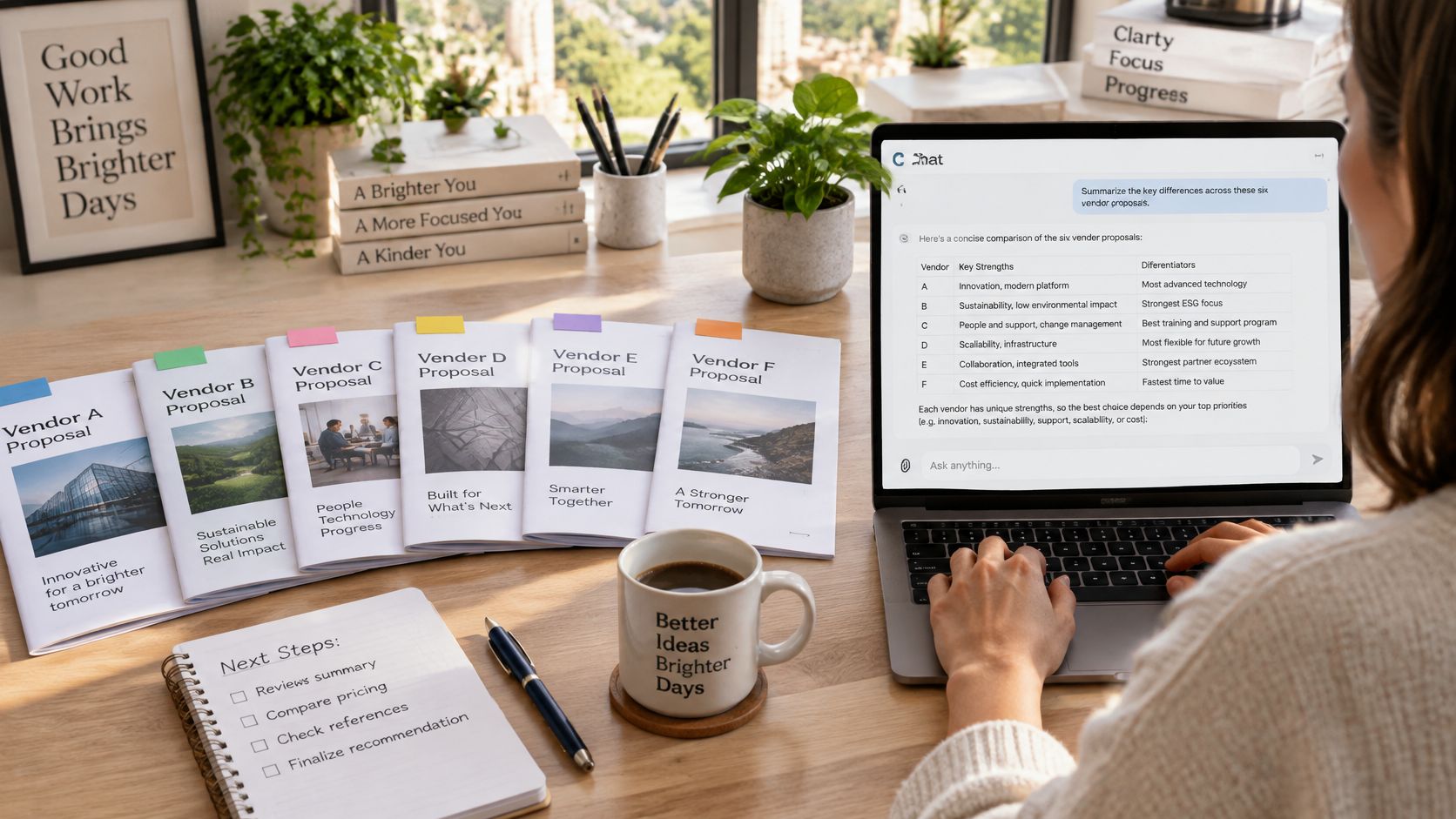
Comparing two short drafts by hand is fine. Comparing six vendor proposals, three addenda, and an updated master agreement before a noon budget meeting is a completely different sport. That's where an AI assistant earns its keep by turning a mountain of text into an organized change table in minutes.
In Zemith, you don't have to copy-paste 40 pages into a tiny chat box. To chat with a PDF, you open Library, add the PDFs to a project, and ask questions directly in the chat. Because chat answers are based on the files in the project where you ask the question, keep only the exact drafts you're comparing inside that project so old versions don't pollute your review.
Prompts That Actually Pull Useful Differences
Vague prompts like "What changed?" give you vague summaries. Ask targeted questions that force structure and citations, or pair them with a dedicated document summary tool workflow:
- Track commercial risk: "List every change to payment terms, renewal dates, and cancellation fees, with exact section numbers."
- Bucket the edits fast: "Group all differences between v1 and v2 into three categories: legal obligations, pricing, and wording only."
- Compare multiple vendors at once: "Build a side-by-side table of pricing, delivery deadlines, and warranty terms across these three proposals."
Why You Should Still Challenge the AI Output
AI saves huge amounts of reading time, yet trusting an AI summary blindly is a fast way to approve a bad deal. Research on automated comparison has shown for decades why no single score tells the whole story. The TREC 10 evaluation framework evaluates retrieval systems using roughly 85 metrics per run specifically because one similarity percentage can look reassuringly high while completely missing reordered paragraphs, deleted clauses, or subtle paraphrases.
Modern language models hit a related snag when they zoom out too far. Findings around PAN's plagiarism-evaluation benchmark in the ACL Anthology, which covers 64,558 artificial and 4,000 simulated plagiarism cases, highlight why document-level vector comparisons without passage alignment average unrelated sections into a misleadingly moderate score. In plain English, an AI summary can smooth right over a single changed digit or drop a "not" in an indemnity clause.
Verify the high-stakes tokens yourself: Let AI find the candidate differences and organize them by theme, then verify every number, date, unit, and negation against the original PDF with your own eyes.
Keep your AI comparison workflow tight and repeatable:
- Add only the relevant versions to one project in Library. Clean inputs prevent cross-draft confusion.
- Prompt for changes grouped by category and section number. Asking for section labels makes spot-checking fast.
- Verify the top high-impact items directly against the source files. Confirm every dollar figure, date, and obligation before forwarding the summary to your boss or legal team.
Send Back a Clean Version You Can Trust
Before you hit send on a redline or executive summary, take two minutes for a final sanity check. Nothing kills credibility faster than emailing back a "clean" contract that still has your internal margin comment reading "Are they serious with this price?"
Run through this quick sign-off before closing the folder:
- Originals locked and untouched: Both source files sit safely in your archive, ready if anyone disputes what arrived first. If your team needs cleaner habits for storing version histories and final agreements, browse the record keeping guide for practical naming and retention rules.
- Must-review items verified: Every edit in your must-review bucket has been checked word-for-word against the source, including every number, date, and negation pulled from an AI summary.
- Accessibility and clarity intact: Headings follow logical order, tables still have matching row and column counts, and links describe where they go. If you're polishing the revised text yourself, our tips on how to edit writing will help keep the final draft crisp.
Next, pick the deliverable your audience wants: a tracked-changes file for the other side's lawyer, a one-page executive summary for your manager, or an action checklist for your team. When you need that output packaged and ready to ship, Zemith's agent can take documents or spreadsheets you provide and return a finished Word document, PDF or deck. Specifically, Zemith can produce finished Word (DOCX), PowerPoint (PPTX), Excel (XLSX) and PDF files that are ready to send.
Here's a friendly challenge for this week: grab one messy pair of files currently sitting in your downloads folder (yes, even Budget_Final_v7_REALLY_FINAL.docx) and run it through the prep, native compare, and AI triage steps today, before version 8 lands in your inbox.
Ready to turn messy document revisions into clear summaries, side-by-side vendor tables, and send-ready reports without juggling five different apps? Add your contracts, policies, or PDFs to a project in Zemith to chat directly across your files, flag key differences by category, and export polished DOCX, XLSX, PPTX, or PDF deliverables in one workspace.













 MidjourneyUS$10.00
 ElevenLabsUS$6.00
 RunwayUS$15.00
 Gamma PlusUS$12.00
 Otter ProUS$16.99
 QuillBot PremiumUS$19.95
 Photoroom ProUS$12.99
 Quizlet PlusUS$7.99













 Podcast
 Quiz
 Flashcards
 Mind map
 Infographic